
Written: 14/08/2022 | Updated: N/A
A few years ago, I used to attend lot of sessions called Ask Me Anything’s (AMA) on the Microsoft Tech Community. These were great because if you weren’t an MVP or part of a big partner organization it gave you access to the product team to ask about upcoming functionality and roadmap items. I remember asking about Teams’ default download location in a few of these sessions and if this could be modified. The answer was always ‘no’ or ‘this is something on our backlog’. But the reason I went on about it was because downloads in the desktop client were going local – not to the cloud and that was something which couldn’t be modified. Downloads weren’t picked up on OneDrive Known Folder Move (KFM) and the inflexibility of a fixed location was always a negative. You had to resort to manually moves. Your desktop and web client were always out of kilter. Nowadays? You probably could have done it with RPA but that isn’t really an answer for why functionality wasn’t already built into the desktop. It’s here now – at least on the desktop client for Windows in public preview.
Let’s go
This blog will cover
- Enabling Private Preview
- Setting the download location
- Setting Teams to ask the download location
- What about Teams Web App?
- Conclusion
Prerequisites
- Teams Licence (Within Microsoft 365 Licence) for testing
- Teams Desktop Client 1.5.00.21463 (64-bit) and above
- At the time of writing this appears in Public Preview (Ring 3.6)
Note: This is showing in the Desktop App on Windows in public preview. Other clients may be different or not have the functionality at the time of writing. The functionality may not show in your tenant if it hasn’t rolled out to yours even in preview. In mine it showed in 1.5.00.21463 (64-bit) and that was after I manually updated it today (14/08).
ENABLING PUBLIC PREVIEW
The ability to set the download location is currently in public preview, and this will mean that a Teams or Global Administrator will need to enable it within the Teams Admin Centre. Read an article which can help you do that – apply the Teams update policies to the required users within the organisation (either directly assigning the policy, by batch, by a custom policy package or group via PowerShell) and have the users enable the public preview within their Teams Desktop clients.
SETTING THE DOWNLOAD LOCATION
1.) In the Teams Desktop Client, in the top right-hand corner next to your Avatar select More Options (…)

2.) Select Settings

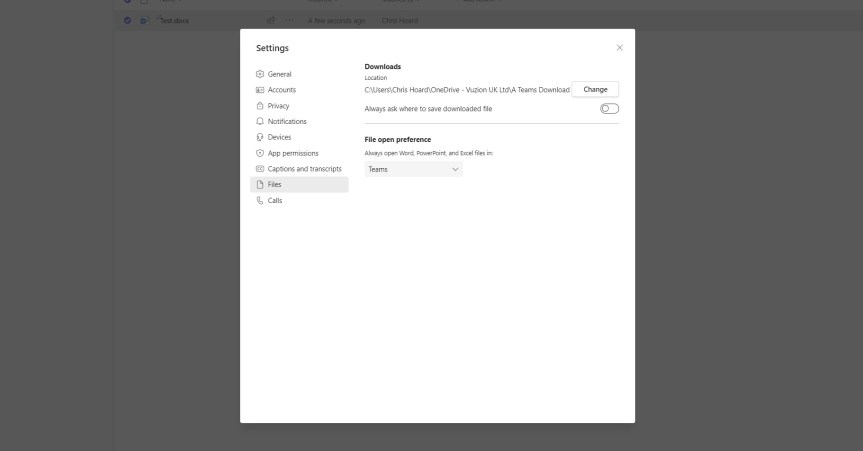
3.) In the settings, select Files
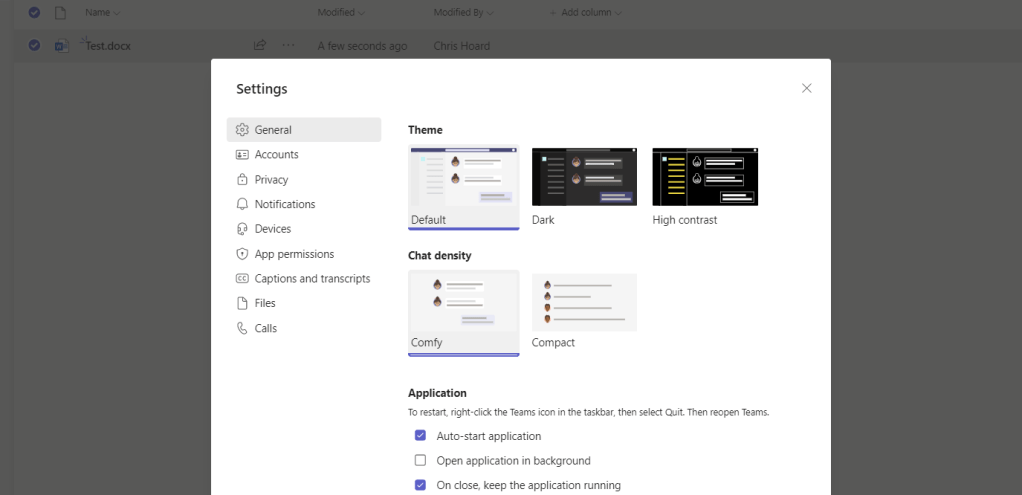
4.) The default download location shows as Downloads. Select Change

5.) Select the folder to download to. This example is a folder called A Teams Downloads within OneDrive
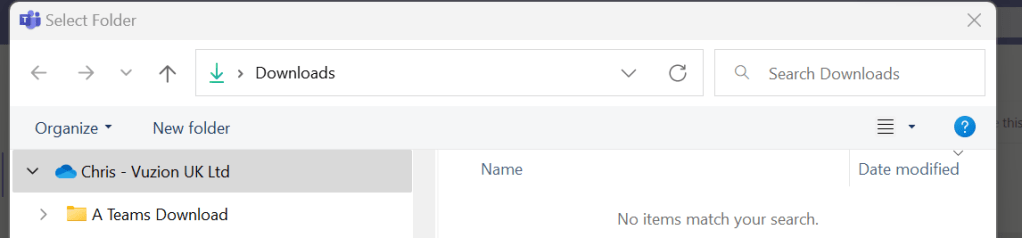
6.) The default download location is now set
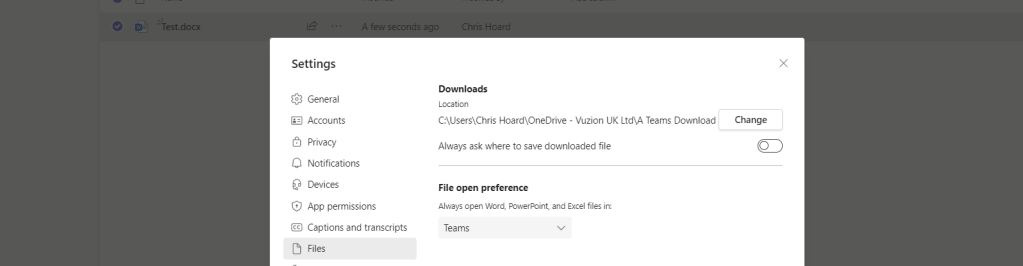
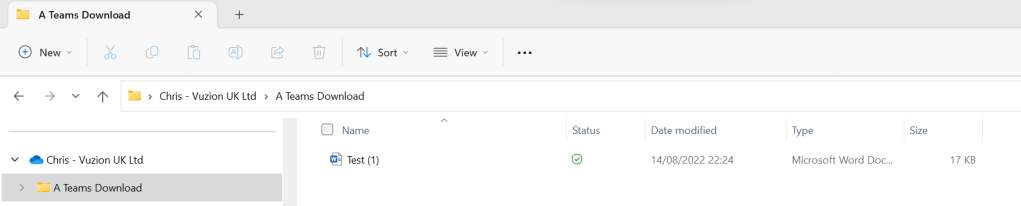
7.) Now when downloading files are saved to OneDrive
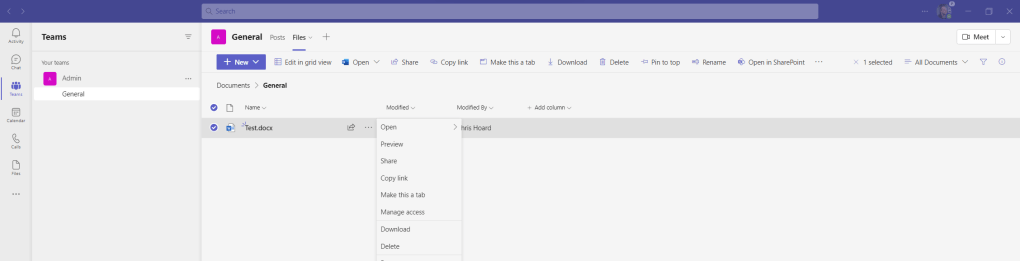

8.) Check OneDrive to confirm
SETTING THE TEAMS DESKTOP CLIENT TO ASK FOR THE DOWNLOAD LOCATION
If you didn’t want to have a static location for the download from the Teams Desktop Client, you can make it dynamic and ask. This is useful in cases where you are downloading to multiple folders.
1.) In the Teams Desktop Client, in the top right-hand corner next to your Avatar select More Options (…)
2.) Select Settings
3.) In the settings, select Files
4.) The default download location will be what it set. However, swipe on Always ask where to save downloaded file

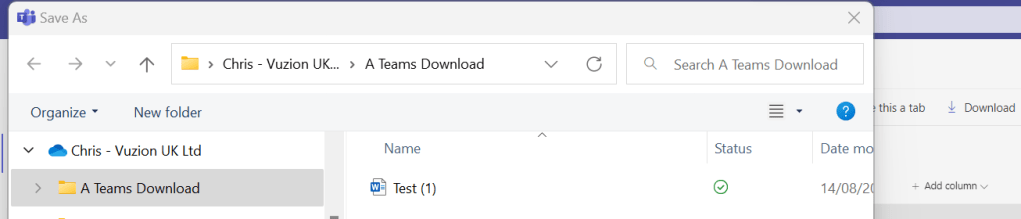
5.) The outcome is that when a file is saved, whilst it will default to your default download location, you now have scope to amend that in the flow of the work
WHAT ABOUT THE TEAMS WEB APP?
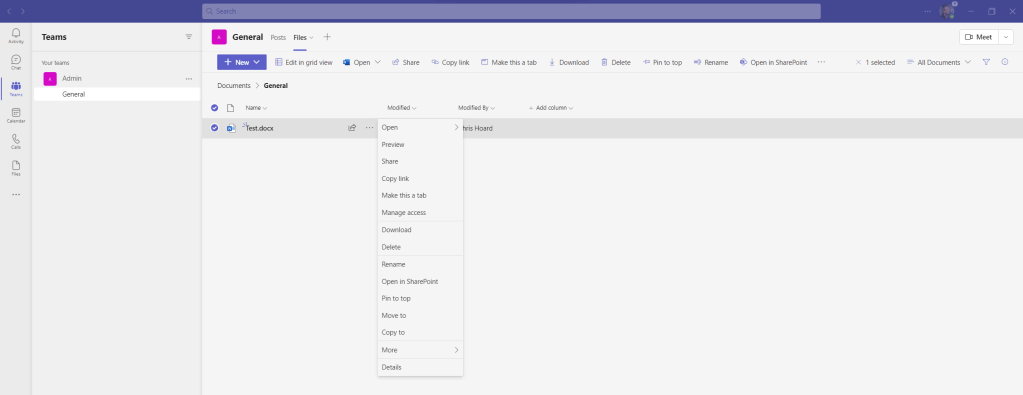
The Teams Web App at https://teams.microsoft.com is determined by the download location specified in the web browser. This is an example using Edge on Windows (Version 103.0.1264.77 at the time of writing). Other browsers and versions may vary
1.) Here is a file in Teams used in the example above

2.) Select More Options (…) in the web browser then Settings

3.) In the edge://settings/profiles page select Downloads

4.) Select change to modify the default location (here Downloads)
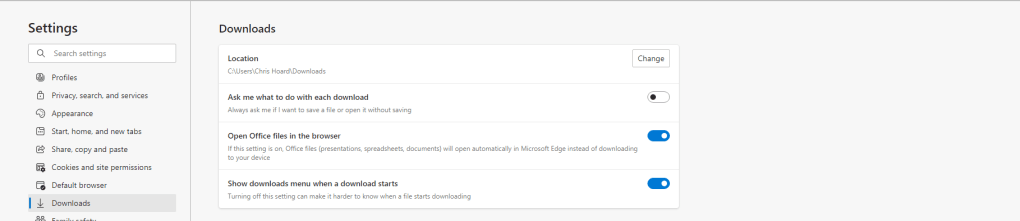
5.) Again, in this example this is modified to the OneDrive folder created above

6.) The download destination is amended to OneDrive. Like the Teams Client, this can also be set to ask where the user wants to download to if required

CONCLUSION
This is a very small add. It’s not even that much of a technical add if it could even be included within that bracket. Yet what it does do now is give users the flexibility to save everything in their Teams Desktop and Web clients into a place of their choosing, or into OneDrive and the cloud. This means users will no longer have to manually move things that have been downloaded from Teams onto their local machine, nor worry – if they move it to OneDrive – about incurring a hardware fault. It also means the download location can be aligned between desktop and web making it easier to remember. However, do remember this has been tested on Windows in Public Preview. Hopefully it will also be rolling out to Mac’s and Linux at the same time, however these were outside the scope. So overall a great addition. A great add on top of this would be to have some kind of centralised control on the functionality, as in, the download location in the client can be modified via PowerShell remotely or via the TAC or even locked to a location of the admin’s choosing such as OneDrive. The asks for these, like voice, will inevitably come.
 @Microsoft365Pro
2 thoughts on “Teams Real Simple with Pictures: Setting your Download Location in the Teams Desktop Client”
Comments are closed.