
Note: This blog is now archived, and has been kept purely for historical and reference purposes. Updated blogs on this subject may appear on site in the future.
This blog is part of a series on Teams. For more articles, check back often
Written: 04/09/2022 | Updated: N/A
This week I am off to Ireland in person for the first time since the pandemic. Exciting. But I have a ton to get through. My own conference Metaverse One is on Wednesday (please feel free to register it’s 100% free to attend), speaking at Microsoft Ireland is on Wednesday, and to top things off I have Bizz Summit on Saturday. So yeah. Full on. This week is going to be something short and it’s another enquiry I got from the Microsoft Tech Community a few weeks back. It was as follows: I can’t remove a person I want to from the org chart in Microsoft Teams. So how do we do it? Seemed a pretty fair question: people move in organisations all the time, and it’s unlikely Microsoft would set a functionality which couldn’t be modified. Not of this nature. But the thing was I knew how to do it and was pretty familiar having deployed Azure AD hundreds of times in the past in addition to reviewing Profile+ some time back which is also dependent on this functionality. So how do we do it?
Let’s go
This blog will cover:
- The issue
- Removing a user from the org chart
- Modifying a user in the org chart
- Turning off the org chart
Note this blog may have some abridged steps which will assume some experience with a Microsoft 365 environment and Teams
Prerequisites
- Global Administrator, or a role which has access to Azure AD
- Teams Licence (Via Microsoft 365/Office365 Licence) for testing
THE ISSUE
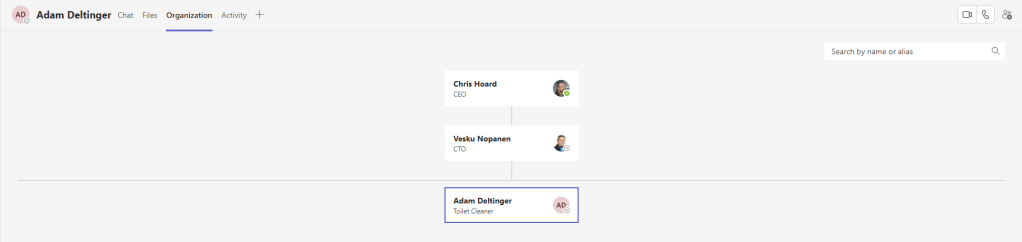
The issue the user had was not being able to remove a user from the org chart in Teams. In other words, that user had either left or moved horizontally and did not report to someone in the org chart anymore. Now, in Teams the Org Chart is usually found within Private Chats under the tab Organisation

You can also access the org chart via someone’s profile card.

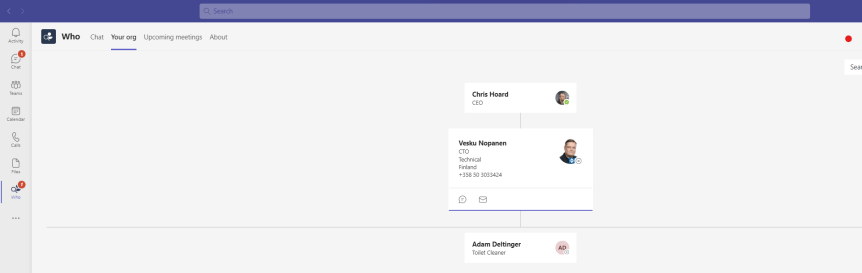
You can also see it in the Who Bot

So, let’s take this tangible example. How would I remove Adam from this org chart given there is no access in Teams to do so
REMOVING A USER FROM THE ORG CHART
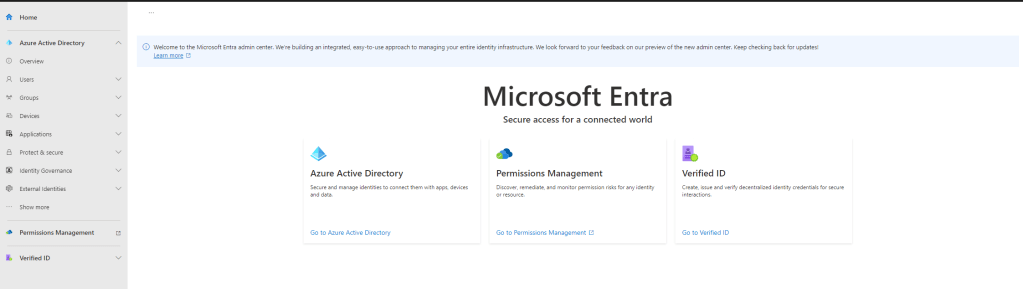
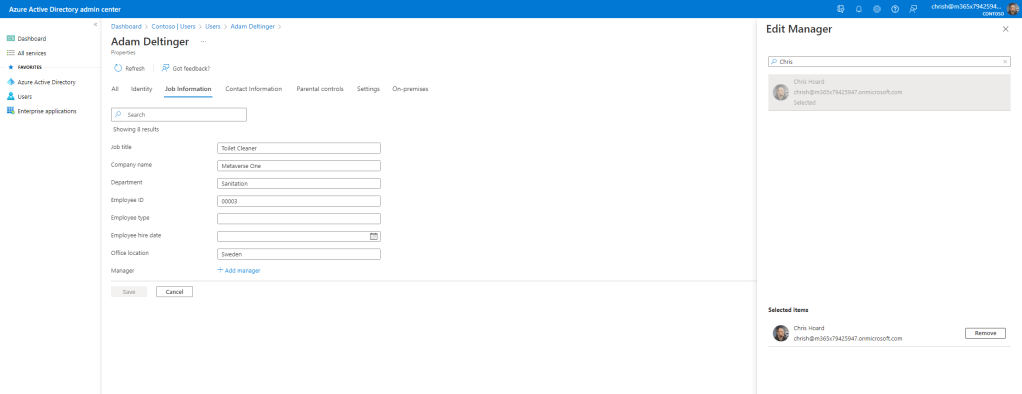
1.) Login to https://entra.microsoft.com

2.) Under Azure Active Directory select Users
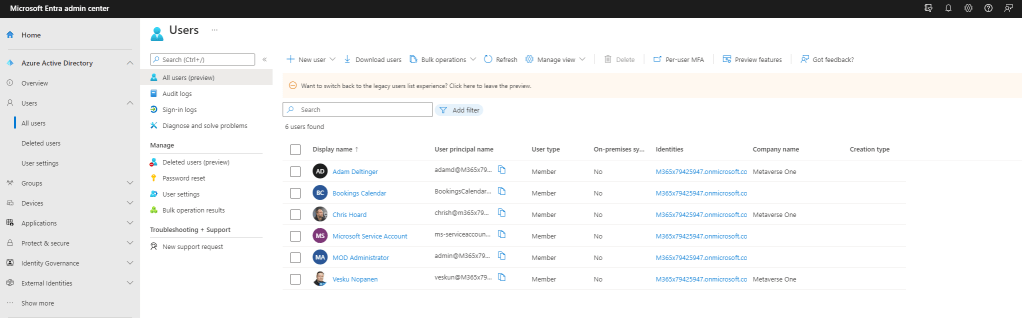
3.) Select All Users

4.) Select the person to remove from the org chart
5.) Select Properties
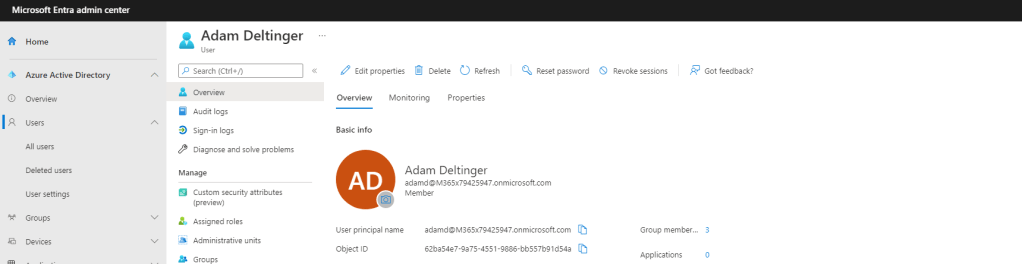
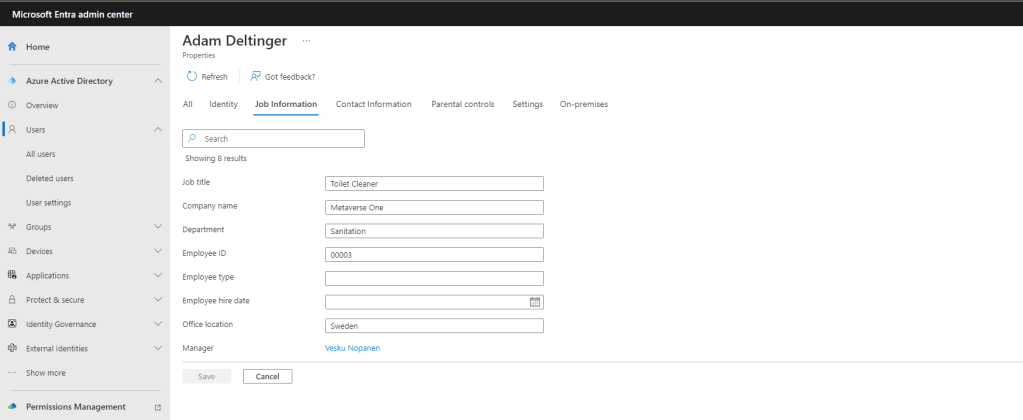
6.) Next to Job Information select Edit
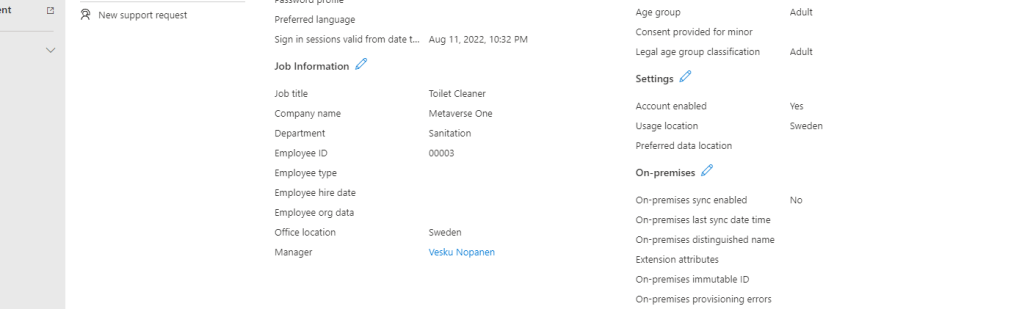
7.) Select The Manager
8.) Select Remove then Select
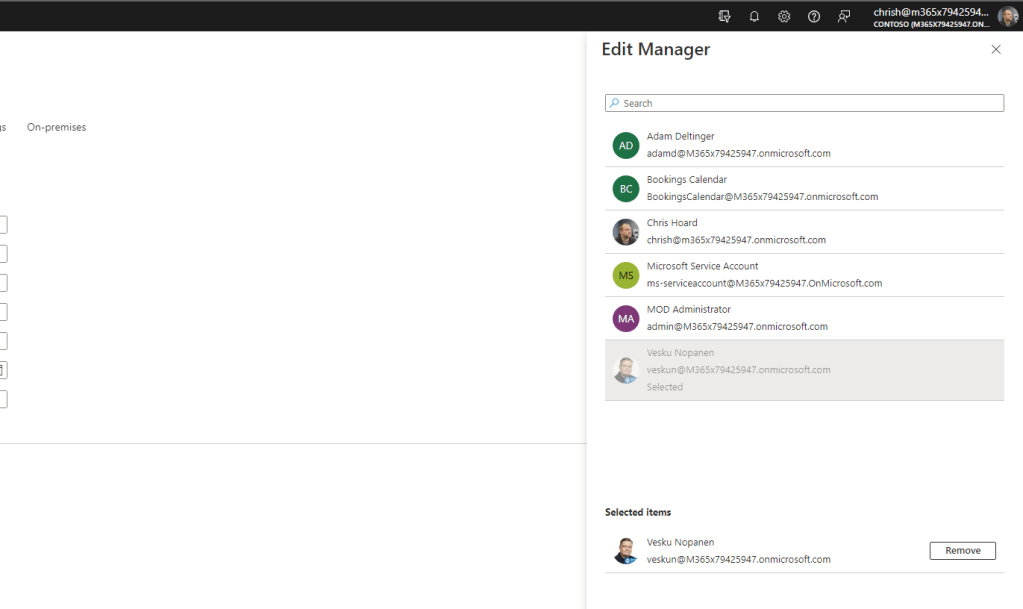
9.) Now the manager is gone, select Save

10.) Now return to Teams and look at the org chart where Adam was previously reporting. Adam is no longer there in the org chart.
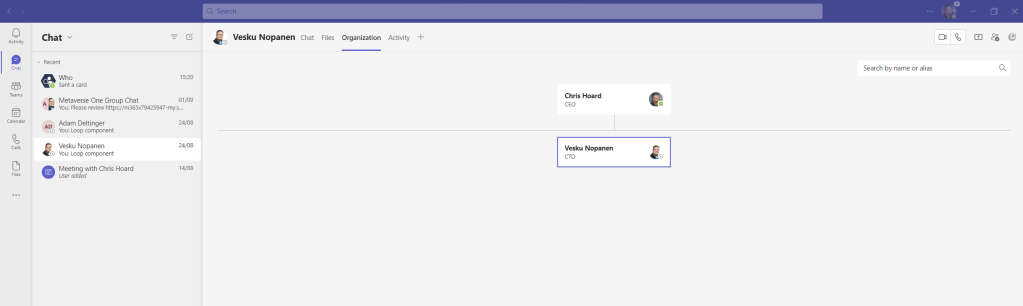
11.) As Adam has no manager, organisation view no longer exists
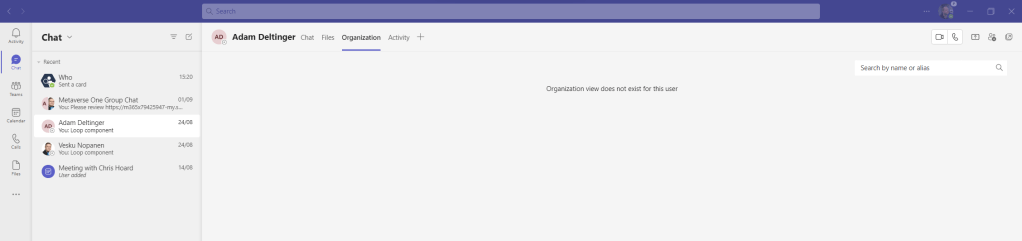
12. Job done 😀
MODIFYING THE USER IN THE ORG CHART
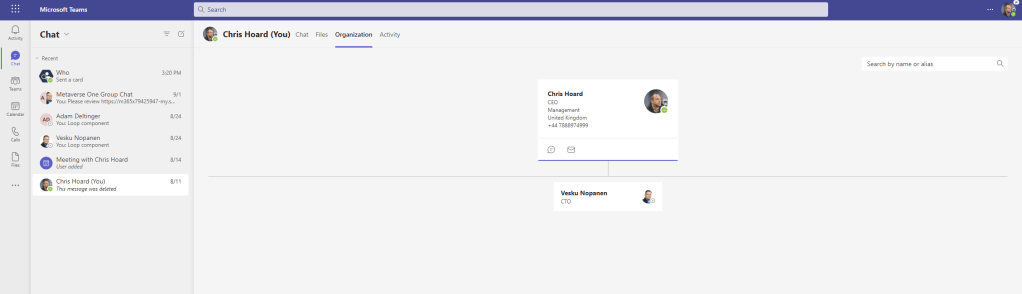
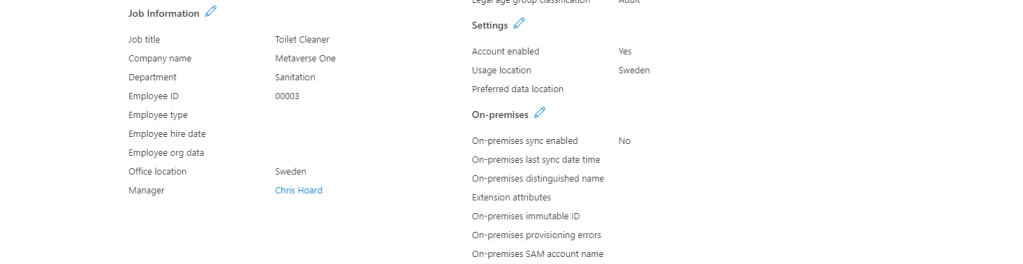
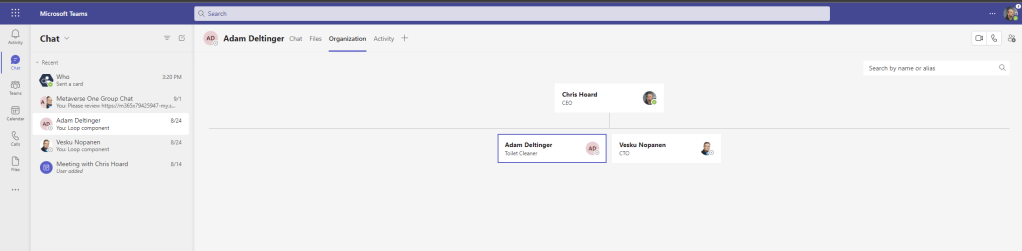
So, let’s take another situation, let’s say that Adam was just moving out under Vesku and would be directed reporting into me. In Azure AD you would simply change the manager’s name instead of removing them and then the org chart will change as follows
NOTE
An Azure AD user’s manager can also be modified via PowerShell using
- Set-AzureADUserManager (Add or Change)
- Remove-AzureADUserManager (Remove)
TURNING OFF THE ORG CHART
This can be done partially through disabling the organisation tab in the Teams Admin Centre which is under Teams Settings

However, this will not stop it from surfacing elsewhere, such as Who Bot. The only way to completely remove the org view within Teams is to remove Managers off all Azure AD users

 @Microsoft365Pro
One thought on “[Archived] Teams Real Simple with Pictures: Removing and Modifying users appearing in the Org Chart”
Comments are closed.