
This blog is part of a series on Teams. For more articles, check back often
Written: 11/09/2022 | Updated: N/A
Teams now has over 1,700 apps which are integrated and available to manage via the Teams Admin Centre. This is scary because – to me at least, I can measure the passing of time based upon that number. I can remember saying in one conference that Teams has over 300 apps. In another, Teams has over 500 apps. 700. 1000. You get the picture. And in that time, we’ve seen functionality introduced such as permissions and app setup policies, the ability to block apps, the ability to control custom apps. We’ve seen attestation, app settings, the ability to buy subscriptions for apps via the TAC and a complete facelifting of the store to which you can now customize. This week I am going to look at a new functionality for users needing to request use of a blocked app. Back in the day – when an admin blocked an app – that app would simply disappear from the app store altogether. Microsoft changed this experience because if the apps disappear completely, they posit it actually encourages Shadow IT and self-sign up outside of the ecosystem leading to sprawl, data leakage and issues with data sovereignty. So, the current experience as it stands is that users can now see the blocked app; but request it from the admin. The admin then has to permit it use. Now, the new functionality we are concerned with allows the admin to set a workflow to direct the user to an external system to perform the request as opposed to it running through Teams. With such a detailed explanation you may think this sounds like niche functionality, but actually this is quite an important part of governance. We are fixing one problem with visibility, but we also need to make it easy for admins and organisations to make a judgement call on the use of that app.
Let’s go.
This blog will cover
- Requesting access to a blocked app through Teams
- Requesting access to a blocked app through an external system
- Building on the solution
Note: this blog may have some abridged steps which will assume some experience with Teams. Also note at the time of writing the ability to hide apps in the Teams store is expected to return next year, and the current understanding is that this will be configured by PowerShell
Prerequisites
- Teams Administrator or Global Administrator (permissions to manage Apps in the TAC)
- Teams licence (within Microsoft 365/Office 365 licence) for testing
REQUESTING ACCESS TO A BLOCKED APP THROUGH TEAMS
Let’s look at the out of the box experience first
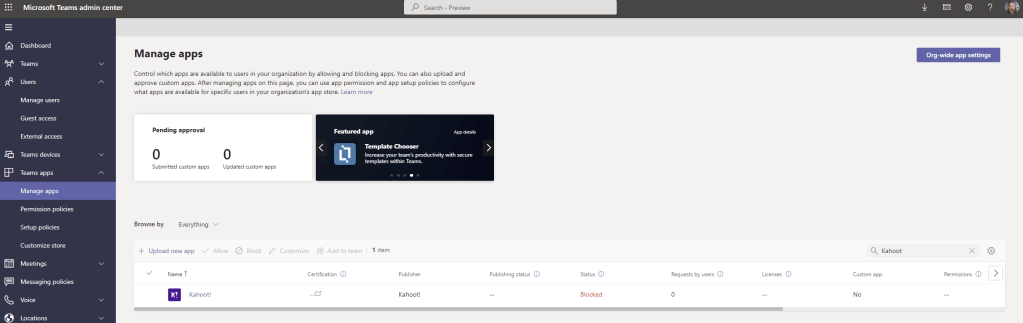
1.) As the administrator, in the Teams Admin Centre select Teams Apps then Manage Apps. Search for an app and then Block that app. As shown, the app Kahoot has been blocked
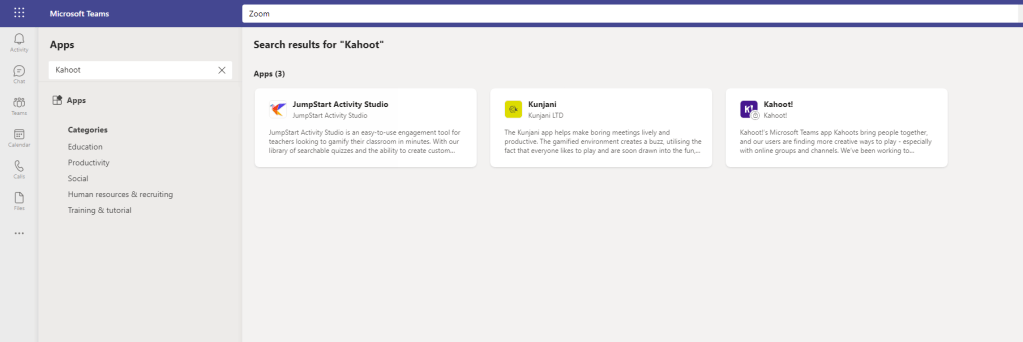
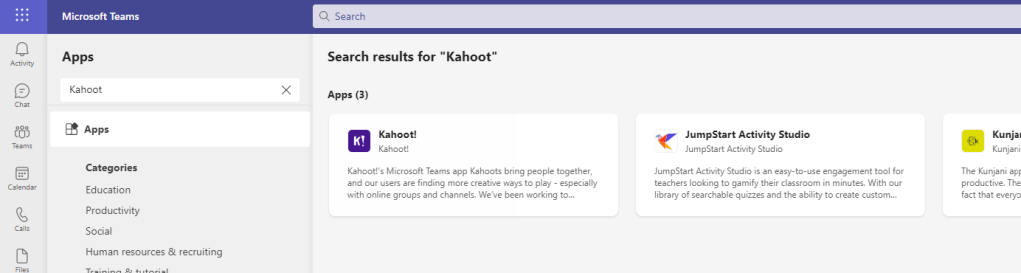
2.) As a User Kahoot now has a Padlock on it in the Teams App Store with the Microsoft Teams client. Select the app
3.) Select Request Approval
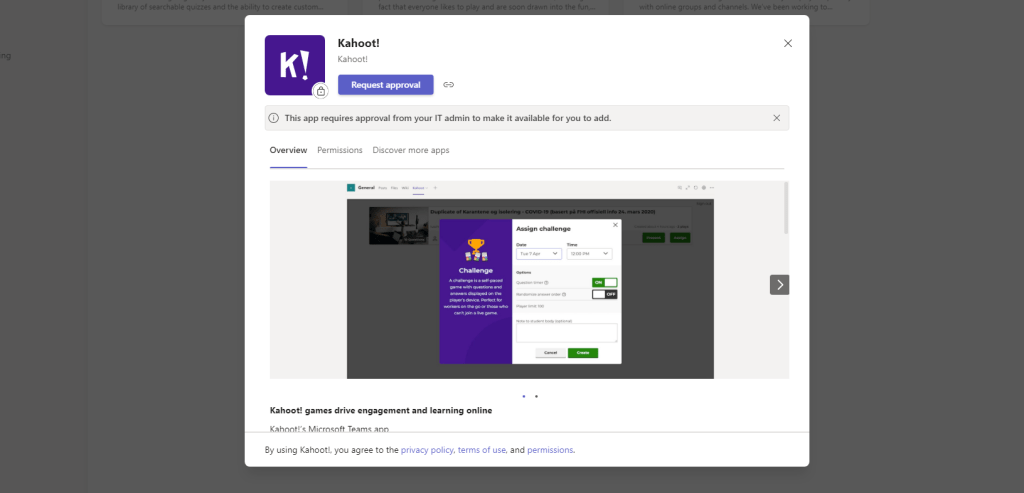
4.) Once requested the button will be greyed out
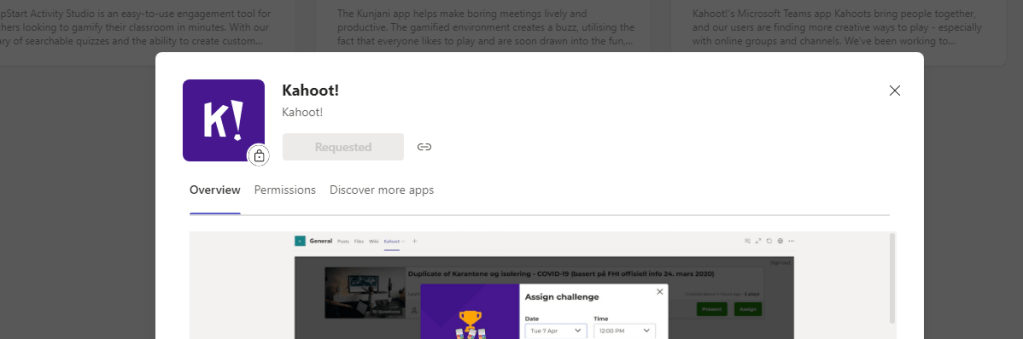
5.) The administrator will go back to Manage Apps within the Teams Admin Centre and can then see the request by sorting by the column Request by Users. Select the requested app

6.) Select the hyperlinked Manage Requests under the switch
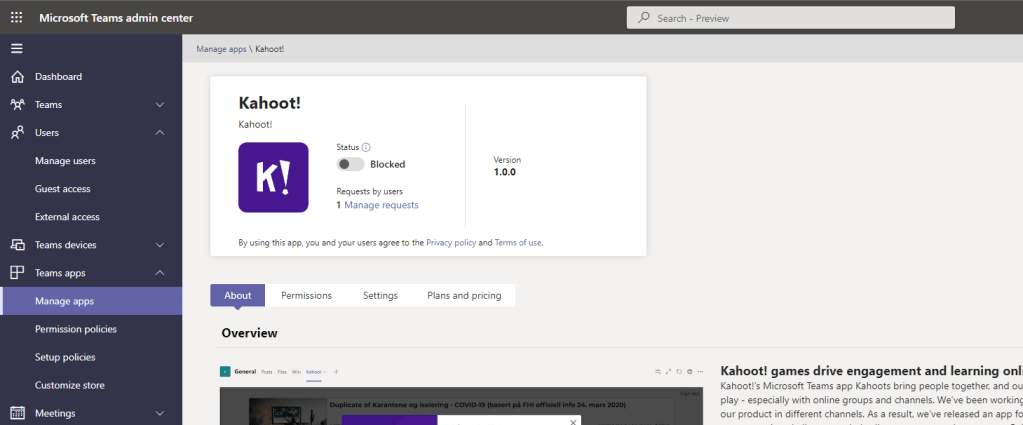
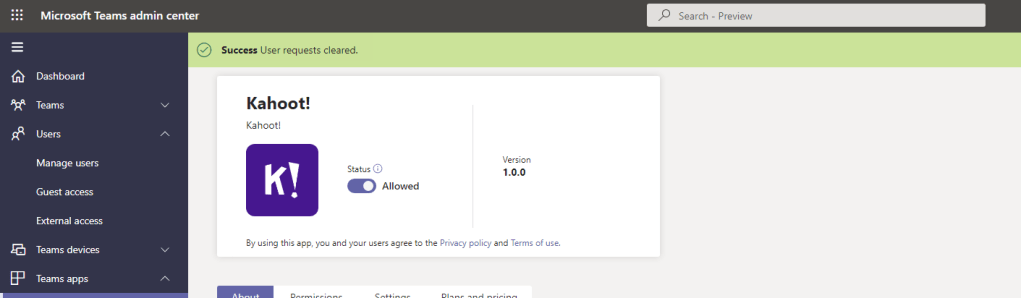
7.) Requests can be dismissed at this point. To approve the request, swipe the switch from Blocked to Allowed. Go back into Manage requests and clear them via Dismiss all requests
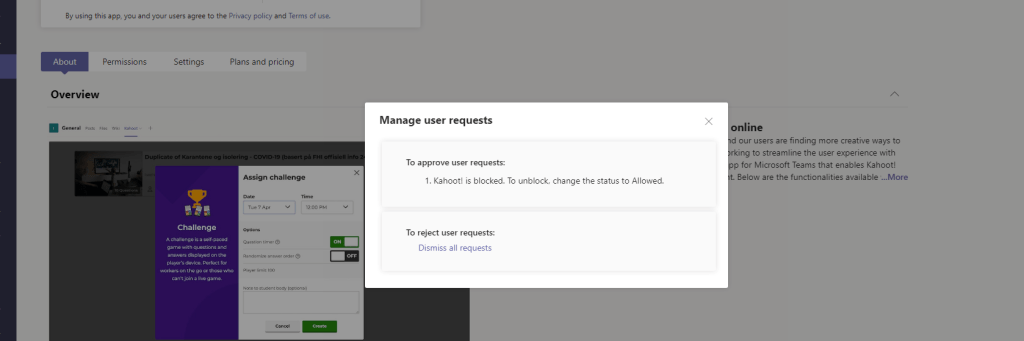
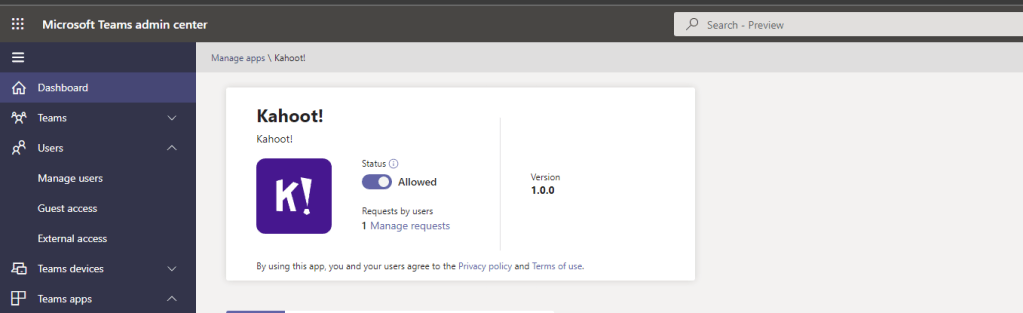
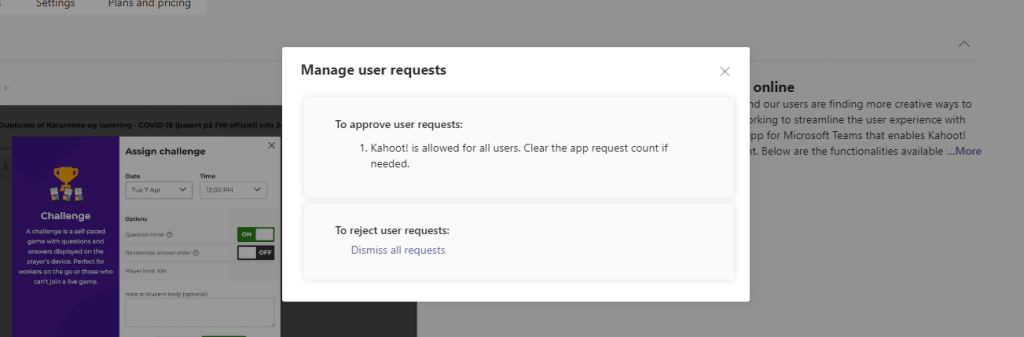
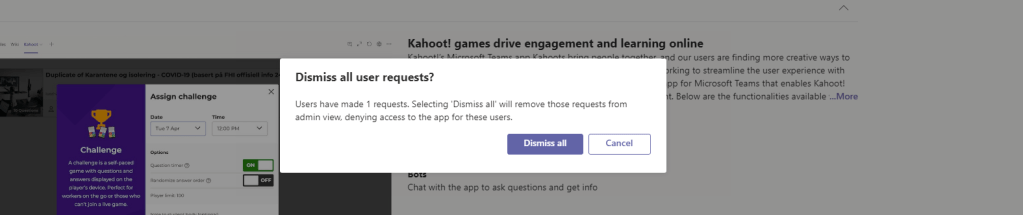
8.) The app is now available, the padlock has been cleared and all user requests have been cleared
REQUESTING ACCESS TO A BLOCKED APP THROUGH AN EXTERNAL SYSTEM
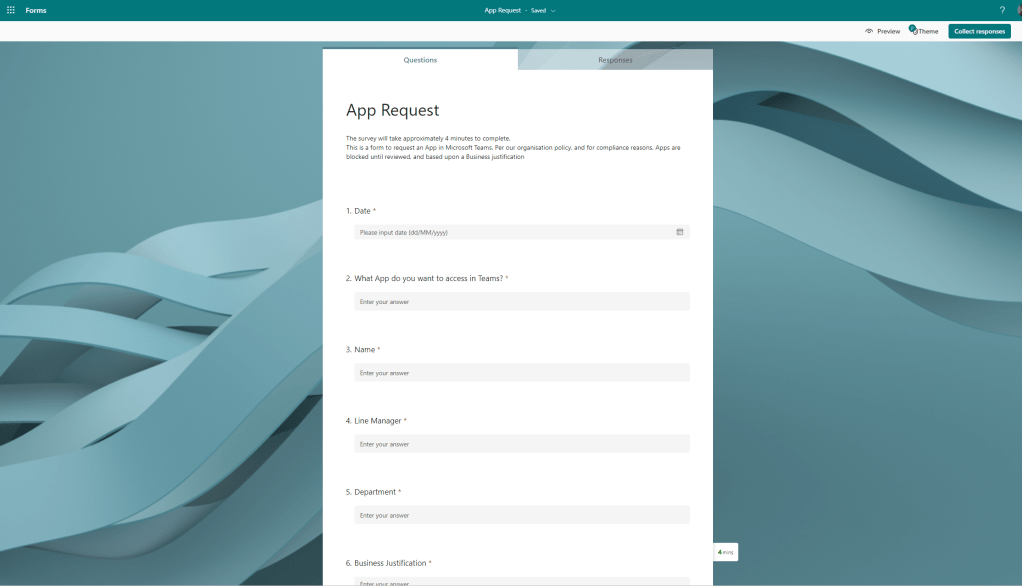
Out of the box app requests are simple and straightforward. However, to the administrator there are some limitations and headaches. First, we can’t see who is making the request. This is an issue for compliance – but also the request may be coming in from someone unauthorised to request an app. It also means, in a larger organisation, even if we were able to see who the request was from, we may have issues figuring out the line manager, or someone who would authorize on their behalf. Second, we can’t see critical information such as the date of the request, business justification or anything we may want to assess. Third, there isn’t any approval process before it hits IT. Fourth, whilst there are configurable notifications in the TAC for app submissions (as in custom apps) this doesn’t cover app requests unless the rule falls into the 24-hour policy as I only tested it for a short time after. Taking all this together, there is no real concept of Entitlement within the out of the box app request process. So how can we get around these things? This is where Teams can refer to the request process outside of the native Teams client. This example will use Microsoft Forms
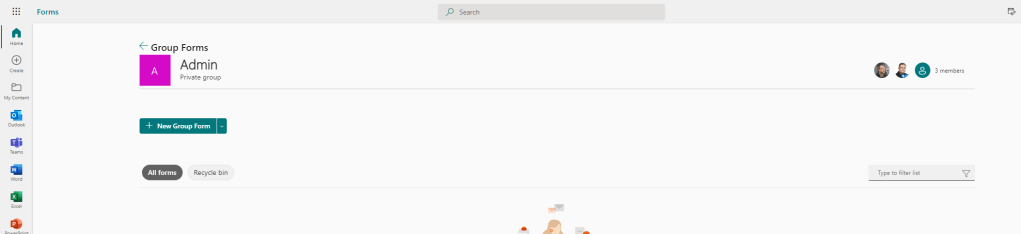
1.) Let’s spin up a Form in the Forms App via Office.com. We create a Group Form as opposed to a personal one
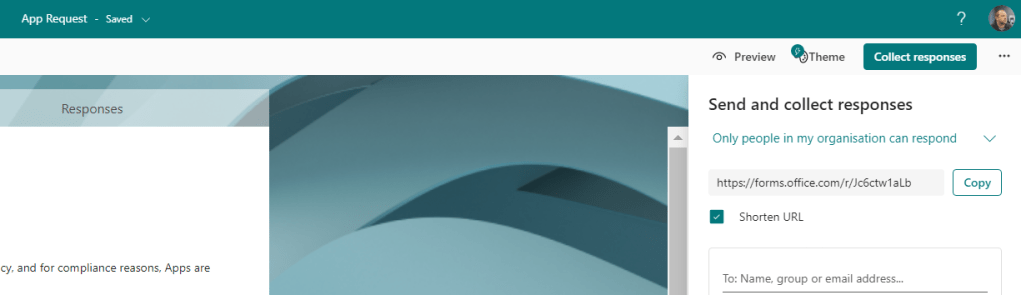
2.) We’ll then get the URL of the Form
3.) In Microsoft Teams Admin Centre select Teams Apps, then Manage Apps then select the button Org Wide Apps Settings
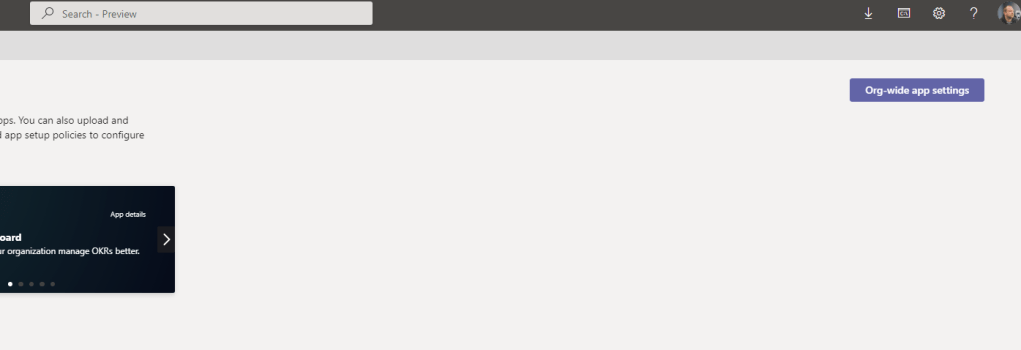
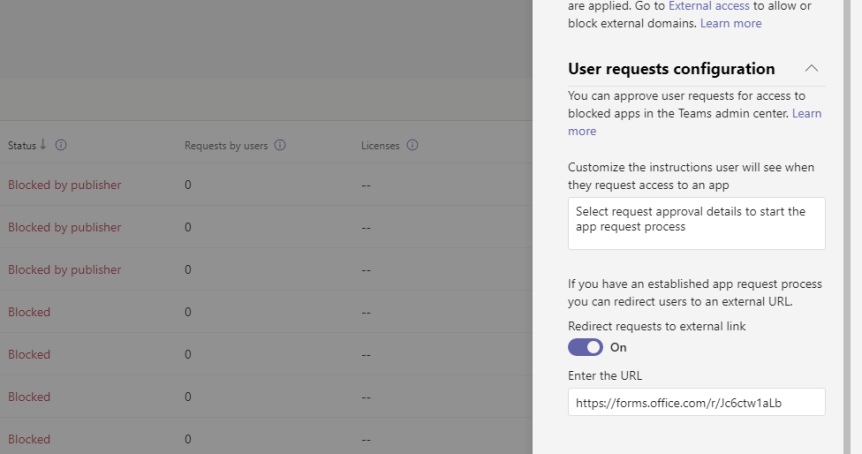
4.) Find the section User Requests Configuration and enter the Instructions and URL (In this case we are using Microsoft Forms, but it could as well go to a Power Page, a SharePoint Site or some other third party system). Once done select Save
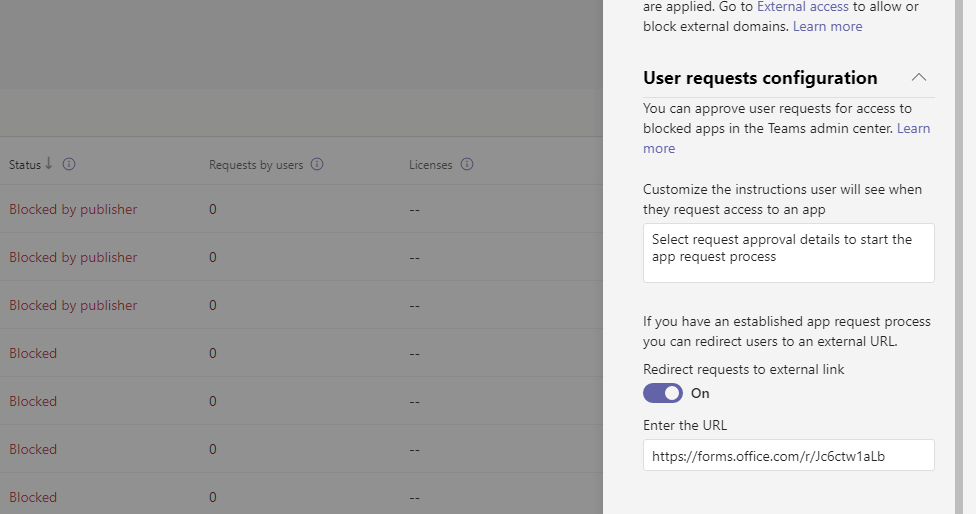
5.) Now when trying to access the App in Microsoft Teams App Store, let’s take this one – Zoom which has been blocked by the admin and similar to the inbuilt process the app is padlocked. This time, the message set in the Teams Admin Centre is displayed, and the button directs to the set URL as defined by the link
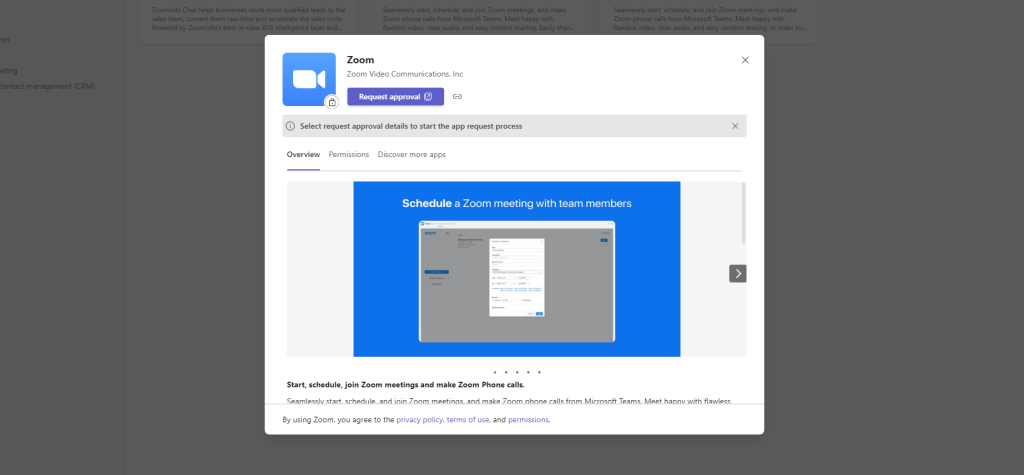
6.) Select Request Approval to get back to the Form
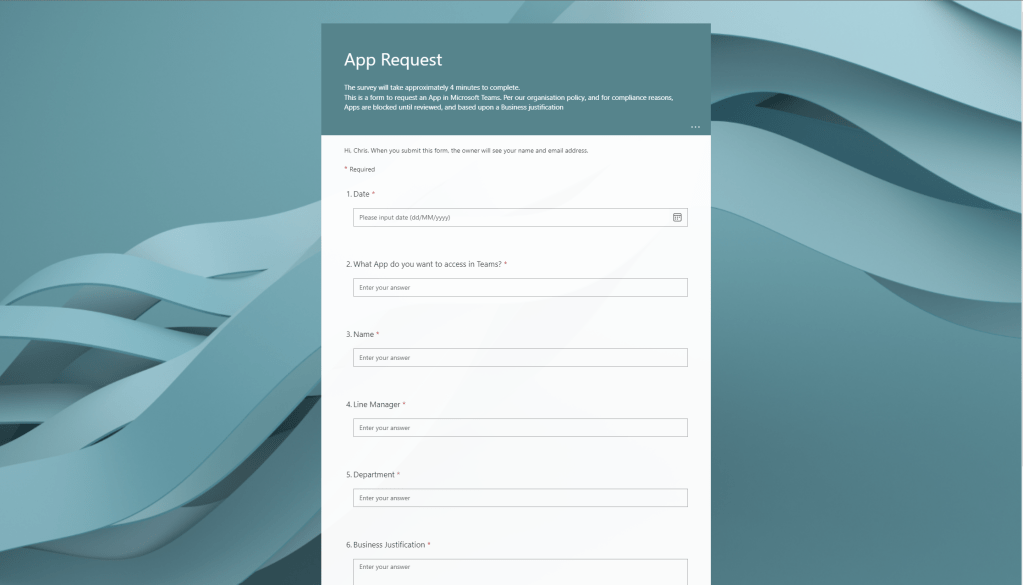
Job done 😀
BUILDING ON THE SOLUTION
The redirect doesn’t just redirect to Forms. By setting an URL you could direct to another app. But in this example, Forms could be the gateway for a fuller solution
1.) We could, for example, build a List to house the app requests

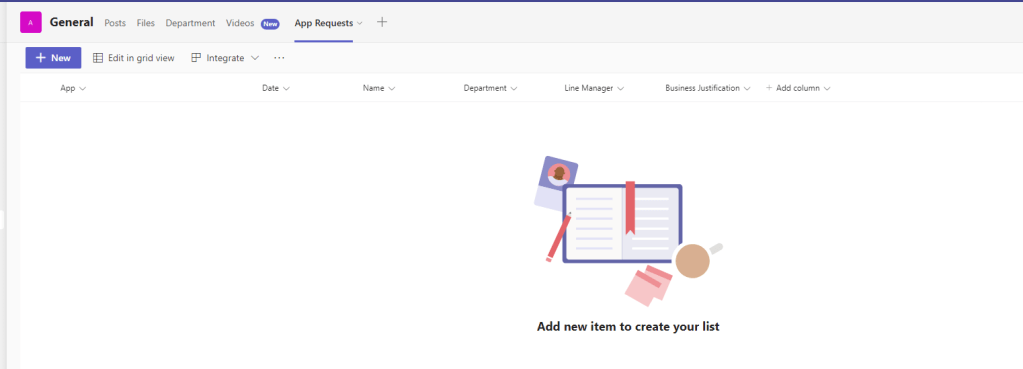
2.) We could then use Power Automate, as we have done in prior blogs, to populate the list
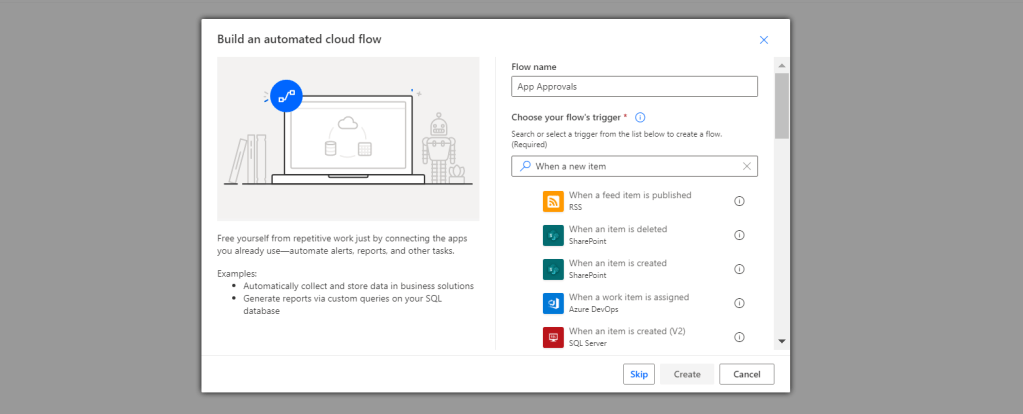
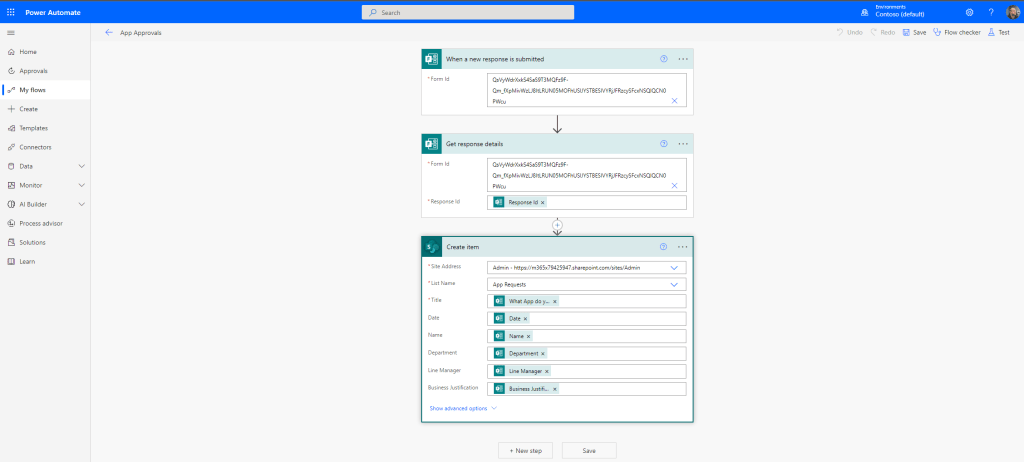
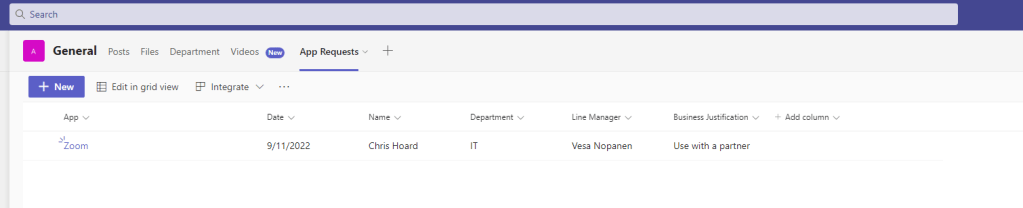
3.) We could even build in an approvals process, here is a simple version of yes/no based on a single authoriser. However, we could use conditions to get it authorized by that requestors line manager
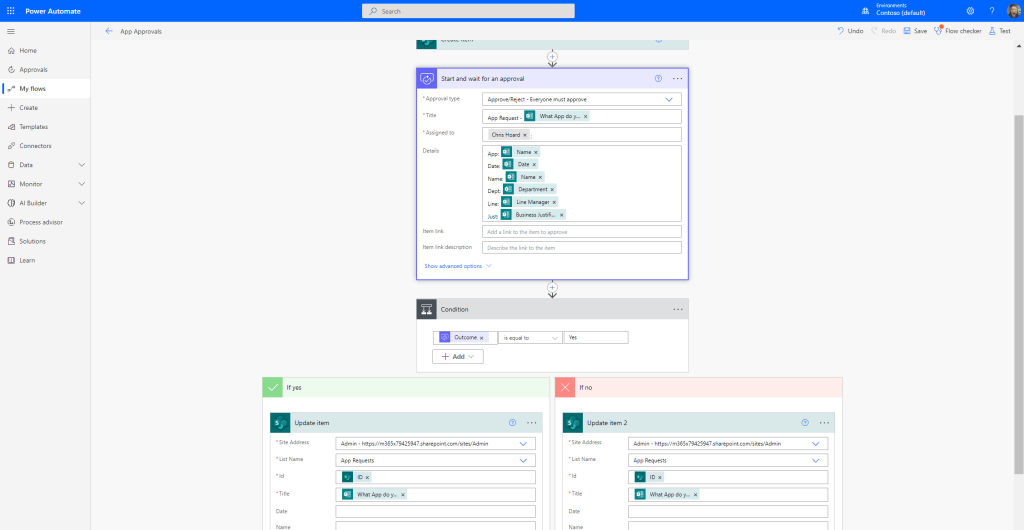
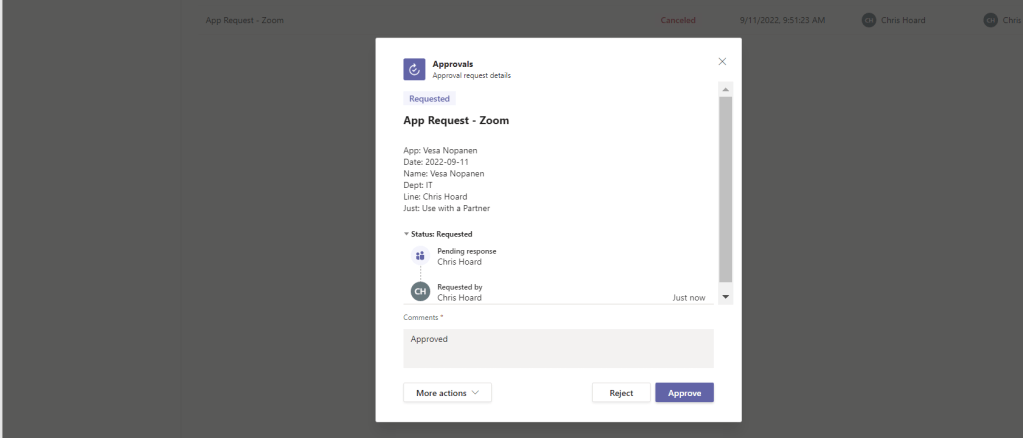
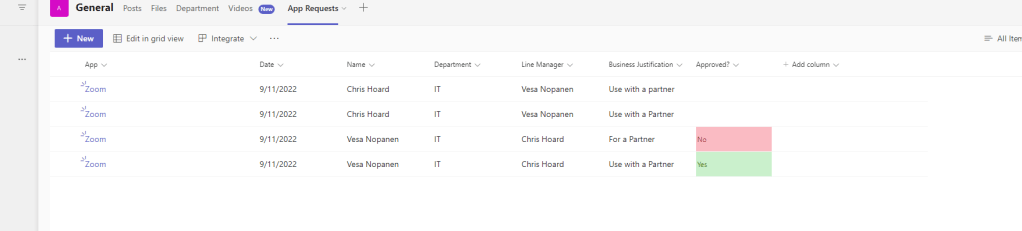
We could go on to add to this process by developing notifications, particularly if setting expectations with the requestor, or even build a Power BI Report off the back for metrics.
Lots of options here, but simply taking the app requests process out of built in gives a lot of options in terms of compliance. Maybe we’ll see the built in evolve over time. At least we have this option so well done to the Microsoft Team.
 @Microsoft365Pro
One thought on “Teams Real Simple with Pictures: Applying to access a Blocked App. Built in and Custom.”
Comments are closed.