
This blog is part of a series on Teams. For more articles, check back often
Written: 16/09/2022 | Updated: N/A
This one is for my good friend Amanda Sterner. I have known Amanda since I started out in the tech community. Like Vesku, and others such as Chirag Patel, Laurent Carlier, Rick Van Rousselt and Karoliina Kettukari she was there at the very beginning and always right behind what Adam and I were doing regarding Oktoberfest (what would become TeamsFest, then Teams Nation). I don’t think we ever talked about it – but she was the very first speaker to sign up for that first conference. And when we all went to Ignite later that year at the OCCC I remember Amanda, Vesku, Michael Plettner and I all went out for dinner in a time before the word covid had entered our language. She is part of the team which runs Dagen – Teams Dagen – and what a success that conference is! But when I saw today that Amanda called out on Twitter how could we get a news post into the feed in Teams I couldn’t resist.
Let’s go.
This blog will cover
- Pre-req 1: Deploying Viva Connections
- Pre-req 2: Ensuring Power Automate is an app in the Team
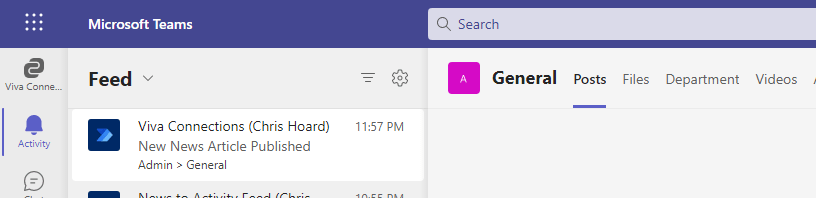
- Getting a news post into the feed
- Using an automated flow
Note: this blog may have some abridged steps which will assume some experience with Teams, Viva and Power Automate
Prerequisites
- SharePoint & Teams Administrator or Global Administrator (permissions to deploy Viva Connection)
- Teams, SharePoint and Power Automate licence (within Microsoft 365/Office 365 licence) for testing
PRE-REQ 1: DEPLOYING VIVA CONNECTIONS
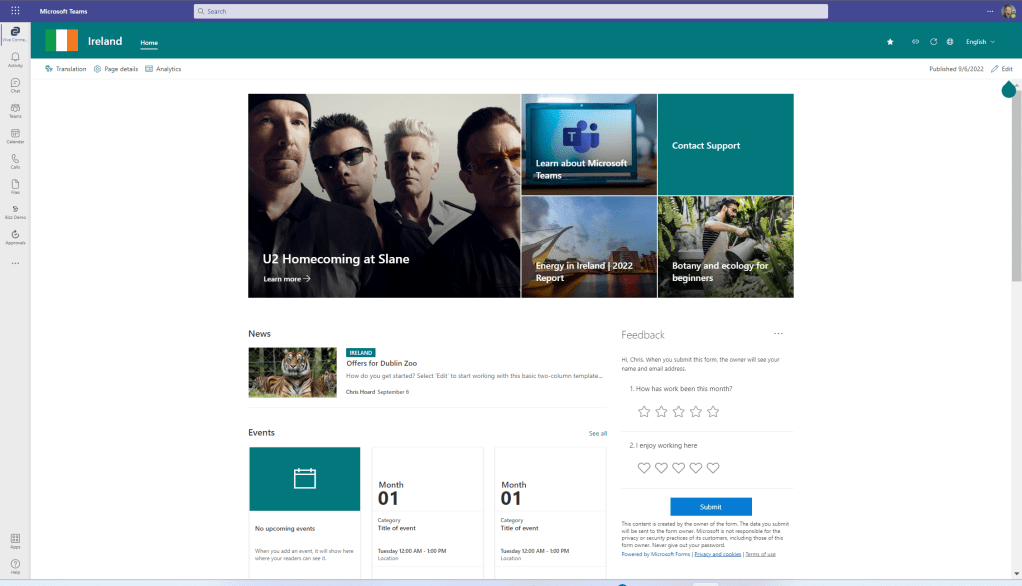
Ok, the first step is to deploy Viva Connections. Each step in this process will not be mapped out since Viva Connections is already deployed in the demo tenant. However, the basics of the deployment are as follows: the creation of a communication site, setting said site as the home site in the SPO admin centre and then deploying the app within Teams. The end result should look something like below. Please note that a.) The design was from a recent demo when I was over in Ireland (a country I am very fond of) and b.) I am clearly not a designer, and this took about 30 minutes to spin up.
PRE REQ 2: ENSURING POWER AUTOMATE IS AN APP IN THE TEAM
Power Automate needs to be installed in a team in the tenant. Why? This Teams team (hence Microsoft 365 group) will define who will be notified in the activity feed. Power Automate should be installed as a Bot. If this is not done, then Power Automate will fail with JSON errors. If you are sending to the whole org, then this would be installed in an org wide team.

GETTING A NEWS POST INTO THE FEED
Ok, so Viva Connections is deployed and Power Automate is installed as a bot into the Team whose corresponding Microsoft 365 Group will be used for Notifications. But how do we do this for Amanda?
1.) Log into https://login.microsoftonline.com

2.) Select Admin

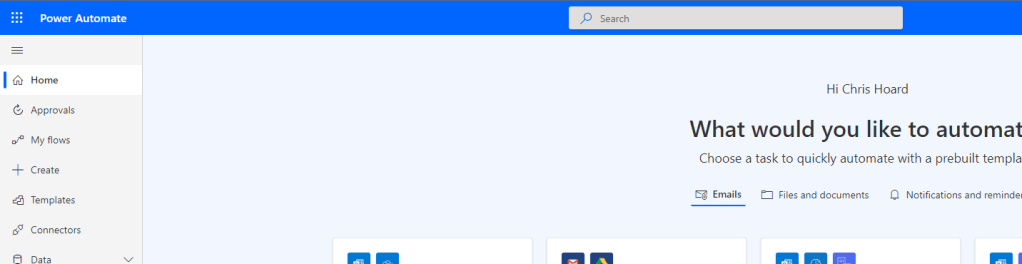
3.) From the waffle, select Power Automate

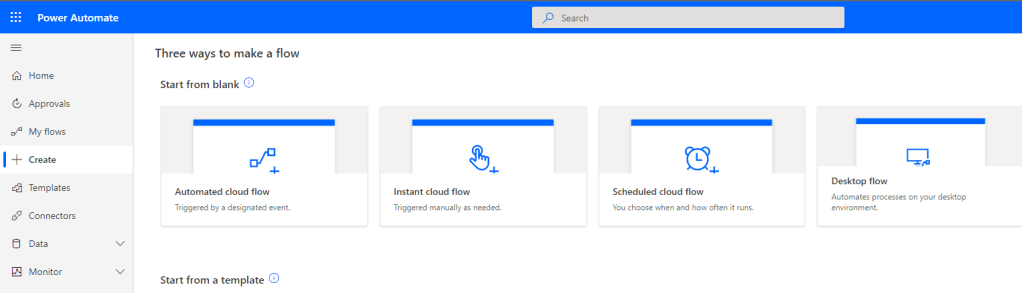
4.) From the left nav, select Create
5.) Select Instant Cloud Flow
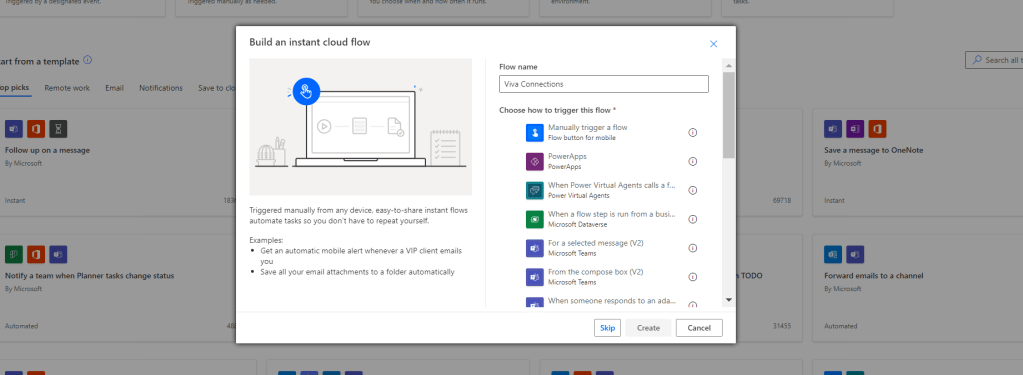
6.) Name the flow Viva Connections and select Manually Trigger a Flow
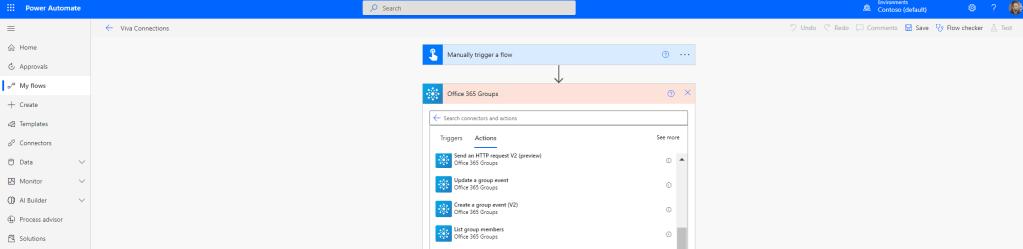
7.) Search for and add Office 365 Groups action and select List Group Members. Select the Microsoft 365 Group related to the Team you installed the bot in

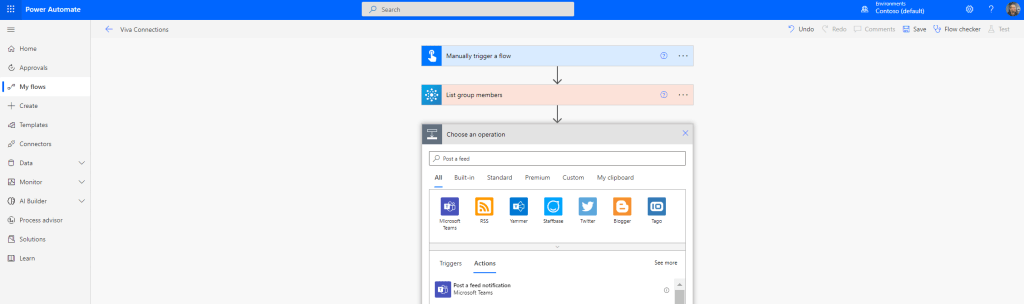
8.) Search for and select Post a Feed Notification
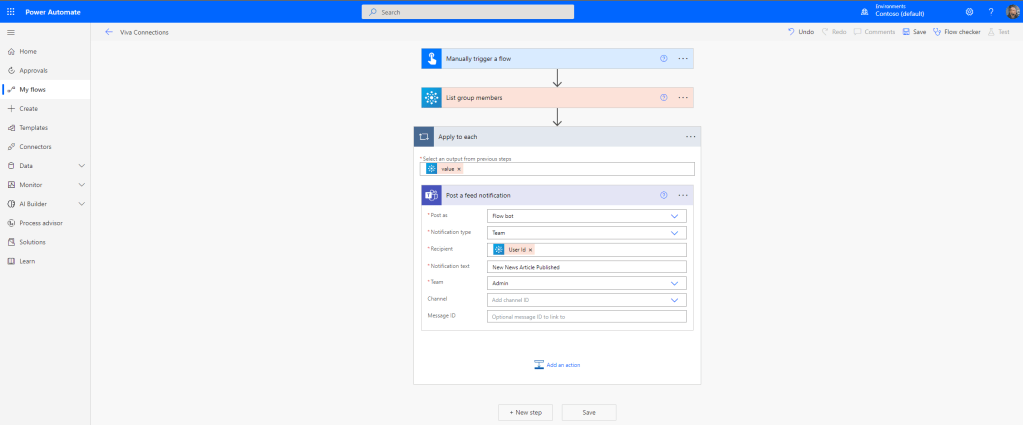
9.) Set as follows
- Post as: Flow Bot
- Notification Type: Team
- Recipient: User ID (this will notify all team users)
- Notification Text: [as required] Here New News Article Published
- Team: The required Team
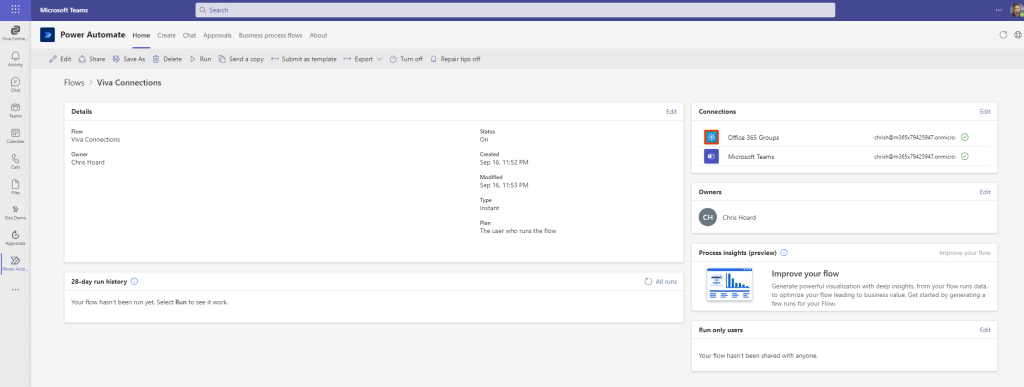
10.) Save the flow. Post the News Article on SharePoint
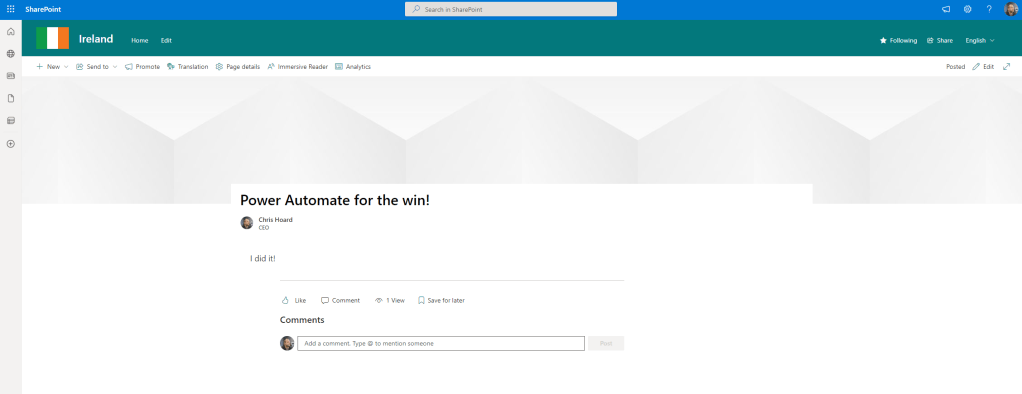
11.) In Power Automate, either on the web or in Teams, or in the mobile app, select Run

12.) One new notification
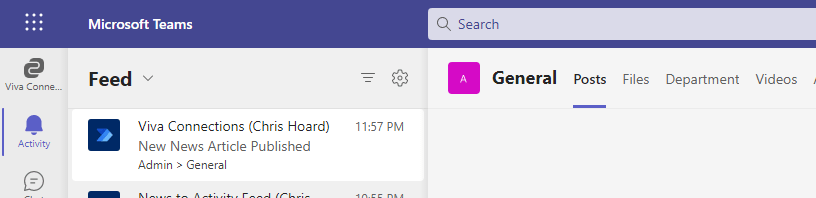
Works every time 😀
USING AN AUTOMATED FLOW
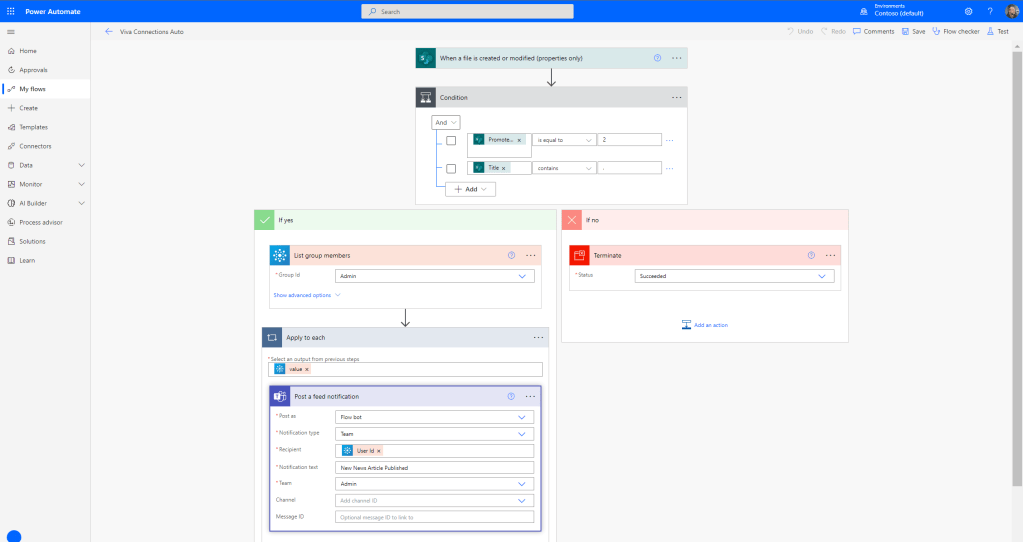
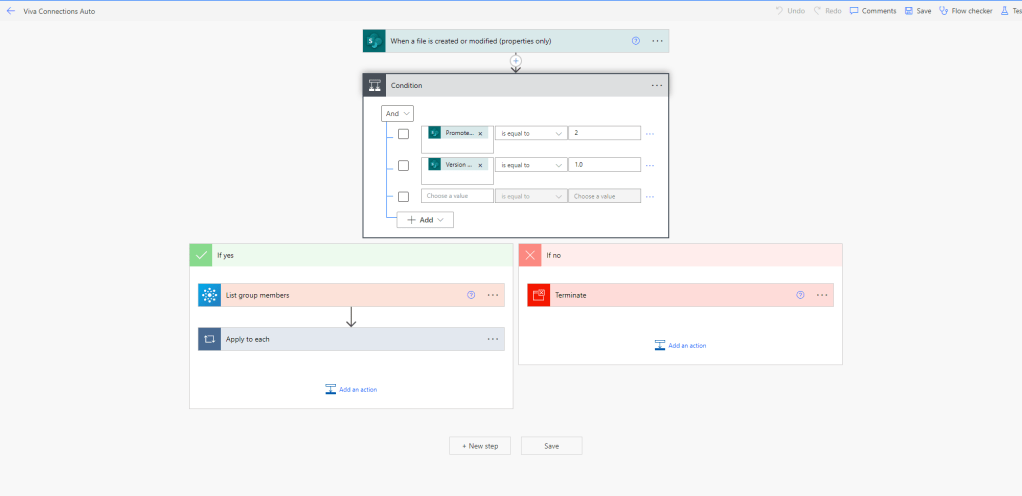
Upon a bit of testing, it’s possible to do it completely automated – but the trick here is utilising conditions which distinguish a difference between the draft and the live version to ensure it works 100% of the time. Basically, create a SPO create or modify a file (properties only) trigger on Site Pages and then use multiple Conditions.
One condition would be against the Promoted State and set this as equal to 2. As other community articles have pointed out regarding SPO News Promoted State 1 is draft, 2 is live. However, doing this on its own – in this testing – proved inconsistent. Adding a second condition would be needed. I initially chose title of the News Post and a condition where “.” had to be in the live version which made it work consistently. In other words, I create the draft and then add a ‘.’ to the title of the post before it goes live and then remove that ‘.’ for all subsequent updates to the News article. That worked 100%.
But after thinking for a while and not wanting anyone to have to do anything extra or remember formatting of the news posts title on the go, I nailed it. Drafts of News do not contain a Version Number. Therefore, setting a condition where Version Number is equal to 1.0 (and include “” when building the condition) means only the initial live version will trigger the notification. All amends will not trigger a notification.

 @Microsoft365Pro
One thought on “Teams Real Simple with Pictures: Viva Connections – News Posts into the Activity Feed”
Comments are closed.