

This blog is part of a series on Teams. For more articles, check back often
Written: 23/10/2022 | Updated: N/A
Over the years, I have spoken about and covered several blogs on Microsoft Teams policies. As any good Teams administrator will know, policies play a big part in terms of managing users and defining the experience of the front end. Whether it is configuring messaging policies, or app setup policies, or the gamut of calling policies – you won’t get very far into the administration without coming up against them and having to understanding and define them. And once we understand them, we begin to understand such things as the difference between org-wide and custom policies, and about policy precedence and the several ways policies can be applied such as direct, batch, package and group. And once we learn all the ways that we can apply them, we then understand that some policies are not even the TAC at all, that we have to use the shell to create new policies and grant those policies to users. So now having returned from annual leave, and Ignite, and South Coast Summit, and plowing through the backlog of all of those things, there is an extremely rich vein of material and functionality to be explored over the coming months. However, I wanted to start with something easy, short, and which I was waiting for before I flew out to Florida. This is bulk unassignment of policies which was announced back in July but didn’t surface in the TAC until late September. Now bulk unassignment of policies actually means bulk unassignment of directly assigned custom policies (not org wide) – and what we must remember here is that directly assigned policies take precedence over group policies, which in turn take precedence over org-wide policies. In other words, the ability to bulk unassign custom policies is a utility to clean up and standardize Teams environments, as well as transition out of overly complex configurations with high numbers of bespoke assignments. How can we do achieve this? Does it work with Policy Packages which are also directly assigned and take precedence over group?
I am intrigued! Let’s go 🙂
This blog will cover
- Bulk removal of directly assigned policies via users
- Bulk removal of directly assigned policies via policies
- Bulk removal involving Policy Packages
- PowerShell
- FAQ
Note: this blog may have some abridged steps which will assume some experience with Teams. In addition, note that at the time of writing, this functionality within the TAC is only applicable to Messaging Policies, Meeting Policies, Calling Policies, Live Events Policies, App Setup Policies, App Permissions Policies and Teams Policies.
Prerequisites
- Teams Administrator or Global Administrator
BULK REMOVAL OF DIRECTLY ASSIGNED POLICIES VIA USERS
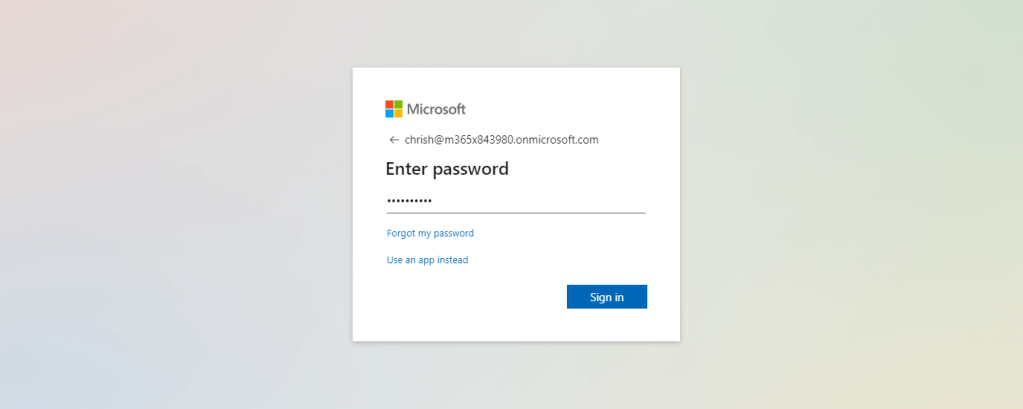
1.) Login with administrator credentials to https://login.microsoftonline.com
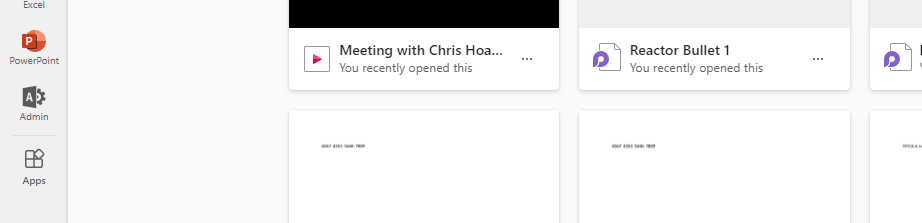
2.) From the left app rail, or via the waffle (top left) select Admin
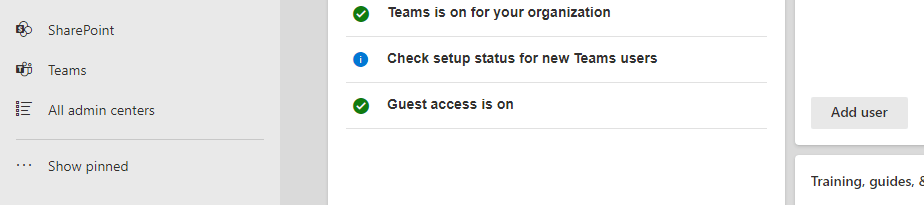
3.) In the M365 Admin Centre from the left navigation select Show All and then Teams
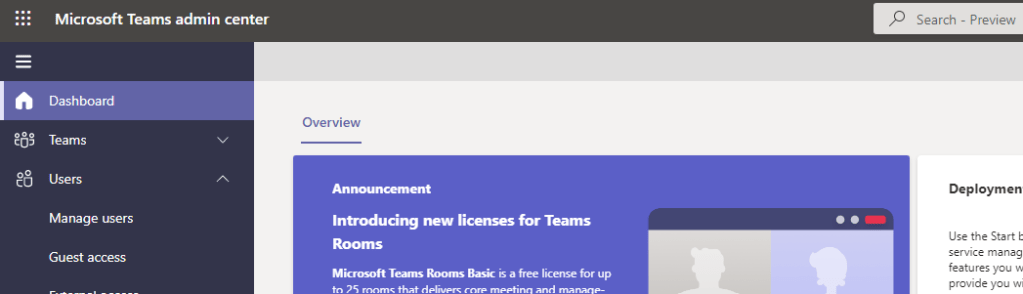
4.) In the Teams Admin Centre select Users and then Manage Users
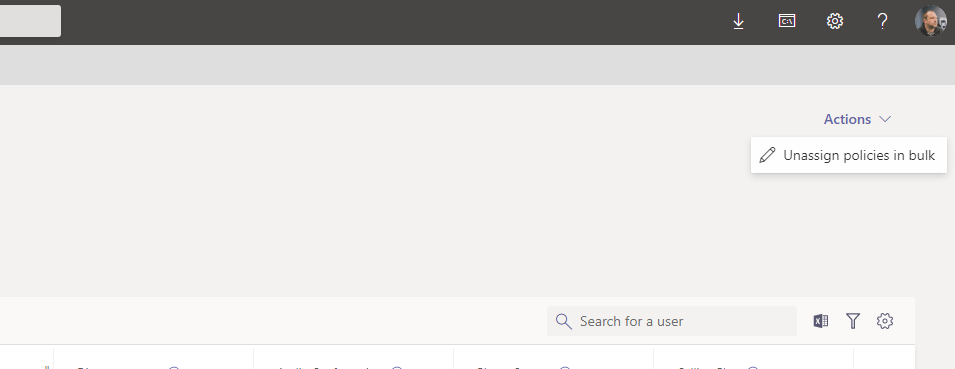
5.) On the top right select Actions and then on the drop down select Unassign policies in bulk
6.) Select a policy type. Note, only specific policies are available at this time. This example will utilise a Messaging Policy. As noted above, this does not include all the policies available at the current time. Call Park Policy and Teams Update Policy are just two examples of those which are not covered.

7.) Select the policy and then Load Data to see how many users are directly assigned to the policy. In this case it is 3 individual users. Once done select Unassign
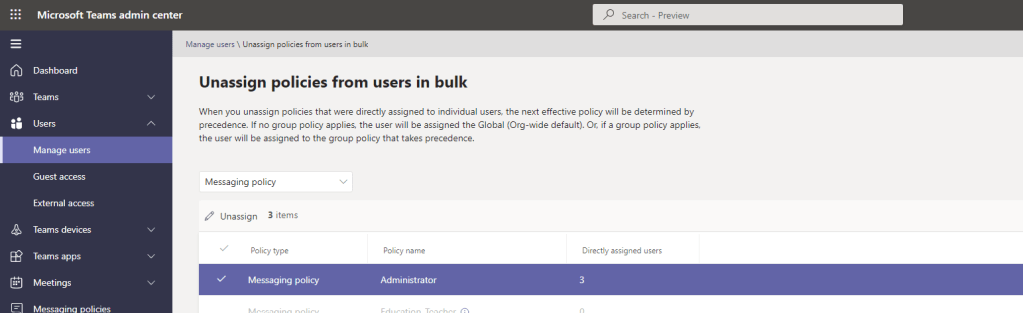
8.) Select Confirm

9.) All users were removed from the custom policy
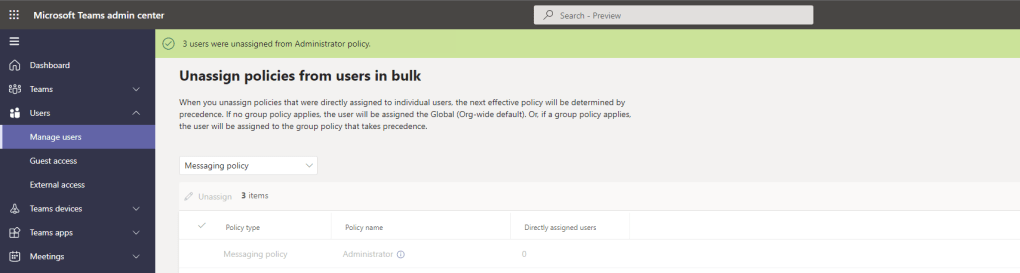
10.) This can then be sanity checked under Manage Users with a filter to ensure the custom policy was removed from all users. If in doubt for a user, use Get-CsUserPolicyAssignment in the shell to pull all the directly assigned policies for that user

BULK REMOVAL OF DIRECTLY ASSIGNED POLICIES VIA POLICIES
Having now illustrated how straightforward it is to remove directly assigned custom policies via users, it’s also possible to navigate through
1.) Let’s start again with the Messaging Policy. Select Messaging Policies from the left navigation

2.) Select Manage Users and then Bulk Unassign Users

3.) This then directs into the same format as above in order to Unassign the custom policy from the users which have it

BULK REMOVAL INVOLVING POLICY PACKAGES
Now, there is an interesting case involving Policy Packages. Policy Packages are what they say on the tin – packages (or containers for want of a better word) of several policies such as a messaging and meeting policy which are designed to be assigned to roles within the organisation. Policy Packages, built on custom policies, are also directly assigned, and take policy precedence over groups and org wide. Are policy packages supported for bulk unassign?
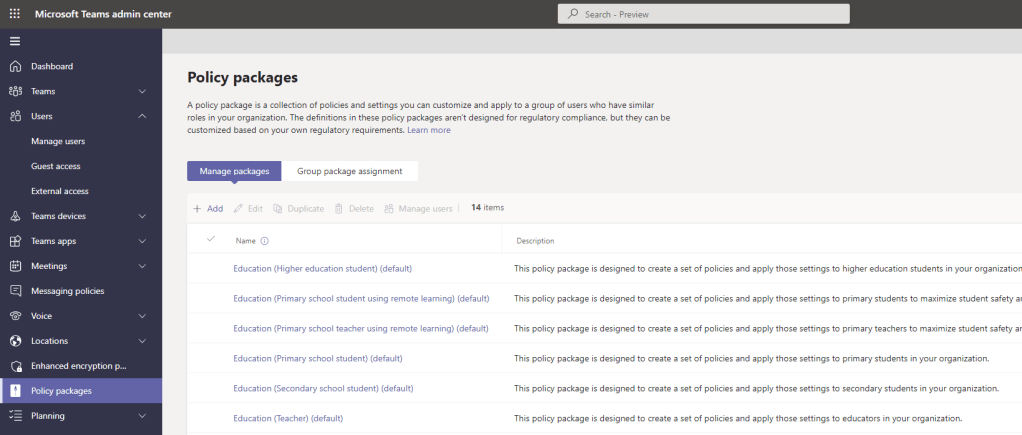
1.) In this scenario, there is a user in the tenant who has been assigned a Policy Package. The package can be seen against the user, as well as the custom policies within that package under assigned policies. Digging into the details of the policies with show that packages take precedence over groups.

2.) So, going through the bulk unassign workflow, select the custom policy associated with the policy package and select Unassign
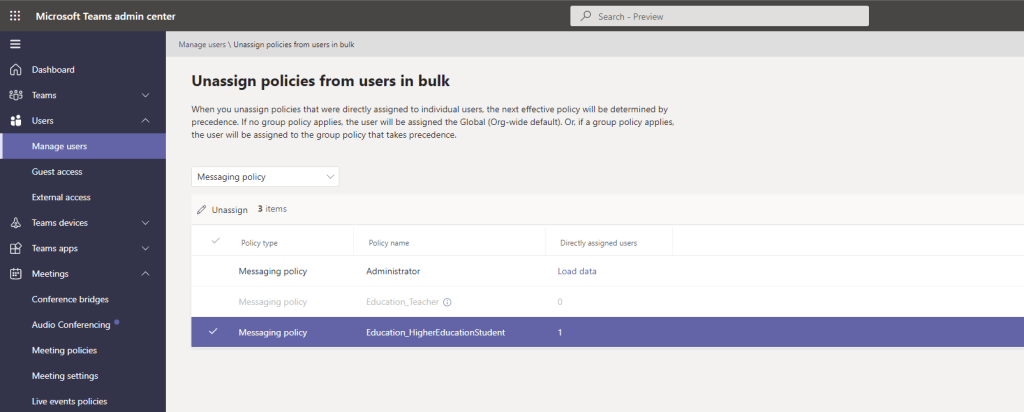
3.) The removal was successful

4.) Going back to check on the user they have reverted to the org-wide policy as expected since there were no group policies in play in the tenant

In terms of management this would have pros and cons. The upside is that the policy packages aren’t so rigid and so if you had thousands of users who had a policy package where you wanted a policy to revert to the global org wide policy or drop to configured group policies, you can do. The downside here is that it could easily get out of hand and misaligned if the policy states in play with off piste exceptions
POWERSHELL
Note that PowerShell can still be used in lieu of the TAC for bulk unassign of policies. For example, the script below would bulk unassign custom policies from the specified users and revert to the global org wide default for those users unless group policies were in play.
$dataSetFilePath = "<csv file with user ids for newly provisioned students> "
 $dataSet = Import-Csv "$($dataSetFilePath)" -Header UserId –delimiter ","
 foreach($line in $dataSet)
 {
    $userId = $line.UserId
    Write-Host $userId
    Grant-CsTeamsMessagingPolicy -PolicyName $Null -Identity $userId

 }
And this could be the case too with policies which are not covered in the TAC. As given examples earlier in this blog post, Call Park Policy isn’t covered, nor Teams Update Policy, nor Audio Conferencing or several others. PowerShell will have to be used for these to bulk unassign, or the organisation should stay rigidly to the global org wide default.
FAQ
Q. The number of policies is limited. Will more come in the future?
A. Unknown. There is nothing on the Microsoft 365 roadmap or in the message centre which I can see. You would imagine that Microsoft will expand them, but I would also say that Microsoft has covered the most used and significant policies where there would normally be variation. Ones which are not covered such as Call Park Policy or Teams Update Policy: there isn’t usually a great deal of variation in those sorts of policies within organisations and orgs tend to stick to global org wide or custom one size fits all
Q. How many users does bulk unassign do at one time?
A. 500 as defined by the message centre item
 @Microsoft365Pro