
Written: 30/10/2022 | Updated: N/A
So, Viva? I haven’t written a lot about it on this blog, have I? And when it’s comes down to it that’s probably because I spend a lot of my blogging time keeping up to date with Teams. But since Teams has been a bit quieter lately – at least in terms of the features I use or want to know more about I thought this would be an opportunity for something that caught my eye and something which is currently rolling out. This is the new Viva Admin Experience. Now, I am pretty much what you would call a second wave Viva advocate. I wasn’t in with the first lot because I was just so focused on everything else Microsoft 365. And to be honest, the Viva apps which have been my ingress into both the Viva stack and the Viva community have been Goals and Sales, ones which I now use every day. Of course, prior to this I’ve deployed Connections many times – even when you had to create the Connections app via PowerShell, and setup and configured both Insights and Topics. I’ve even got a Viva course in the portfolio which has now been taught for over a year. But Goals and Sales gave me the bug, and now I do a ton of community work on Viva (albeit almost all directly with Microsoft). Needless to say, I’m very excited about all of the apps announced back in September – Amplify, Pulse, Answers and Storylines. It’s a bright future. And with the rapid expansion it seems prudent to create an admin experience, where we’ll likely see an all-up, and a set of granular role-based set admin roles for each app in the stack. This is because governance is important – and what we can refer to as horizontal experiences – functionality across the stack – will be important too to avoid silos and maximise the synergy between the apps.
Let’s go
This blog will cover
- Accessing the Viva Admin Experience
- What can you do in the Viva Admin Experience?
- Understanding the Assigned Admin
- FAQ
Prerequisites
- Global Administrator
- Targeted Release
NOTE: at the time of writing this testing was done on a Ring 4 targeted release tenant. Whilst the Viva Admin Experience may be available in standard release this was not tested. If it does not turn up, switch out to targeted
ACCESSING THE VIVA ADMIN EXPERIENCE
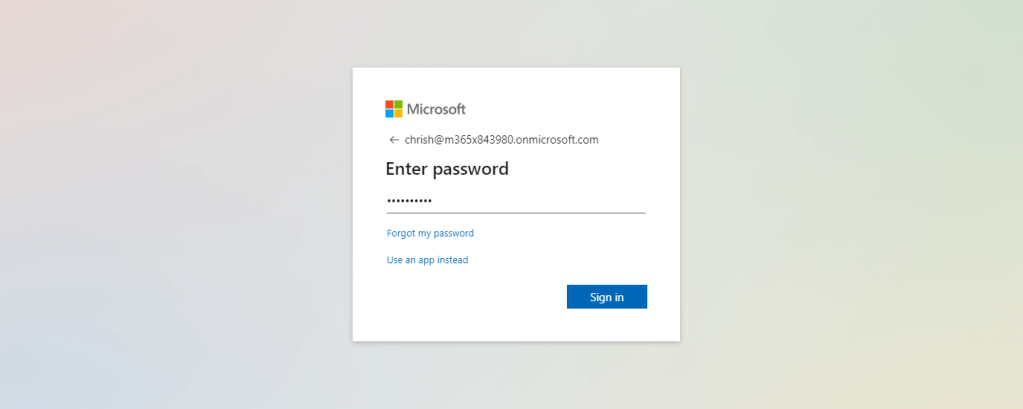
1.) Login with administrator credentials to https://login.microsoftonline.com
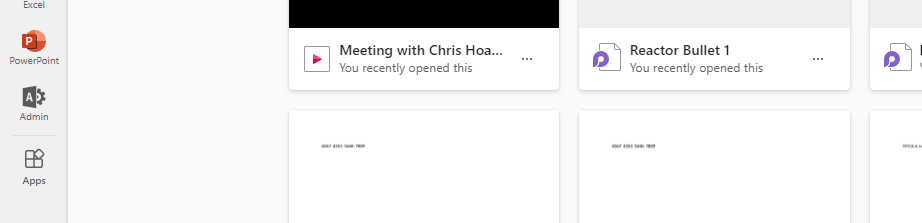
2.) From the left app rail, or via the waffle (top left) select Admin
3.) You are now in the Microsoft 365 Admin Centre
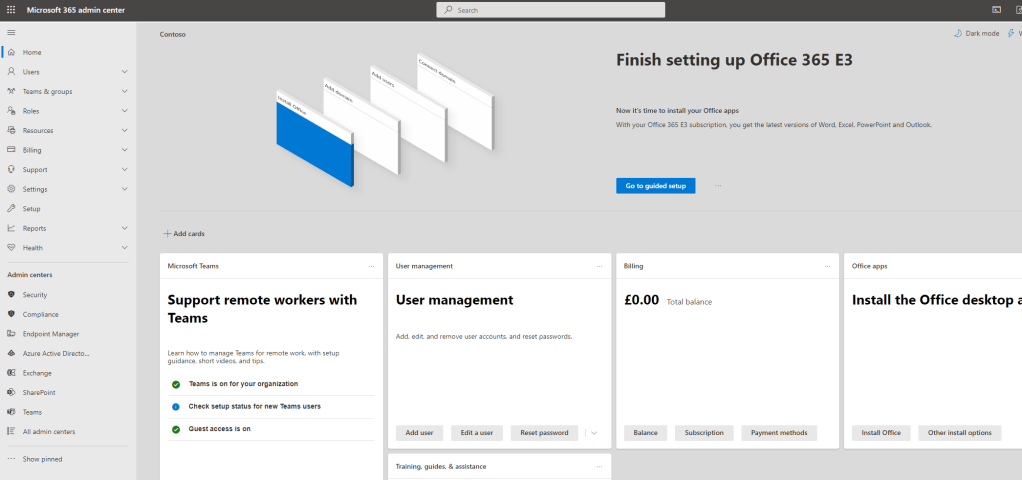
4.) So where is the Viva Admin Centre? It’s not in the left navigation at the moment
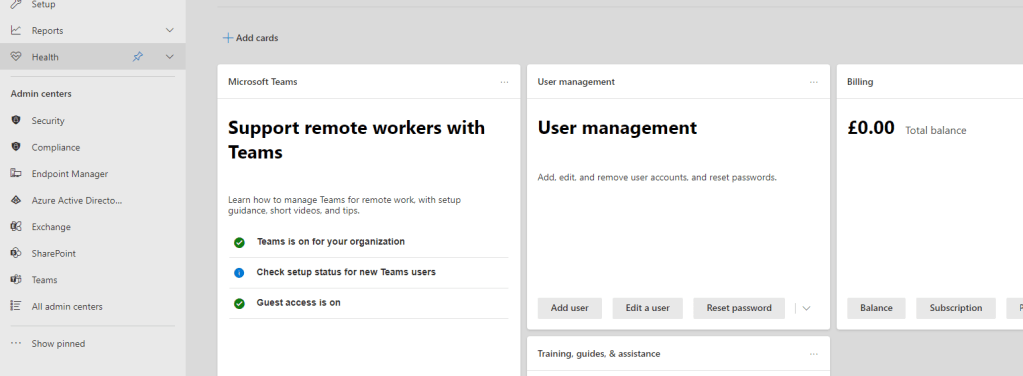
5.) It’s not under All Admin Centres
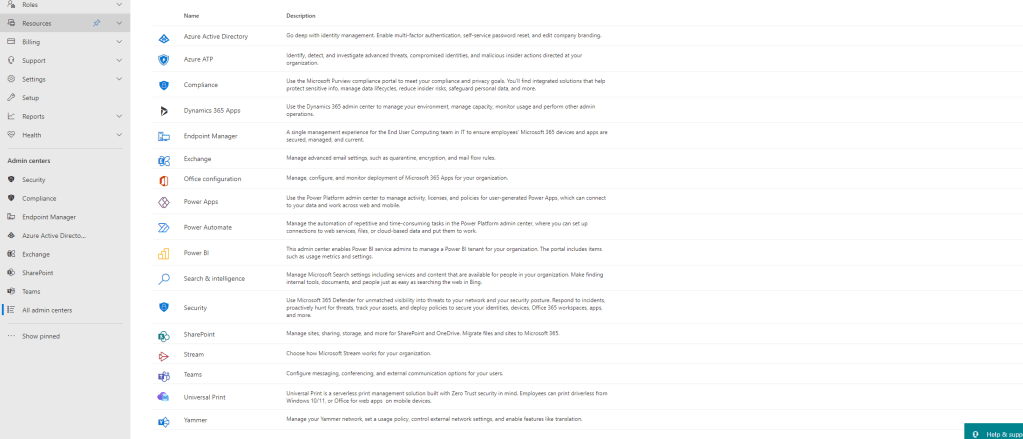
6.) It’s not in the Org Settings

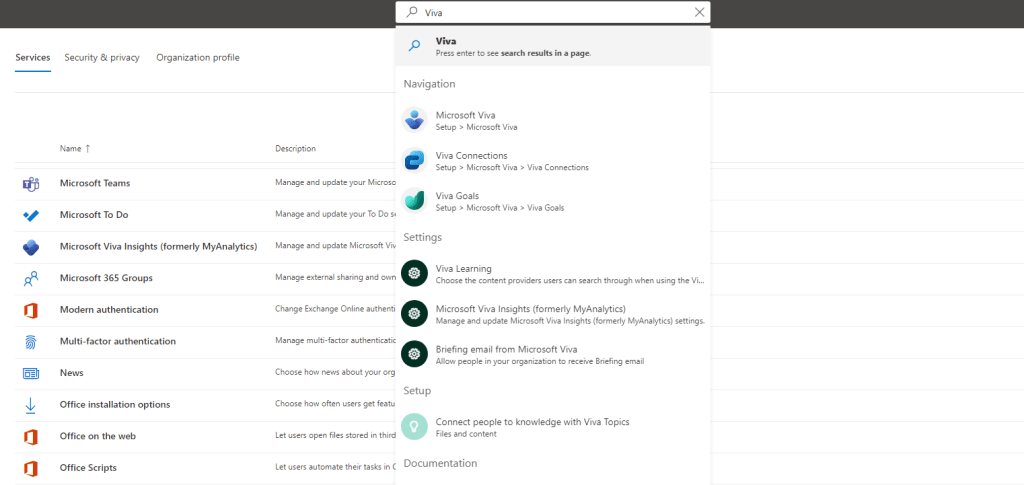
7.) So where is it? In the Search Bar type Viva and you will see it and be able to select it
8.) Alternatively select Setup from the left nav and then Microsoft Viva
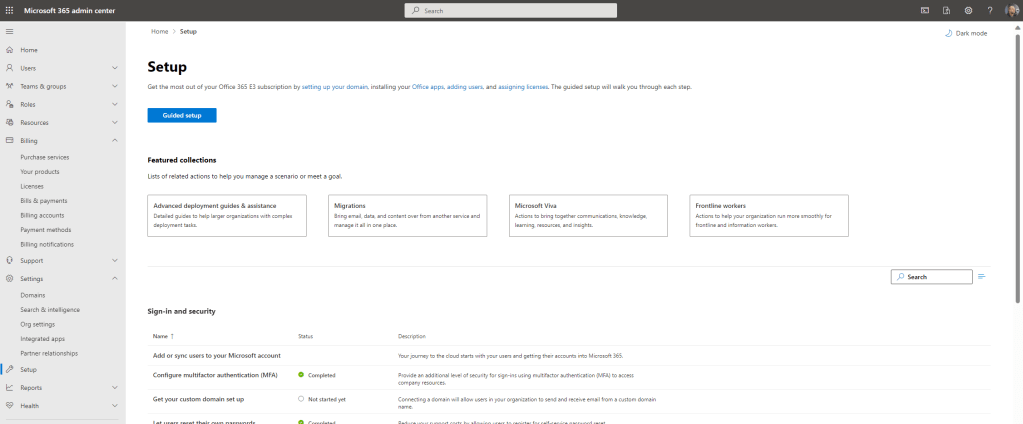
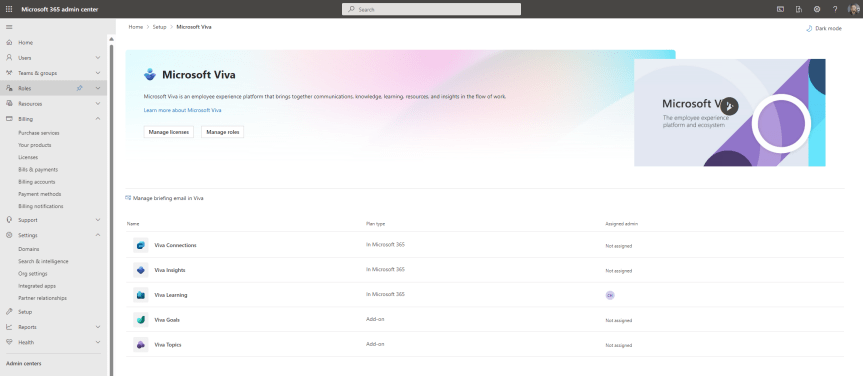
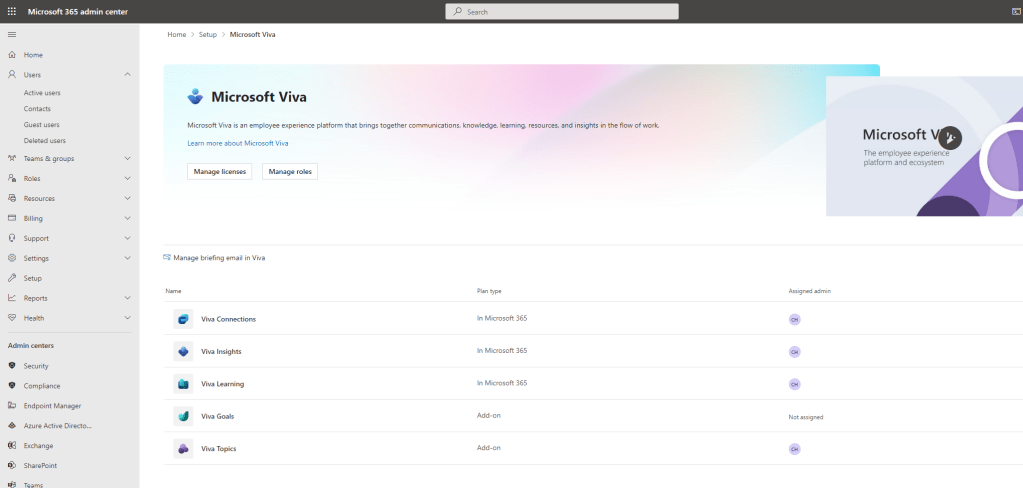
9.) You have arrived at the Microsoft Viva Admin Experience
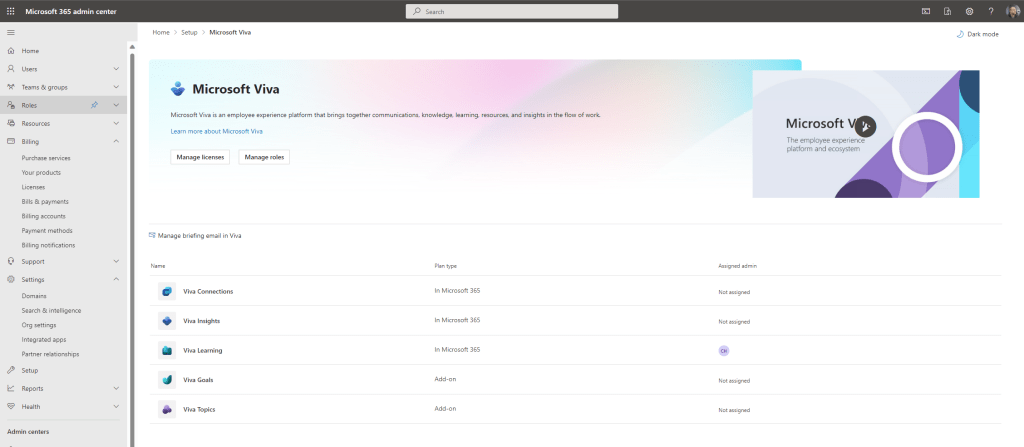
WHAT CAN YOU DO IN THE VIVA ADMIN EXPERIENCE?
Now we can access the new Microsoft Viva Admin Experience what can we do today?
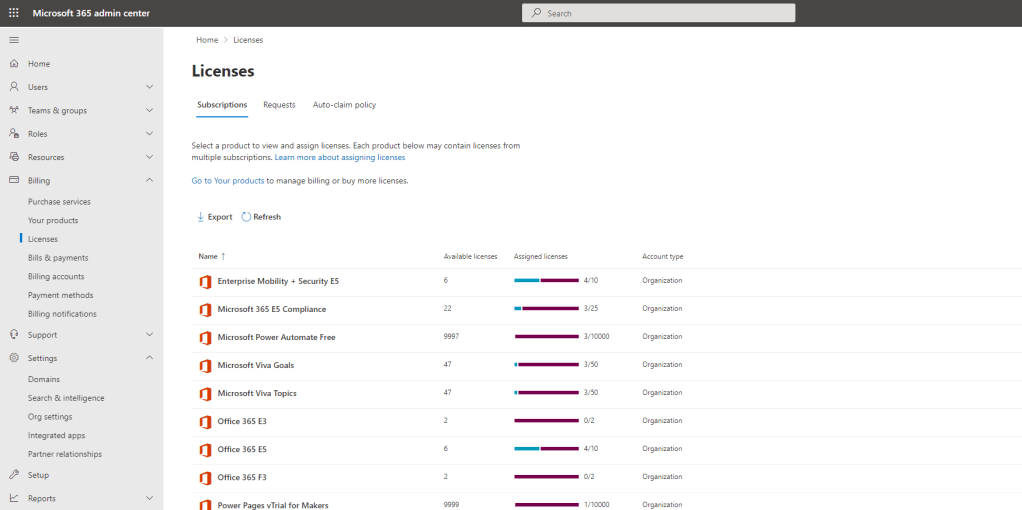
1.) Selecting Manage Licenses goes to the licence page within Billing
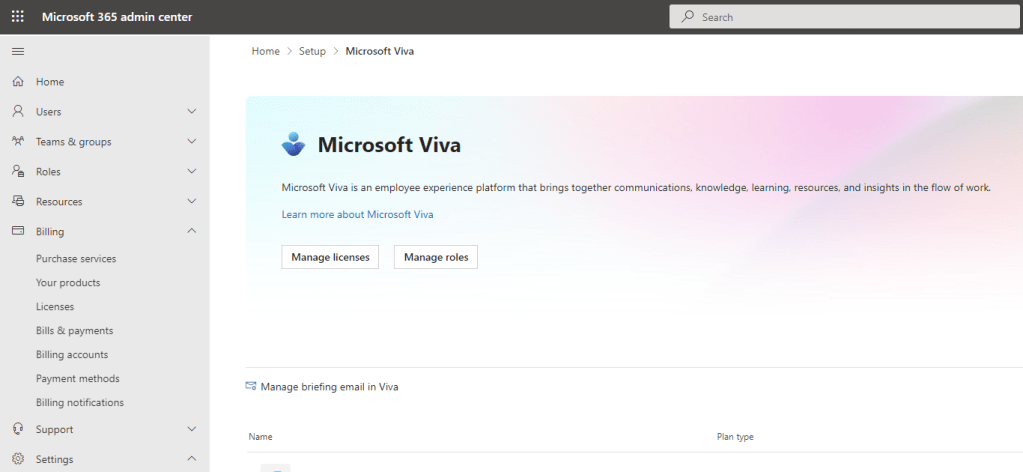
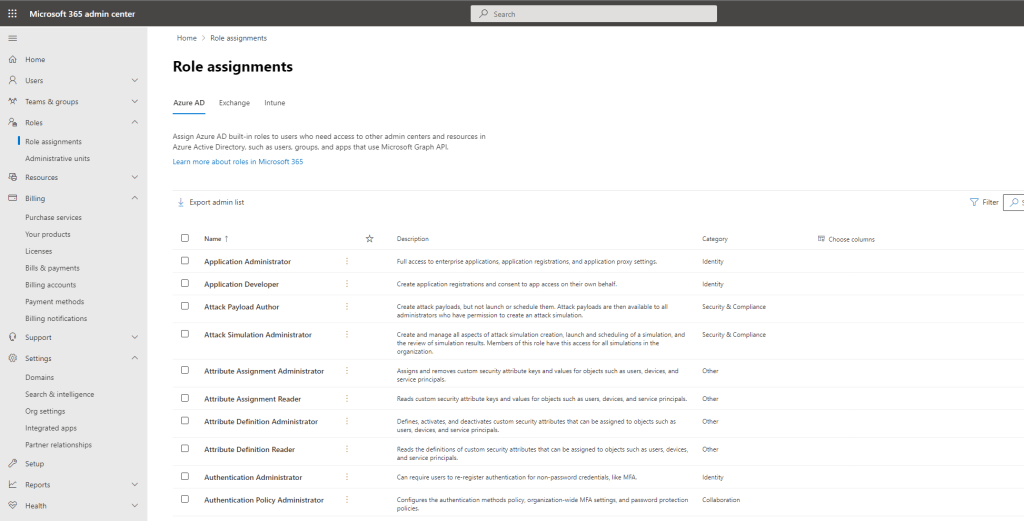
2.) Select Manage Roles goes to Azure AD Role Assignments within the Microsoft 365 Admin Centre and whilst current Viva roles are within this, at the time of writing no new roles are here, nor is Viva called out in a tab like Exchange or Intune. I imagine that this may change in the future.
3.) Selecting a Viva App will be able to dig into the app settings. This example will use Viva Insights
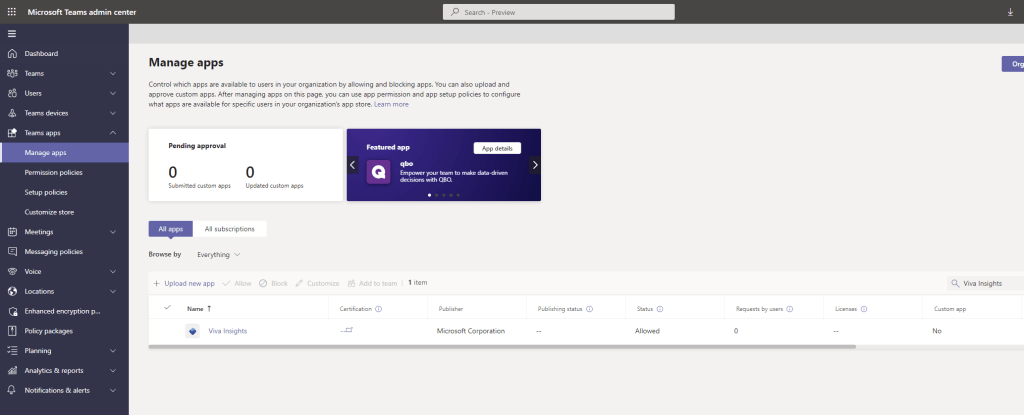
4.) The App Settings page will show a number of settings for the apps in Tabs, which will either surface as flyouts or redirect to somewhere else in the Microsoft 365 ecosystem. For example, selecting Manage Settings for Viva Insights under the tab Setup and manage settings will produce a flyout where you can set user access to the Viva Insights Dashboard, Digest Mail and the Insights App in Outlook. However, Manage Availability in Teams Admin Centre redirects to the Teams Admin Centre to manage the app

Functionality is, of course, very basic at this stage – really a bringing together of screens within the GUI – but this is a great start, even to have it begin to come together
UNDERSTANDING THE ASSIGNED ADMIN
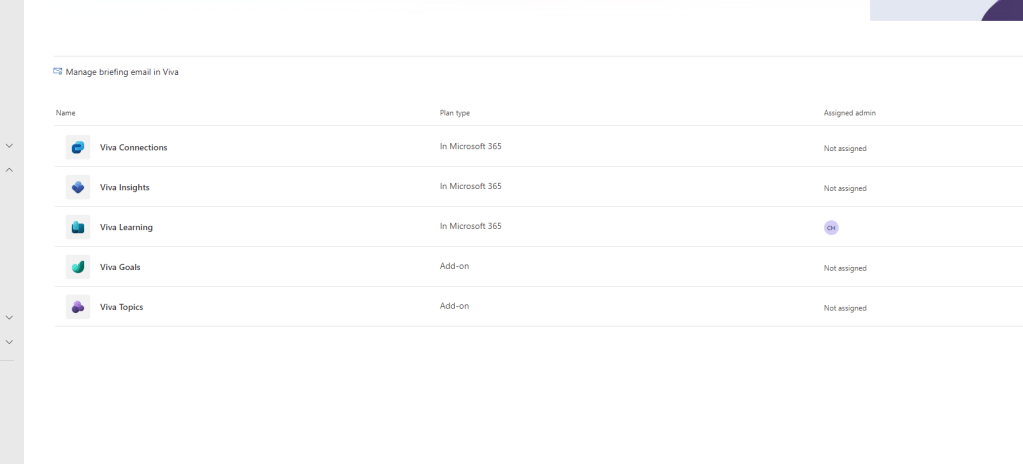
On the new Viva Admin Experience page, certain Viva apps may have Not Assigned under the Assigned Admins column
An assigned admin will display via adding the following specific Azure AD Roles
Knowledge Administrator for Viva Learning
Insights Administrator for Viva Insights
SharePoint Administrator for Viva Connections and Viva Topics
Which is cool to see at a glance who has these specific roles
Currently, at the time of writing, someone assigned Global Admin does not show up as an assigned admin. In terms of Goals, AFAIK (and I may be wrong) that Goals doesn’t have any dedicated AAD role at the current time and that the Org Owner and dedicated roles are set within the Goals App itself
FAQ
Q. Is there any Viva Apps which don’t appear here?
A. Not all Viva Apps are here at the time of writing. Viva Engage, Viva Sales as well as the new apps announced back in September do not appear in here yet
Q. Can you pin this page to the nav?
A. Not at the moment
Q. Will the page surface as an admin centre, like Teams or SharePoint, in the future?
A. Whilst I cannot speak for Microsoft – and am unaware of such plans – I would imagine this is a v1.0 and will evolve into something more than there is today
Q. What do you personally think of the admin experience?
A. I think it’s a nice start. This is bringing the apps together in one interface with the key setup and configuration actions, providing access to licensing and where the admin roles are managed. It’s simple, broad-brush functionality. Bringing them together to be more easily navigated and accessible is the first step to building upon that. I think we’ll see much more in this area and it’s exciting from a development, functionality and governance standpoint
 @Microsoft365Pro
One thought on “The Microsoft Viva Admin Experience is here”
Comments are closed.