
This blog is part of a series on Teams. For more articles, check back often
Written: 06/11/2022 | Updated: N/A
So recently I had the opportunity to meet up at South Coast Summit with Dona Sarkar. Dona is the Director of Tech at Microsoft Accessibility – but I have known her since back in the day when she headed up the Windows Insiders program. Now, it is true to say that me and Dona have a fair-few-things in common. Travel. Geography. Africa. Keeping things interesting. Side Hustle. Avoiding Jail. Good Food and going all in on whatever it is we are doing at the time. So, it was a real privilege that she came to our session on Metaverse for Business. And in true Dona style I ended up dropping in a load of ad-hoc accessibility scenarios into the content on the fly about two minutes prior to speaking. But that’s the point right. We must, as Nietzsche once said, live dangerously! And whilst we never got the opportunity to have a real catch up – given she’s always in such demand at these events I know we’ll do loads more together in the future. And so, as a thank you for coming to our session I wanted to make everyone aware of the new ability in Teams for users to turn live captions on for every one of their meetings. Why? Because it’s easy and it’s important given that Live Captions can help significantly with users hard of hearing, where the primary language of the meeting isn’t the users first language and where meetings are conducted in noisy environments, but from asking around my own organisation many people don’t use them because they have to turn them on every meeting. They forget. Or they can’t be bothered. It’s one more action. Remove these barriers and — whilst it’s a personal view – I think that it will be used by most people in an organisation to the point that captions will be normalized and the standard for Teams Meetings. And do you know what? My wife has actually gotten me in the habit over the last few years of watching TV at home with the captions on by default. Given my age, and the number of alt-rock concerts I used to attend when I was young in the 90’s, captions have really helped me too.
This one’s for Dona. Let’s go.
This blog will cover
- Setting the Meeting Policy
- Setting Live Captions to Always On
- Testing it works
- FAQ
Note: this blog may have some abridged steps which will assume some experience with Teams
Prerequisites
- Teams Administrator or Global Administrator for setting policies
- At the time of writing, Public Preview enabled for users who will use this functionality
SETING THE MEETING POLICY
Before we have users enabled live captions as always on, we have to ensure that live captions are enabled in the Teams Meeting Policy.
1.) Login with administrator credentials to https://login.microsoftonline.com
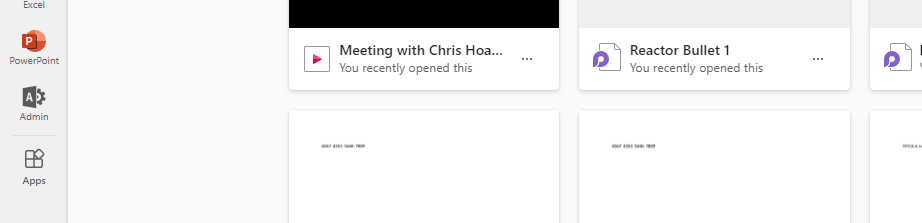
2.) From the left app rail, or via the waffle (top left) select Admin
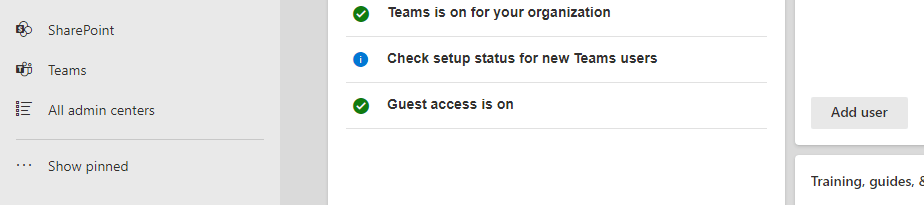
3.) In the M365 Admin Centre from the left navigation select Show All and then Teams
4.) In the Teams Admin Centre select Meetings then Meetings Policies

5.) Select the policy you are amending. This example will use the Global (Org Wide Default)

6.) In the policy under Participants and Guests ensure the setting Live Captions is set to Not Enabled but the User can override and select Save.
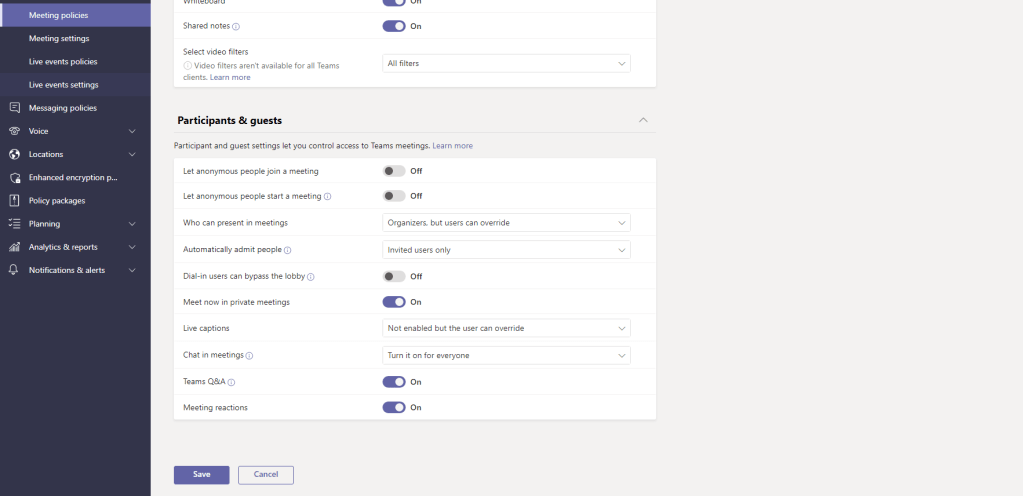
7.) The policy is set. Do this for as many policies as are assigned to your users. If you are only doing this for a specific set of users use custom policies and do not amend the global org wide default policy

SETTING LIVE CAPTIONS TO ALWAYS ON
Now that the policy is in place you may need to wait a few hours for this to propagate. At this point, and at this time of writing, you would ensure that the users are enabled for and have turned on private preview. You may only wish to enable public preview for some users. In time, this functionality will go to GA for all users. For each user they should do the following
1.) In the Teams Client, at the top right select (…) More Options

2.) Select Settings

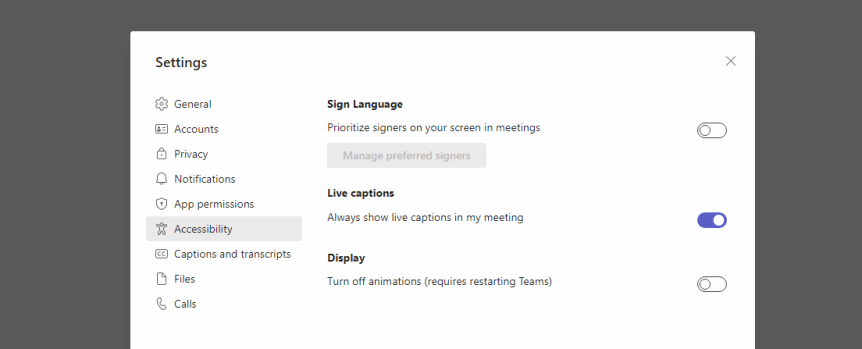
3.) Select Accessibility

4.) Swipe Live Captions on

5.) Now there is one final additional thing to do if the user hasn’t done it before. Go into a Teams Meeting. The quickest way to do this is in the Teams Meetings App and start a Meet Now

6.) When the meeting begins set the caption language, confirm, select save for future meetings and exit the meeting
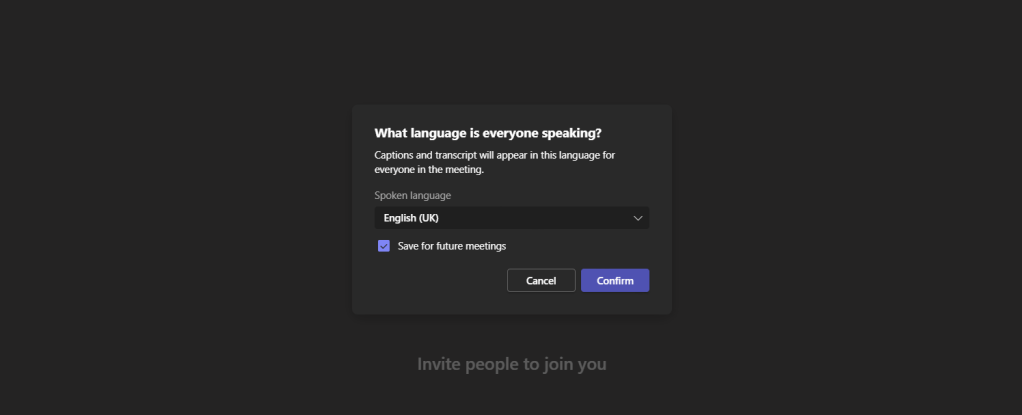
Now, live captions should appear as always on in any meeting you set up. Boom.
TESTING IT WORKS
Now comes the part of seeing what kind of meetings it works in. I am going to cycle through and see if they surface in different kinds of meetings
1.) In any standard private meeting, or webinar, it just works captions are on by default

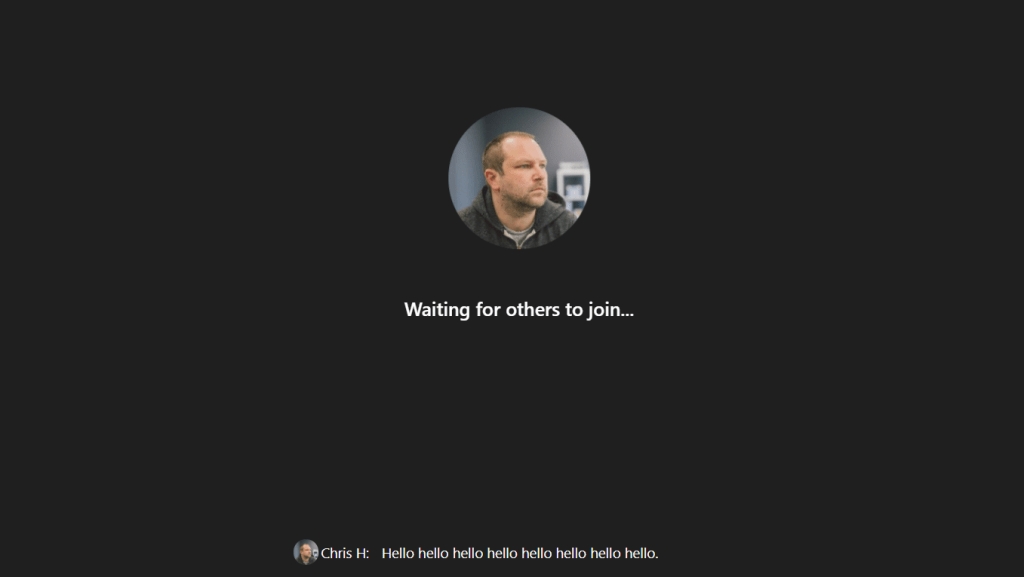
2.) Same with any Channel Meetings
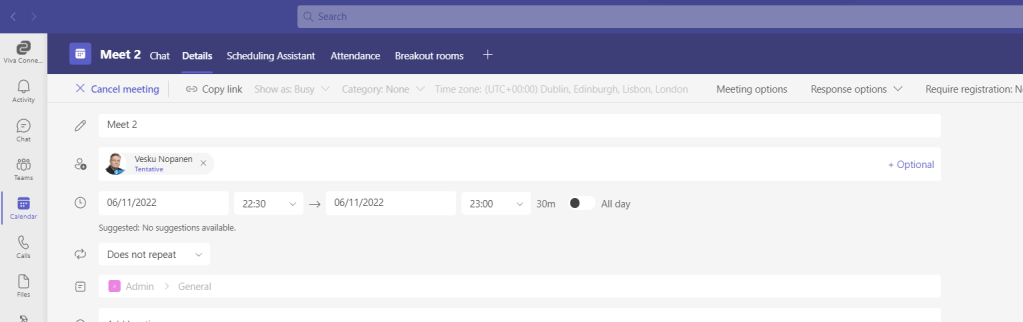

3.) Same with any ad-hoc meet now’s


4.) In all meetings the Live Captions Icon shows that Live Captions are on

5.) If you want to change the language you can so at the bottom right of the meeting – the spoken language or the caption language. This is me speaking in English and changing the caption language to German
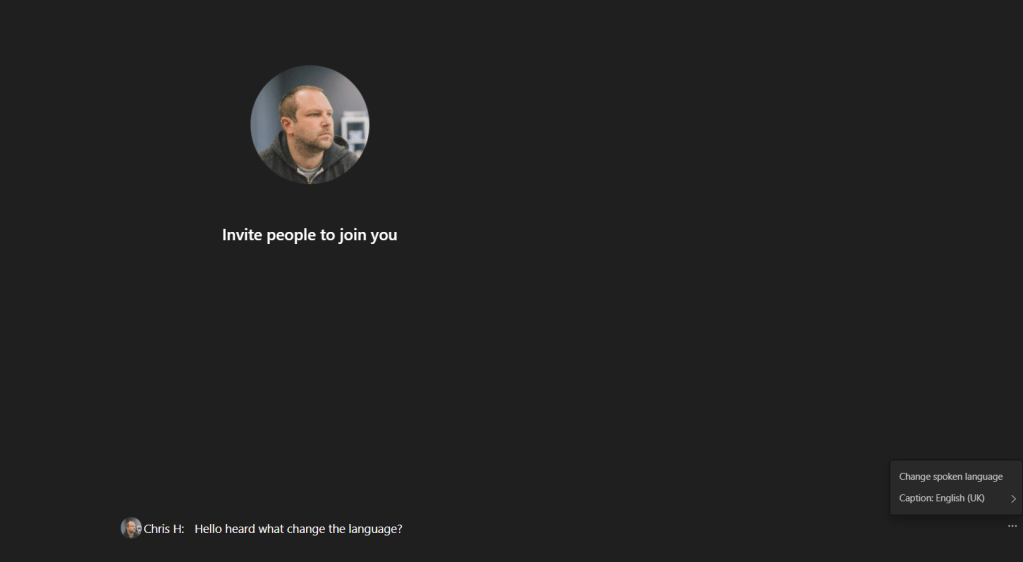

6.) But note only the spoken language is persistent and carries across meetings currently where the caption language mirrors the spoken language. Users can deviate away into their own caption language for the meeting

This is really great functionality. Let’s make captions always on by default. Currently there are no admin controls for turn Captions on by default, or swipe on by default, but maybe one day we’ll see them enabled by default. I think we are potentially on the way to being there. It’s awesome.

 @Microsoft365Pro