
This blog is part of a series on Teams. For more articles, check back often
Written: 20/11/2022 | Updated: N/A
Another crazy week for what has turned out to be another crazy year. But last Friday I officially started what I am calling a ‘sabbatical’ and taking some time out from frontline teaching and speaking until at least the end of January. On the one hand, there is a ton of work to be done regarding a recent merger. I have a list of DevOps tasks literally as long as my arm which includes loading out for H2. On the other hand – and after several months of big deliveries – I wanted some time away from the coalface and to have a breather. Anyone who does teaching or speaking regularly knows there is a lot associated with that. So, a break is needed. And by break, that means pivoting to things which are more transactional such as my DevOps tasks, preview testing for Microsoft and this blog. So, this week I am going to discuss how to stream a Teams Meeting to YouTube. It’s something I really should have done months ago, but somehow, I always never got around to it. But it feels the right time, and there are a ton of reasons to use custom streaming. Breath of audience, different audience, different surface. If you think about it, something like 2 billion use YouTube so that goes well beyond the limits of a live event. And to be honest, it’s not a difficult setup – and neither is it an on or off switch so you can easily configure it for those who need it. What’s not to like? Let’s talk about Real Time Messaging Protocol (RTMP)
Let’s go.
This blog will cover
- Setting the Meeting Policy and App Policies
- Getting the RTMP Details from YouTube
- Using RTMP Streaming in the meeting
- FAQ
Note: this blog may have some abridged steps which will assume some experience with Teams and YouTube. This blog is using a Ring 4 tenant with GA functionality. At the time of writing streaming only support Teams Meetings and Webinars it does not support Live Events
Prerequisites
- Teams Administrator or Global Administrator for Policies
- Microsoft 365 Licence for Teams
- YouTube Account
SETTING THE MEETING POLICY AND APP POLICIES
Let’s begin by ensuring a user can use custom streaming in their meetings
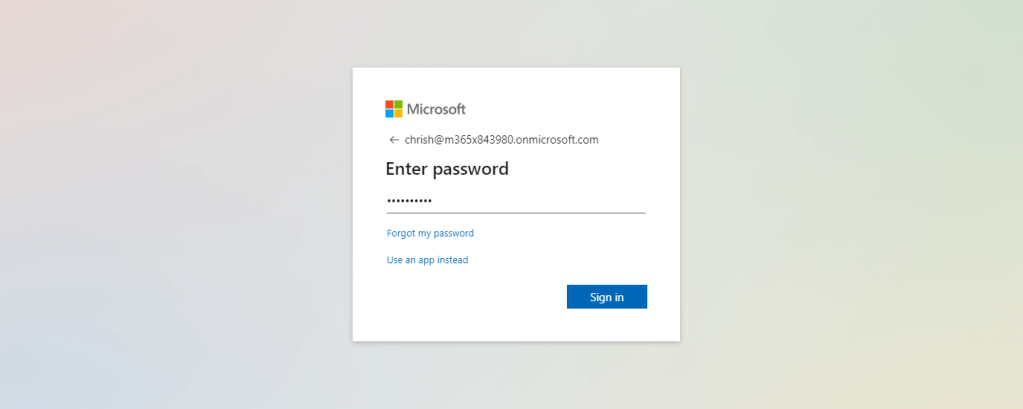
1.) Login with administrator credentials to https://login.microsoftonline.com
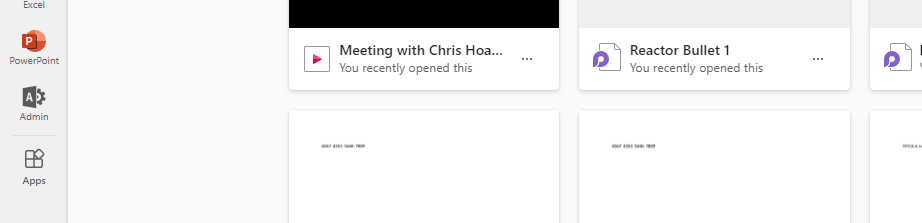
2.) From the left app rail, or via the waffle (top left) select Admin
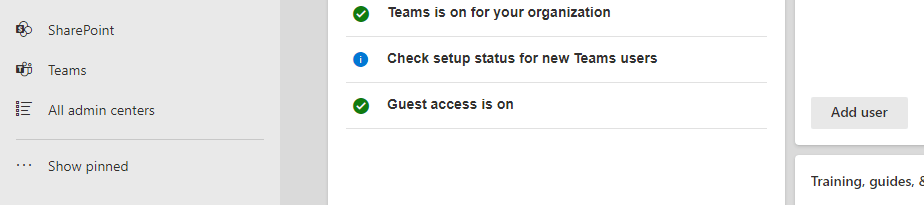
3.) In the M365 Admin Centre from the left navigation select Show All and then Teams
4.) In the Teams Admin Centre select Meetings then Meetings Policies

5.) Select the policy you are amending. This example will use the Global (Org Wide Default)

6.) RTMP Streaming is disabled by default. Under General change Live Streaming Mode to Enabled and then Save the policy

You can also do this in PowerShell with the command such as follows
Set-CsTeamsMeetingPolicy -Identity Global -LiveStreamingMode Enabled7.) Once the Meeting Policy is enabled go to Teams Apps and then Manage Apps and ensure that the app Custom Streaming is enabled. Also check under Permission Policies and ensure that this does not prohibit that app

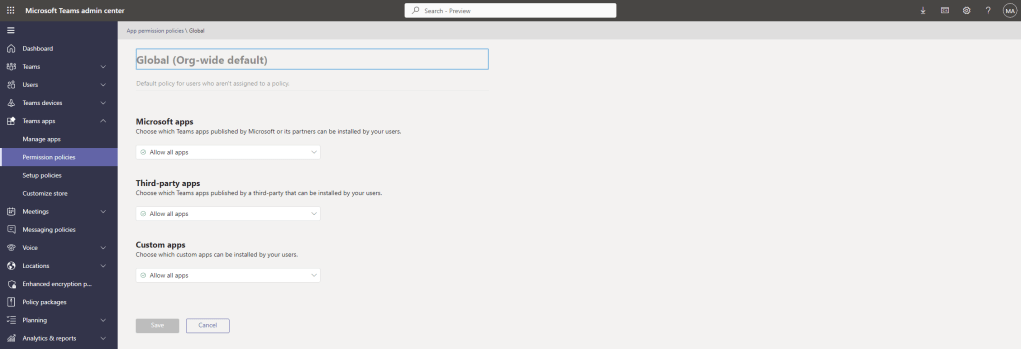
All good to go from a Teams perspective 🙂
GETTING THE RTMP DETAILS FROM YOUTUBE
Now that everything is set up to support RTMP streaming we now need to get two things from your YouTube account. This is the Stream URL and the Stream Key.
1.) When you are logged into your YouTube account, at the top right select Create (Cam Icon) and then select Go Live

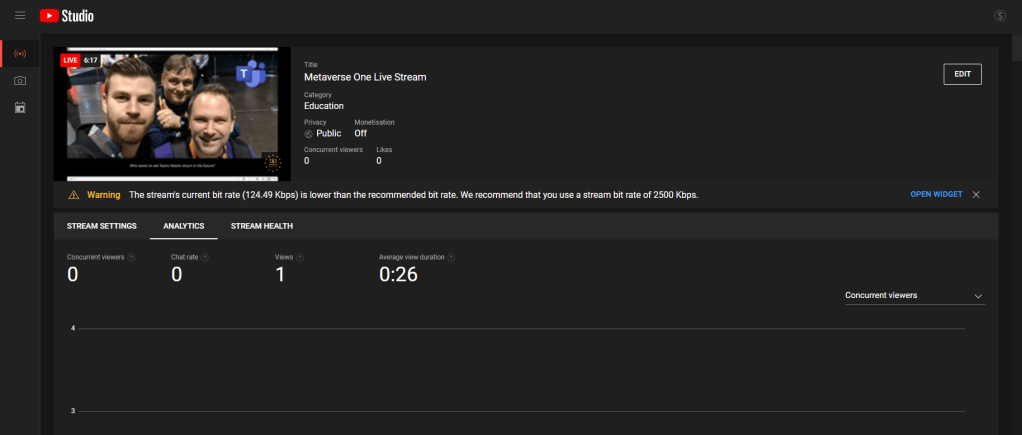
2.) The Stream URL and Stream Key are here (at the bottom left of the screen under Stream Settings). You will want to leave this page open as this is where you will be streaming to and can see the content coming out from Teams

USING THE CUSTOM STREAMING APP IN THE MEETING TO STREAM TO YOUTUBE
Now we are enabled to stream, and have the Stream URL and key for YouTube we can stream out to YouTube from the Teams Meeting
1.) Start up a meeting. In this example we’ll use an ad-hoc meeting (meet now) from the calendar app

2.) In the meeting select Apps then Custom Streaming
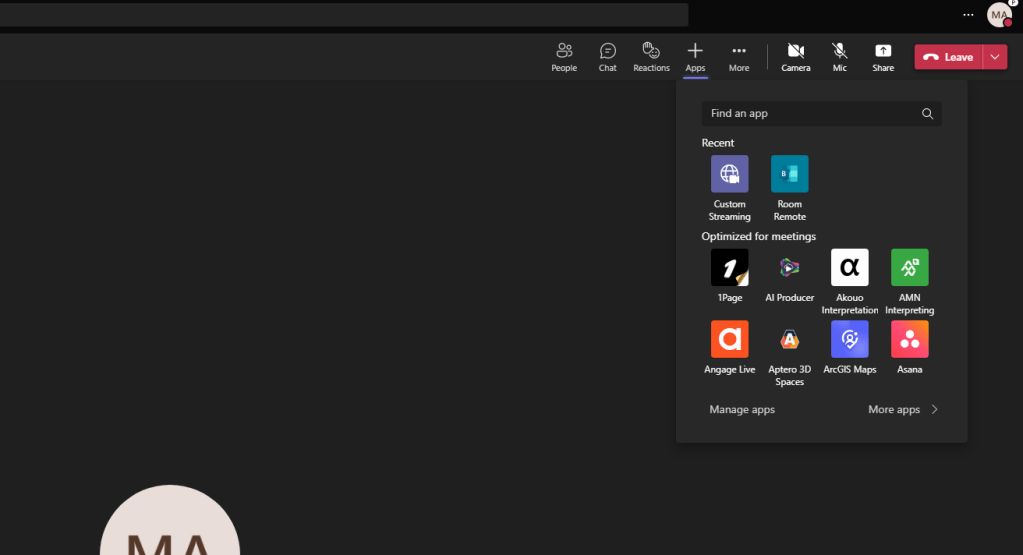
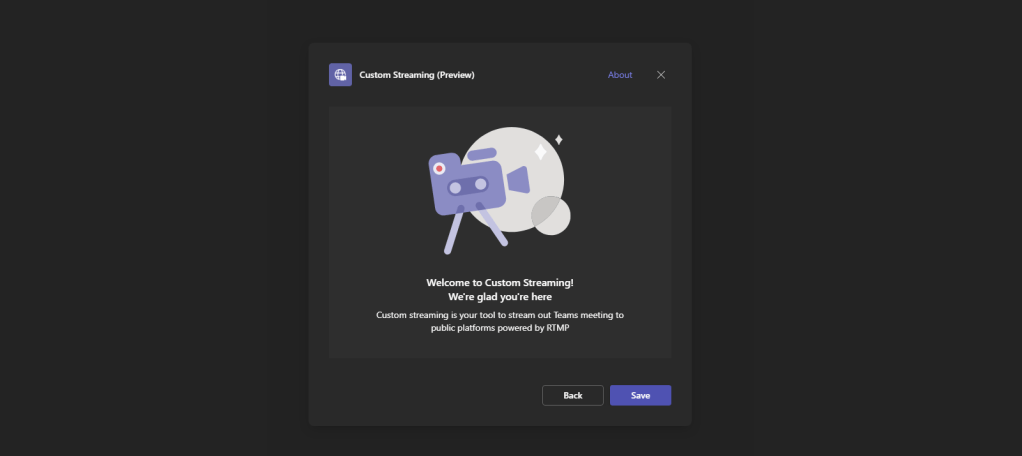
3.) Select Save
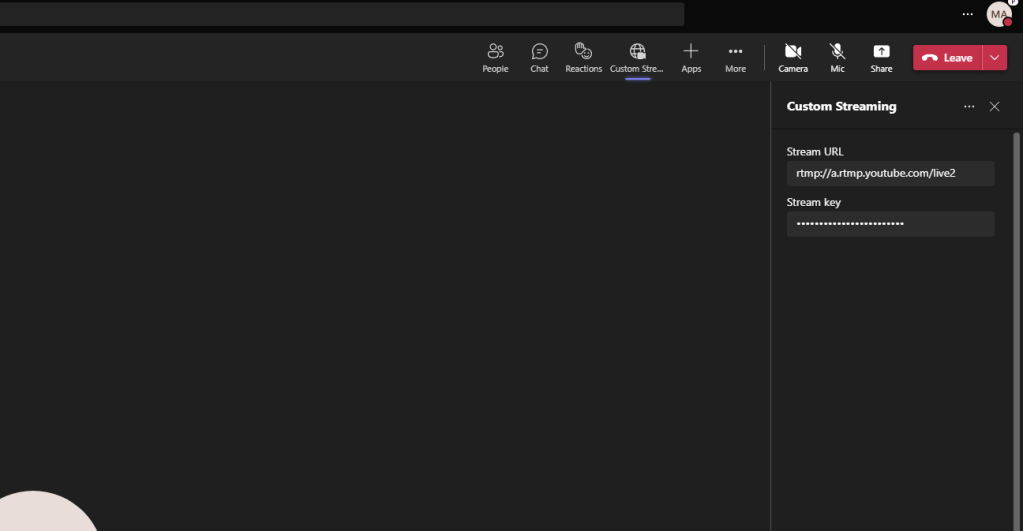
4.) Add the Stream URL and Stream Key from YouTube in and select Save

5.) Select Allow
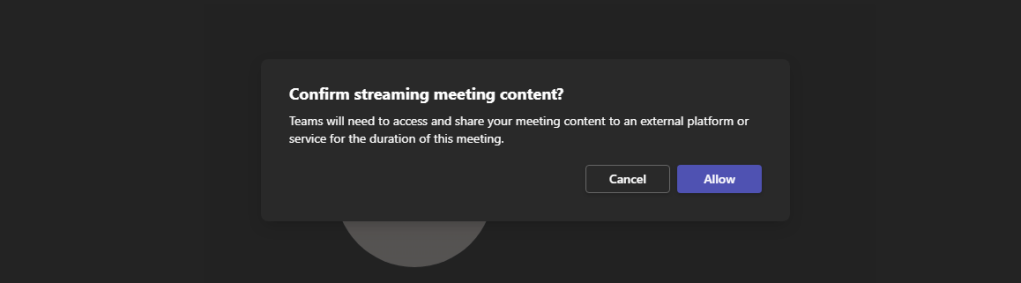
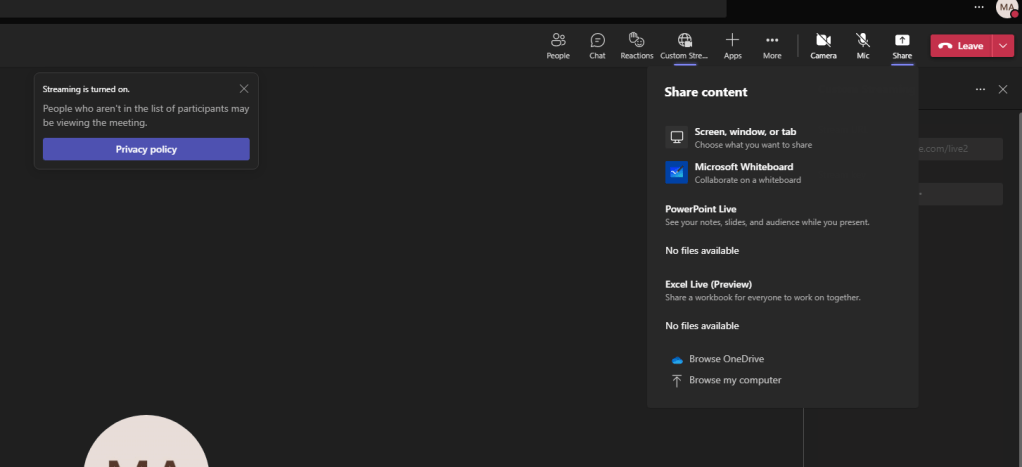
6.) Content is now being Streamed to YouTube
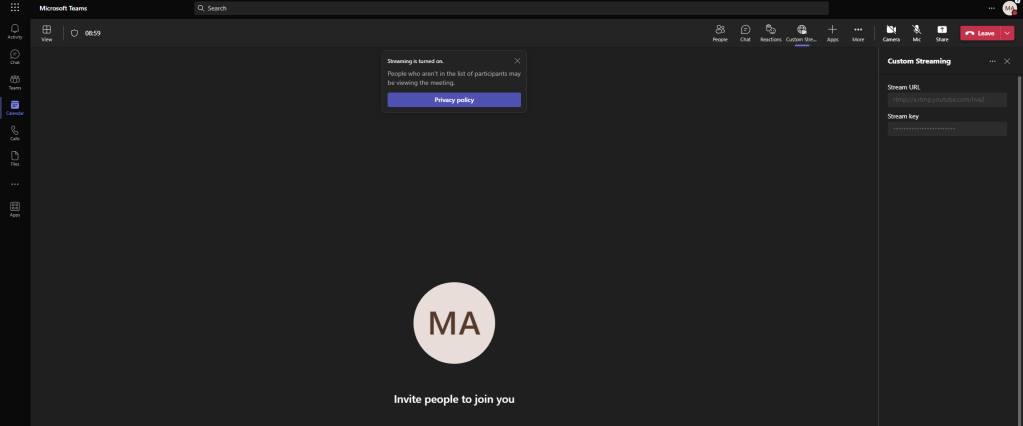
7.) As nothing is shared nothing will display on YouTube but audio will be heard
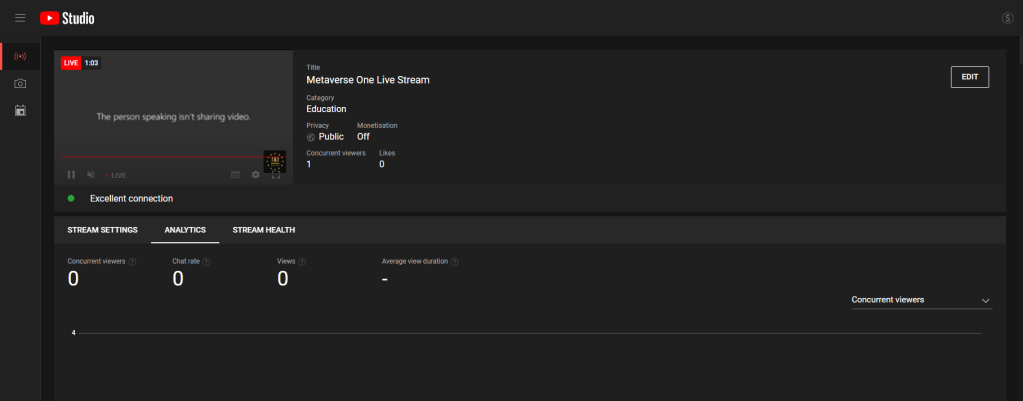
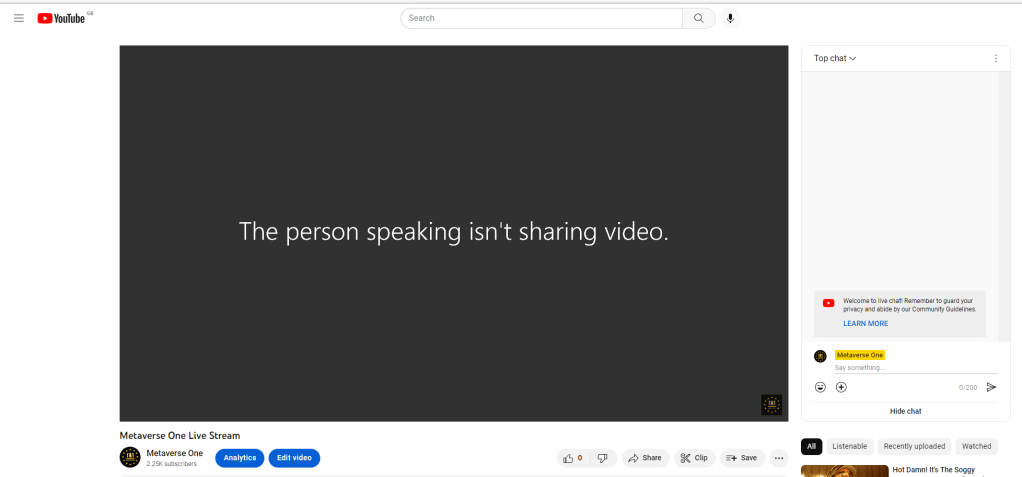
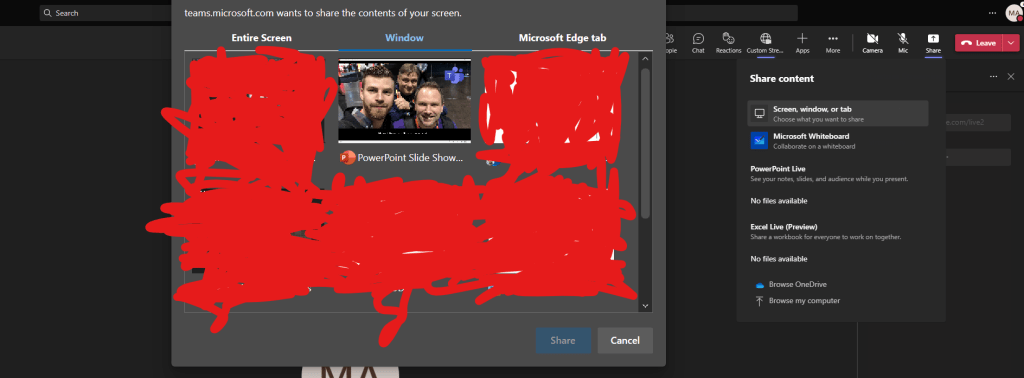
8.) Now share something in Teams and it will display 🙂

Happy streaming 🙂
FAQ
Q. Is Streaming supported for Live Events?
A. No, streaming is only supported for Teams Meetings and Webinars
Q. What is the output from the Custom Streaming App?
A. 720p 30fps output
Q. Can anyone use the Custom Streaming App?
A. The Custom Streaming App was tested in the Meeting Organiser role. Further testing would be needed for other roles such as co-organizer.
Q. Is there only one stream?
A. Currently, yes. Only one RTMP stream can be enabled at a time. Any second one through a second instance of the app will supersede the original
Q. Does the app cache the Stream URL and Key?
A. The Stream URL and Key are only used during the streaming session and are not saved
 @Microsoft365Pro