
This blog is part of a series on Teams. For more articles, check back often
Written: 11/12/2022 | Updated: N/A
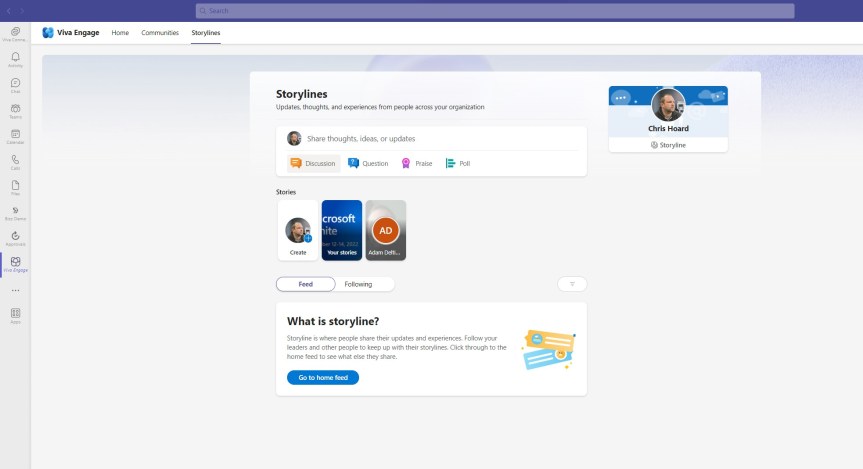
After a few weeks of focussing on the transition to Infinigate and inner ring preview testing for various product teams at Microsoft, I don’t mind telling you that it’s mighty fine to be back with some bandwidth for doing the blog. I wish I could tell you that I have had some iota’s worth of break during that time, but that would be a barefaced lie. My world has been consumed by DevOps, and Sprints, and scrutinizing UX, and the H1 schedule and programmatic changes such as Solution Partner Designations. But if you have followed this blog for any length of time, then you know that I think having a few weeks away every so often is typically a good thing. Absence makes the heart grow fonder and all. But in the world of cloud the bucket of content fills back up. So, this week I am going to talk about something which I don’t often cover – and that is Viva Engage. Viva Engage, by definition, is a new employee experience that connects people across the company. It is driven by Yammer services to which Yammer is a part. It is also in the second wave of Viva apps of which we would also bucket Pulse, Amplify, Goals, Sales and all the others announced this year. Now, the functionality we will be specifically looking at today is called Stories. Stories – again, by the only definition I could find, is a ‘modern, engaging way to capture the moment, with short videos or photos that are showcased in a stories carousel’. Think of content similar to Tik Tok and Insta ((videos and pictures) that followers of your own Storyline can view and engage with, and which your provide them as a richer experience. So, basically, something way out of my comfort zone but something I am looking to use in my own organisation.
Let’s go
This blog will cover
- Enabling Stories
- Accessing in Teams
- Recording or Uploading a Video
- FAQ
Note: this blog may have some abridged steps which will assume some experience with Teams, Viva and Yammer. This blog is using a Ring 4 tenant with GA functionality. Whilst Storylines is GA at the time of writing, Stories itself is in Preview
Prerequisites
- Yammer Administrator or Global Administrator
- Microsoft 365 Licence for Teams and Viva Engage Testing
ENABLING STORIES
The first requirement is to enable the stories functionality
1.) Login with administrator credentials to https://login.microsoftonline.com

2.) From the left app rail, or via the waffle (top left) select Yammer

3.) From the top right, select Cog (Settings) and then Manage Storyline
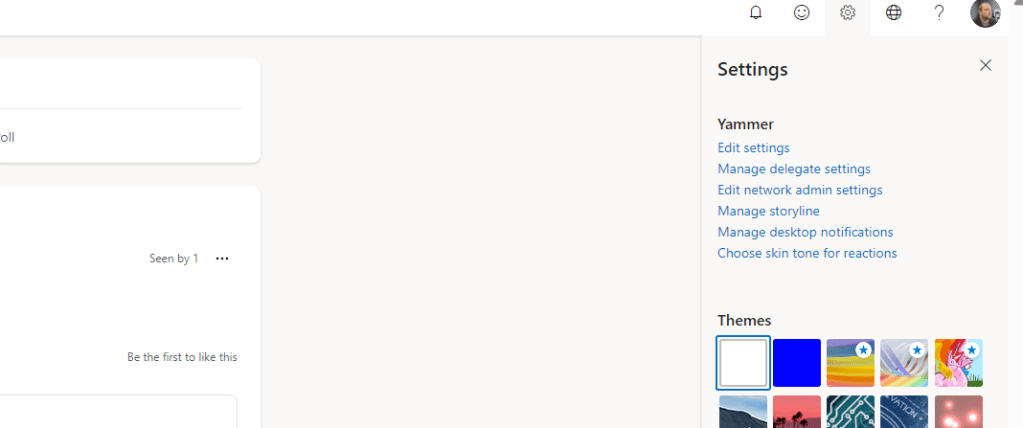
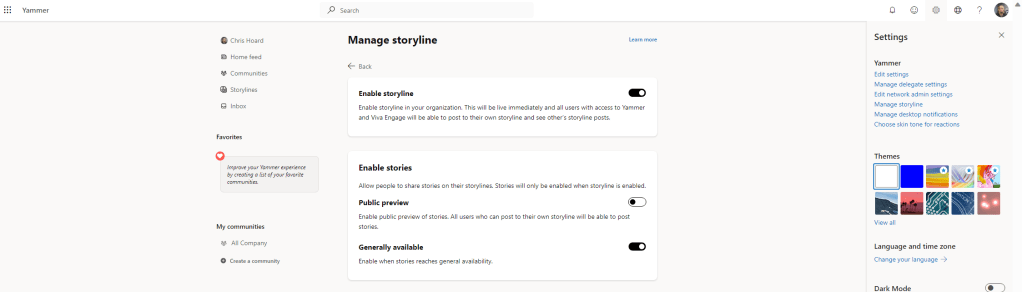
4.) Swipe Public Preview to On. Note, Stories will be turned on automatically when it reached General Availability (GA). This is turning the functionality on prior to that
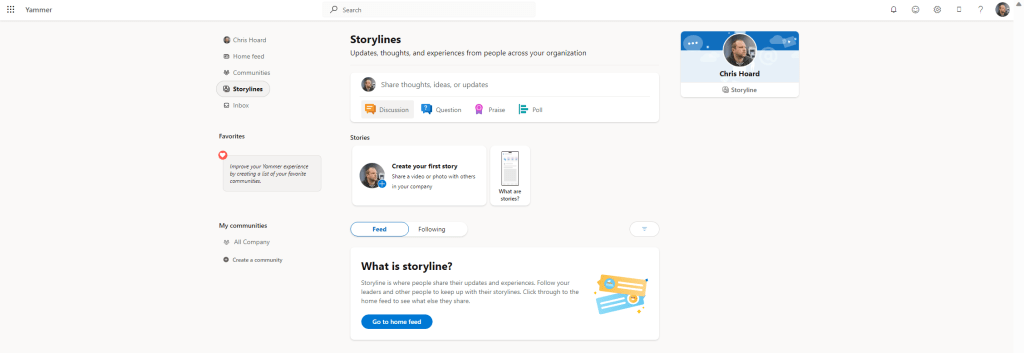
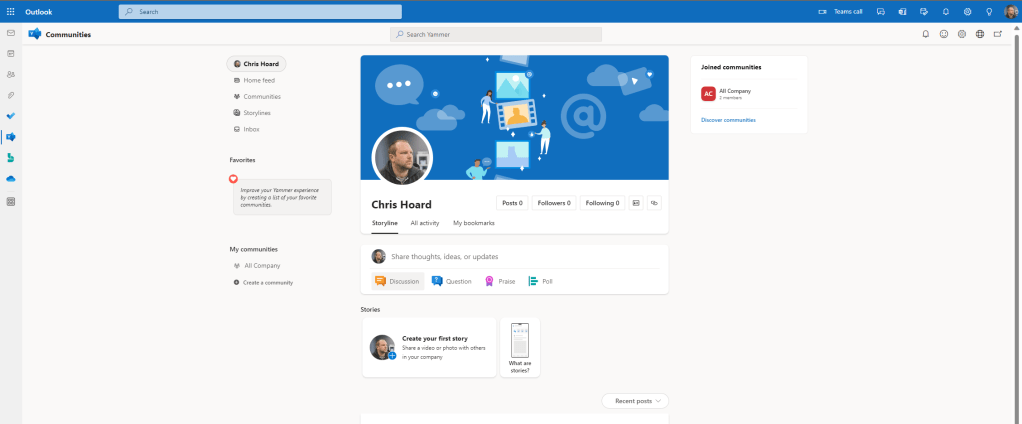
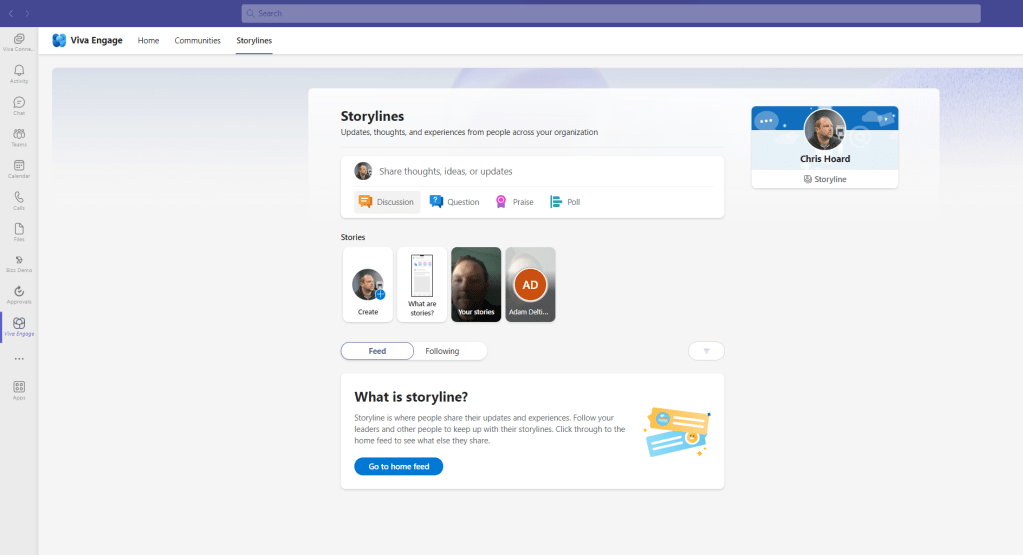
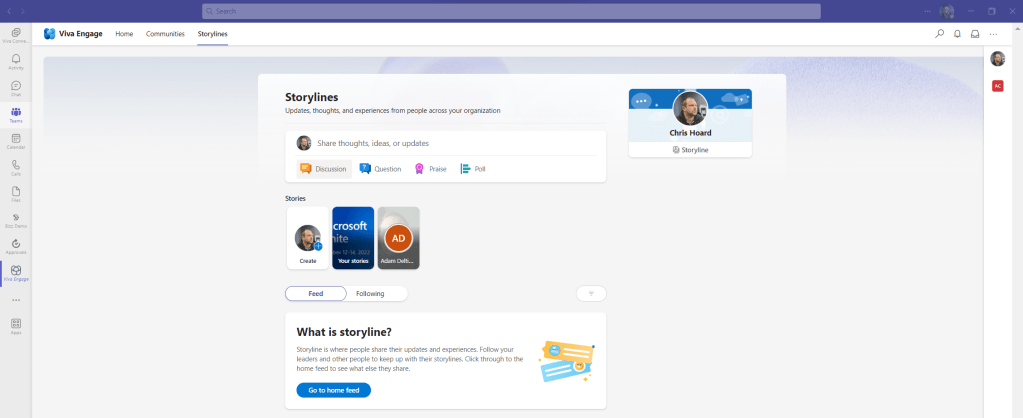
5.) Now refresh the screen and select Storylines from the left nav menu and Stories appears underneath the compose box
ACCESSING IN TEAMS
Now we have enabled the preview let’s access this in Teams
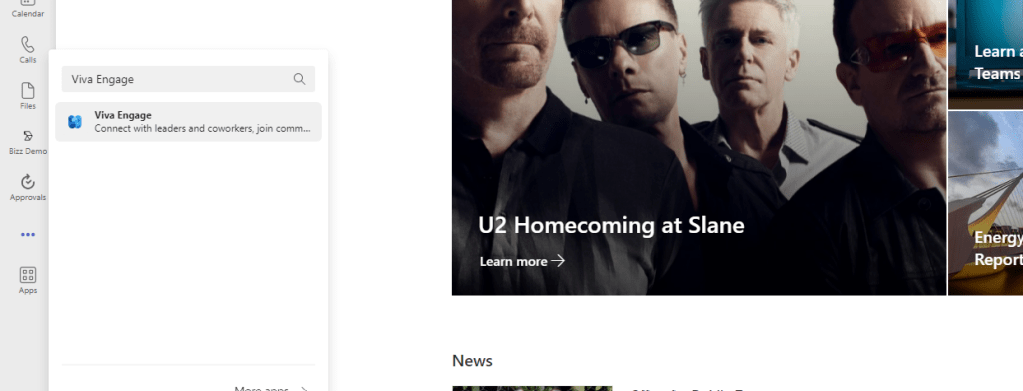
1.) In the Teams desktop or web client select … (More Options) on the app rail, search for and select Viva Engage
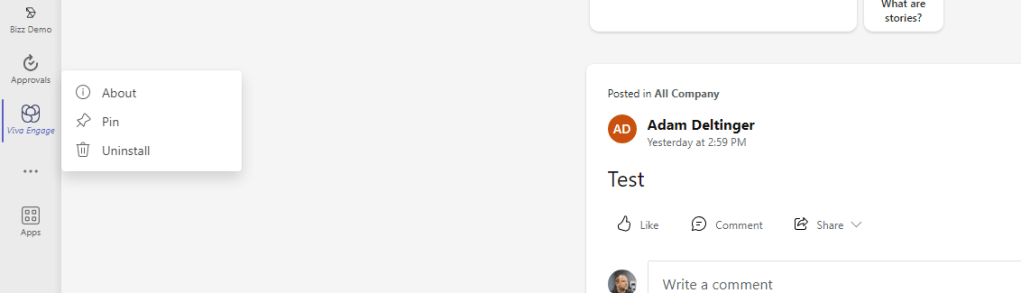
2.) At this point, you may wish to pin Viva Engage to the app rail
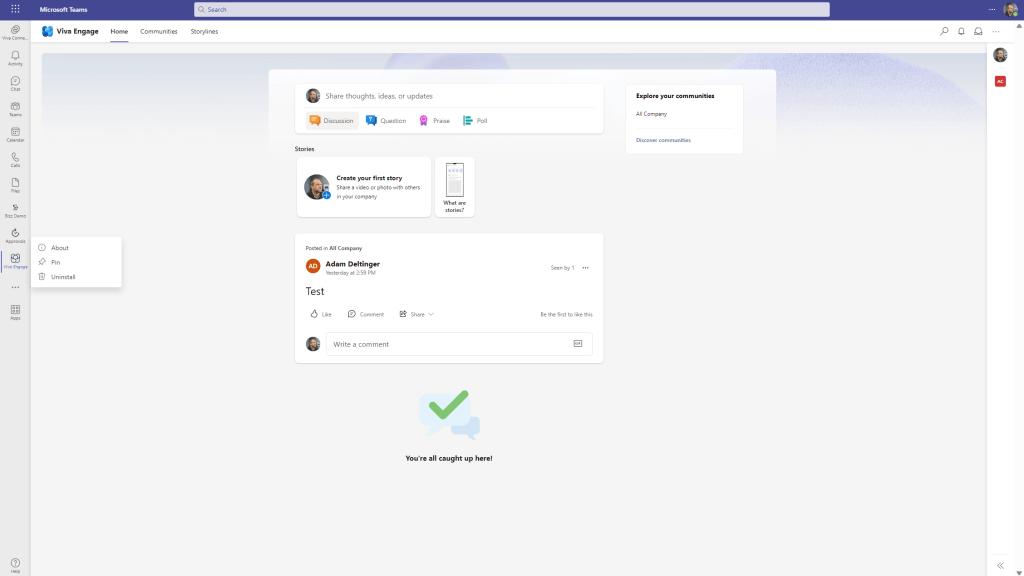
3.) Stories now appears in the Home or Storylines tabs within Viva Engage app within the Teams Desktop and Web Apps
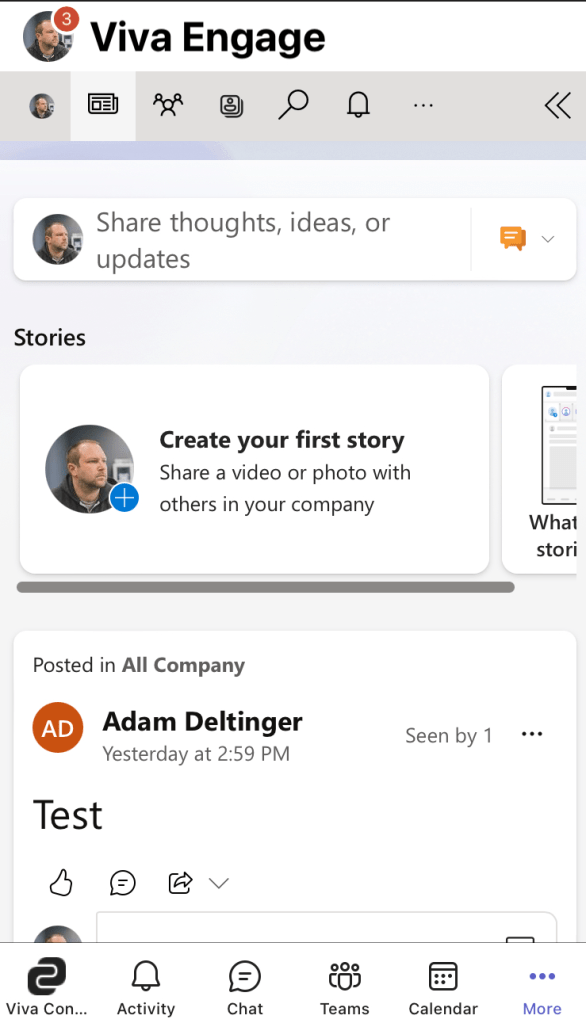
4.) And also, in the Home and Storylines tabs within the Viva Engage app within the Teams Mobile App
5.) It also appears via the Yammer App in Outlook, the Yammer Progressive Web App (at least on Windows) and the Yammer mobile app
RECORDING OR UPLOADING A VIDEO
Now that we have enabled the public preview of Stories, and surfaced it in Teams, all we need to do at this point is add content
1.) In Teams, select Create your First Story
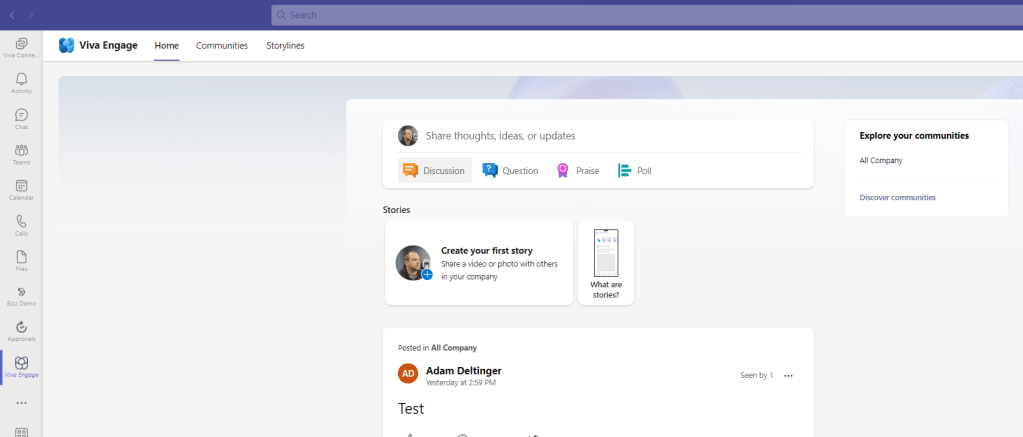
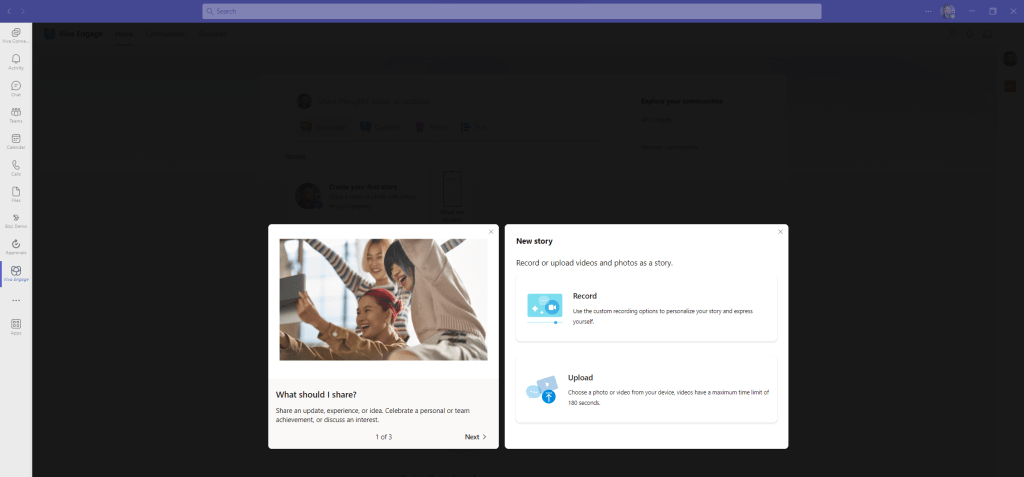
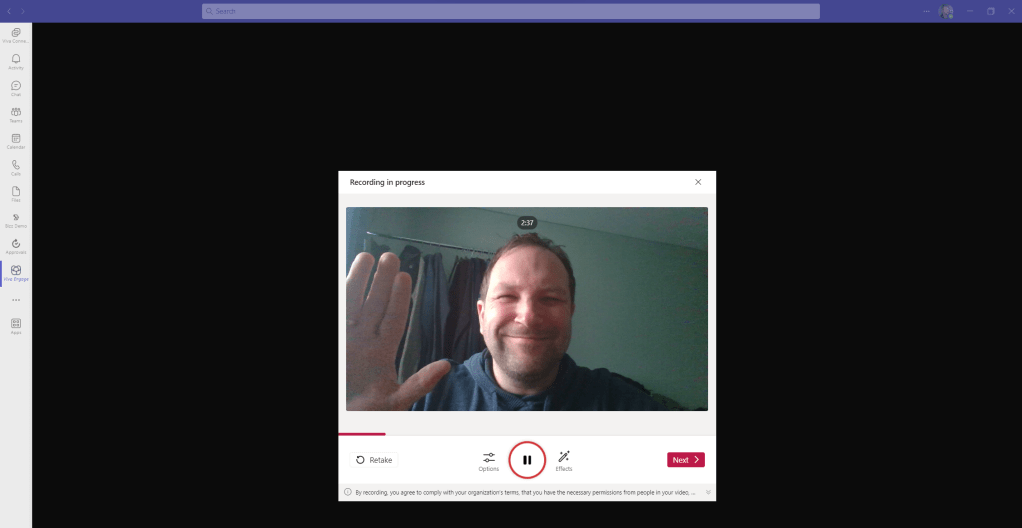
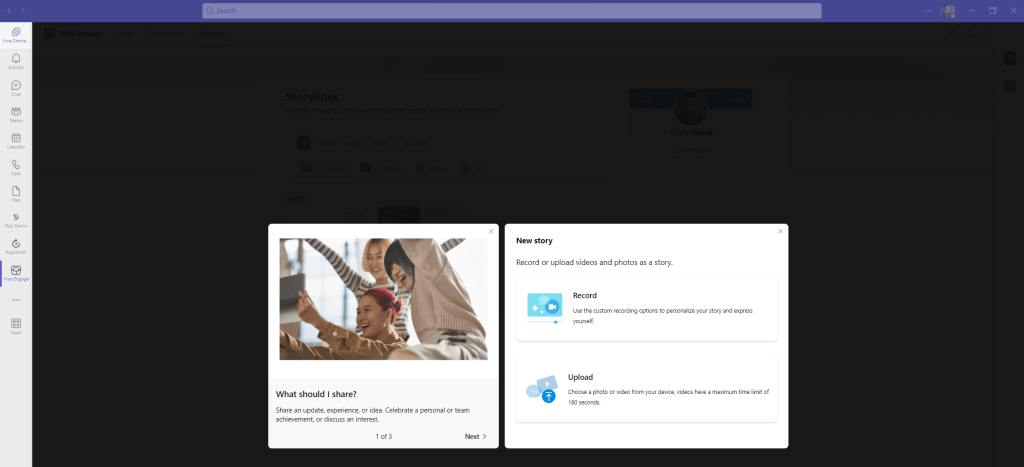
2.) Select Record
3.) The camera will start. Camera permissions may be asked for at this point. Also, you can select options or to add effects like you can for any recorded Stream video. Select the Recording Button
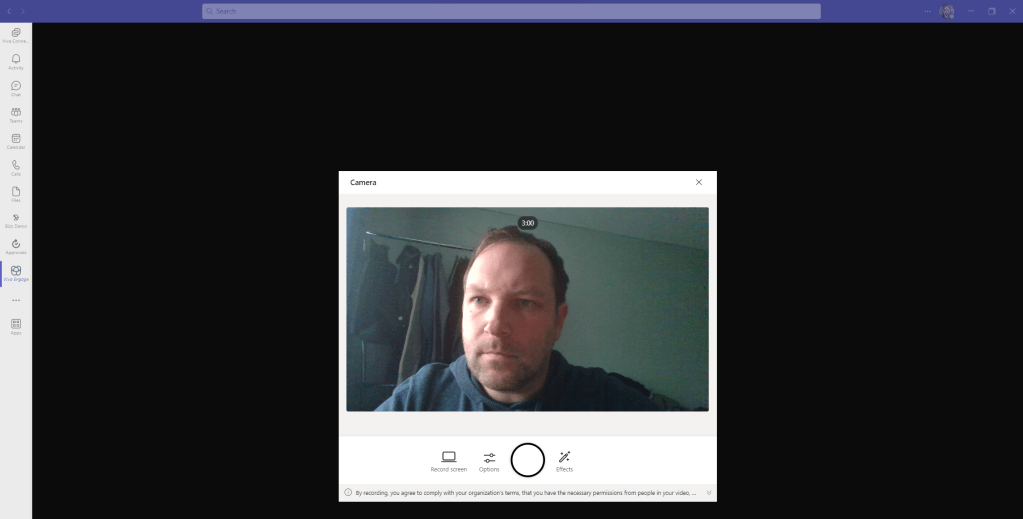
4.) Record your video, which has a maximum of 3 minutes, and once done select Next
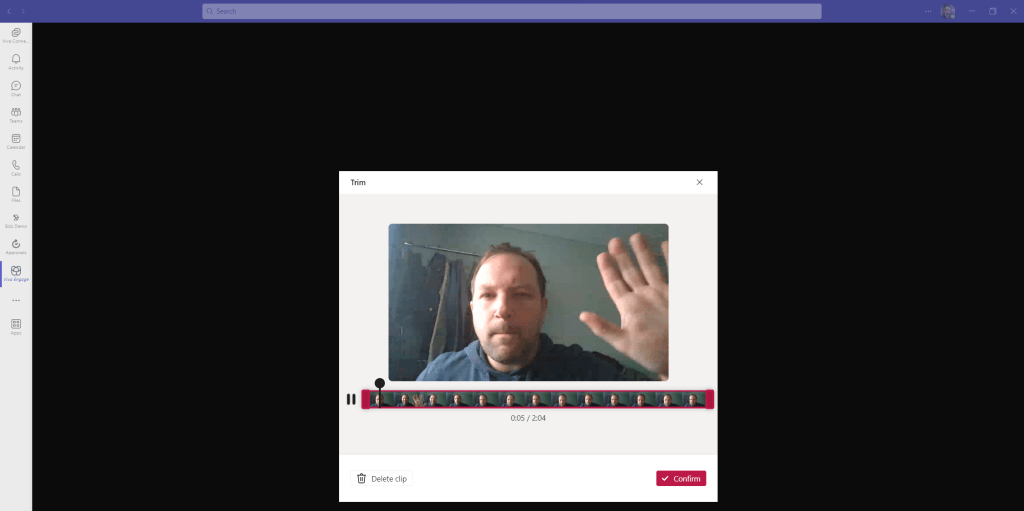
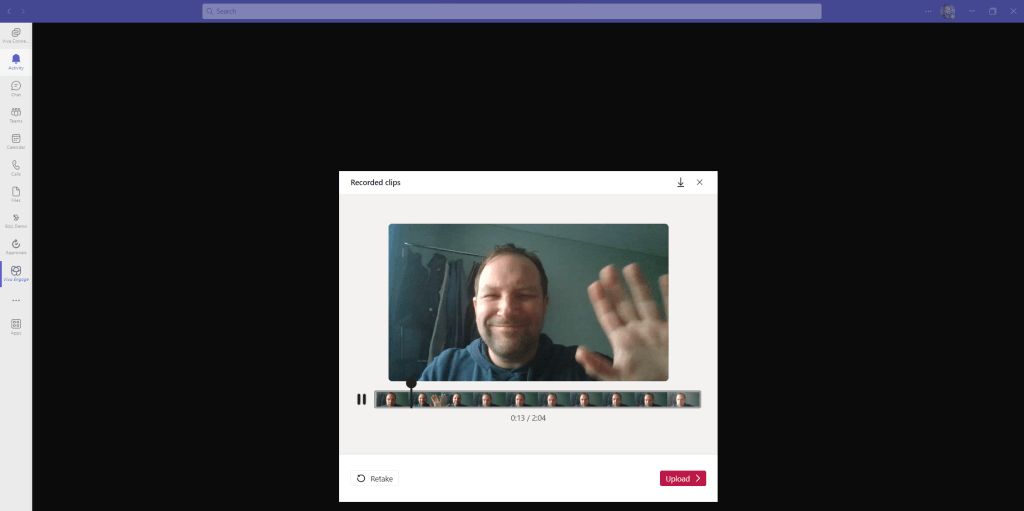
5.) Review and either delete your video or confirm and then upload your video
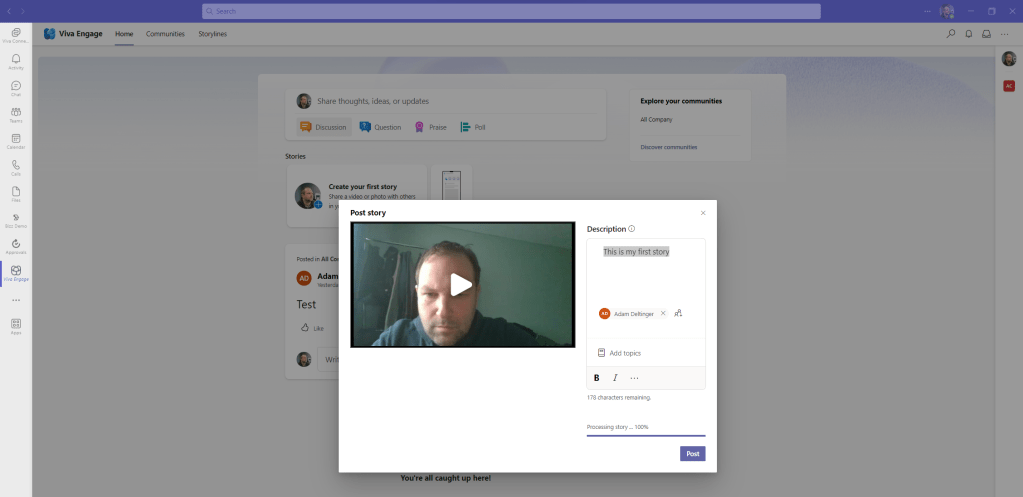
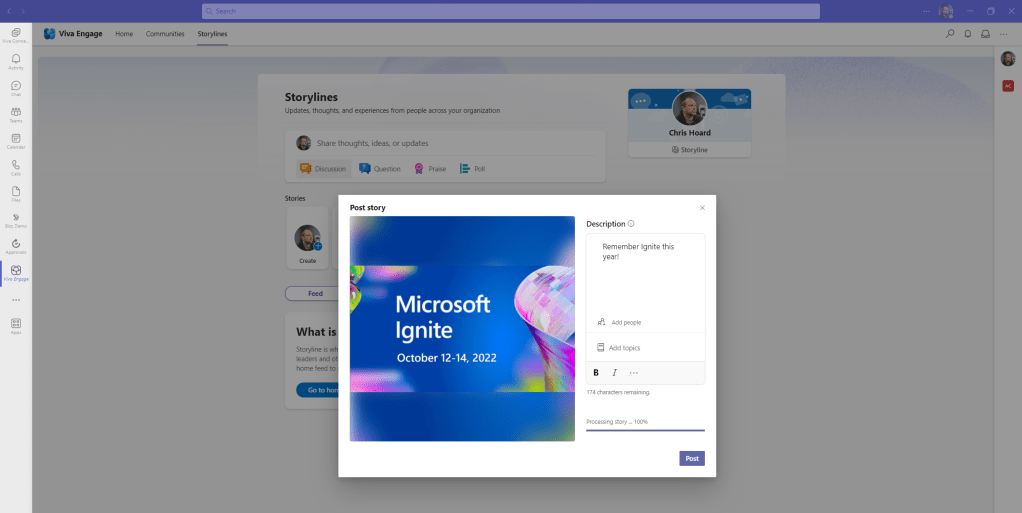
6.) At this point the video will be uploaded. You may
- Give the story a description
- Add people to mention them or bring it to their attention. This will create notifications
- Add a topic if required.
- Format the description
Once done, and the recording has uploaded, select Post
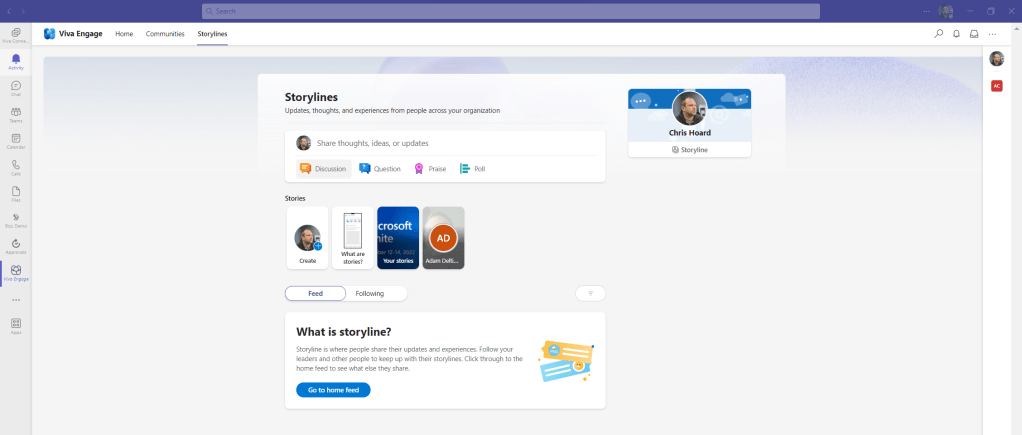
7.) The Story is now posted and will appear in Stories in the Home Tab or Storylines tab within Viva Engage and anywhere it surfaces within Teams. This will be under a carousel slot entitled Your Stories
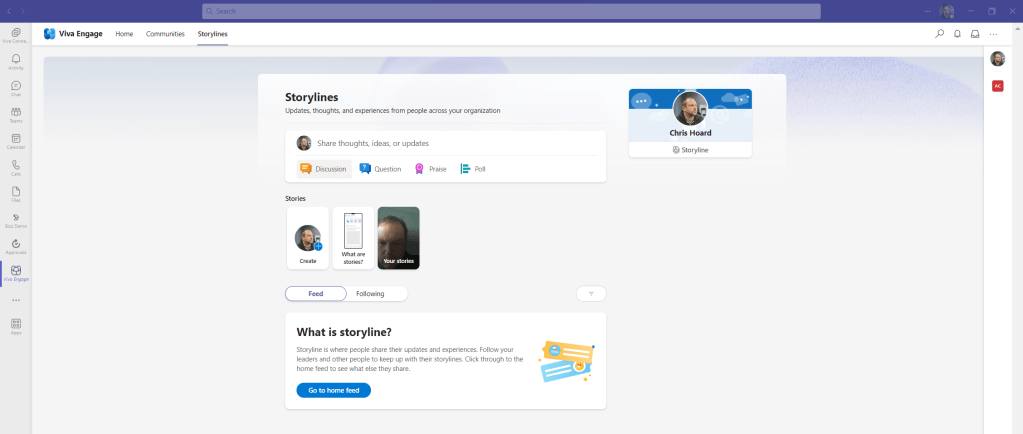
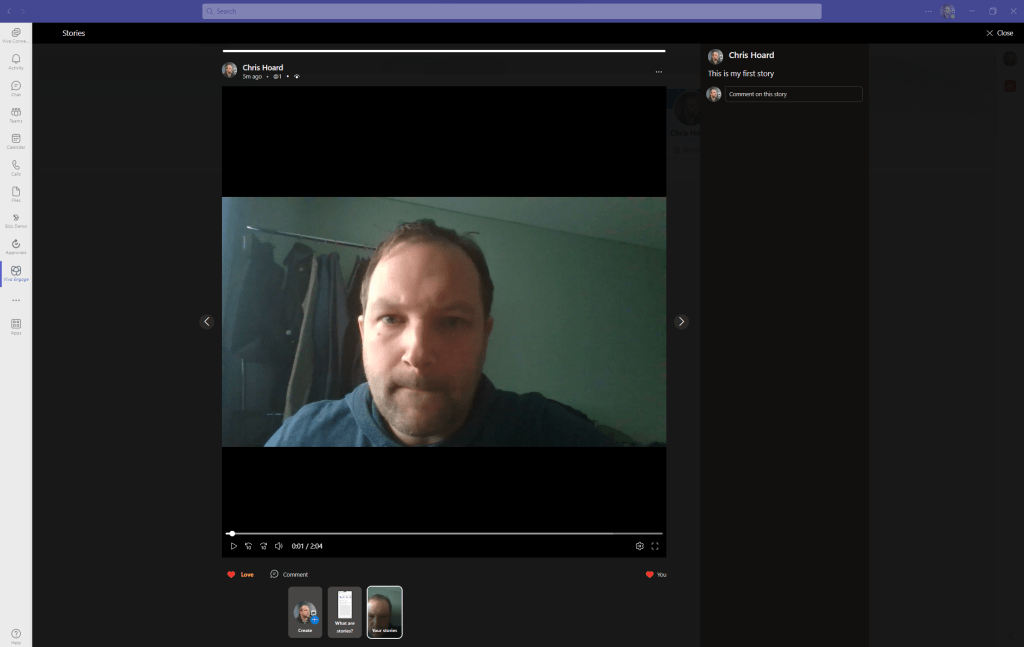
8.) Select the Story to play it, where you can add Comments, Emojis or move to other stories
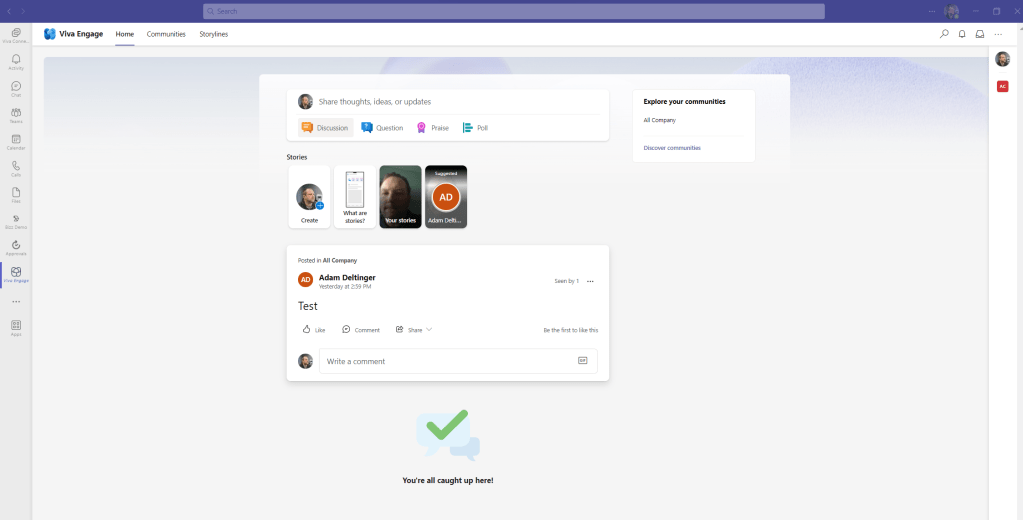
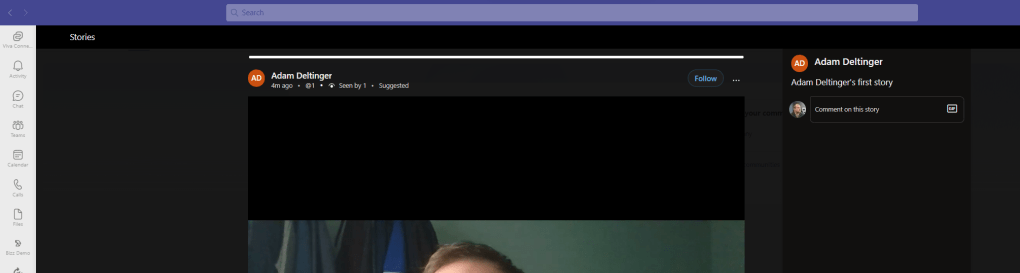
9.) It is worth nothing that if you record multiple stories, they will not take up the whole of the carousel. Each carousel slot is reserved for stories from one person in the organisation. In other words, even if you record multiple stories, these will be aggregated in one carousel slot. You will need to follow others to fill other carousel slots which you can do by selecting the story and following the user. Until that time the story and user will remain ‘suggested’
10.) Uploading is the other way to get content into Stories. Here you get to add Photos as well as video. Uploading also has a maximum of 3 minutes.
FAQ
Q.) How do I get rid of the ‘What are Stories’ Carousel Slot?
A.) Simply select it and then reading through it will disappear from the carousel slot
Q.) Where are Stories held? How can they be deleted
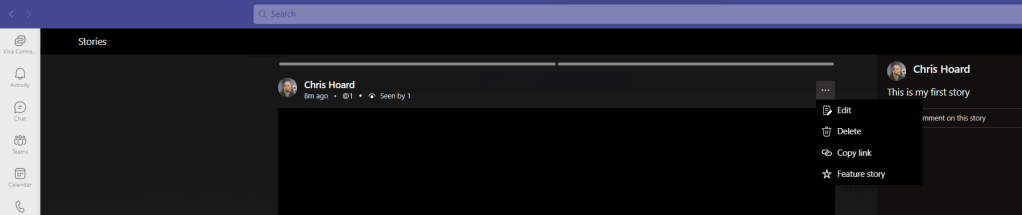
A.) At the time of writing this is unclear. Stories do not appear to be held in OneDrive, nor do they appear on a Search within the Microsoft 365 Portal. More information on this is likely to surface over time. They can be deleted through the story itself
Q.) Can Stories be recorded from the mobile device?
A.) Yes, at least as tested on the IPhone. Through the Viva Engage App within the Microsoft Teams app, videos can be recorded, and photos can be uploaded
 @Microsoft365Pro
One thought on “Teams Real Simple with Pictures: Surfacing Stories within Viva Engage”
Comments are closed.