

This blog is part of a series on Teams. For more articles, check back often
Written: 18/12/2022 | Updated: N/A
Microsoft Teams was recently named a leader in the Gartner Magic Quadrant for Unified Communications for 2022 – and with good reason. Let’s take a look at the stats: 80 million users of Teams Phone. 12 million users of PSTN. Calling Plans expanding from 28 to 34 countries, and a voice SLA now standing at 99.99%. Over the last year or two Microsoft has continued to introduce many new innovations to the calling service such as Operator Connect, Operator Connect Mobile, SIP Gateway, Survivable Branch Appliance, a new PSTN desk with integration into the Teams Admin Centre, as well as several useful features ranging from the customization of call parking, to surfacing end-user call routing in the TAC. Having recently attended Airlift, I can confirm there is so much cool stuff still to come. The journey is far from over. But being under NDA I have to suppress my excitement for a while longer. But in the meantime, I was interested to see that user controlled busy on busy has shipped into preview the past few days. But what is Busy on Busy? By definition Busy on Busy lets you configure how incoming calls are handled when a user is already in a call or meeting or has a call placed on hold. New or incoming calls – for VOIP or PSTN – can be rejected with a busy signal or can be routed accordingly to the user’s unanswered settings. Up until now – since Busy on Busy was introduced, this functionality has been set by the administrator, but the user can now decide for themselves how the incoming call is handled – or periodically change that on the fly
Let’s go
This blog will cover
- Enabling User Controlled Busy on Busy
- End User Busy on Busy Settings
- FAQ
Note: this blog may have some abridged steps which will assume some experience with Teams. This blog is using a Ring 4 tenant with GA functionality
Prerequisites
- Teams Administrator or Global Administrator
- Microsoft 365 Licence for Teams for Testing
- Phone System Licence for Calling Functionality
- At the time of writing, Public Preview enabled for users who will use this functionality
ENABLING USER CONTROLLED BUSY ON BUSY
Currently at the time of writing this functionality is in Public Preview but enabling Public Preview will no longer be necessary after the functionality has gone GA. After Public Preview is enabled for users who will use this functionality
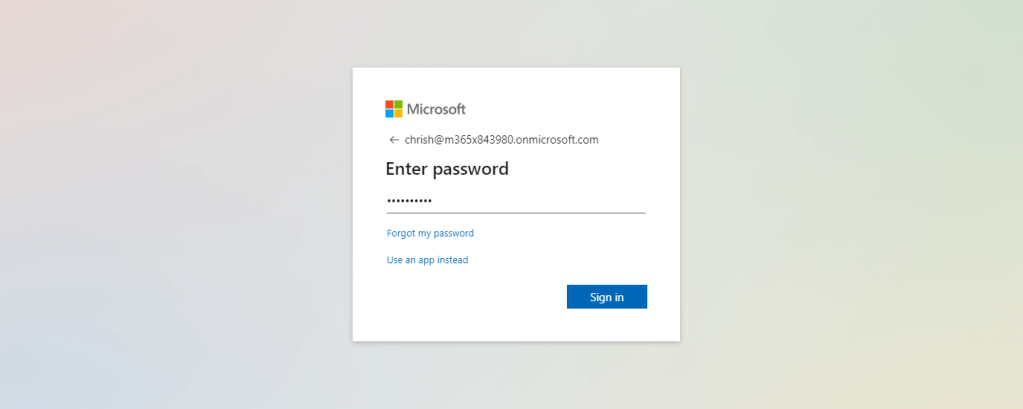
1.) Login with administrator credentials to https://login.microsoftonline.com
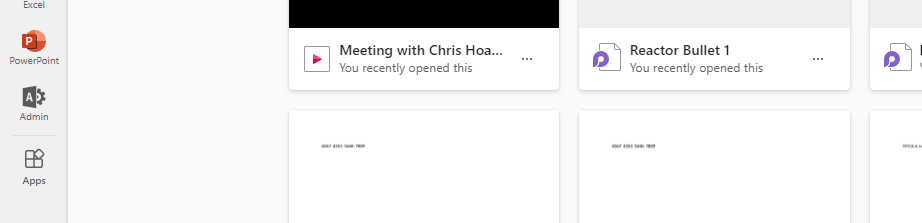
2.) From the left app rail, or via the waffle (top left) select Admin
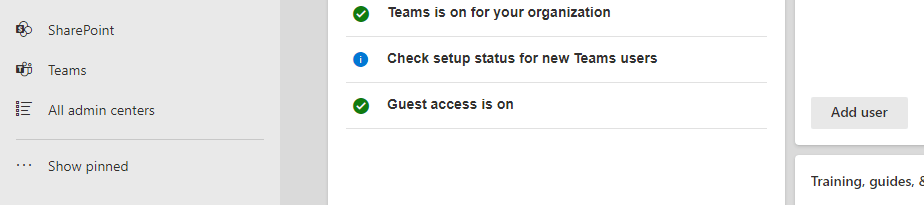
3.) In the M365 Admin Centre from the left navigation select Show All and then Teams
4.) In the Teams Admin Centre select Voice and then Calling Policies. Select the required policy. This example will use the Global (Org-wide default) policy, but if only changing for a subset of users you would create or modify a custom policy

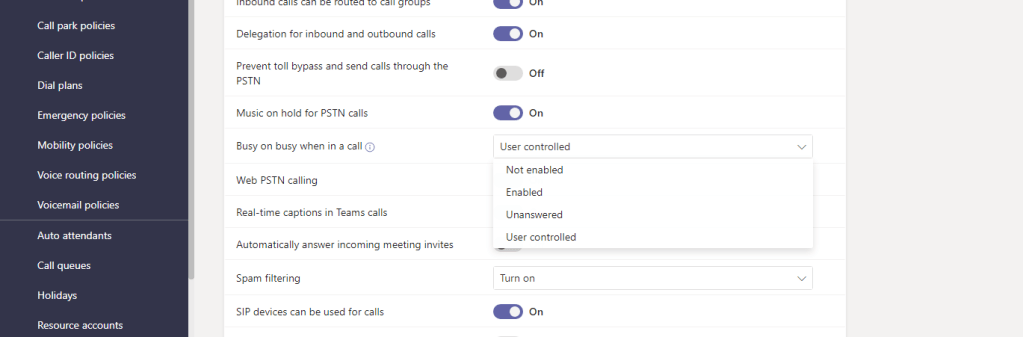
5.) In the calling policy set Busy on Busy when in a Call dropdown to User Controlled and select Save

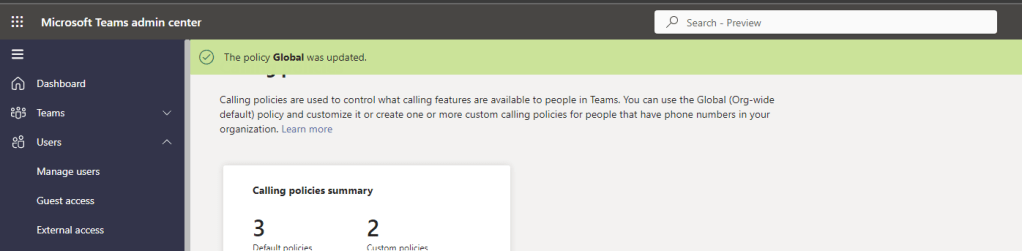
6.) A successful change in policy will be confirmed. Propagation time may take a few hours.
END USER BUSY ON BUSY SETTINGS
Now that the calling policy has been configured, and the propagation time of a few hours has completed, the user can check that the Busy-on-Busy settings have surfaced – and configure them. Remember, at the time of writing the user has to be in preview to see this functionality, so if they don’t see it get them to switch to the preview in the settings.

To set Busy on Busy Settings
1.) In the Teams Desktop or Web Client select Settings (…) next to the Avatar and select Settings (Cog)

2.) Select Calls
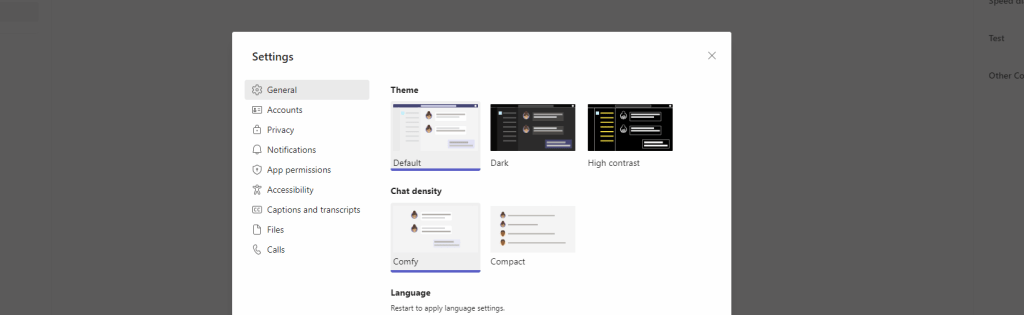
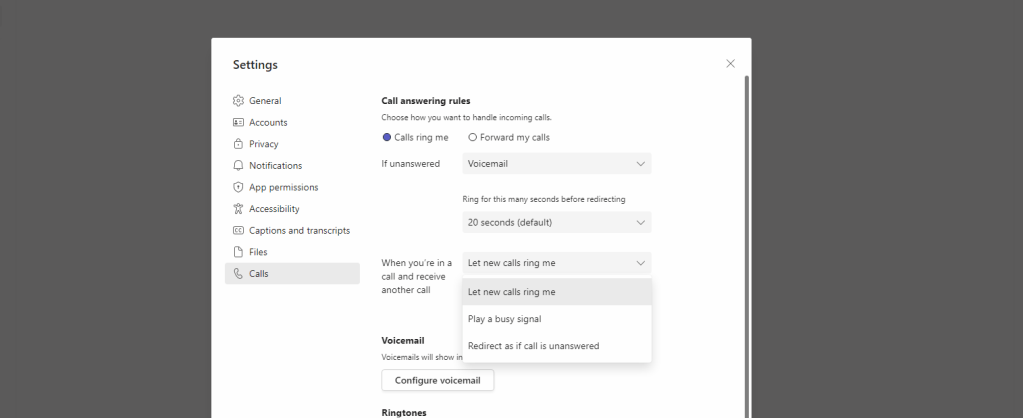
3.) The new Busy on Busy User Controlled Functionality is now under Call Answering Rules just above Voicemail. Here you have three options
- Let new calls ring me – this will ring over the top and cut into the current call
- Play a busy signal – this will give out a busy signal to let the calling party know the callee is engaged
- Redirect as if the call is unanswered – this will redirect the call to where the user has specified
This example will use the Play a Busy Signal

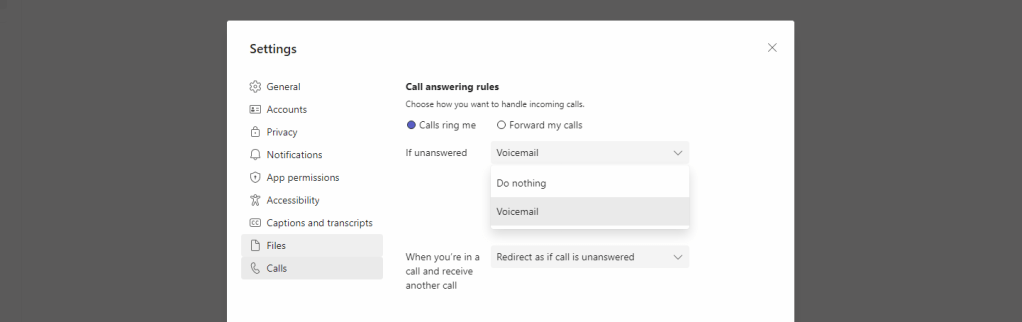
4.) Note if the Redirect as if the call is unanswered is set, then the user needs to ensure that they correctly set the If Unanswered dropdown to specify if this is to
- Voicemail
- A specific number
- A Call Group
- Your Delegates
Or do nothing. NOTE: as this test account does not have a calling plan assigned the options for a specific number, delegates or a call group do not appear.
5.) Now testing the Busy-on-Busy settings as set by the user, they work as expected, as if the admin applied them prior to this functionality shipping

Our job here is done. Another great feature for Teams Phone, more choice in the hands for users
FAQ
Q. How long does the propagation take to apply the policy change?
A. At present can be up to 24 hours, but this took around 2 hours to apply and then surface in the Teams Client
Q. Is a Call Plan needed for User Enabled Busy on Busy? Or any licensing?
A. User Enabled Busy on Busy works with federated calling (VOIP) so you don’t’ have to have a call plan – although this will provide support for incoming PSTN. You do need a Teams Phone Standard licence – which was previously called Phone System (and before that Cloud PBX!)
Q. Do I have to set all users to user enabled Busy on Busy?
A. No, whilst this blog demonstrated the amendment of the Global (Org-Wide Default) Policy, if you only wanted to provide the flexibility to specific users you should create/modify a custom policy, and leave the Global disabled or admin controlled
 @Microsoft365Pro
One thought on “Teams Real Simple with Pictures: User Controlled Busy on Busy”
Comments are closed.