
This blog is part of a series on Teams. For more articles, check back often
Written: 29/01/2023 | Updated: N/A
I have worked in Cloud for almost 15 years now. During that time, the subject of branding has periodically appeared as a requirement from customers or partners looking to use cloud services, or wanting to sell them. Examples that I can think of include using custom domains on OWA for Hosted Exchange, custom domains for SharePoint, Control Panels, Apps, and the login page for Office 365 via Azure AD. It’s something that’s always been topical; and there are a number of reasons as to why organisations want to use their own. Some have told me that it’s easier for users to remember and to use. Others have required it for White Labelling. One said it is a reminder of who is supplying the service or who owns the relationship. Another said it was for professionalism and to enhance selling. Of course, this list isn’t meant to be exhaustive. And in my experience most – if not all – of the reasons for branding are rooted in the concept of identity. Take Microsoft. Over the last few years they have rebranded their logos, and many of their products. This includes adding Microsoft as a prefix in their product names. When you start up an office app? Up comes the logo and the name. When you start up Microsoft Teams? Up comes the logo and the name. Branding is so important because the identity of the organisation – and its use in it’s product – influences the perception of those who use it. Now I am not a marketer. Nor am I a psychologist. But I don’t mind admitting in all of my Microsoft bias that seeing a Microsoft Logo on the product, it gives me a sense of quality, of familiarity, and goodness. So following on from things such as the login page via Azure AD, Microsoft is introducing customization policies for Meetings in it’s Premium SKU which allows you to brand them. But this one may just be better than the rest. Meetings are our forum to sell, to consult, to meet, or to learn. Branding them with our own identities transmits our values and our company culture. It helps us to grow our brand.
If you want to discover more about the Teams Premium SKU, take a look at other blogs written earlier in the months including Watermarking, End to End Encryption, Meeting Templates, Sensitivity Labels and the New Webinar Experience
Let’s go!
This blog will cover
- Getting Teams Premium Trial
- Meeting Themes and Custom Meeting Backgrounds
- Turning Meeting Theme On/Off in the Meeting
- Experience of the Meeting
- FAQ
Note: this blog may have some abridged steps which will assume some experience with Teams and the Teams Admin Centre. This blog is using a Ring 4 tenant with GA functionality. Teams Premium will be a trial sign up, but will soon be orderable via Microsoft 365 Portal or your CSP Partner in the normal manner
Prerequisites
- Teams Administrator or Global Administrator for Customisation Policies in the TAC
- Microsoft 365 Licence for Teams for testing
- Teams Premium trial or SKU is assigned to a user in the tenant
- Images for Logo’s and Backgrounds within specification (Sizes/Formats discussed below)
GETTING TEAMS PREMIUM TRIAL
Ok, so the tenant I am using is not using Teams Premium so I will need a Teams Premium trial.
1.) Go to https://aka.ms/tpdlnk and login with the global admin credentials

2.) Select Start Free Trial. Currently in this trial only 1 licence is permitted

3.) Select Try Now

4.) Select Continue

5.) Wait a few minutes and the licence will be provisioned to the tenant. In the Microsoft 365 Admin Centre select Users then Active Users

6.) Select the User to assign the Teams Premium Licence to, then Manage Product Licences. Tick Microsoft Teams Premium and then Save Changes. All set up and ready to go.

MEETING THEMES AND CUSTOM MEETING BACKGROUNDS
Let’s start by setting the Meeting Theme and Custom Meeting Background with the new Customization Policy feature
1.) In the Microsoft 365 Admin Centre, select Show All then Teams from the left navigation

2.) In the Teams Admin Centre, from the left navigation, select Meetings and then Customization Policies
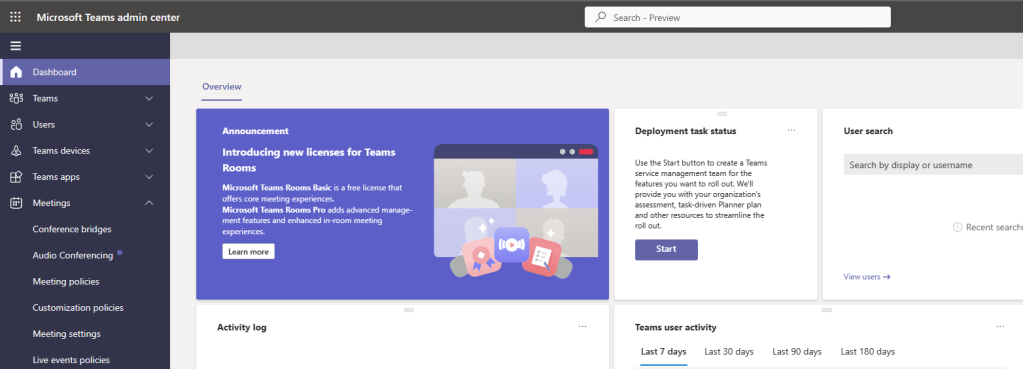
3.) At this point you can Add and Create a Custom Customization Policy or Modify the Global Org Wide Default. This example will modify the Global Org Wide Default. Select it.
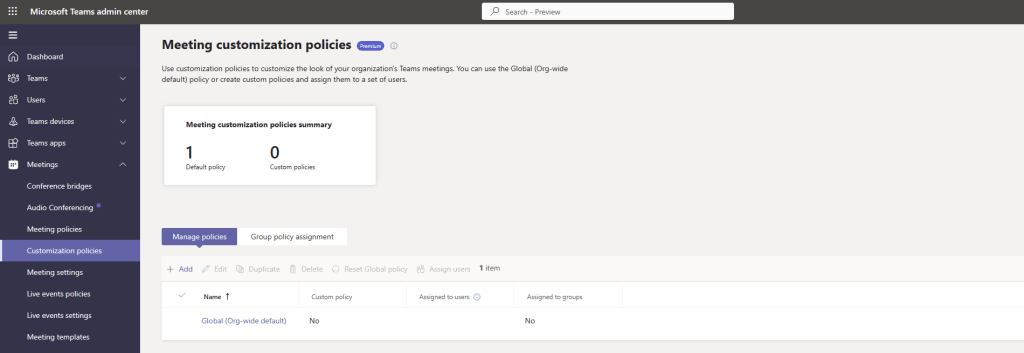
4.) Firstly, we are going to Customise the Meeting Visuals and add a Meeting Theme. Select Add a Theme
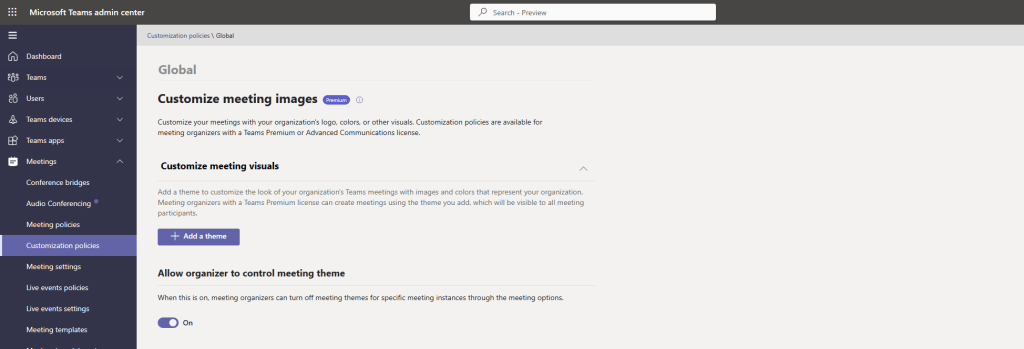
5.) The Flyout on the right now contains a number of options
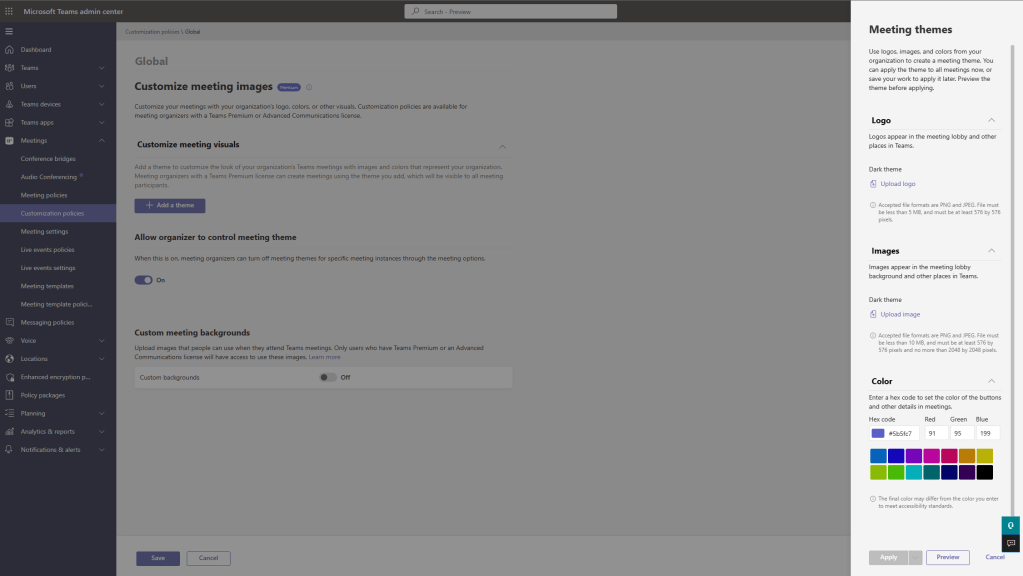
6.) Upload a Logo Image. This should be PNG and JPEG. File must be less than 5 MB, and must be at least 576 by 576 pixels
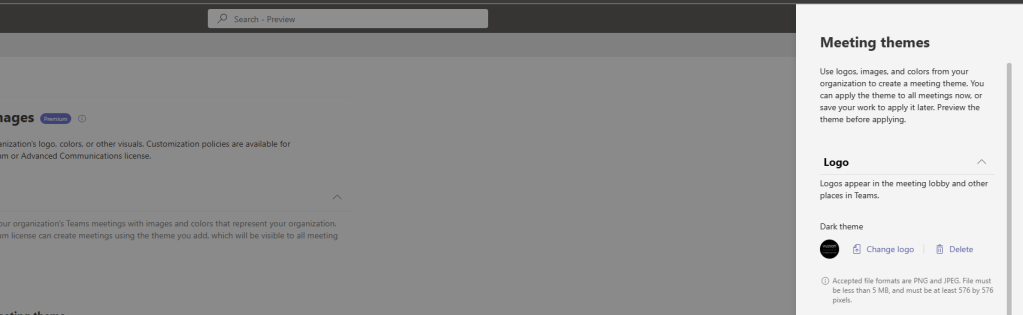
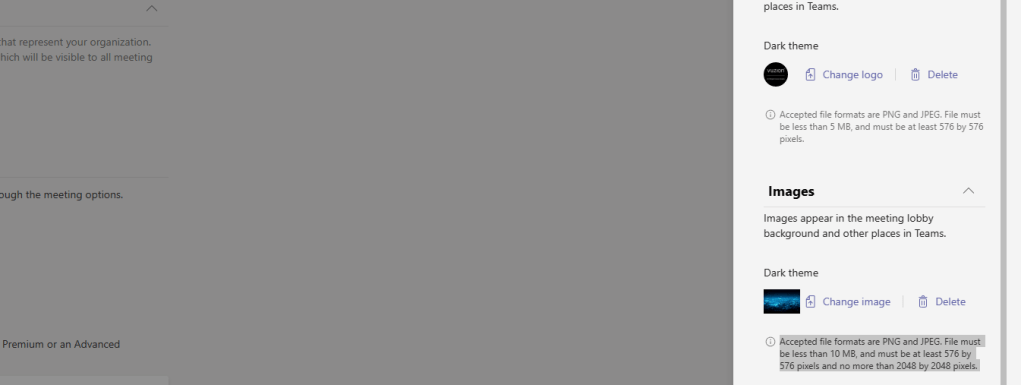
7.) Next, Upload a Meeting Image which will appear in pre-join and meeting lobby. Again, this should be PNG and JPEG. File must be less than 5 MB, and must be at least 576 by 576 pixels
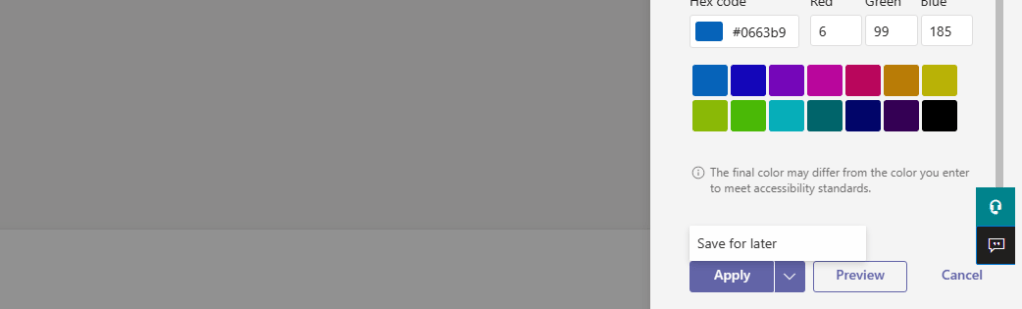
8.) Finally, select a HEX Colour which will colour the buttons on the pre-join and lobby. You can type in the HEX Code itself or select a colour button. Once complete select Preview to see your Logo, Background and Colour in concept.
Once done, select Apply or use the Dropdown and select Save for Later
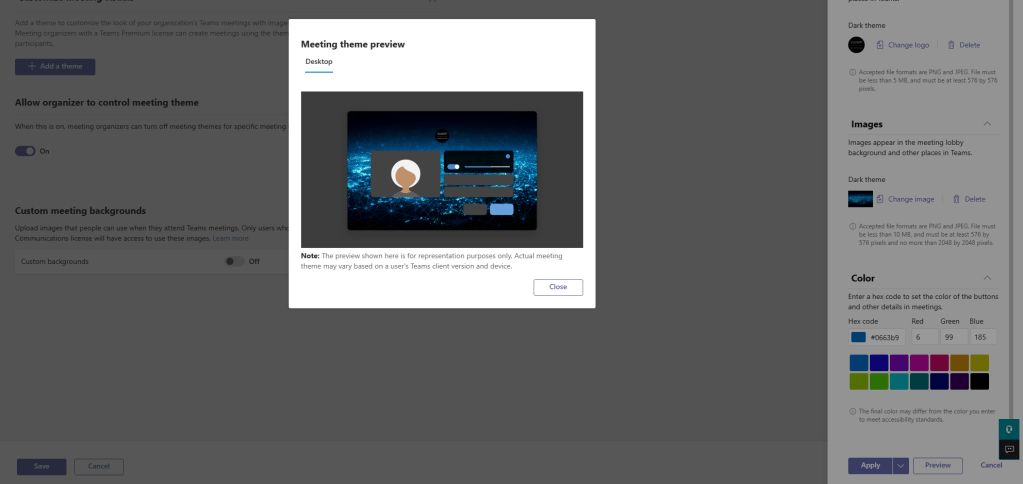
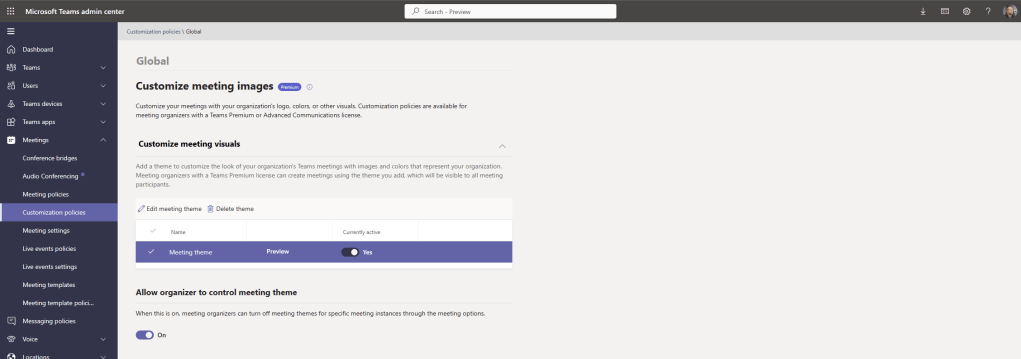
9.) The Meeting Theme is created. Now the theme is created
- Use the Slider to activate and deactivate it
- Use the Preview button to preview the Meeting Theme on the Policy Page
- Use the Slider to set whether the Organiser can modify the theme

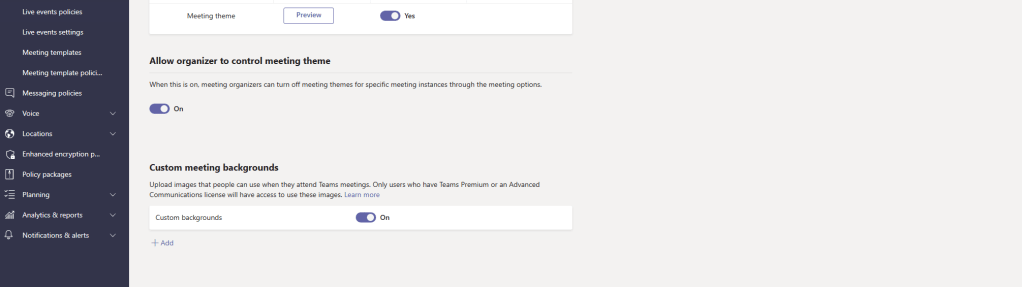
10.) Now the Meeting Theme is set, let’s move on to Custom Meeting Background. In the Global Org Wide Default it is off by default. Swipe On and select Add
11.) On the Flyout, select Add and use images in JPG or PNG format no smaller than 360x360px and no larger than 3840x2160px. Once done select Close. The Custom Meeting Background is uploaded
Once done select Save to complete the customization policy
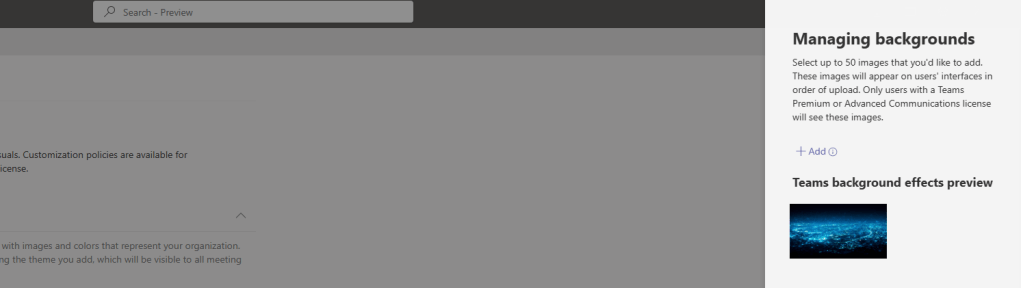
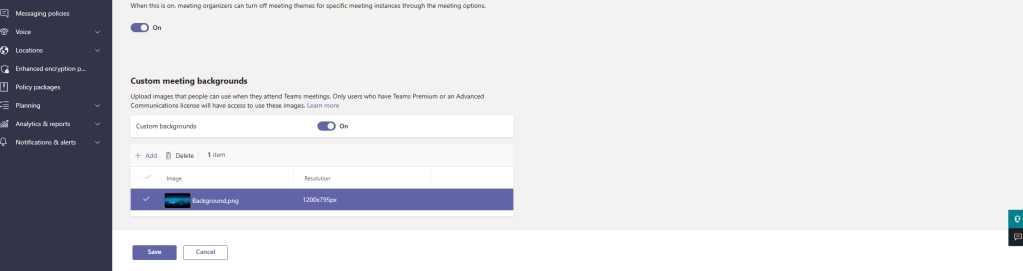

Our Meeting Customization Policy is now ready to go.
As this example uses the Global Org Wide Default Policy this will be applied to all meetings in the organisation created by those who have Teams Premium SKU’s. In other words, only licensed users who are assigned a meeting customization policy can create meeting themes-enabled meetings. If there are many Teams Premium SKU users, and your organisation wants different themes for departments, then they can create custom Teams Meeting Customization Policies and assign them to the required users.
More about this, and what attendees will see will be outlined in the FAQ.
TURNING A MEETING THEME OFF IN THE MEETING
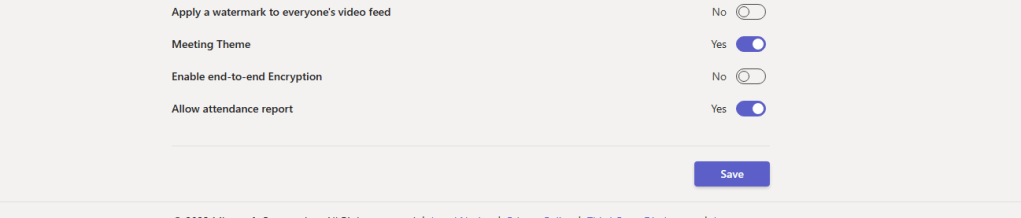
Now that the Meeting Customization policy has been created, with a Meeting Theme and a Custom Meeting Background, we want to understand how organisers can turn this off if they don’t want to use it. Ultimate control of whether Meeting Organisers can turn off the Meeting Theme for the meetings they create is within the customization policy
If this is set to Yes, then the meeting organiser can turn this off by selecting the Meeting Options in the meeting itself and then swiping off to No and Saving


EXPERIENCE OF THE MEETING
Having configured the customization policy and set up the meeting theme and custom teams background, let’s explore how it has impacted the meeting experience
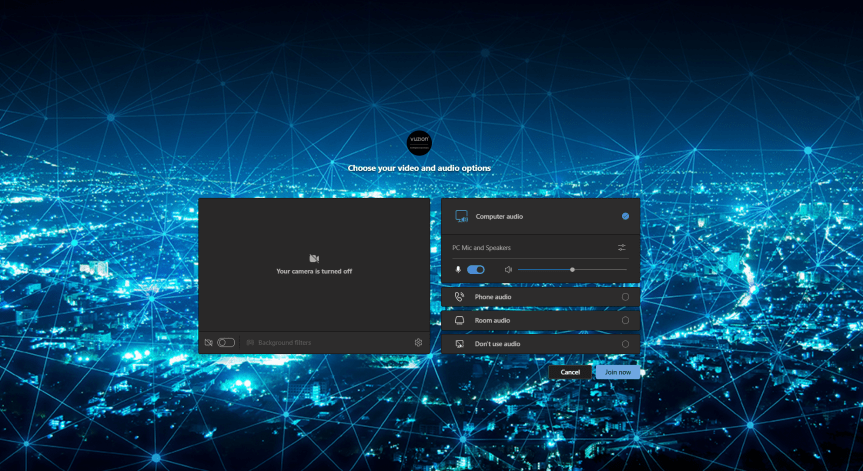
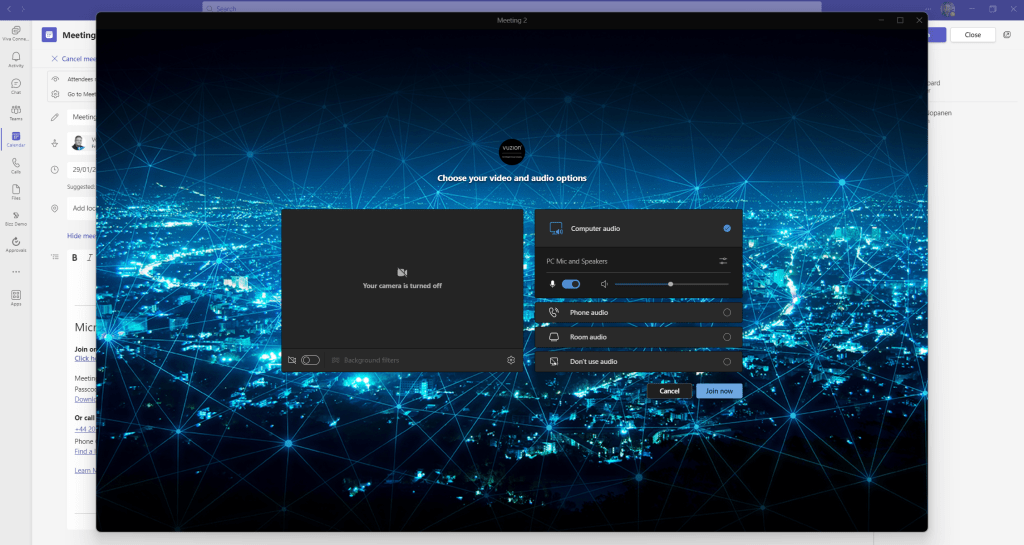
This is what the pre-join screen looks like
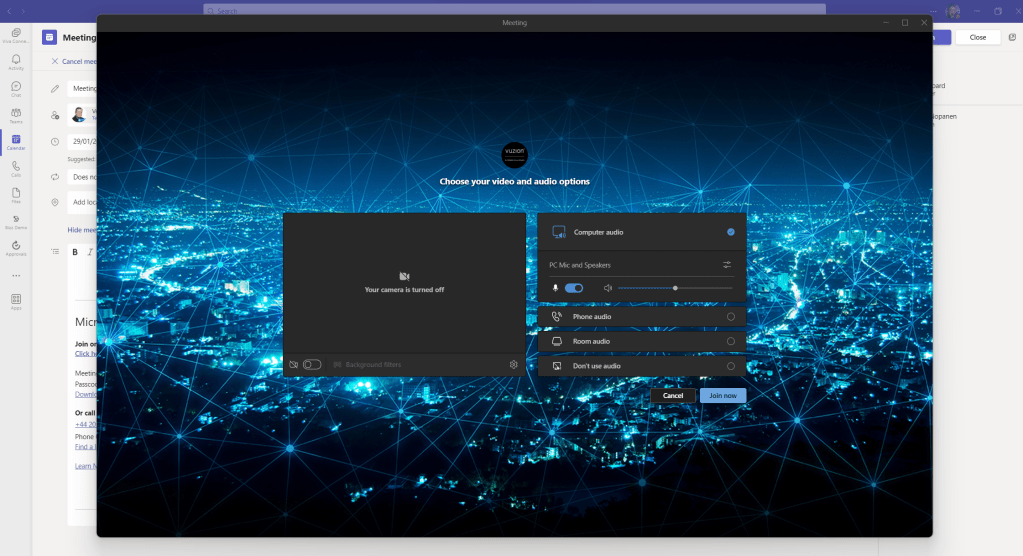
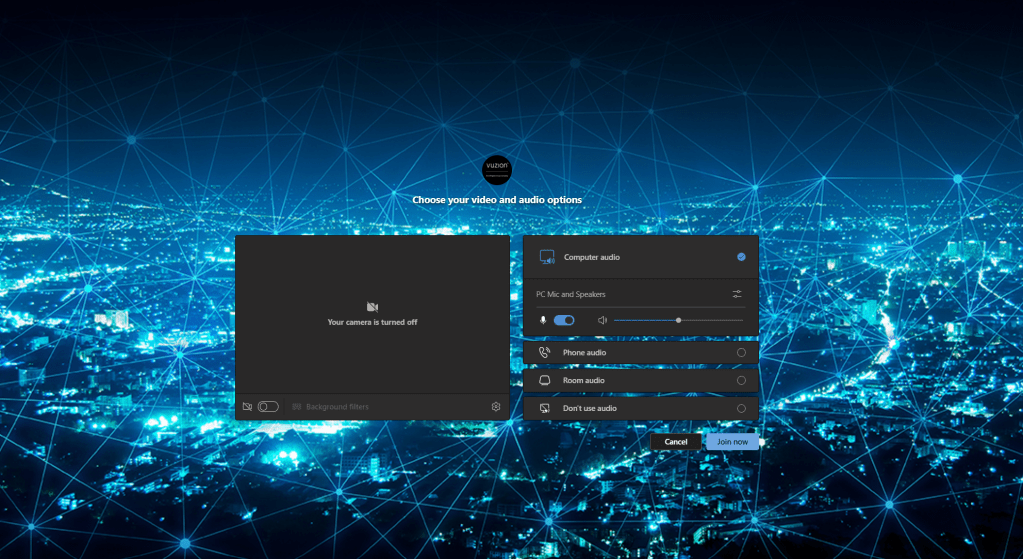
Here is the meeting lobby as seen by an attendee within the organisation

The colour of the buttons are themed in the meeting

The custom meeting background appears in the background effects
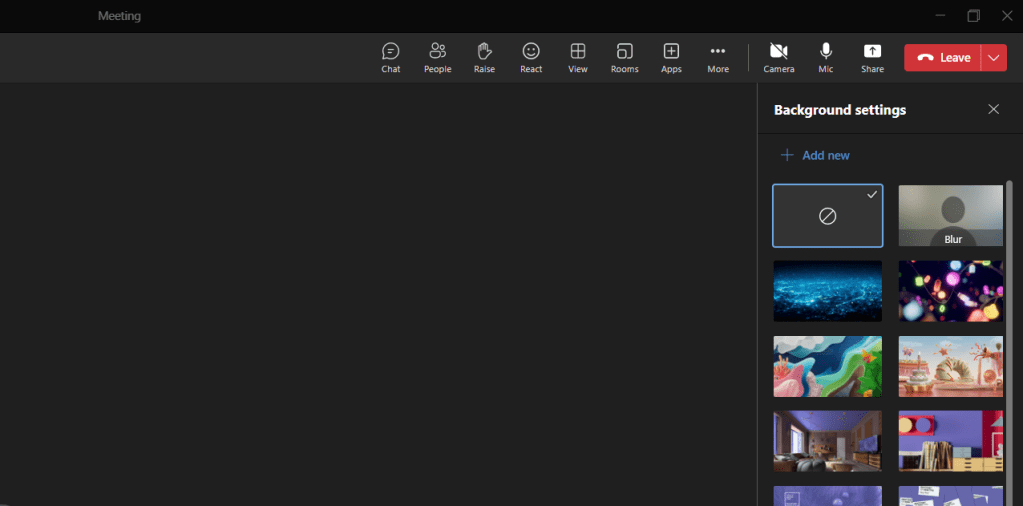
MEETING THEMES IN WEBINARS
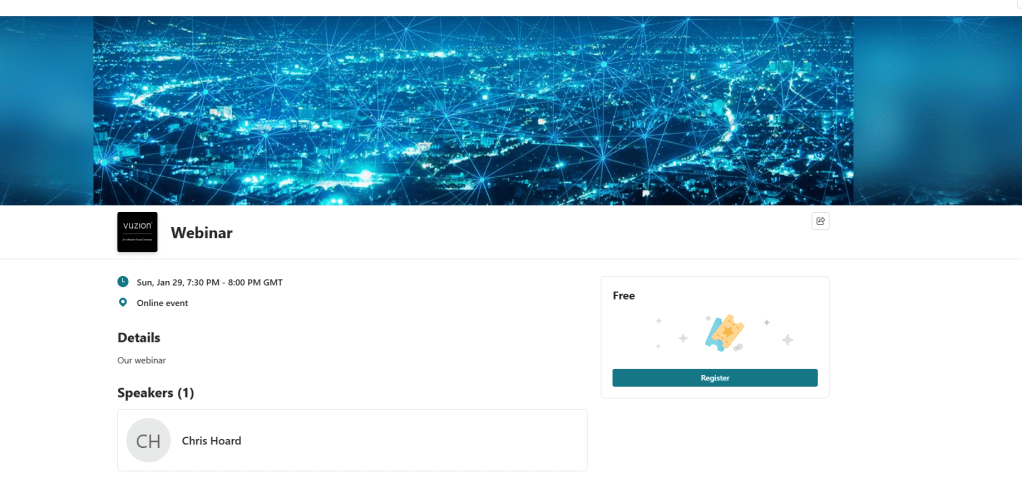
Now that the customization policy has been used on a standard Teams Meeting, the next question is – can it be used on the new Teams Webinar Experience? The answer is not yet at the time of writing.
In terms of the Teams registration page in the new Teams Webinar experience: this is still configured in the New Webinar Setup Flow and is not linked to the Teams Meeting Customization policy

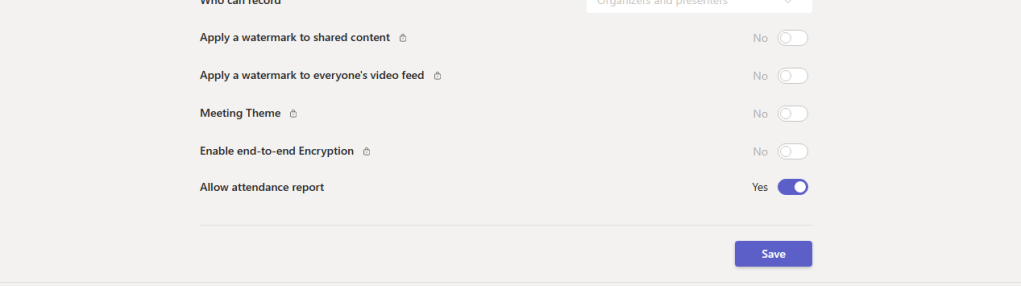
In terms of the webinar itself the Meeting Theme is locked in the meeting options
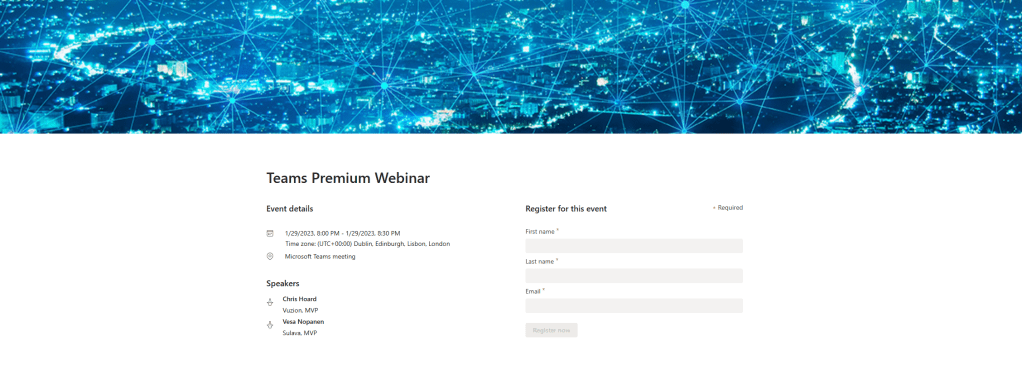
In terms of the old webinar setup, the page can be customized and the Customization policy does apply. So we see some joined-up branding between registration and join on the older experience, and would assume that this is going to pull through to the new experience in the months ahead. Of courses, these functionalities are very new and they will develop and evolve
FAQ
Q. Where are meeting theme’s visible today?
A. In the Desktop Client, and in the Mobile Client. They are also visible on these surfaces:
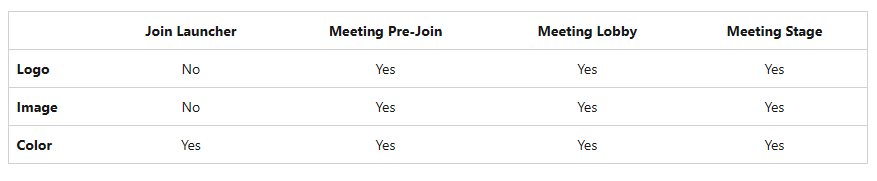
They are not visible in the web client currently. With Custom Backgrounds these are visible in Desktop, Web, Android and iOS
Q. Who can see meeting themes?
A. The meeting themes can be seen in-tenant by Teams Premium licensed users, in-tenant by non-licensed users, Guest of Tenant users, External Users and by Anonymous users
Q. So who do I need to assign a licence to?
A. Customisation policies apply to users licenced with Teams Premium SKU’s. They will only work on meetings created by those who are licenced and not on those who aren’t licenced. However, you don’t need to be licenced to see meeting themes. In terms of the custom meeting backgrounds, these will only be provided to those with a Teams Premium SKU and those who are licenced. They will not be seen in background effects by those who aren’t licenced
Q. My colour tone set by HEX Code isn’t shown
A. This is due to Microsoft accessibility standards – the final color generated may not match your brand color. For example, Microsoft calculate the accessible color output that is the closest match to the brand color input while maintain Microsoft Accessibility standards. In addition, Image assets are required to meet the 4:5:1 color contrast ratio and users with high contrast settings enabled, branding doesn’t apply. They’ll continue to see the default Teams meeting experience.
Q. Can I change the Meeting Theme during a Meeting?
A. No, Meeting themes won’t be disabled for meetings that are in-progress. To apply changes, you must end the call and restart the meeting.
 @Microsoft365Pro