
This blog is part of a series on Teams. For more articles, check back often
Written: 12/02/2023 | Updated: N/A
So the timeline for the end of classic stream is now up. This means that for Yammer users Live Events using Microsoft Stream is also coming to an end. And as opposed to transitioning this functionality across to the new Stream on SharePoint, Microsoft has decided that it is consolidating the Live Events functionality onto Teams. This makes sense – particularly given the new philosophy of doing more with less. Now, for many of us who follow Teams we know the direction of travel when it comes to Live Events. For a few years now it’s been out there that Microsoft is looking to consolidate all of it – both Meetings and Live Events. Microsoft said as much as far back as Ignite 2020. But of course, they’ll be around for the forseeable future, and whilst many of us know how to execute a Live Event in Teams, it’s lesser known how to execute it in Yammer. This is just for some sunday night fun, and a bit of brush up, and when the new experience goes up between late February and the end of March, I’ll probably come back to amend this piece. It’ll largely be for the eCDN encoder method, with the method shown here being refered to as Teams Quickstart. Let’s get ourselves re-acquainted.
Let’s go
This blog will cover
- Live Events Policy
- Enforcing Office 365 Group Identities and Microsoft 365 Connected Groups
- Creating a Yammer Community and setting up the Live Event
- Q&A
Note: this blog may have some abridged steps which will assume some experience with Teams. This blog is using a Ring 4 tenant with GA functionality
Prerequisites
- Teams Administrator or Global Administrator, as well as Yammer Administrator
- Microsoft 365 Licence for Testing
LIVE EVENTS POLICY
Ok, as we are going to use Teams for Live Events, we better make sure that our Live Events Policy is configured
1.) Login with administrator credentials to https://login.microsoftonline.com
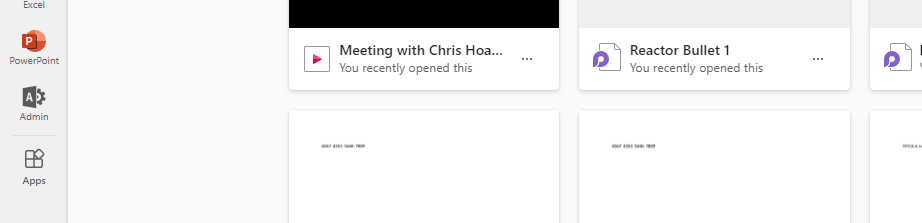
2.) From the left app rail, or via the waffle (top left) select Admin
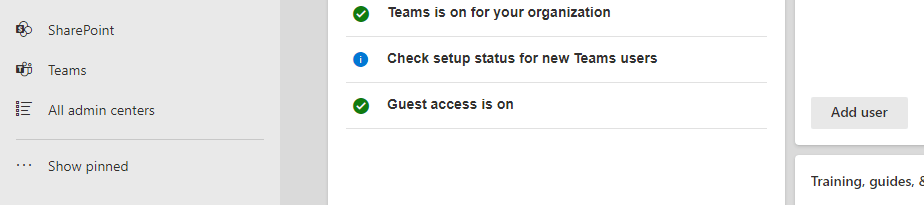
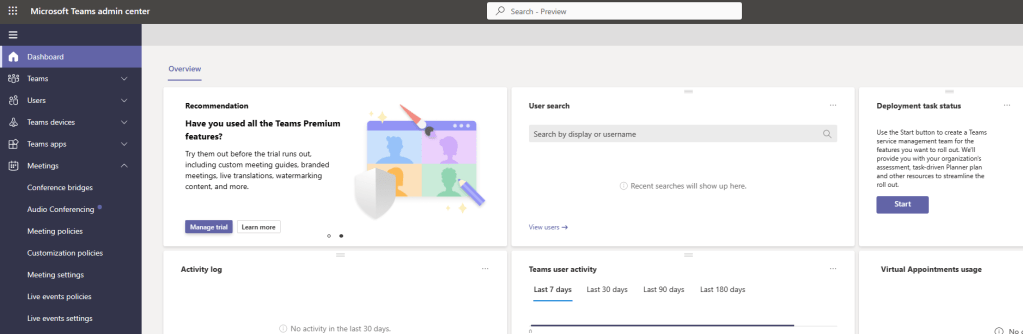
3.) In the M365 Admin Centre from the left navigation select Show All and then Teams
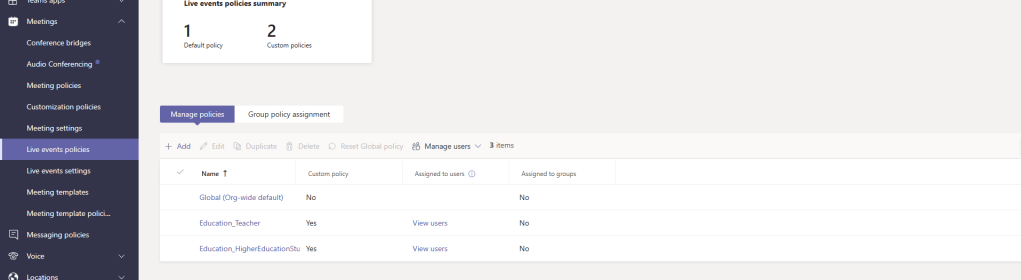
4.) In the Teams Admin Centre select Meetings and then Live Events Policies
5.) Select the policy to configure. This will use Global (Org-Wide Default)
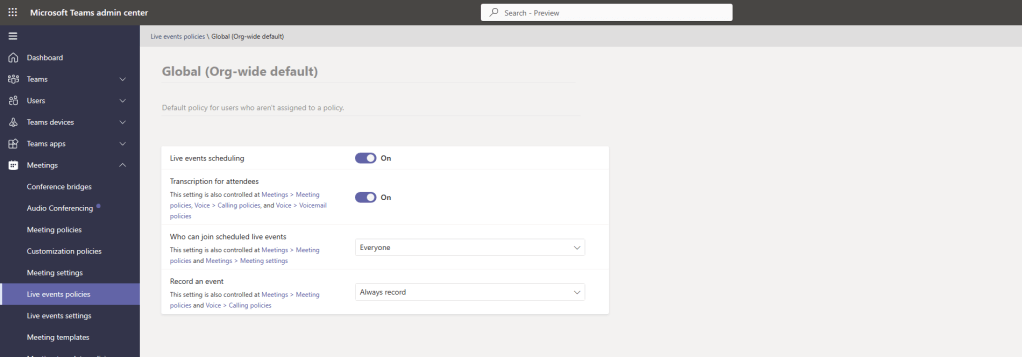
6.) Ensure the settings are configured and then select Save. As shown, this example is configured as:
- Live Events Scheduling: Enabled
- Transcription for Attendees: Enabled
- Who can join scheduled Live Events: Everyone
- Record an event: Always Record
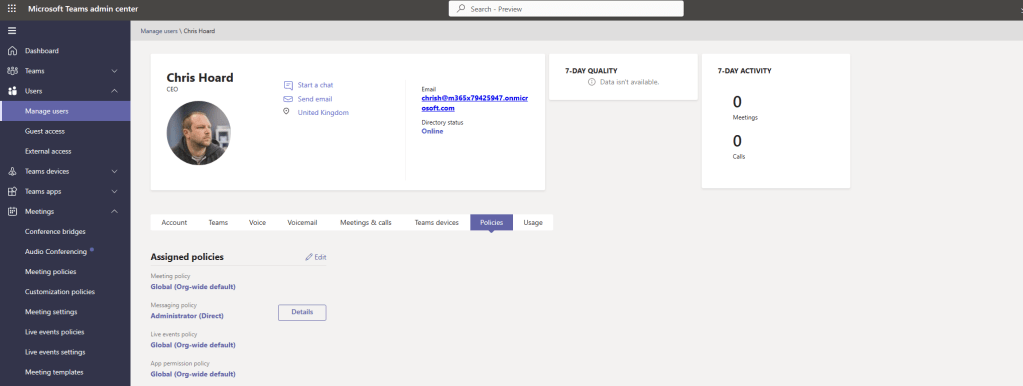
7.) Ensure the policy is assigned to the individual who will create the Live Event. This will be under Manage Users from the left nav
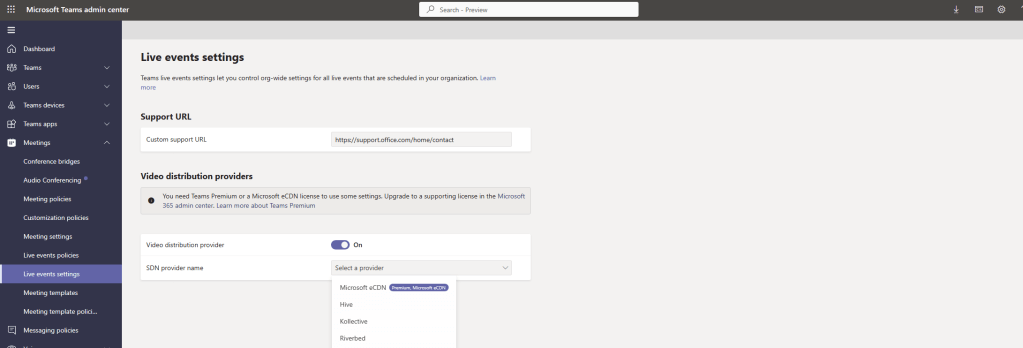
8.) You may notice within the TAC you can also configure the Live Events Settings under Meetings. This would be neccessary if you are creating a live event with a third party encoder or Microsoft’s own eCDN (Enterprise Content Delivery Network). At the current time, this isn’t neccessary given that this blog is showing the quick method, and until the changeover in a few months time Yammer will continue to use Classic Stream to configure encoders. But this will be where encoders are configured, and it is good to understand why encoders are neccessary when it comes to Live Events. As Microsoft says in it’s own documentation ‘all-hands meetings, town halls, or live stream videos for org-wide trainings are just a few of the scenarios that require a massive amount of bandwidth. Each event poses a very real threat to the enterprise network and can result in network saturation causing office-wide connectivity to fail, poor video quality, loss of productivity, and user frustration. Microsoft eCDN reduces the risk of these threats by drastically decreasing the load on the corporate network. So you would use this if you didn’t have the bandwidth to cope with many people in your own network streaming the live event.
ENFORCING OFFICE 365 GROUP IDENTITIES AND MICROSOFT 365 CONNECTED GROUPS
Now that Live Events have been configured in the Teams Admin Centre, we move onto a prerequisite which needs to be configured, or at least double-checked in Yammer.
1.) In the Microsoft 365 portal from the waffle, select Yammer

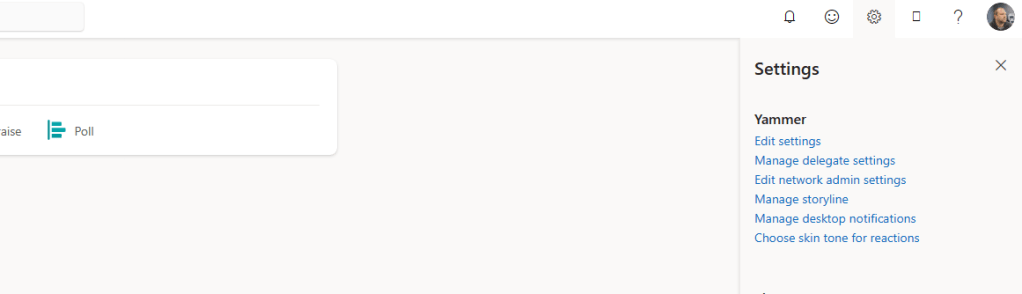
2.) Select Settings (Cog) and then Edit Network Admin Settings
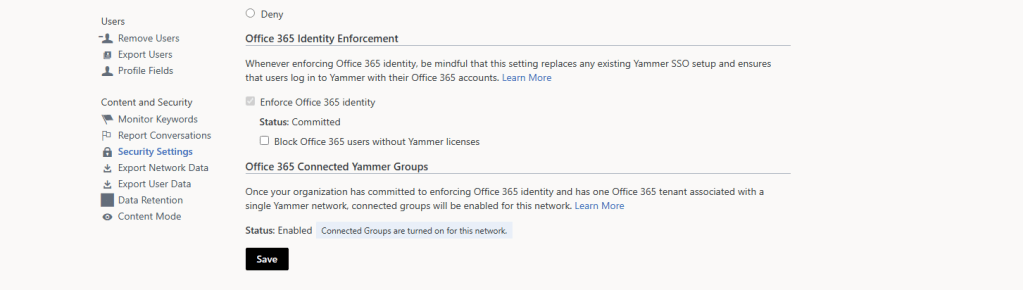
3.) Under Content and Security, select Security Settings

4.) Ensure that Office 365 Identity Enforcement is ticked and Microsoft 365 Connected Yammer Groups (Here shown as Office 365) is Enabled. In many cases this should already be in place. If it isn’t, then by ticking Enforce Office 365 idenity and saving this should enable Microsoft 365 Connected Yammer Groups after 24 hours. It is strongly recommended to refer to Microsoft documentation for Microsoft 365 Connected Yammer Groups before making this change as it should be a planned change and communicated with users
CREATING A YAMMER COMMUNITY AND SETTING UP A LIVE EVENT
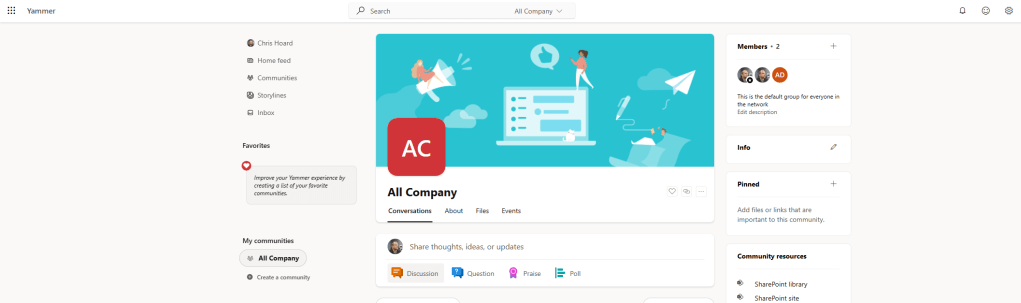
The Live Events Policy, Office 365 Identities and Microsoft 365 Yammer Connected Groups are set up. From a back end perspective we are ready to go in order to create our Live Event. Now the thing to remember at this point is this: the Live Event can only be scheduled by the Yammer Admin – in other words the admin of the Yammer Community. Most people are not group admins in the All Company Community, so either need to set up the Live Event in their Yammer Community, or becoming admins of the All Company Community. This guide will run through the former and explain the latter in the FAQ.
1.) Go back to the Yammer Main Page and under My Communities select Create a Community
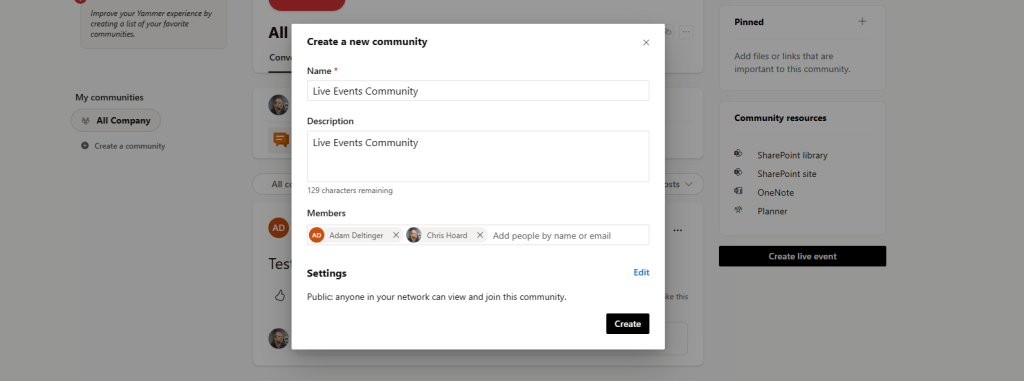
2.) Create the community and select Create
- Name: Name of the Community (In this example ‘Live Events Community’)
- Description: Description (In this example ‘Live Events Community’)
- Members: Members of the Yammer Community
- Public or Private Community: This example uses Public
Whether the community is Public or Private has an impact on the Live Event. With a Public Community anyone in the organisation can join the live event, whereas in a Private Community only those who are part of it can join
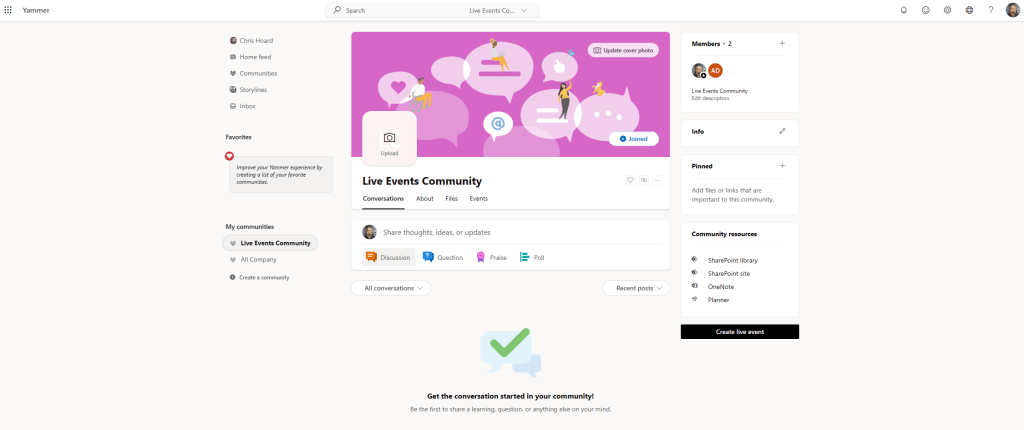
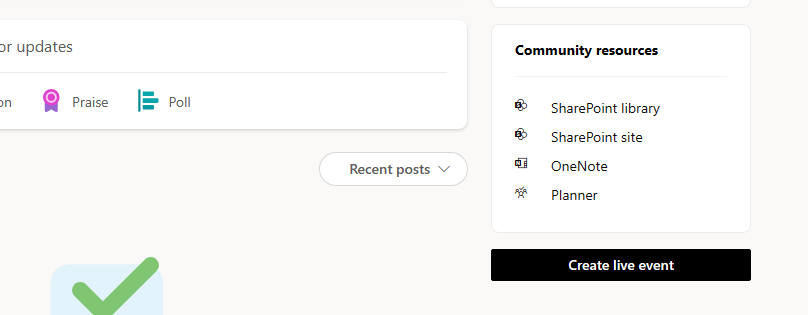
3.) Now that the Community is created select Create Live Event
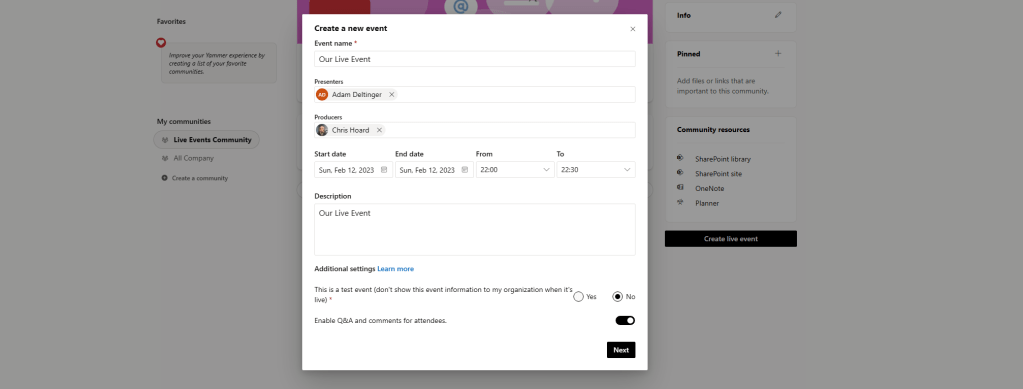
4.) Select the following settings and then Next
- Event Name: Event Name (This example uses ‘Our Live Event)
- Presenter: This is who will present in the Live Event
- Producer: This is who will control the Live Event
- Date and Time: Can be set every 30 minutes
- Description: Description of the Live Event
- Test: Set whether this is a test event or not (This example uses no)
- Enable Q&A: This enables/disables Q&A for the event
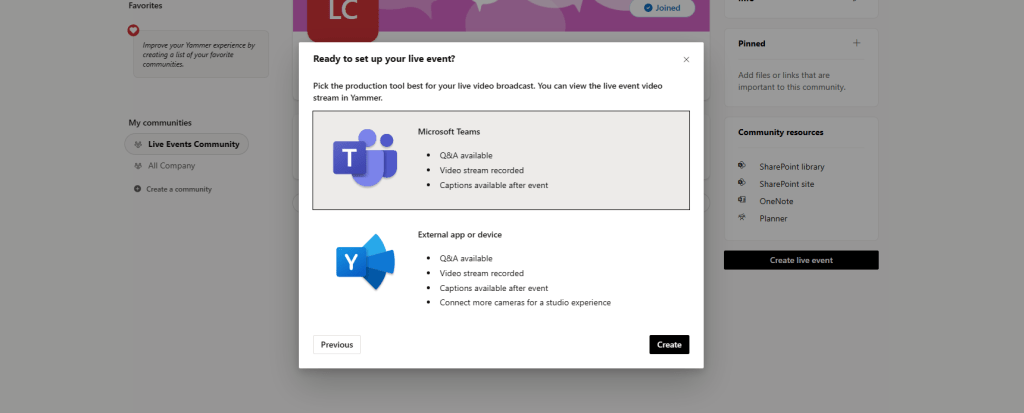
5.) Both options presented will eventually use Microsoft Teams for the Live Event as part of the decomissioning of classic stream. The second option with the Yammer icon uses the external third party encoder or Microsoft eCDN which should have been configured in the previous steps when configuring the Live Event Settings in the Teams Admin Centre. But currently it still refers to the old stream experience. As this example isn’t going to use an external encoder we will just select Microsoft Teams (which will eventually be called the Teams QuickStart when changes are made) and then Create
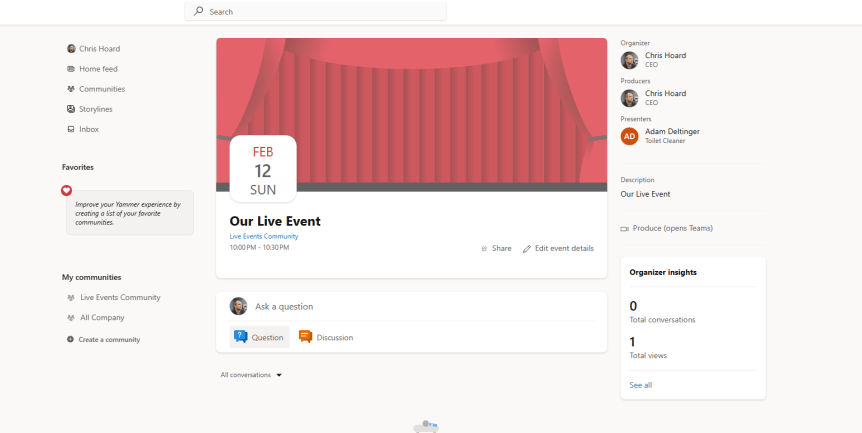
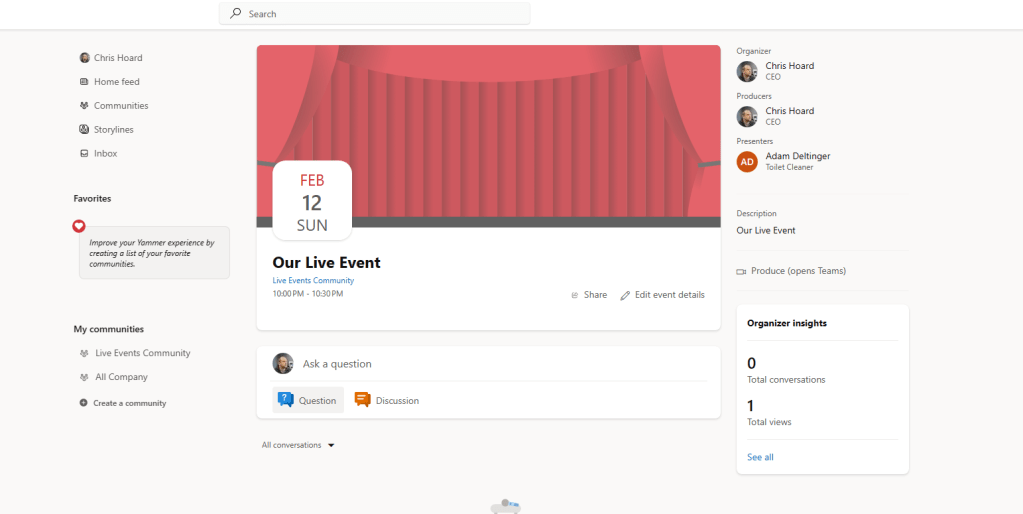
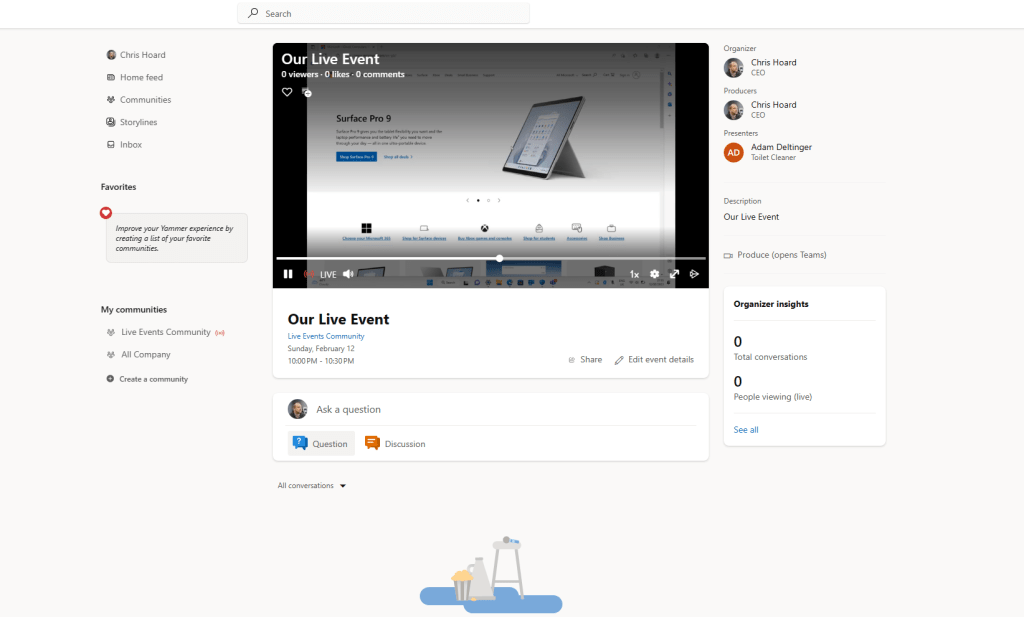
6.) The Live Event is now created
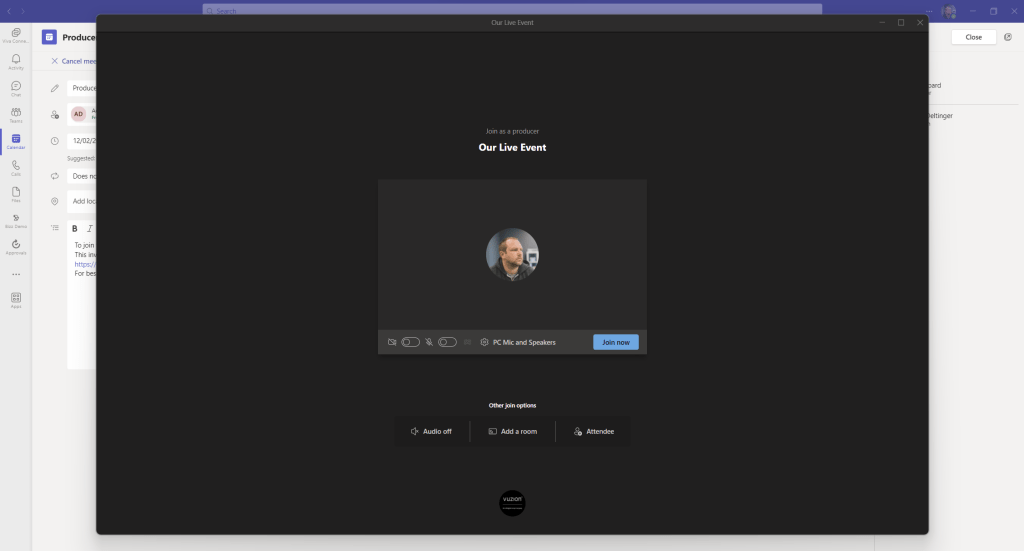
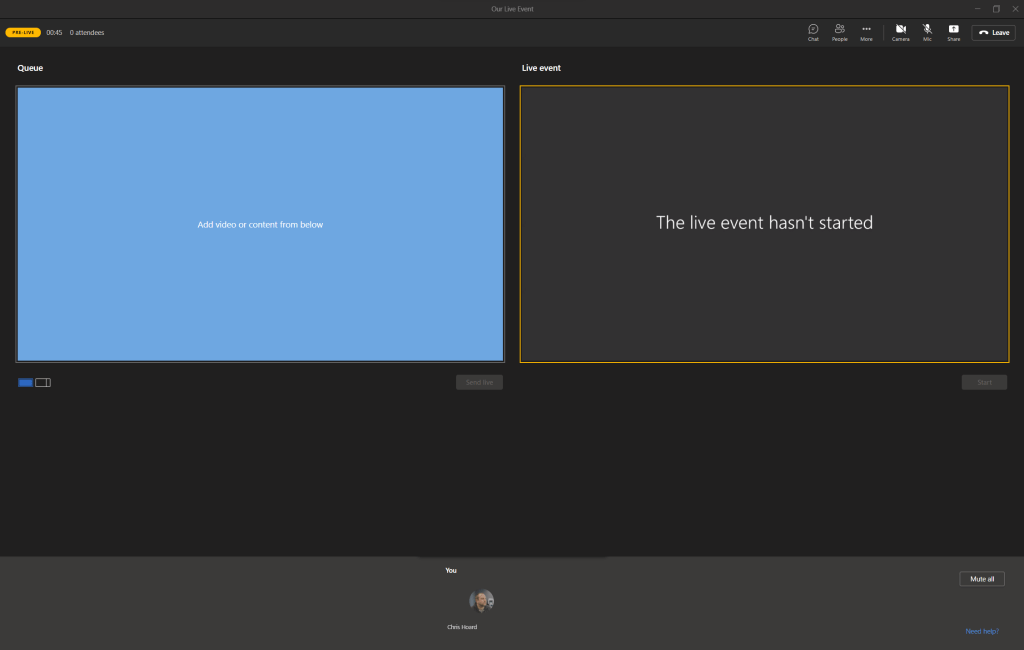
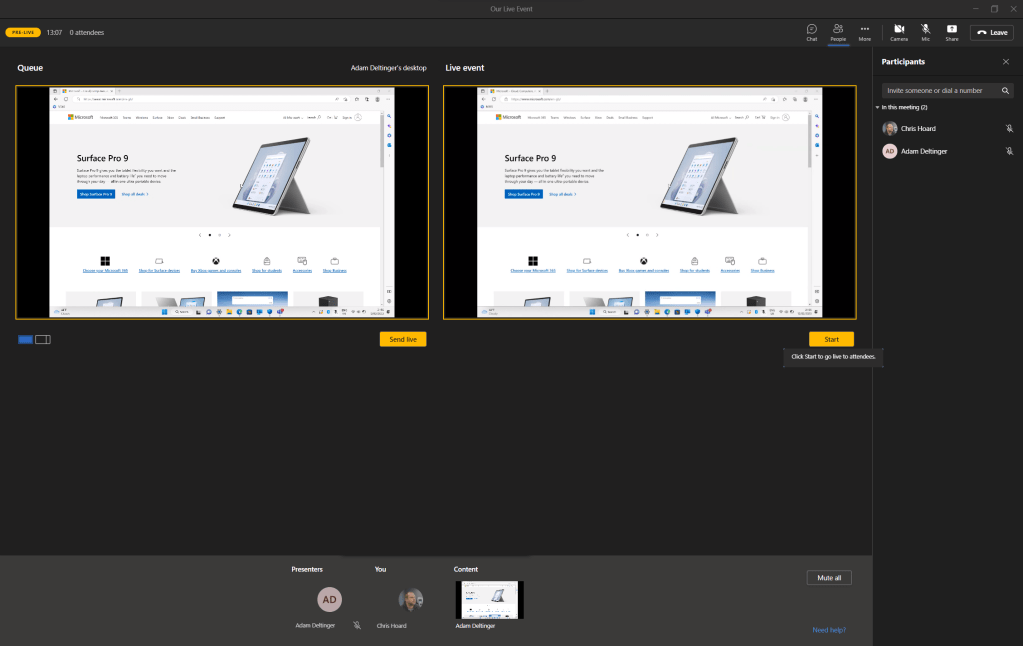
7.) The meeting booking is sent to the Presenter and the Producer in Outlook and Teams
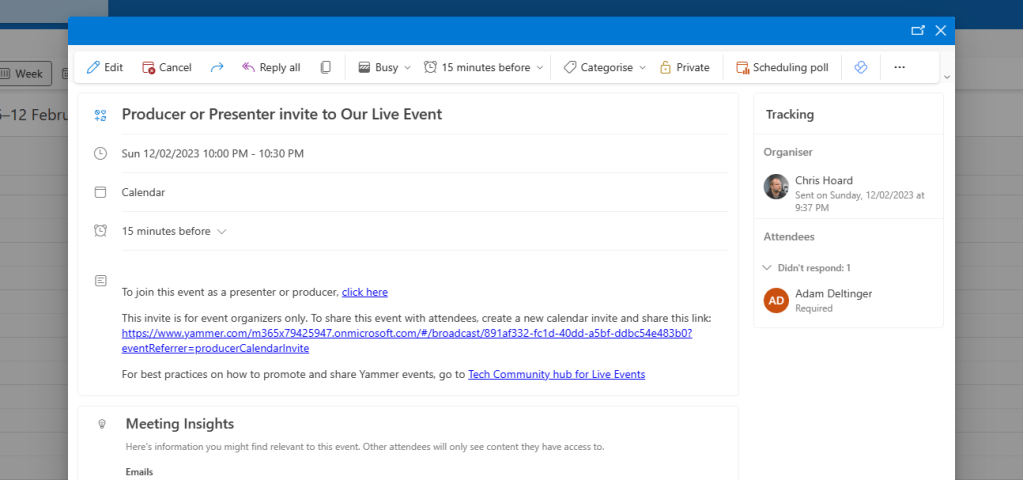
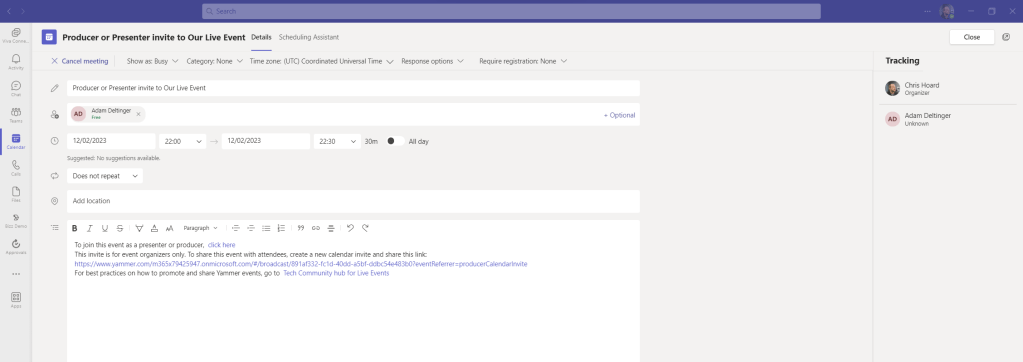
8.) Straightforward by both to join and to get the Live Event underway!
FAQ
Q.) Do users in the organisation receive booking of the live event?
A.) No, only the organiser, producer and presenters will receive the booking. It will be down to them along with others to share out of the Yammer Community
Q.) Only Yammer Admin’s can create the Live Event?
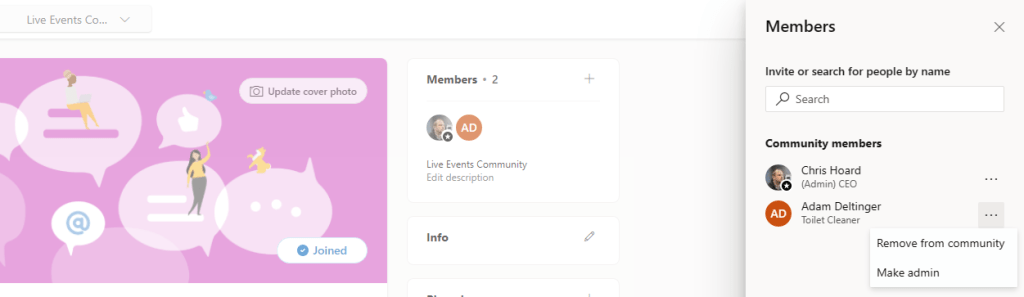
A.) Yes, the Yammer admin who is the admin of the Yammer Community, not the Global Admin. Others can be made admins of the community by selecting the Add Sign on Members card, then More Options (…) then Make Admin
Q.) Can Guests attend?
A.) No, Only members of your Yammer network can attend live events. Guests and external users do not have access to live events. For live events in public groups, all members of your Yammer network can attend. For live events in private groups, attendees must be members of the private group in which the live event is hosted.
Q.) What are the limits for Live Events?
A.) At the time of writing, event support for up to 20,000 attendees, 50 events can be hosted simultaneously across a tenant, Event duration of 16 hours per broadcast. This is up until June 2023 unless Microsoft extend it.
Q.) When will Microsoft switch over from Classic Stream to Teams to use the encoder?
A.) According to recent
 @Microsoft365Pro