

This blog is part of a series on Teams. For more articles, check back often
Written: 19/02/2023 | Updated: N/A
Not much time to shoot the breeze this evening. I’m still in the thick of it. And with the MCT Connect Conference, MWCP and a whole load coming into focus like a tidal wave next month, it’s going to be wild. The word bedlam springs to mind. Nevertheless, one of the things I wanted to write about, and then completely forgotten about, and then remembered as I raked over the coals in the tenant has been the new Lists template for video playlists. You see, I did write about a way to do playlists back in june last year. To me, that seems like a few weeks ago. But Microsoft now have something out of the box. And so I am going to deploy it, and populate it, and then I am going to stick that in a tab and a personal app. Now prior to this – full transparency – I haven’t tried this out previously. I haven’t even attempted it given what I got spinning on the plate, so this will be a pretty functional off the cuff affair.
Let’s go
This blog will cover
- Deploying the Team
- Creating the List
- Seeding the SharePoint Site
- Cleaning up the video
- Adding content to the Playlist
- Getting the Playlist in Teams
- Getting the Playlist as a Personal App
- Conclusion
Note: this blog may have some abridged steps which will assume some experience with Teams, SharePoint, Lists and Stream. This blog is using a Ring 4 tenant with GA functionality
Prerequisites
- Teams Administrator (for publishing apps)
- Microsoft 365 Licence with Teams, SharePoint, Lists, Stream and
DEPLOYING THE TEAM
First off, we are going to deploy the team, to deploy the SharePoint Site. That’s where the list will be held. This is an optional step as you may wish to deploy the List into an existing team
1.) In the Teams Client, in the Teams App select Join or Create a Team

2.) Select Create a Team
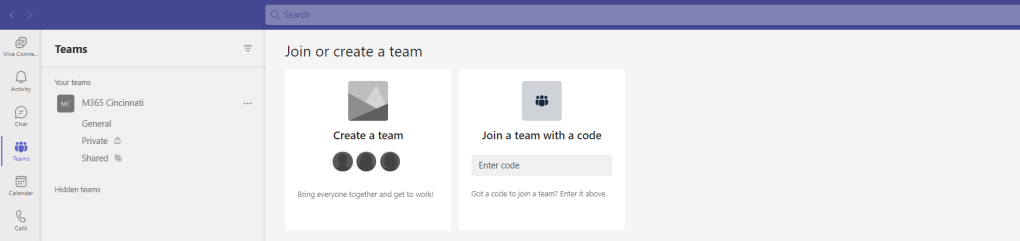
3.) There are several options. This example selects From Scratch

4.) Select Private or Public. This example selects Private

5.) Give the team a name, and select Create

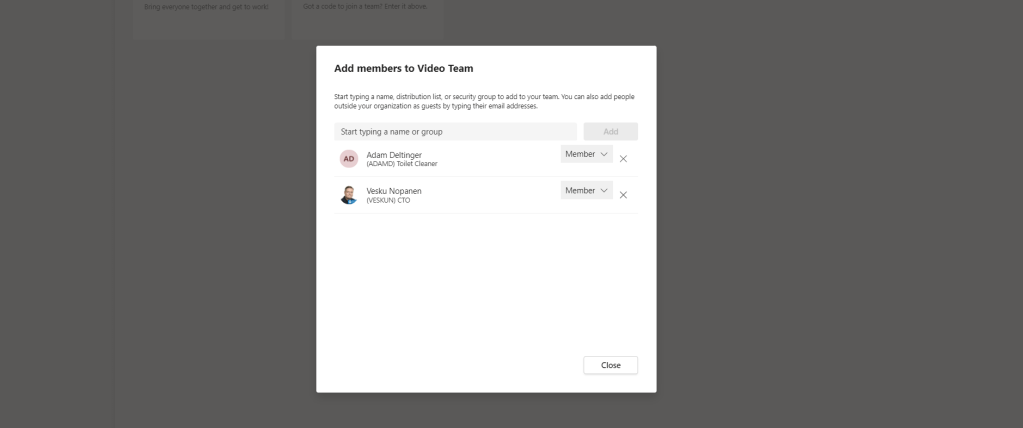
6.) Add Members or Owners to the Team and select Close
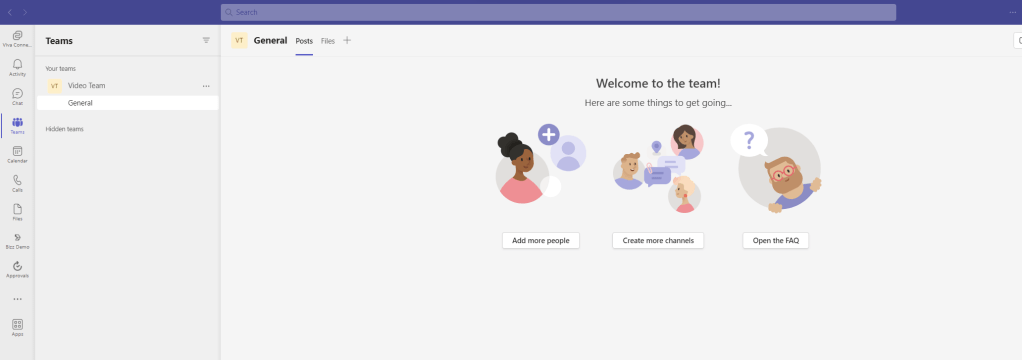
7.) Our Team, and hence our SharePoint Site, is created to house the list
CREATING THE LIST
Now that the team has been created, and hence the SharePoint Site to store the List, we’ll create the List
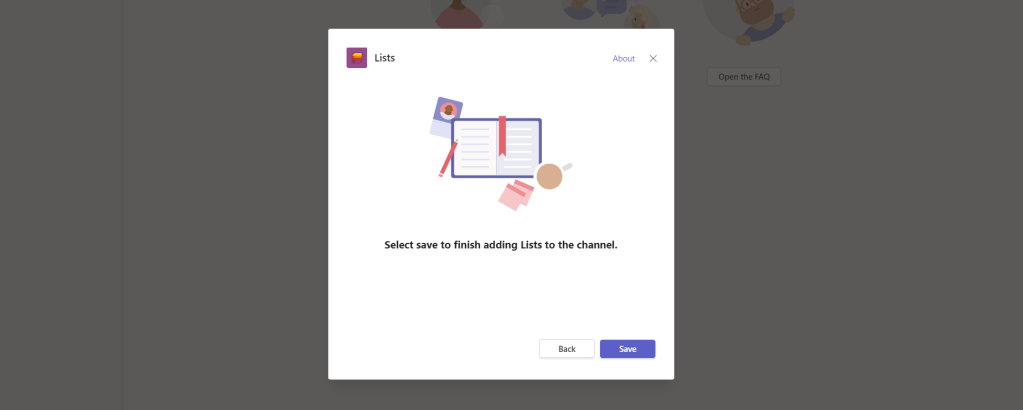
1.) In the required team Channel, select + (Add) to add an app

2.) Search for, and select Lists

3.) Select Save
4.) Select Create a List

5.) From the Templates select Playlist
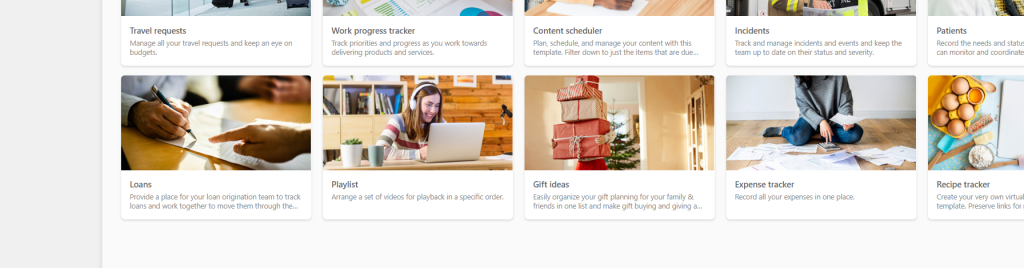
6.) Select Use Template

7.) Give the List a Name, Description, Colour and Icon and select Create
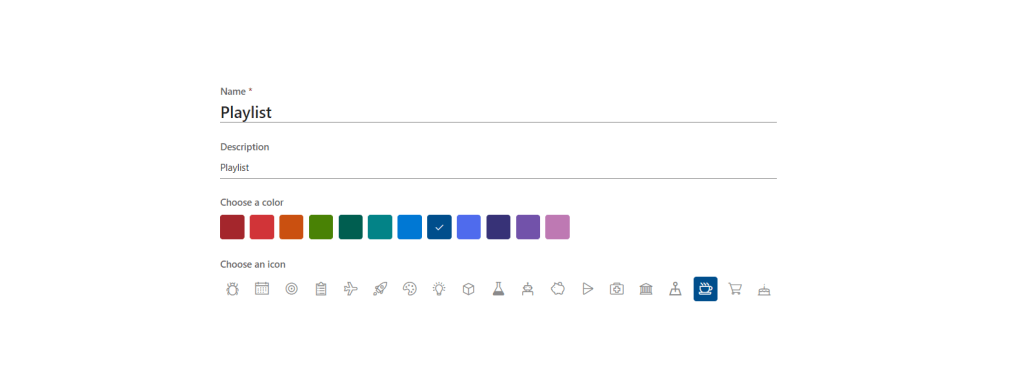
8.) The List is now deployed without anything in it.
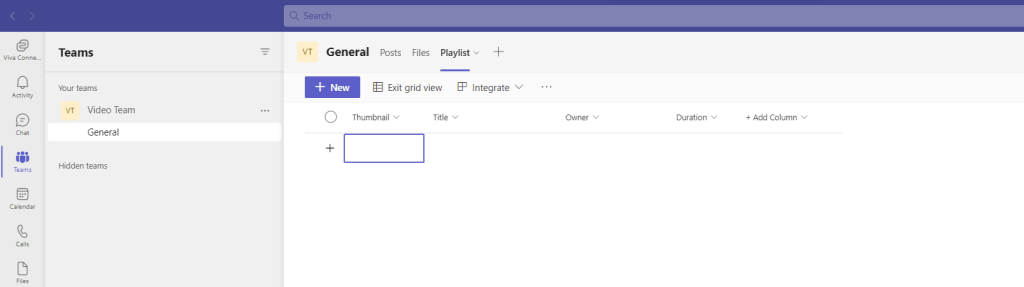
SEEDING THE SHAREPOINT SITE
Now the team, SharePoint site and list have been created we essentially have everything apart from the content. We now need to seed the underlying SharePoint site with some video.
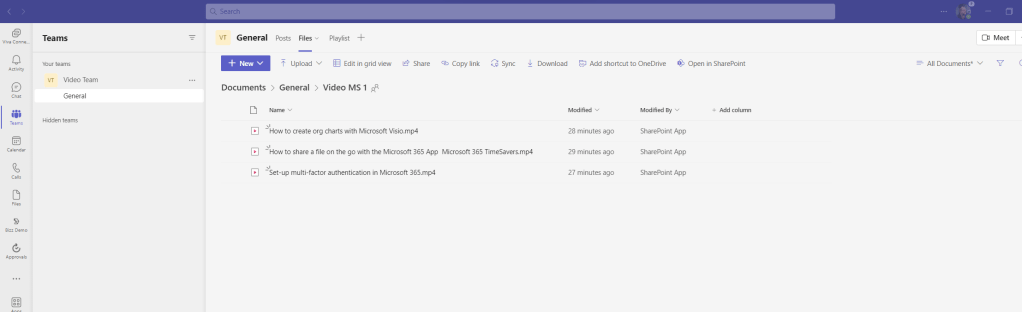
1.) Under Files select New Folder

2.) Give the folder a title (here using Video MS 1) and select Create

3.) Select the Folder

4.) Upload the video using the Upload functionality. We have now seeded the content that we want to use in the Playlist
CLEANING UP THE VIDEO
We have the team, the SharePoint Site, the list itself and the content we will be working with in the Playlist. This is an optional step, but I would recommend cleaning up the video to optimise it for viewing
1.) Go to https://www.office.com/launch/stream and see the uploaded video
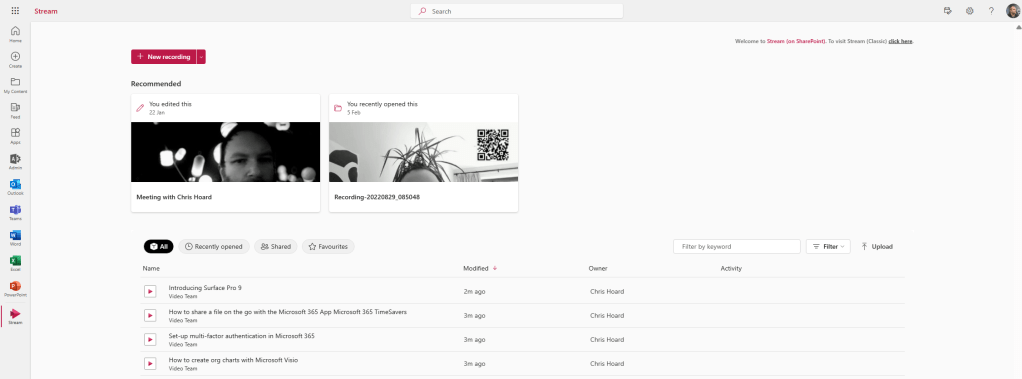
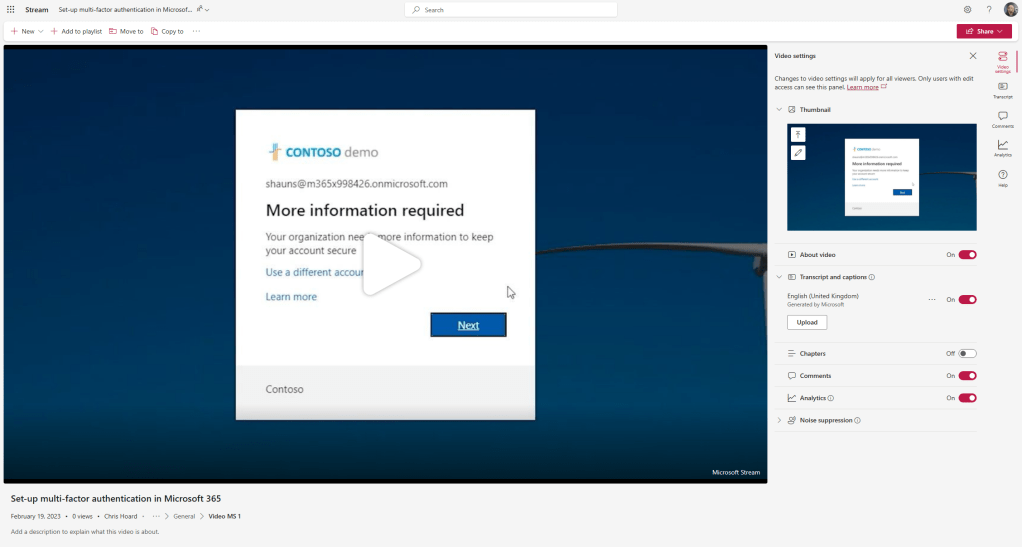
2.) Select each video and make sure it has Thumbnail and add anything needed such as a Description and Captions. This is not just for the playlist but to ensure a great experience for viewers wherever in Microsoft 365 they are viewing the content
Once that is finished return to the Teams Client
ADDING CONTENT TO THE PLAYLIST
Now we have cleaned up the video we are ready to add it to the List. But, as opposed to adding the content in Teams, the content will be added in the Lists App
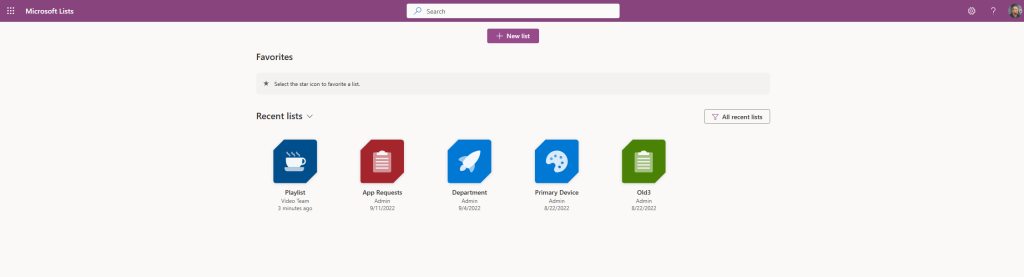
1.) Go to the Lists App at https://login.microsoftonline.com and select the Playlist
2.) Select Add New Item
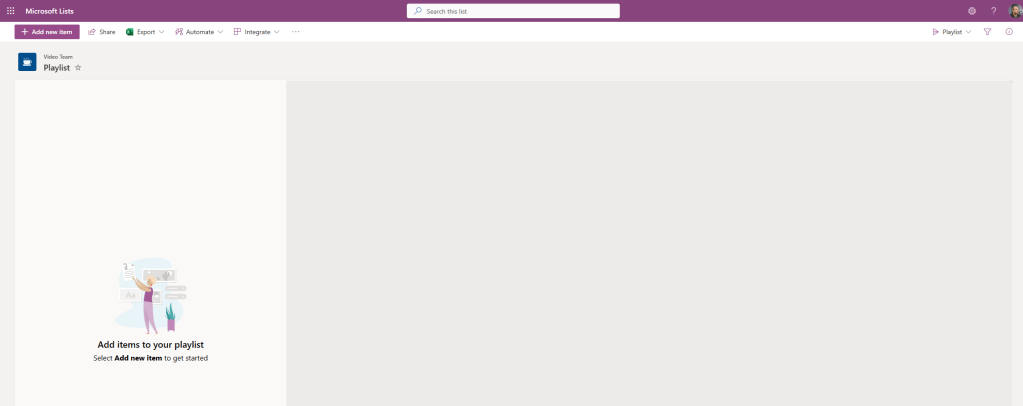
3.) Highlight the seeded content and select Select
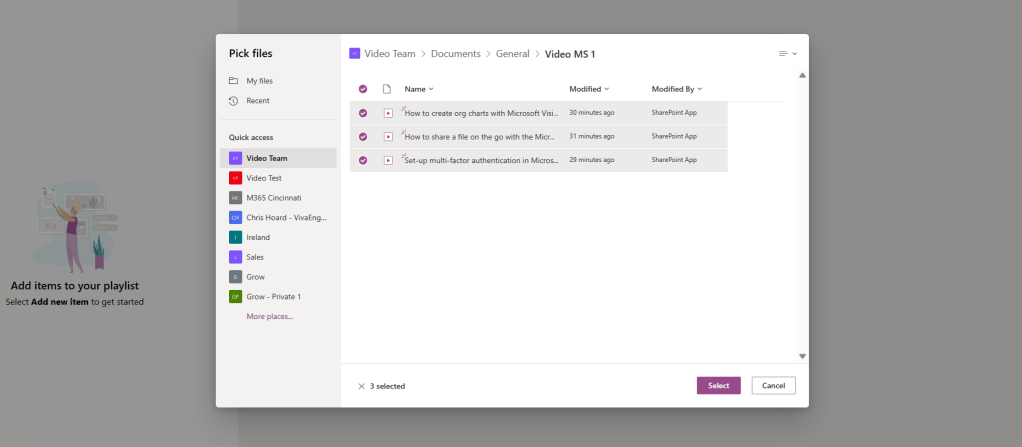
4.) The playlist is now up and running 🙂 Let’s go see this in Teams

GETTING THE PLAYLIST IN TEAMS
So the Playlist is up and running. Awesome. Let’s go get this in Teams
1.) Strangely, the Playlist does not render via the Lists Tab in Teams
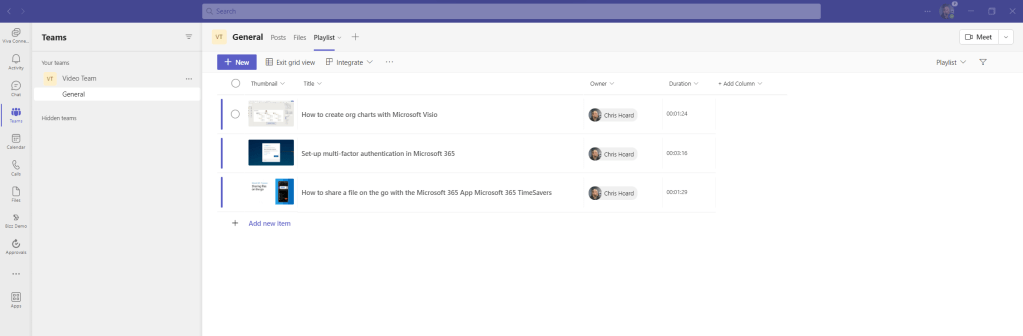
2.) We need to find another way. Select + (Add)

3.) Search for and select SharePoint
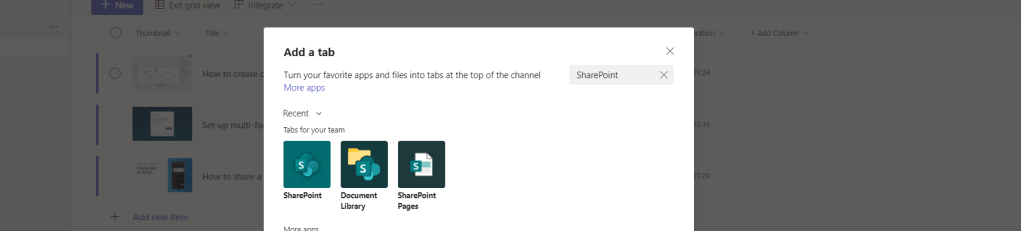
4.) Select the Playlist under Lists and then Save
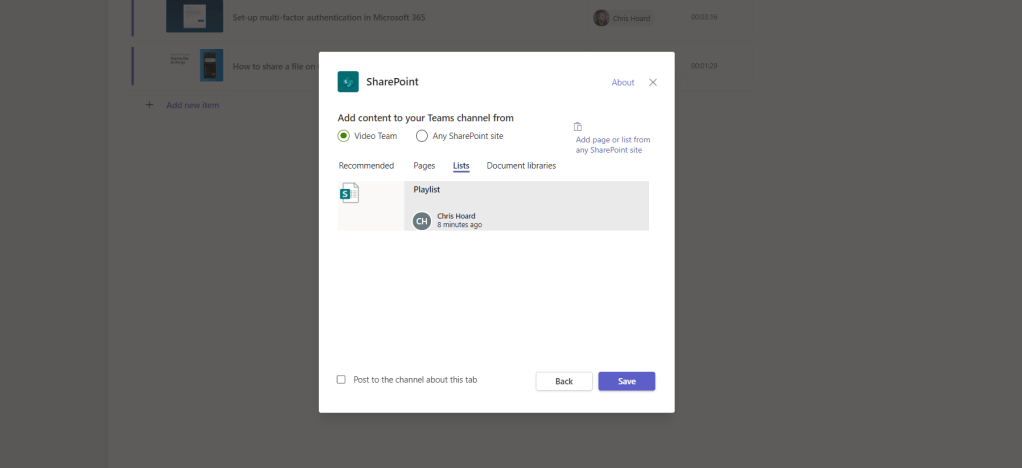
5.) Our Playlist in Teams in a Tab with the Stream player in it. At last
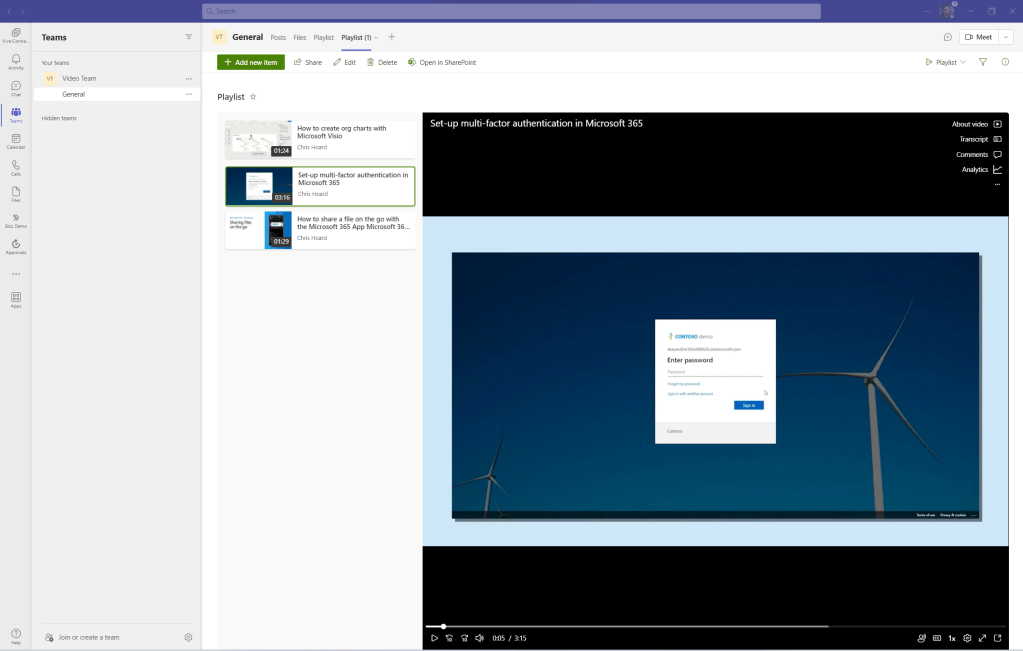
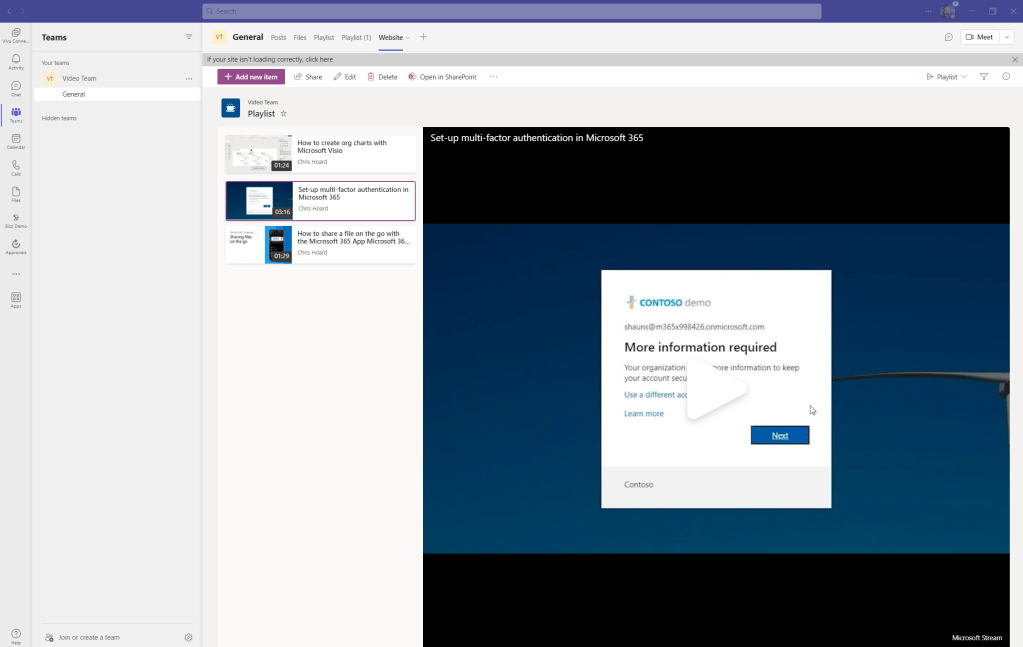
6.) This can also be done by copying the URL of the Playlist in the Lists App and using the Website App
GETTING THE PLAYLIST AS A PERSONAL APP
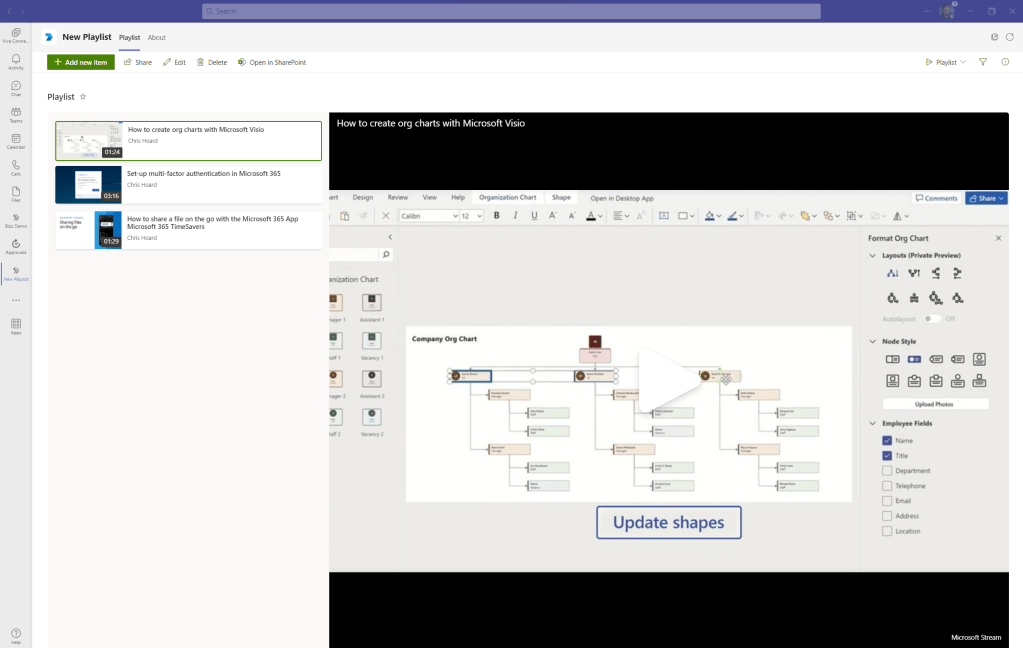
So the 2 hours is almost up. We’ve deployed a team and the SharePoint Site. We’ve created the list. We’ve seeded the content in SharePoint. We’ve added that to the Playlist and we’ve got that into Teams as an App. All good. But let’s have more. Let’s add it as a Personal App.
Using the previous Playlist blog, and considering the new developer portal experience, a personal app was possible using the following information. The APP ID is the ID of SharePoint Online and the content URL was taken from the URL of the List in SharePoint (not in the Lists App)
APP ID: 00000003-0000-0ff1-ce00-000000000000
Content URL: https://m365x79425947.sharepoint.com/_layouts/15/teamslogon.aspx?SPFX=true&dest=/sites/VideoTeam/Lists/Playlist
CONCLUSION
So we managed to get the new playlist experience in as a tab and a personal app. This is awesome. I can use it for demos or for video I may want to keep in the pocket until later. In this one, I only had 2 hours to get everything done end to end – including getting the video, so I didn’t get too granular and much remains to be explored around what’s shown here. But this is a great start, and a great way to get video into the organisation where users are working – and because it’s using the new Stream player, that’s going to be a great experience.
 @Microsoft365Pro