
This blog is part of a series on Teams. For more articles, check back often
Written: 05/03/2023 | Updated: N/A
From the definition by Stonewall: “Pronouns are words we use in everyday language to refer to ourselves or others. They can be an important way to express gender identity. For example, ‘I’, ‘me’, ‘she/her’, ‘he/him’ and ‘they/them’ are just some examples of pronouns”. In today’s modern workplace some may use multiple pronouns. Others may use neopronouns such as xe/xir and ze/zir. Others may avoid the use of pronouns at all. In the context of Microsoft Teams pronouns have been a feature requested for some time. On the feedback portal there are several feedback items; the largest being over 5,000 votes and rising. There is also a petition up on change.org which has nearly reached it’s target of 2,500 votes. It has also regularly been mentioned on MVP calls for as long as I can remember. So Microsoft has now added the pronouns feature to Microsoft 365 and it’s now come into preview; surfaceable on the contact card used by both Teams and Outlook on the Web. I am sure it will be a priority for many organisations in the near future as it transitions from preview into GA and am sure it will later surface into other surfaces. Why? Because correct use of pronouns is important in terms of helping all staff feel included at work. It can reassure trans and gender non-conforming colleagues that they are welcome and included. And whilst this action, in itself, will only be a small part of building allyship, visibility on the contact card will be a step forward.
Let’s go
This blog will cover
- Enabling Private Preview
- Enabling Pronouns in Microsoft 365
- Adding pronouns in Teams
- Adding pronouns in Outlook on the Web
- FAQ
Prerequisites
- Teams Licence (Within Microsoft 365 Licence) for testing
- Global Administrator permissions for Microsoft 365 Admin Centre
- At the time of writing this appears in Public Preview (Ring 3.6)
ENABLING PUBLIC PREVIEW
The ability to add pronouns in Teams is currently in public preview, and this will mean that a Teams or Global Administrator will need to enable it within the Teams Admin Centre. Read an article which can help you do that – apply the Teams update policies to the required users within the organisation (either directly assigning the policy, by batch, by a custom policy package or group via PowerShell) and have the users enable the public preview within their Teams Desktop clients.
ENABLING PRONOUNS IN MICROSOFT 365
Now that Teams Public Preview is configured login to the Microsoft 365 Portal as the Global Administrator
1.) Login at https://login.microsoftonline.com
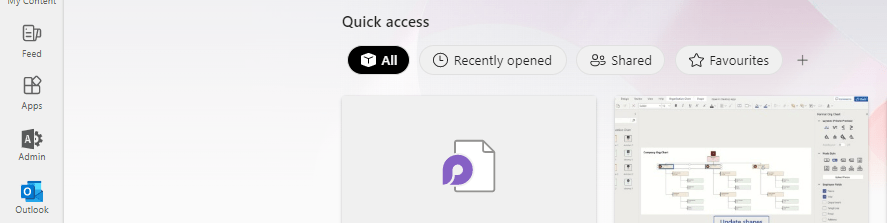
2.) From the left hand app rail, or from the waffle dropdown, select Admin
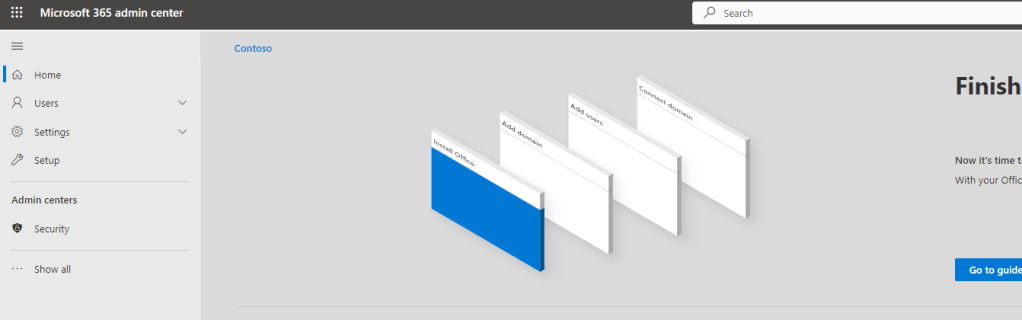
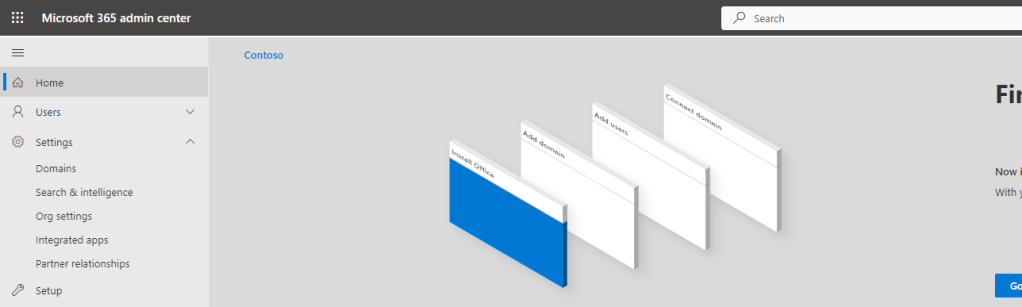
3.) In the Microsoft 365 admin portal select Settings from the left hand app rail
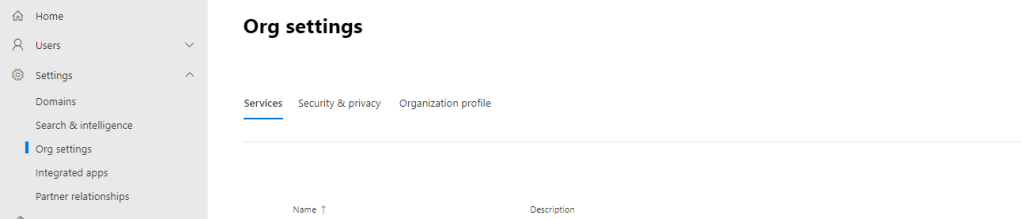
4.) Select Org Settings
5.) Select Security and Privacy
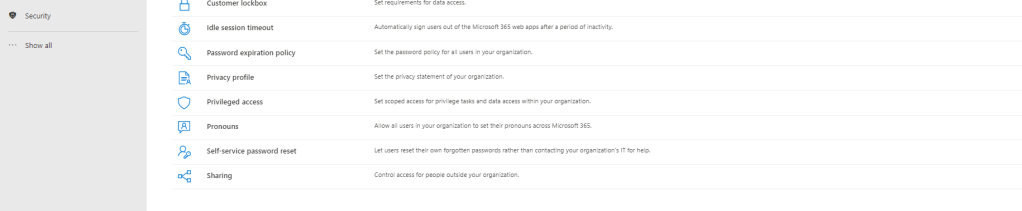
6.) Select Pronouns
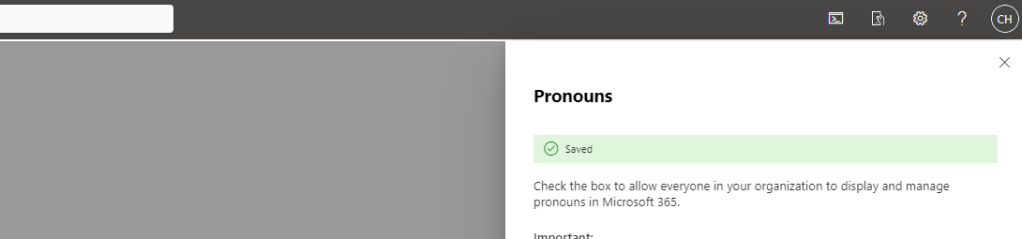
7.) Tick Turn On and Allow Pronouns and then select Save
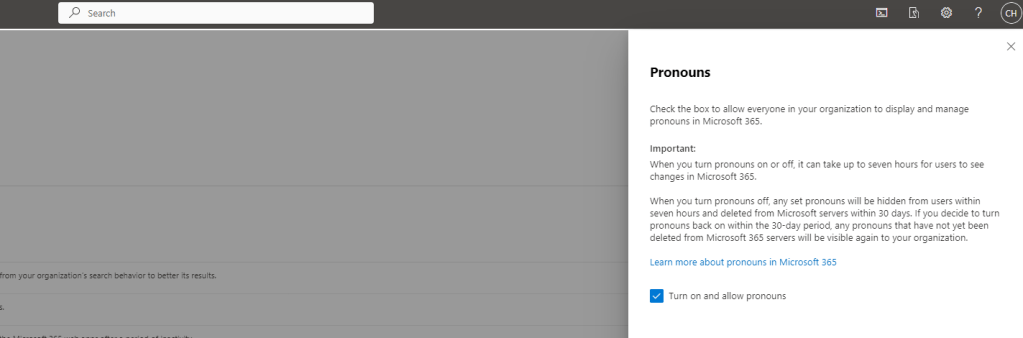

8.) Pronouns are now enabled within Microsoft 365. As stated it can take up to seven hours for users to see the changes and be able to add their pronouns
ADDING PRONOUNS WITHIN TEAMS
Now that everything has been enabled, it’s time to add in Microsoft Teams. From testing this is supported by both the Teams web and desktop clients
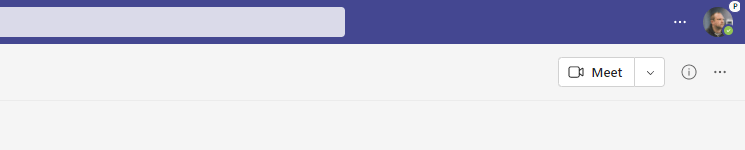
1.) Open the Microsoft Teams Web or Desktop client. Ensure the user is in Public Preview and select their Avatar
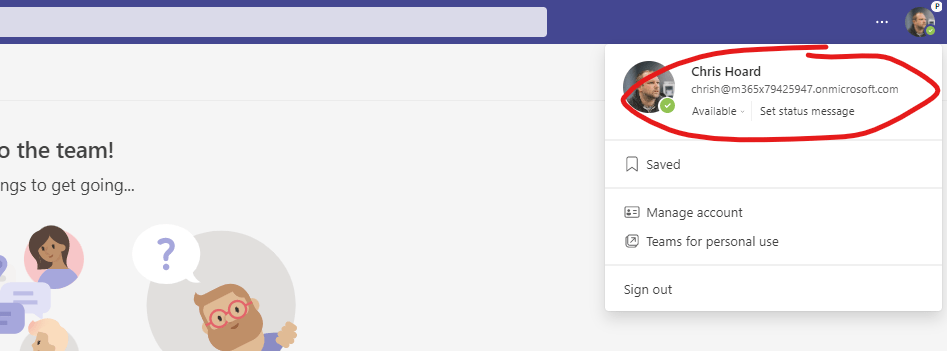
2.) Now select the Username – here ringed for clarity
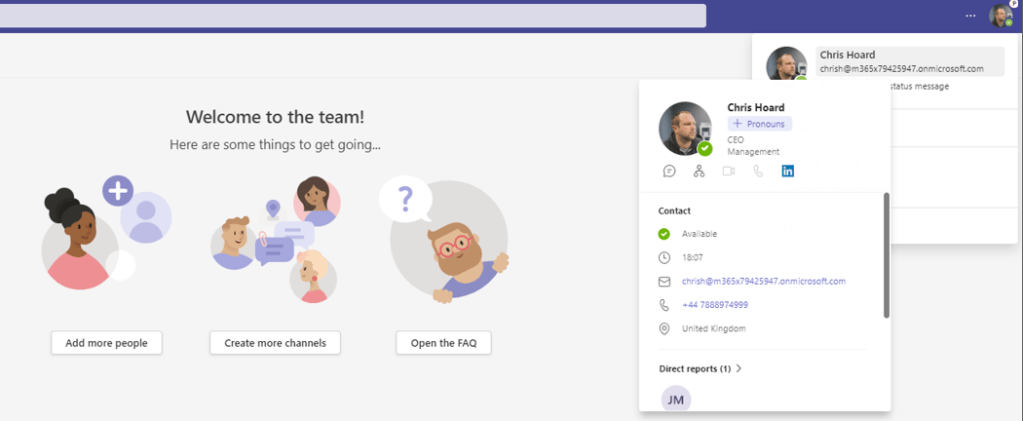
3.) Select Pronouns under the name
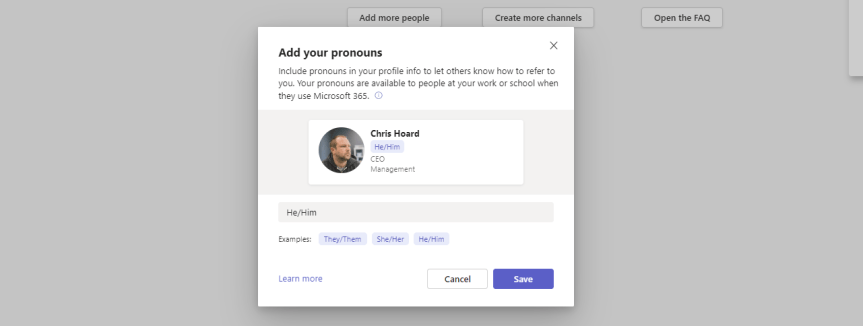
4.) Add the pronouns from the choices or create your own. Once done select Save
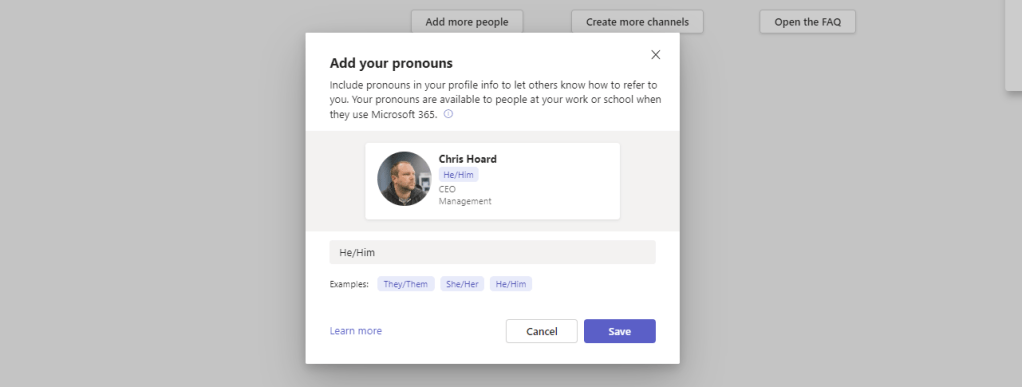
5.) Profile has been updated. Select Got it

6.) The contact card is now updated in Teams
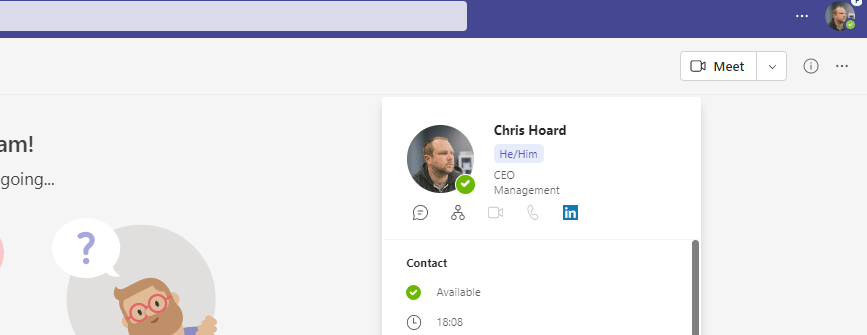
7.) Here it shows on a Teams Channel Message
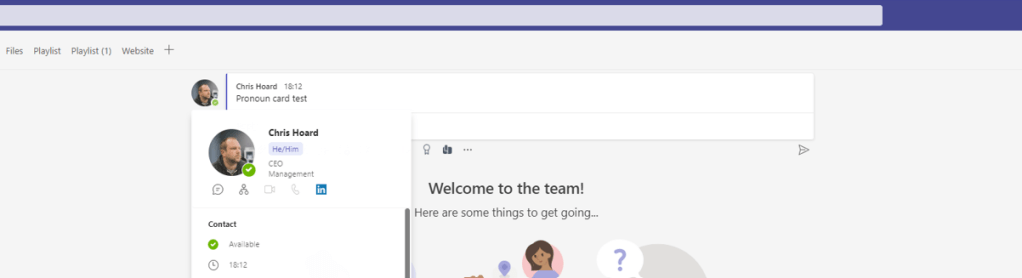
It will show any place the contact card is surfaced including Contacts, and the Calling App.
ADDING PRONOUNS IN OUTLOOK ON THE WEB
We can add and modify pronouns in Teams. We can also do it in Outlook on the Web. At the time of writing further testing is required to confirm if the desktop client displays the pronoun, but Outlook on the Web does, and it can also be confirmed here that adding/modifying in Teams also adds/modifies it in Outlook and vice versa
1.) In the Microsoft 365 admin portal, select Outlook from the left app rail or the waffle

2.) Find a mail with your avatar on it and select the Avatar
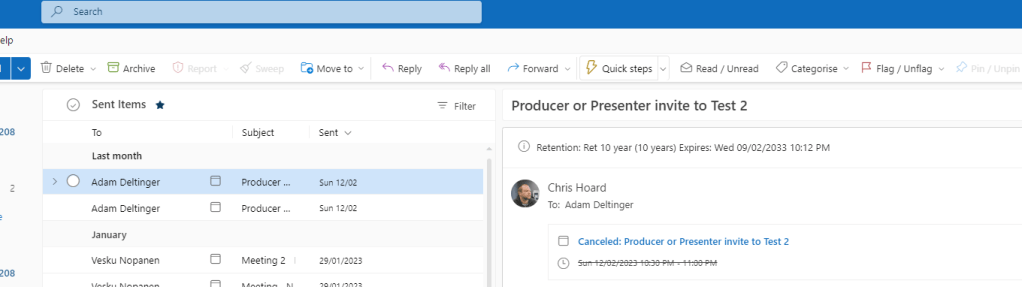
3.) Select Pronouns
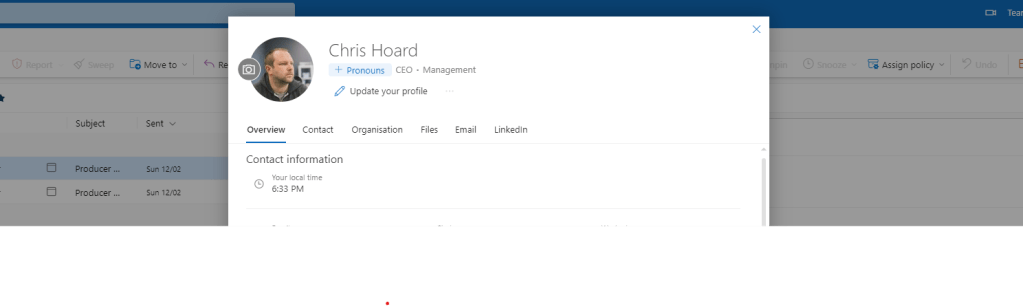
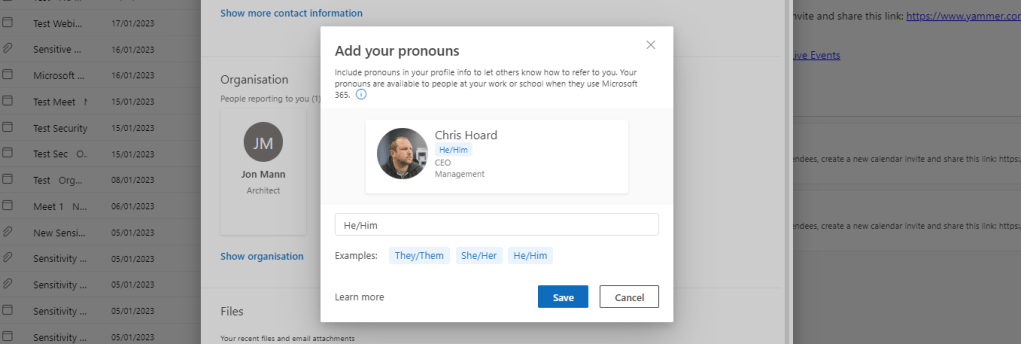
4.) Add the pronouns from the choices or create your own. Once done select Save
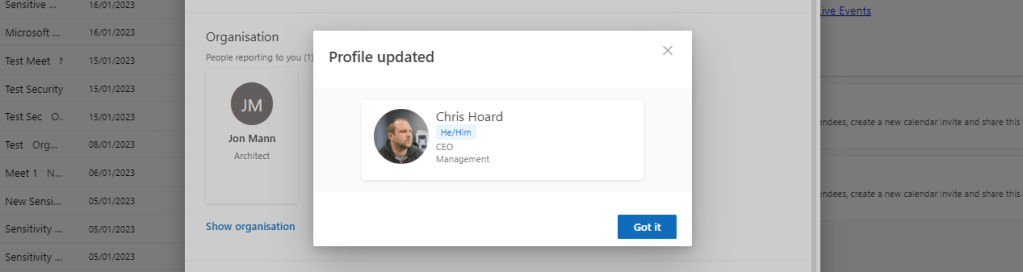
5.) Profile has been updated. Select Got it
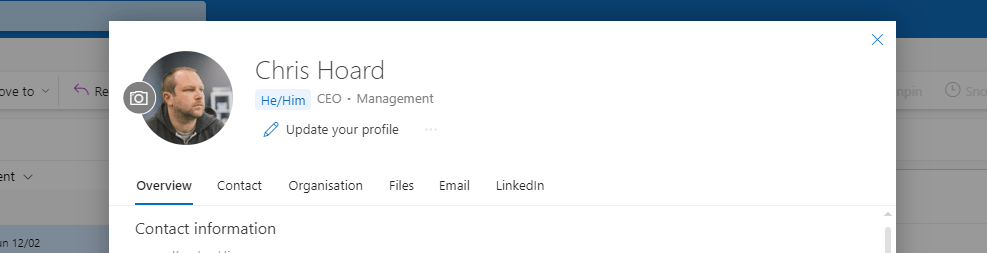
6.) The contact card is now updated in Outlook
FAQ
Q.) If I update pronouns in Teams, or Outlook, does it update in the other app?
A.) Yes, updating in Teams updates in Outlook and Vice Versa
Q.) Will pronoun functionality be automatically enabled in my Microsoft 365 tenant?
A.) No, the default experience is off and they have to be enabled manually at the tenant level. This turns on the ability for users to add them and pronouns are not automatically applied by enabling the functionality. There is no capability at the time of writing just to enable it for specific groups, however to note that whether pronouns display are completely down to the user. The admin cannot enforce them onto a user by enabling the functionality, nor restrict who sees them.
Q.) Who are pronouns visible to?
A.) At the time of writing, after a user adds pronouns to their profile, the pronouns are visible to everyone in their organization including guests and where users are resolved to the same tenantID. Users or Admins can’t control who can see their pronouns in Microsoft 365 in their organization. Pronouns aren’t visible to people outside their organization.
Q.) Where is Pronouns Data stored?
A.) In their exchange mailbox
Q.) If I change my pronouns how long do they take to update so people can see them?
A.) This change is immediate
Q.) Where else do they show other than Teams or Outlook on the Web?
A.) This article tested Teams Desktop, Teams Web and Outlook on the Web. Pronouns appeared in all of these experiences given the tenant was on targeted and the Teams client on public preview. Given that the pronouns surface on the contact card this should be on experiences where the contact card is present – if not at the time of writing, in the future. These are opportunities to test out to see if they are here today
 @Microsoft365Pro