
This blog is part of a series on Teams. For more articles, check back often
Written: 28/05/2023 | Updated: N/A
Last weeks vacation on the Isle of Wight was good. If fact, some time away was sorely needed. And whilst I was slightly bummed that I had to turn down speaking at Microsoft’s seminal developer event Build this year, the consolation is that I had already spoken at Build twice previously. As the song goes, two out of three ain’t bad. But in all honesty I really did need a breather given recent transition work in my org – and besides, it’s right that someone else should have an opportunity to experience Build as a speaker. So from looking at Attack Simulation in Teams and Defender last week, I am going to pivot back to Purview and Compliance where I’ll look at adaptive scopes in the context of Communication Compliance. Now in the past I have written about and done talks on the circuit about both, but I haven’t written or talked about them together. When I first wrote about adapative scopes they were in preview, and at the time they only supported retention policies. Now they can be implemented differently and they support Communication Compliance – what used to be called Supervision back in the day when we had the combined Security and Compliance portal. Now, why would we use them together and what would be the benefit? Let’s take a scanario: let’s imagine that I am moving from an internal ops role into a senior leadership role where I will be privy to sensitive information which I should not share over my orgs communication apps – here meaning Exchange, Teams and Yammer. If I have Communication Compliance policy set up with an adaptive scope, it can be automatically applied when I transition to that role and apply for the liftime to which I hold that role. This saves IT time and administrative overhead. This means that it can be applied to all people within that senior leadership role as opposed to several roles being created on a user by user basis. As discussed in the last article, Adaptive Scopes are based upon Azure AD properties, but in the world of Teams and Communication Compliance it’s important to distinguish between the user scope type which applies to messages in private 1:1 and group chat, and Microsoft 365 Group scope type which applies to messages in channels. This will walk through the user scope but will also show how to set the group scope
Let’s go
This blog will cover:
- Setting Azure AD properties
- Creating an Adaptive Scope with User Scope Type
- Creating an Adaptive Communication Compliance Policy
- Creating an Adaptive Scope with Microsoft 365 Group Scope Type
Note this blog will have abridged steps which will assume some experience with Teams and a Microsoft 365 environment.
Prerequisites
- A Microsoft 365 licence which includes Teams and Communication Compliance (E5) or Microsoft 365 licence with an E5 Compliance Add-On
- Global Administrator/User Administator and Compliance Administrator permissions
SETTING AZURE AD PROPERTIES
Before we can apply the adaptive scope, or the communuications compliance policy for Teams, we need to ensure the properties of the users in Azure AD are correct. For this scenario, we are going to apply a communication compliance policy to all the Senior Leadership Team (SLT) within the organisation so in Azure AD terms, we need to ensure that the properties of Department in Azure AD for these users are correct
1.) Login to https://login.microsoftonline.com with the admin credentials
2.) Select Admin from the left app rail, or the waffle

3.) In the Microsoft 365 admin portal, select Show All from the left navigation and then select Azure Active Directory

4.) In the Microsoft Entra portal under Azure Active Directory select Users then All Users
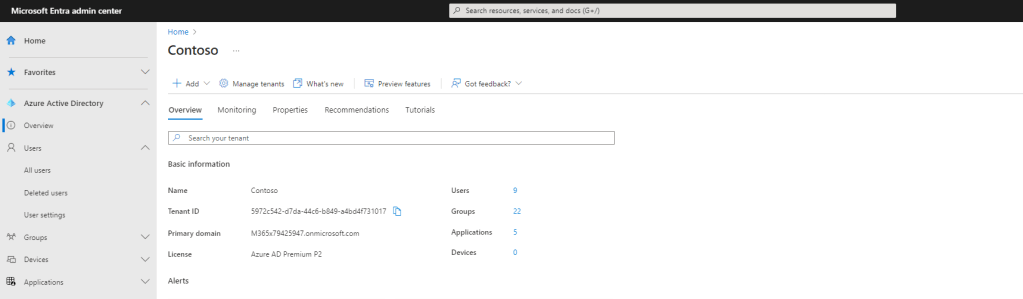
5.) Select the User

6.) Select Edit Properties
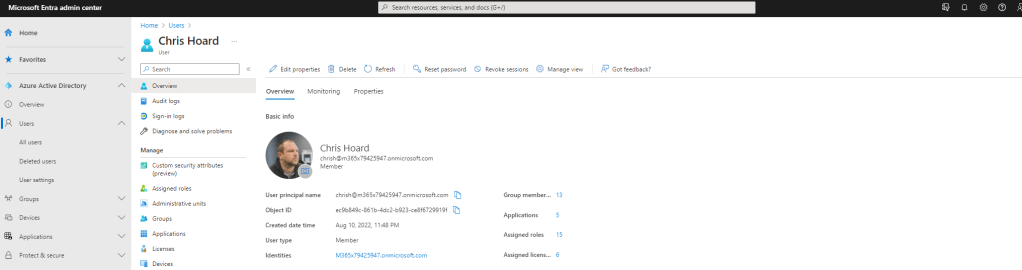
7.) Ensure the Property (in this case Department == Senior Leadership Team) is correct and select Save
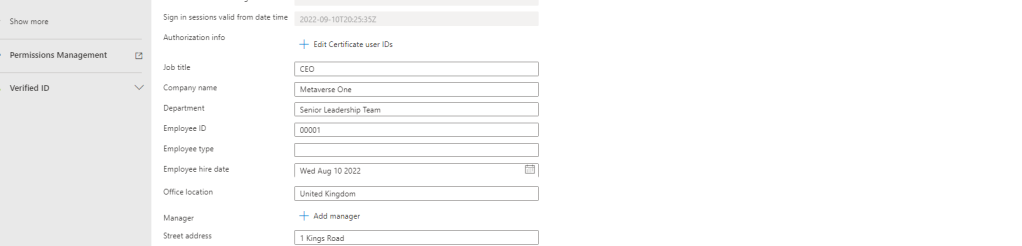
8.) Rinse and repeat for all users required. This can be checked using the Filter Department ==
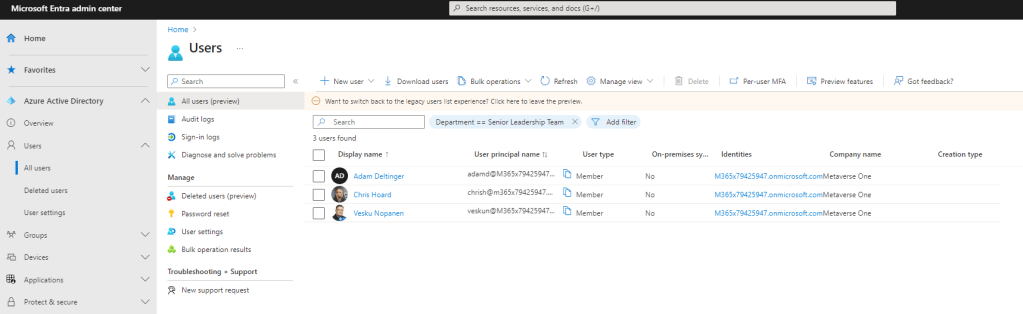
From an Azure AD perspective are now ready to go.
CREATING AN ADAPTIVE SCOPE WITH USER SCOPE TYPE
Now that Azure AD is prepared we can go and create the adaptive scope. When I previously wrote about adaptive scope the scope was set when creating the retention policy. Now, we can go and create the adaptive scope prior to creating the policy, so this element has changed.
1.) In the Microsoft 365 admin portal, select Show All from the left navigation and then select Compliance
2.) In the Microsoft Purview Compliance Portal, select Roles and Scopes and then Adaptive Scopes
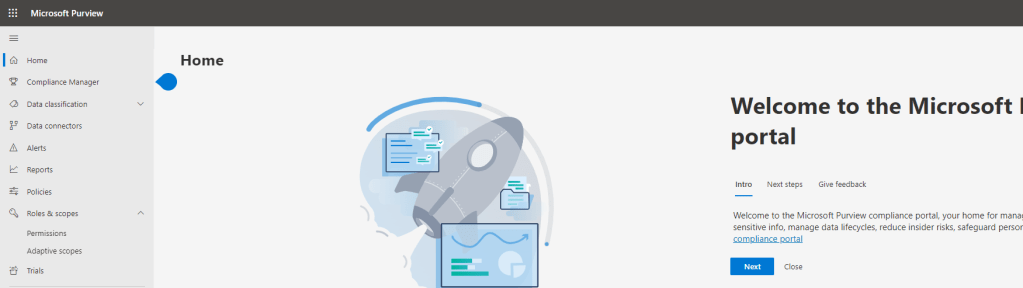
3.) Select Create Scope

4.) Give the adaptive scope a Name and Description (Here called ADSCP – Senior Leadership Team) and select Next
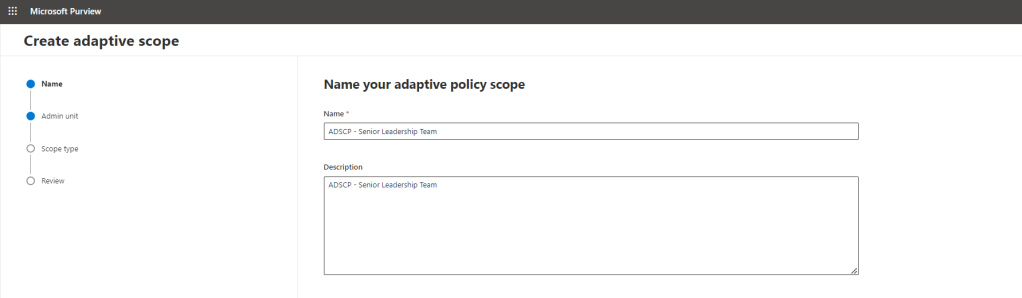
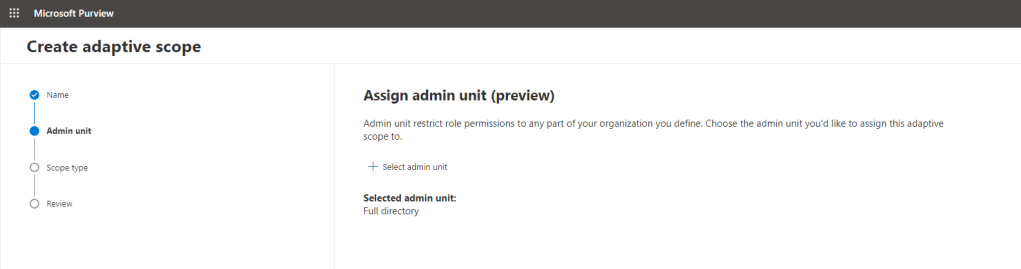
5.) If required assign an Administrative Unit (Here not used) and select Next
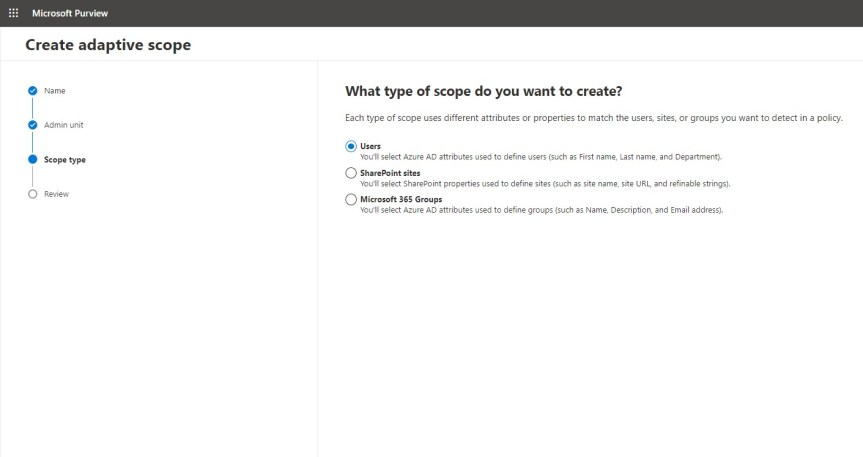
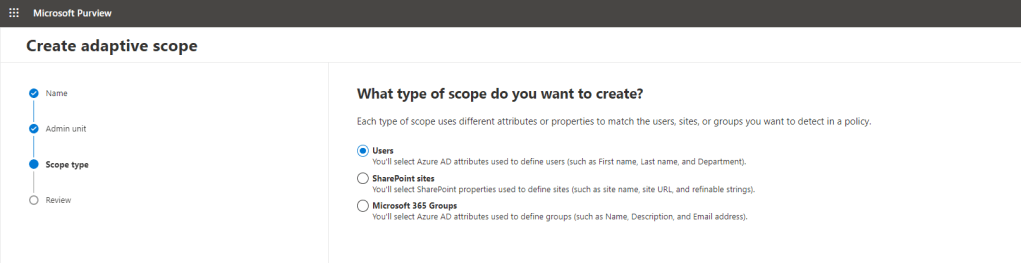
6.) Now select the Adaptive Scope Type. This example will be used for Teams Private 1:1 and Group Chat Messages so a User Scope Type is chosen. Select Next
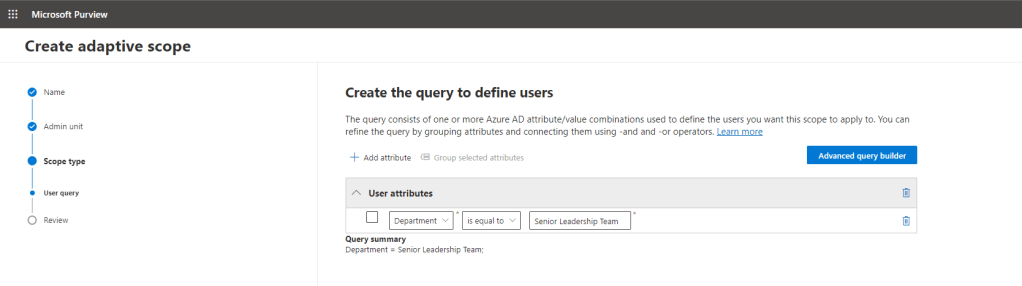
7.) Now set the Adaptive Scope Query. In this example scenario, the Communication Compliance Policy will be applied against everyone who is within the Senior Leadership Team of the org, and so against everyone who has been set as that within the Department property of their user in Azure AD. As shown below Department == Senior Leadership Team which as set in previous steps will include Chris, Vesku and Adam. One the query has been built as intended, select Next
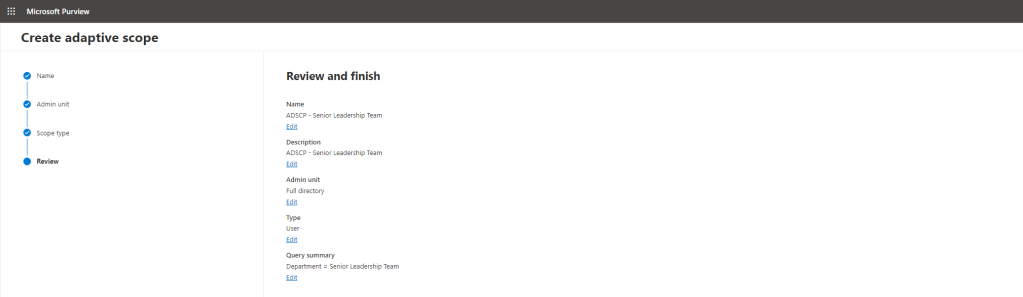
8.) Finally, review and Submit. The adaptive scope has been created
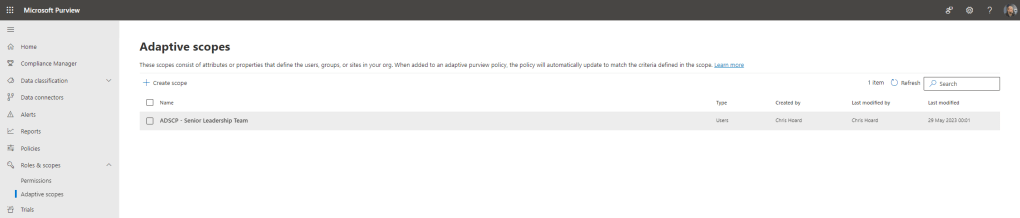
CREATING AN ADAPTIVE COMMUNICATION COMPLIANCE POLICY
Azure AD is done. The Adaptive Scope with a User Scope Type has been created.So it is now time to create the adaptive Communication Compliance policy
1.) From the left navigation in the Microsoft Purview Compliance Portal, select Communication Compliance

2.) Select Policies

3.) From Create Policy select Custom Policy. Adaptive Communcation Compliance policies cannot be created from templates at the current time.
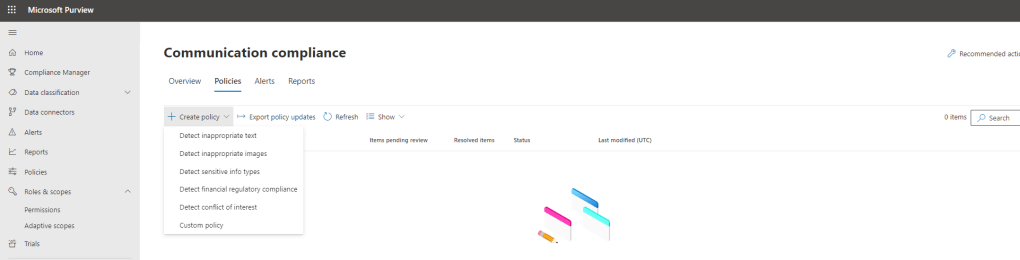
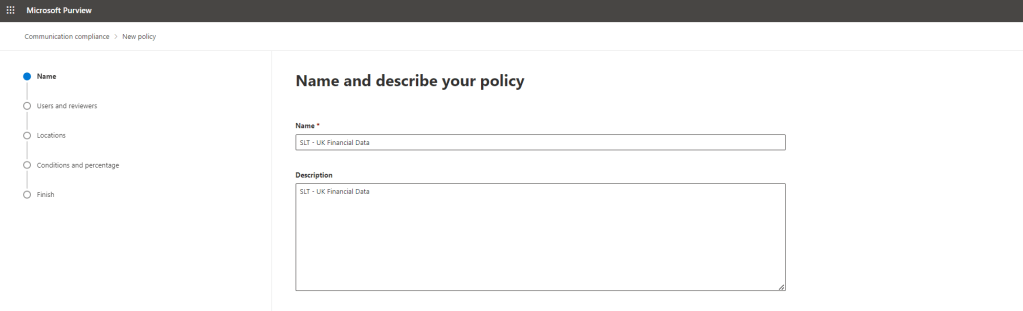
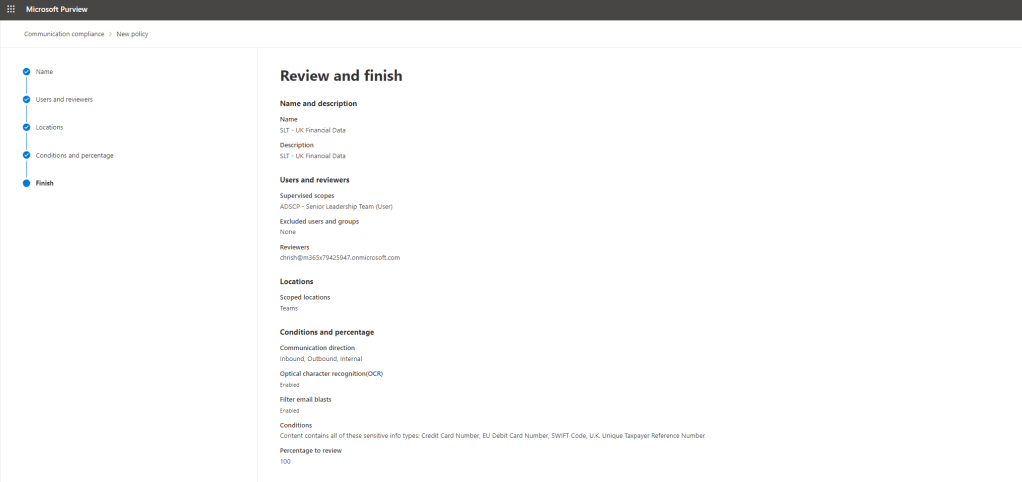
4.) Add a Name and Description of the policy and select Next. This example is called SLT – UK Financial Data
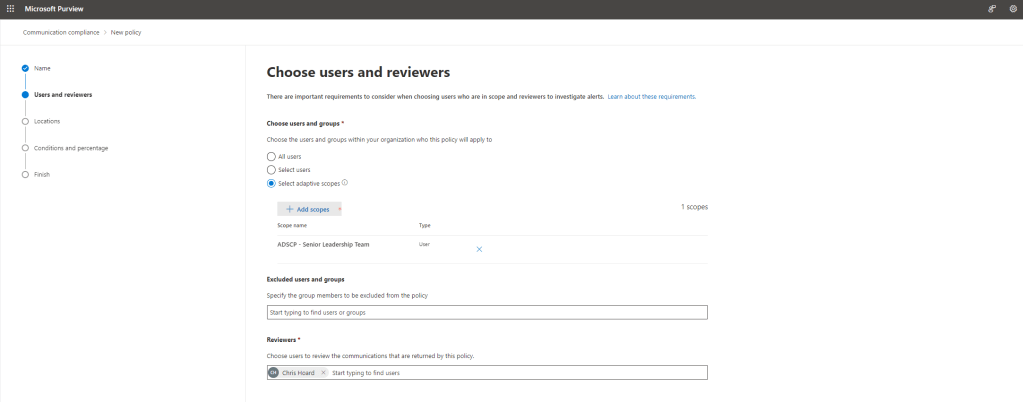
5.) Now choose Users and Reviewers. Under Choose Users and Groups select Adaptive Scopes and select the User Scope Type created. Add exclusion if required and a Reviewer then select Next
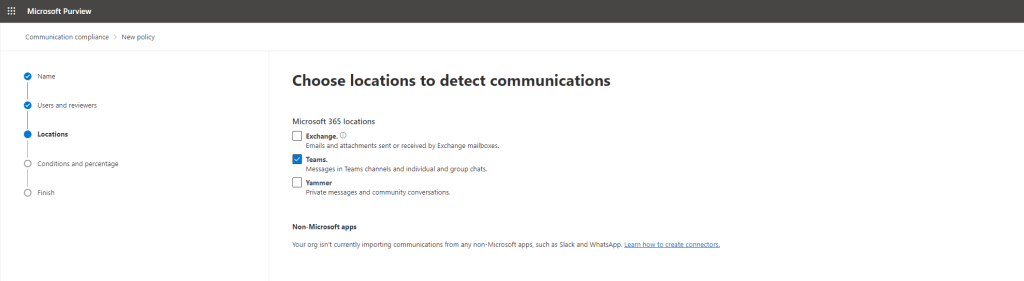
6.) Add locations to detect and select Next. This example will apply to just Teams, and because of the User Scope Type will only cover 1:1 and Group private chat messages.
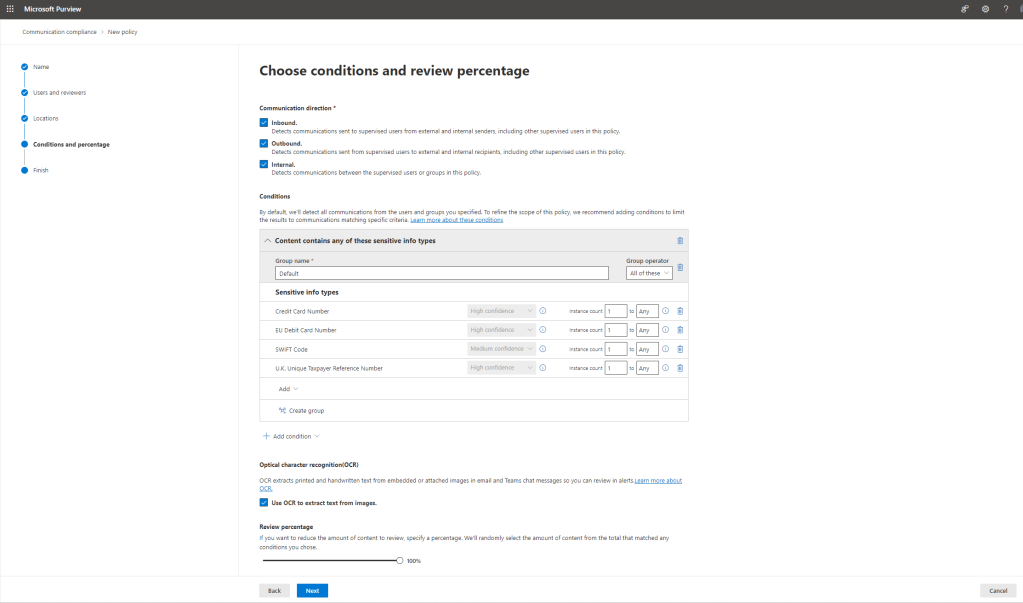
7.) Now set the Conditions and select Next. This example has added and shows UK Financial Sensitive Information types which will be picked up on inbound, outbound and internal communications, with 100% review percentage
8.) Review and select Create Policy
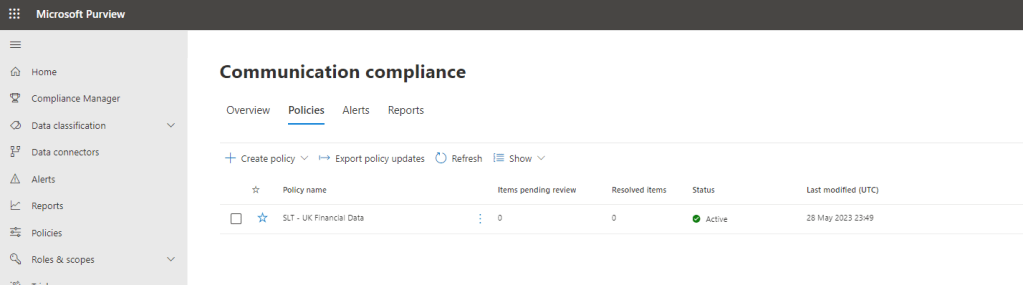
9.) The policy is now created

Our job here is done.
Azure AD is configured. The adaptive scope built. The Communication Compliance Policy is built and is running. Now when an SLT member of the org drops a Financial SIT into a 1:1 or Group private chat message such as a credit card number, a debit card number or a Swift Code, it’ll be flagged and the team can review and take action on it in Communication Compliance
CREATING AN ADAPTIVE SCOPE WITH MICROSOFT 365 GROUP SCOPE TYPE
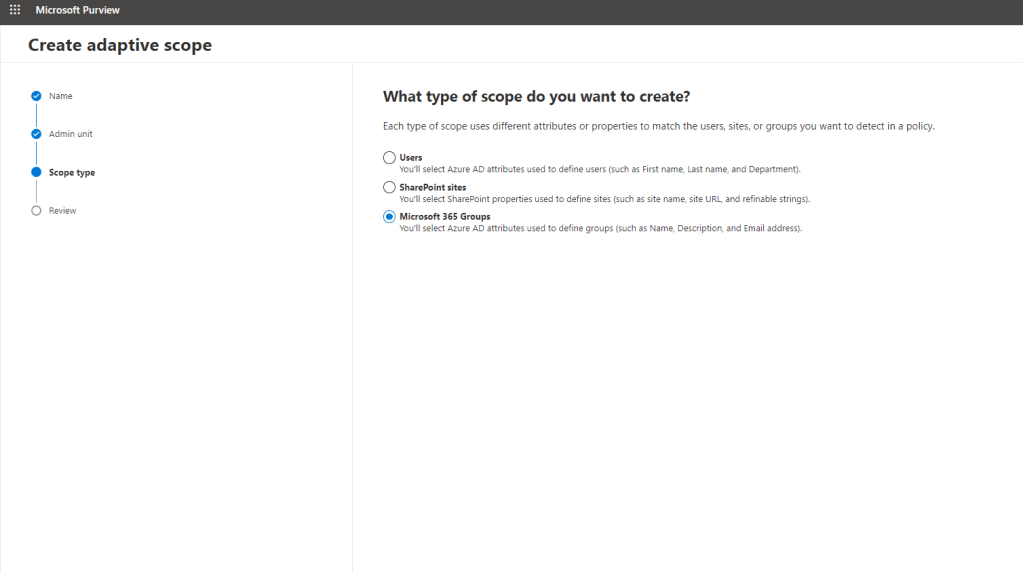
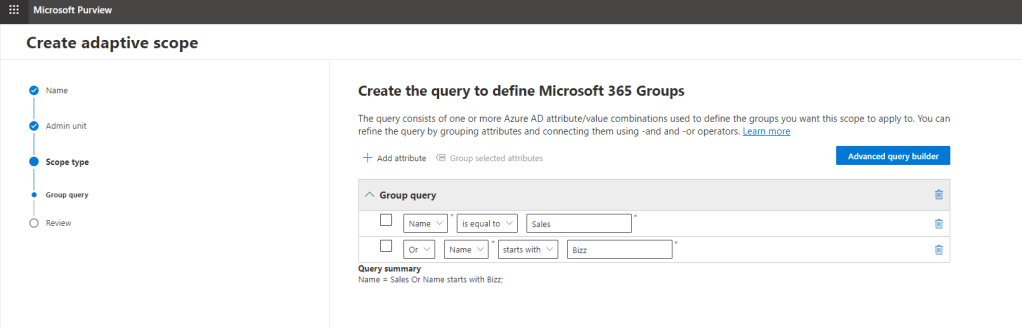
The example provided has been to implement a User Scope Type – and as said previously when it comes to Teams and Communication Compliance this pertains to 1:1 and Group private chats. Should this need to be used within Teams or Channel communications, then a Microsoft 365 Group Scope Type is used and this is set when creating the Adaptive Scope and when building the Custom Communication Compliance Policy.
 @Microsoft365Pro