

This blog is part of a series on Teams. For more articles, check back often
Written: 02/07/2023 | Updated: N/A
2023 has been one wild year. The divestiture and merger of the business I work for. It’s subsequent rebrand. The last few weeks its been all about expansion and the rollout into Switzerland. I’ve been over in Ireland. I’ve been doing things out in the UAE. Now all of these things – all up – have gone well. Despite many long days and a few pressure cooker situations it’s been generally excellent and a very exciting experience; one of those intense and fascinating periods where you need to bring your A game and step up to the challange of it. But for the first time since I have been in the Microsoft Tech Community – since around the start of 2018, the sheer load and the scale of realignment has meant I have struggled to get to the community. The blogs. The events. All the rest of it. I completely missed Build. I completely missed Commsverse. I simply couldn’t get to them. And whilst I managed to squeeze out a bit on Collaborative Security in May; the new functionalities such as Attack Simulation, End User Reporting and ZAP, I’ve had people ask – where have you been? Are you ok? The answer is yes! I am happy that corp work is almost to a sustainable level, and that I can start to engage with the community again. And so I am going to pick up with a small, security related functionality in Teams meetings which I noticed has now appeared in the Teams Admin Centre (TAC) which is to block anonymous users read access in a Meeting Chat. More succinctly ‘Microsoft Teams IT Admins will be able to block anonymous users from accessing the chat in internally hosted meetings by disabling their read access on top of the existing disabled write access’. In other words, anonymous users will have neither read or write meeting chat access meaning they won’t see the chat. Why is this important? An anonymous user is a user who joins a meeting via a link. The user isn’t logged in with their Microsoft account or their organization’s account. This could, literally be anyone who has received, or managed to get their hands on the link to the meeting who isn’t strictly authorised to be there. And if we permit anonymous users – which some orgs need to do, then it is good that the chat can be controlled in such a manner that these users can’t scrape/exfiltrate information – particularly sensitive information out the chat. All set?
Oh, from this point on I’ll be using the Teams 2.1 client too where possible. Just in case you wonder why it may look different.
Let’s go
This blog will cover
- Blocking Anonymous Users Read Access with TAC
- Blocking Anonymous Users Read Access with PowerShell
- Outcome for the anonymous user in a meeting
Note this blog will have abridged steps which will assume some experience with Teams and PowerShell. This will be used on Teams Desktop using a Ring 4 Test Tenant. All blogs will use the new Teams Desktop Client 2.1+ where possible.
Prerequisites
- Teams Administrator or Global Administrator permissions
- Microsoft 365 Licence with Teams for testing
BLOCKING ANONYMOUS USERS READ ACCESS WITH TAC
Let’s illustrate how to do this with TAC
1.) Login to https://login.microsoftonline.com with the admin credentials
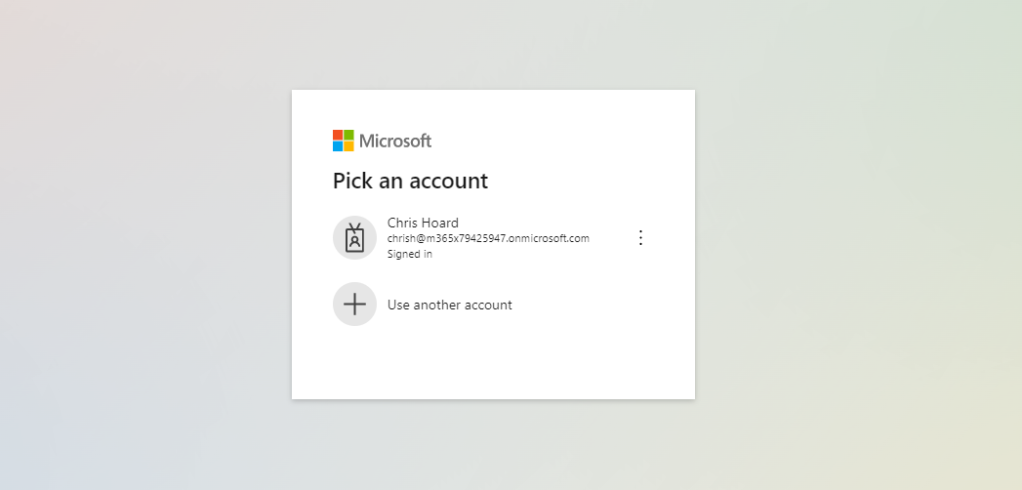
2.) Select Admin from the left app rail, or the waffle

3.) In the Microsoft 365 admin portal, select Show All from the left navigation and then select Teams

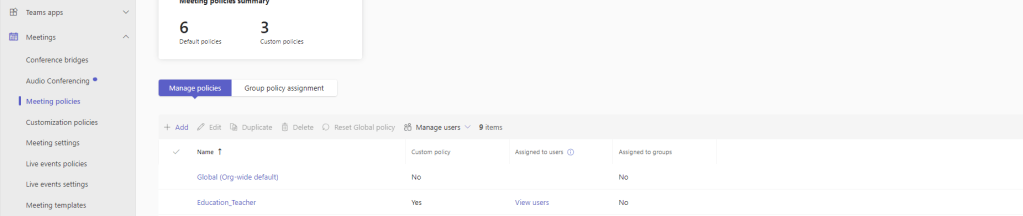
4.) In the Teams Admin Centre from the left navigation select Meetings then Meeting Policies

5.) Select a policy (Here Global Org Wide Default will be used)
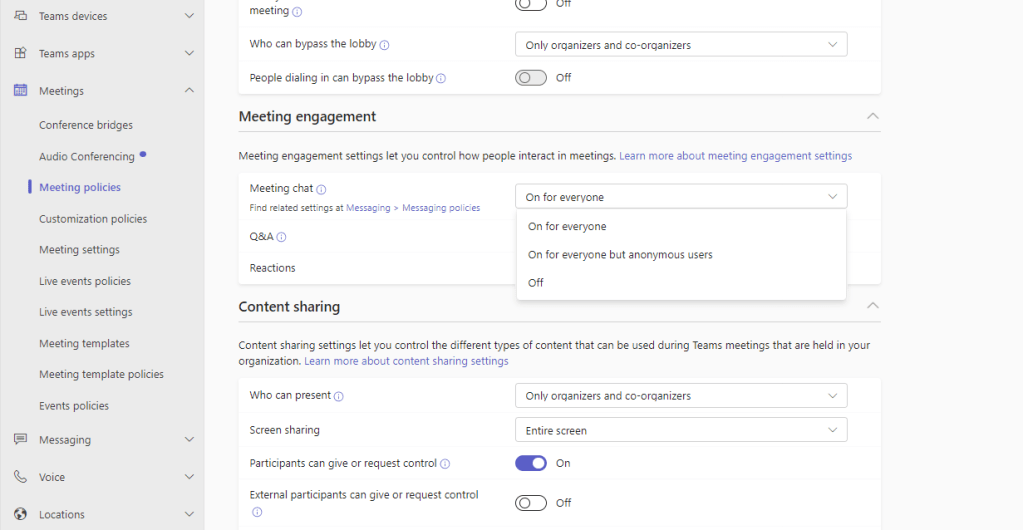
6.) Scroll down, and under Meeting Engagement set Meeting Chat to On for everyone but anonymous users and then select Save
7.) Select Confirm

8.) The policy is now updated. Continue to amend in every policy required, especially if your organisation uses custom meeting policies.

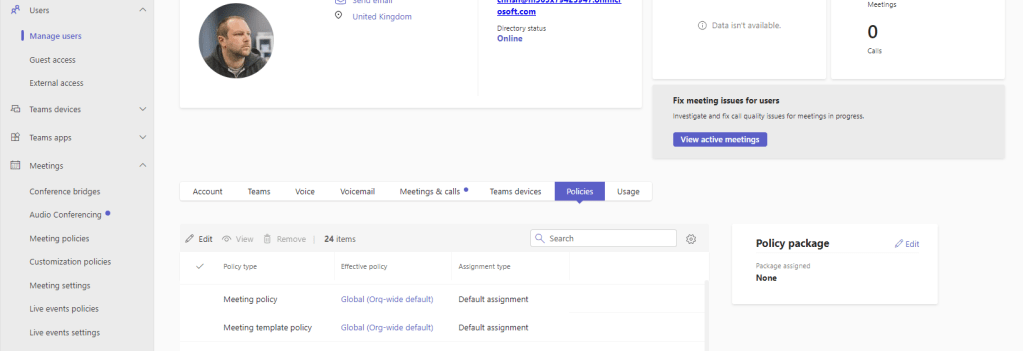
9.) Finally ensure that the users you want are assigned to the policy or policies. This could be done in several different ways including through the TAC or via PowerShell and by policy assignment methodologies including direct, batch, group and policy package.
BLOCKING ANONYMOUS USERS READ ACCESS WITH TAC
Easy in the TAC. Let’s move onto the Shell
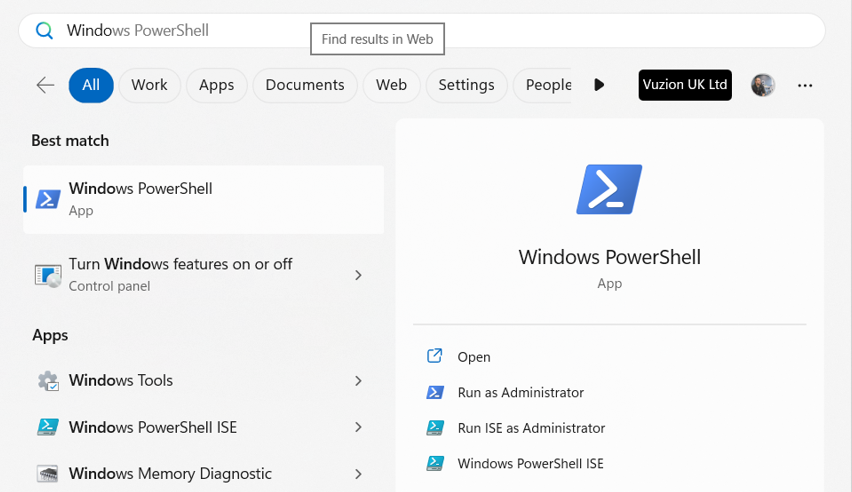
1.) On the Windows Desktop select Start then search for Windows PowerShell. Select Run as Administrator
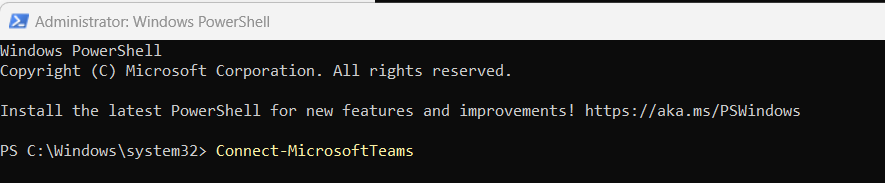
2.) Connect to Teams PowerShell Module with
Connect-MicrosoftTeamsAuthenticate as required
3.) Now set the policy as follows
Set-CsTeamsMeetingPolicy -Identity "Global" -MeetingChatEnabledType "EnabledExceptAnonymous"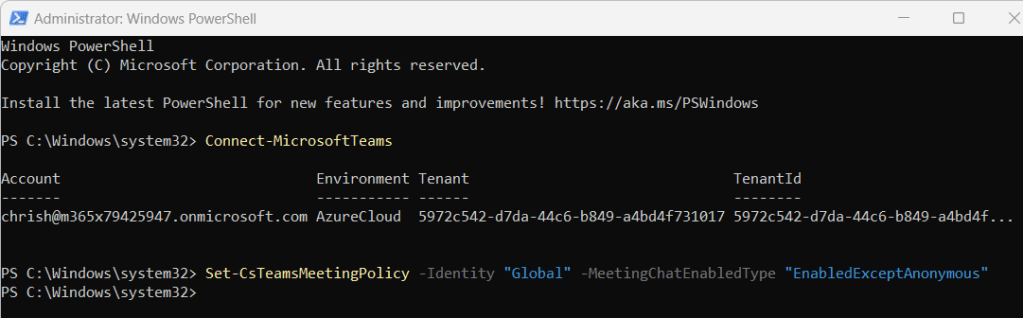
4.) Check back that the policy with
Get-CsTeamsMeetingPolicy -Identity "Global"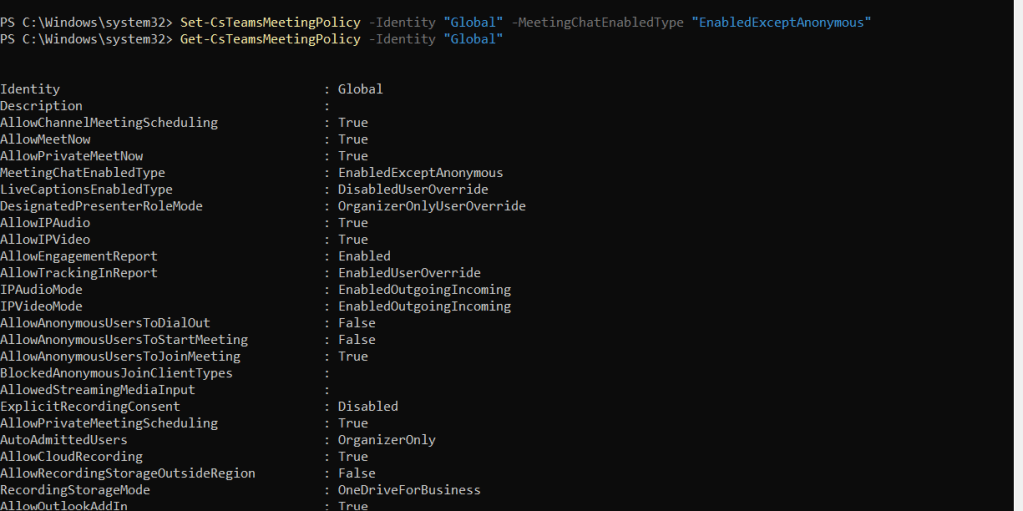
Rinse and repeat for all required policies. Like the section above, ensure all required users are within the requiremed policies.
OUTCOME FOR THE ANONYMOUS IN A MEETING
Now let’s test.
1.) Here is a meeting setup in the tenant
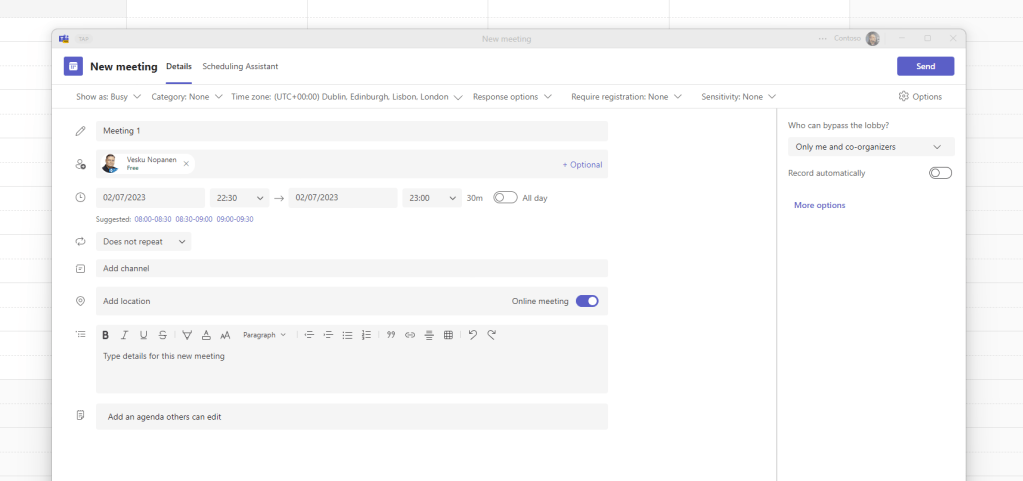
2.) Here I am in the meeting
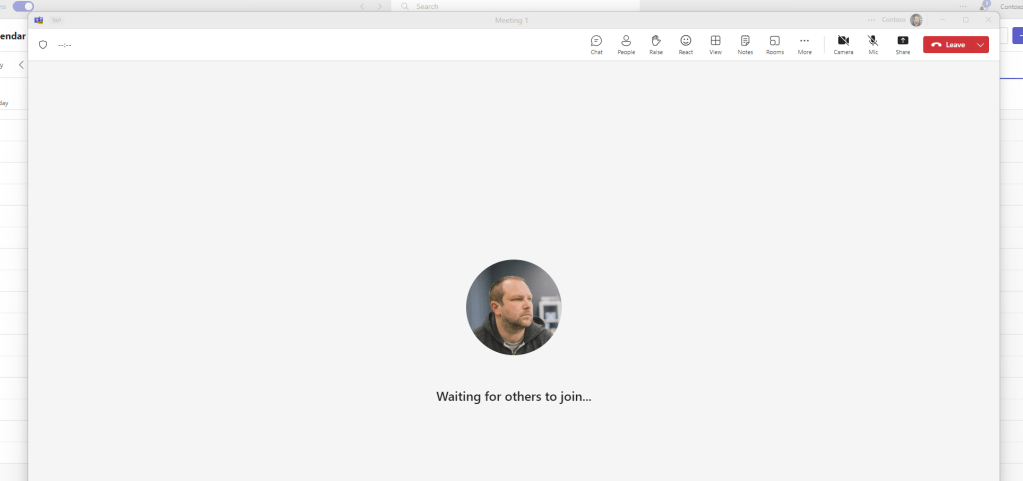
3.) Here is “Adam Deltinger” logging in as an anonymous user

4.) I allow “Adam Deltinger” in
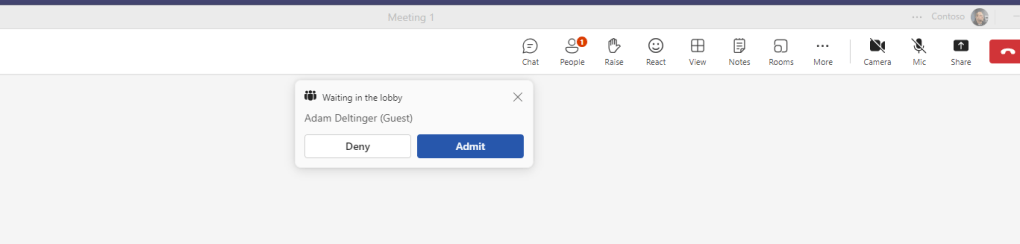
5.) “Adam Deltinger” the anonymous user cannot see or access the chat

It’s good to be back my friends. I’ve missed you.
Until next time.
Best, Chris
 @Microsoft365Pro