
This blog is part of a series on Teams. For more articles, check back often
Written: 23/07/2023 | Updated: N/A
Some of the things I’ve been doing this past week: wrapping up the roll out to Switzerland. Prepping from a backend perspective for Germany. Completing a migration from Arvato to Pearson VUE. Scrubbing out anything I can find in reference to Azure AD with extreme prejudice. Progressing multiple DevOps items for net adds to portal UI’s for better UX. Then there was Inspire (I managed to get to about 30 sessions all in all). Oh, and testing out the new Secure Service Edge functionality in Entra. These are just some of the high level items from my current corp portfolio. And that doesn’t take into account MCT. Nor MVP and community activities. So to use analogies it’s like an all you can eat buffet out there right now. And pretty much every day feels like this great game of whack-a-mole. But, then again, I admittedly enjoy it – and besides I’m accustomed to the old perpetual firehose. But one increasing challenge – and one which sits sqaurely within this growing dialogue of needing Copilot and AI for specific roles – is staying current. A legit use case is awareness and knowing when all of these diamonds of useful functionality ship across the stack which could make a real difference to ones role. One such functionality is the new User-to-Group Affiliation for Microsoft Entra Access Reviews which I only saw referenced on a social thread this week where a.) I could have easily missed it and b.) could directly help me with my role since I myself am an access reviewer in my own organisation. So what exactly is it? As written ‘This Machine Learning based recommendation…’ ‘…detects user affiliation with other users within the group, based on organization’s reporting-structure similarity. [It] relies on a scoring mechanism, which is calculated by computing the user’s average distance with the remaining users in the group. Users who are distant from all the other group members based on their organization’s chart, are considered to have “low affiliation” within the group’ (Microsoft, 2023). In laymans, it’s a functionality within the Microsoft Entra ID Governance SKU which helps you reach a decision on whether users should be in that group (hence Team) or have access to an App based on Entra ID properties. Is this important? Well, yes in theory. We ought to operate on Zero trust and principle of least priviledge, and as an access reviewer it could draw attention to those who may not need access, or if we look at it in another sense it could prompt us as admins to action in regards sanitising Entra ID and our org structure. But therein lies the catch. Sidestepping the inevitable conversation of added cost requiring reviewers hold a SKU over and above P2 – for it to work best requires a clean directory. In my experience, this is typically more an exception or luxury as opposed to the rule, and since the solution is based on machine-learning you can’t make the assumption it’s guaranteed to be right – so there may be some investment in training it in order to sharpen it up.
Let’s go.
This blog will cover
- Outlining the scenario/prerequisites
- Setting up the access review
- Validating that it’s worked
- FAQ
Note this blog will have abridged steps which will assume some experience with Teams, the Microsoft 365 Admin Centre and Microsoft Entra Admin Centre. All blogs will use the new Teams Desktop Client 2.1+ where possible and applicable.
Prerequisites
- Global Administrator for setup, or role which permits creation of Access Reviews
- Microsoft Entra Identity Governance SKU, or Step Up for Microsoft Entra ID Plan 2 for all access reviewers
- Microsoft Teams for setup and testing
OUTLINING THE SCENARIO/PREREQUISITES
So in this scenario, we have a small Microsoft 365 organisation called Metaverse One. This organisation is divided into into two departments. This is as follows:
Department #1 | Professional Services
| Name | Role | Department | Location | Reports to |
| Chris Hoard | Head of Professional Services | Professional Services | UK | N/A |
| Mar Llambi | Technical Architect | Professional Services | Spain | Chris Hoard |
| Marco Rocca | Technical Architect | Professional Services | Italy | Chris Hoard |
Department #2 | Operations
| Name | Role | Department | Location | Reports to |
| Vesku Nopanen | Head of Operations | Operations | Finland | N/A |
| Jon Mann | Power Platform Lead | Operations | United Kingdom | Vesku Nopanen |
| Chris Webb | Power Apps Builder | Operations | United States | Jon Mann |
| Adam Deltinger | Sanitation | Operations | Sweden | Chris Webb |
| Bill Wye | Cleaning | Operations | Sweden | Adam Deltinger |
1.) The first thing to do is ensure the data is correct in Microsoft Entra ID. These users properties are then configured in the Microsoft Entra Admin Centre by an administrator via Users then All Users and then selecting each user and editing their properties. Here the following properties set on each user per the tables above:
- Job Title
- Company Name
- Department
- Manager
- Usage location
What is essential – and pointed out within the existing Microsoft documentation – is that the Manager property is filled for each user to get this working properly.
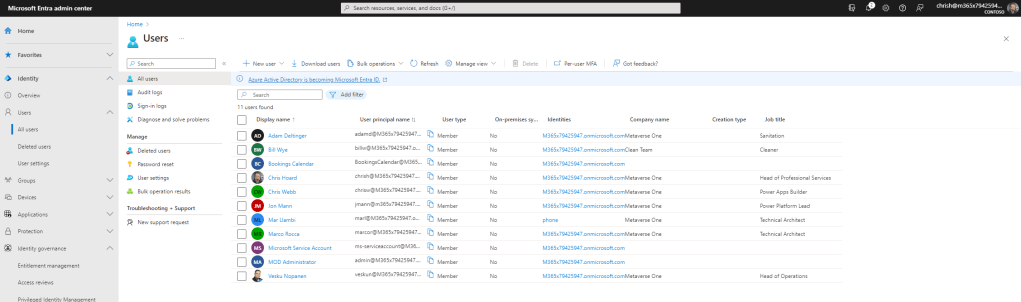
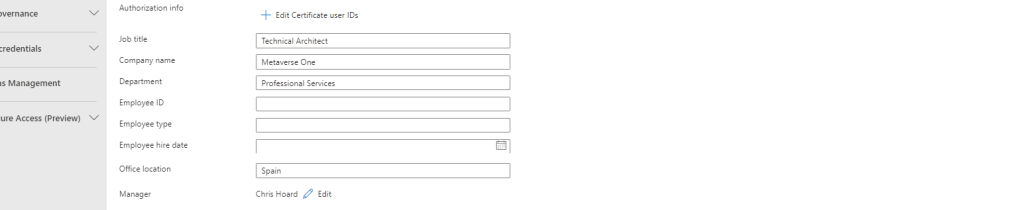
2. Now the Microsoft Entra ID data is correct, a Team is created in Microsoft Teams. In this example it is called Professional Services. This team, as shown has the following members: only Chris Hoard, Mar Llambi and Bill Wye. Chris Hoard has been set as the owner of the Team.

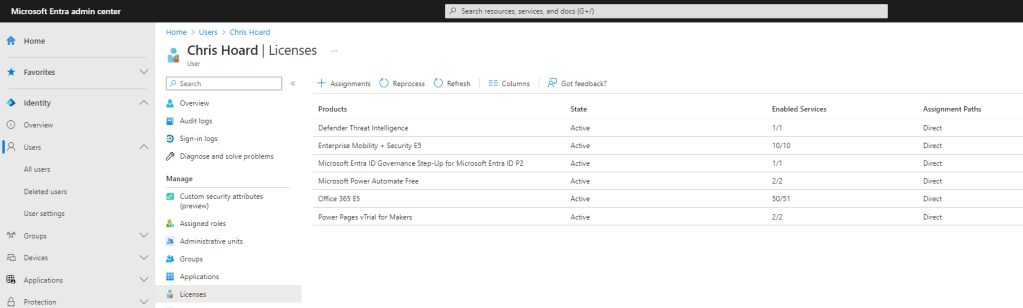
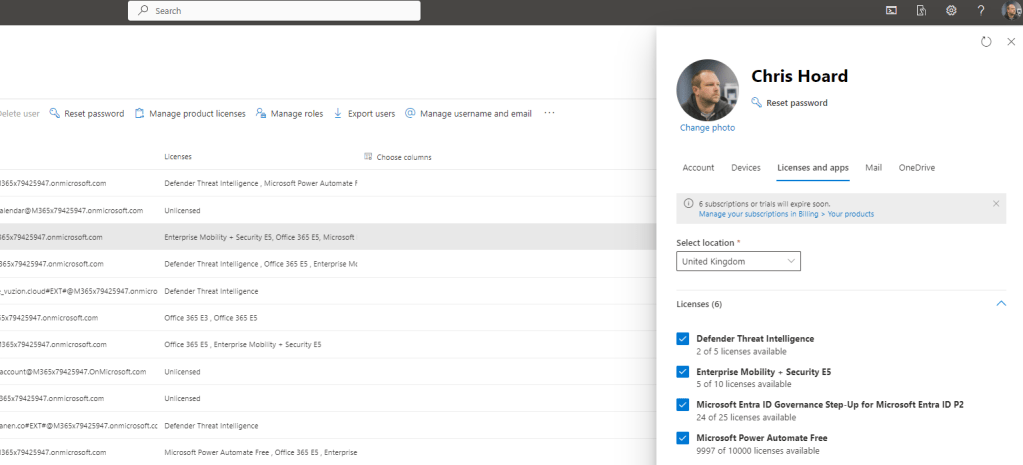
3.) Finally before an access review is set up on the Team, we need to ensure that the reviewer is correctly licenced. This can be done either through the Entra Admin Centre or through the Microsoft 365 Admin Centre. The Team Owner Chris Hoard will perform the access review and therefore should have the Microsoft Entra ID Governance SKU or Step Up SKU for Entra ID P2 licence assigned. This example uses the Step Up SKU. A full purchase or a trial can be used.
SETTING UP THE ACCESS REVIEW
Now that everything is ready to go, let’s configure the Access Review in the Microsoft Entra Admin Centre.
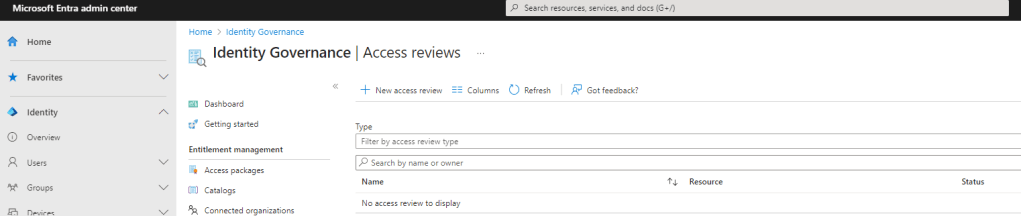
1.) In the Microsoft Entra Admin Centre select Identity, then Identity Governance then Access Reviews

2.) Select New Access Review
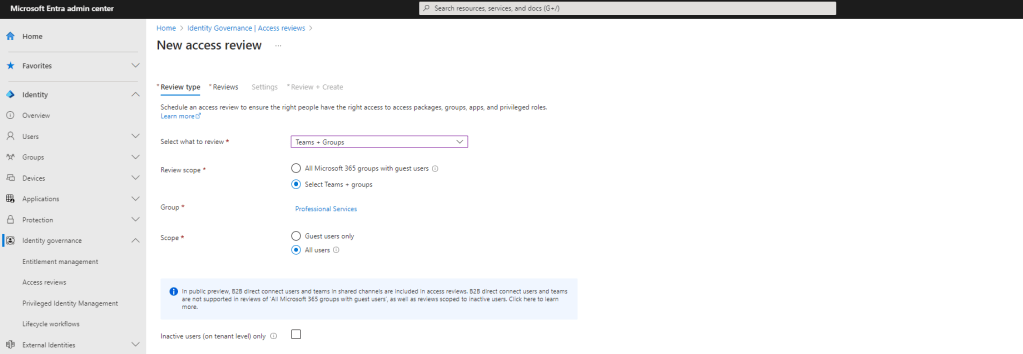
3.) The Access Review is now configured for the Team previously set up:
- What to review: Teams and Groups
- Review Scope: Teams and Groups
- Groups: Professional Services (The team previously set up)
- Scope: All Users
- Inactive Users Only: Unchecked
Once done select Reviews. Note – Inactive Users is another new functionality added to Entra which I’ll likely blog about at a later date but am not using it here since the scenario applies to both active and non-active users
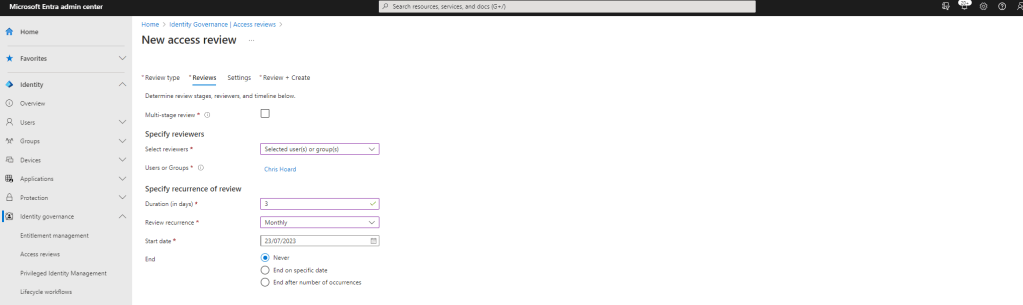
4.) The review itself will be where Chris Hoard (the principal owner of the team and who has the Governance Step up SKU) will review once a month. The review is set up as follows:
- Multi-Stage Review: Unchecked
- Select Reviewers: Selected Users or Groups
- Users or Groups: Chris Hoard
- Duration: 3
- Recurrence: Monthly
- Start Date: Today
- End: Never
Once done select Settings
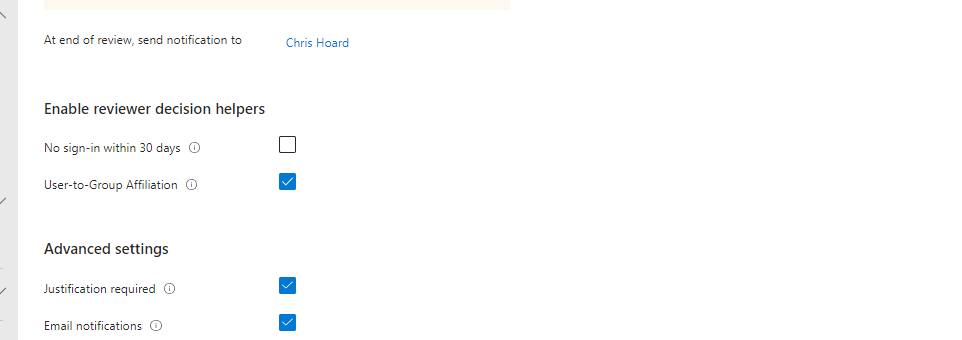
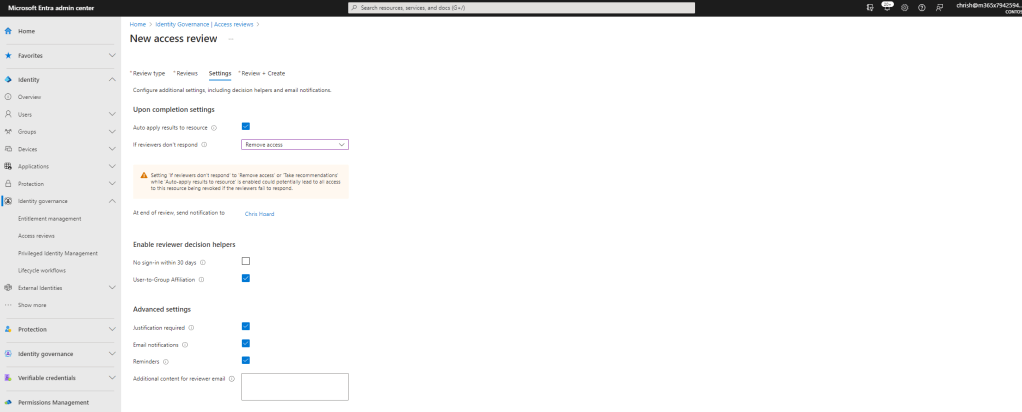
5.) Finally the rules for the Access Reviw are set, and importantly, this is where User-to-Group Affiliation is set. In this example, the access review will be auto applied and if the reviewer (Chris Hoard) doesn’t respond in that within the 3 day window of the review, the members are automatically removed from the Team. This example review is configured as follows:
- Auto Apply results to resource: Checked
- If reviewers don’t respond: Remove Access
- At the end of review, send notification to: Chris Hoard (the reviewer)
- No Sign in within 30 Days: Unchecked
- User-to-group Affiliation: Checked
- Justification required: Checked
- Notifications: Checked
- Reminders: Checked
Once done, select Review and Create
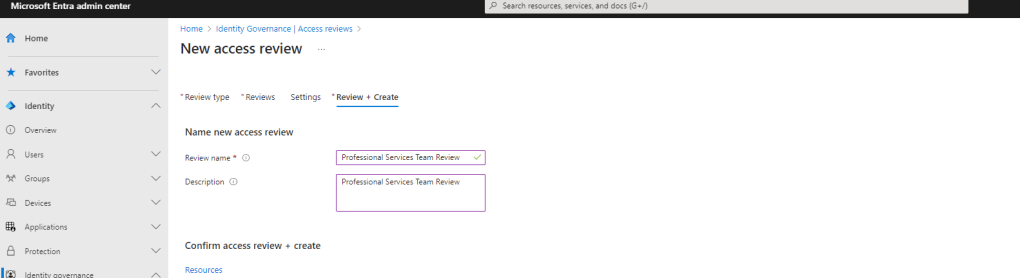
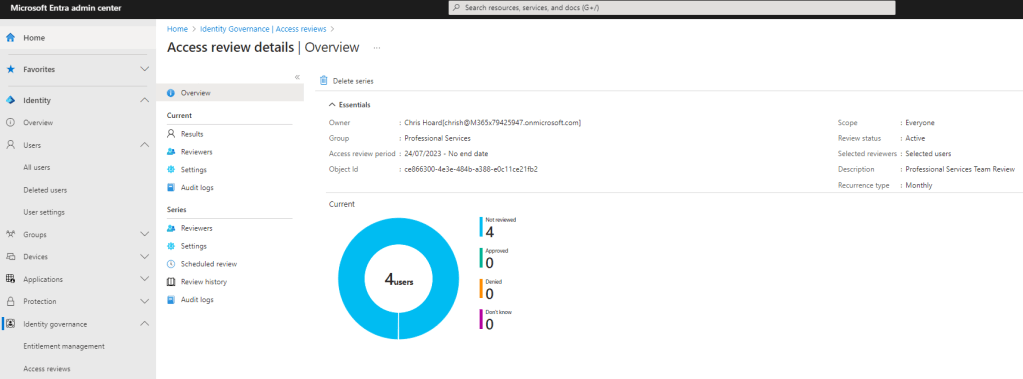
6.) Set a Name and Description for the access review – here called Professional Services Team Review – and select Create
7.) The review is created. The review moves from a Not Started status to Initializing and then to Active within a few minutes


RUNNING THROUGH THE ACCESS REVIEW
So everything has now been configured for the access review, including the User-to-Group Affiliation feature. Let’s test it out as a reviewer.
1.) The reviewer will receive an email in Outlook when it is time to review. Select Start Review.

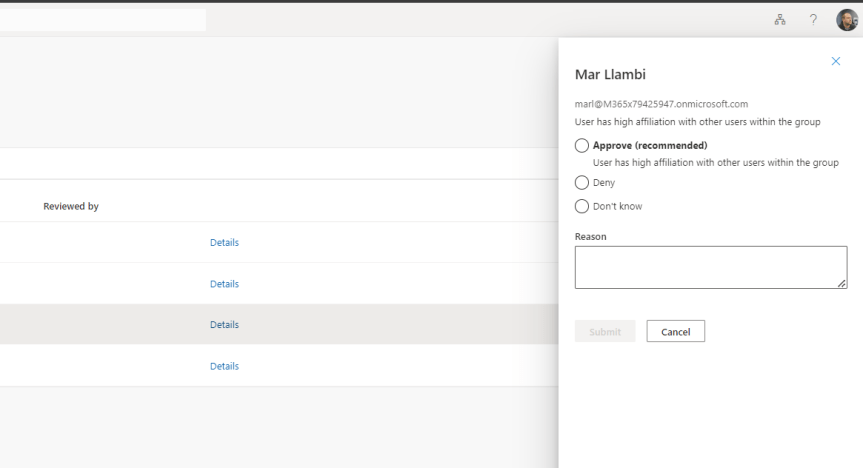
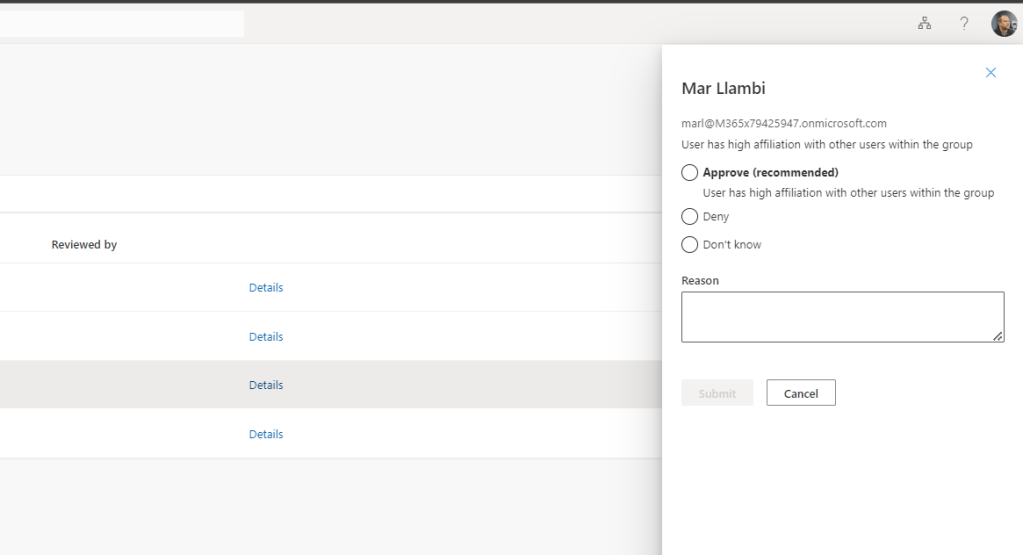
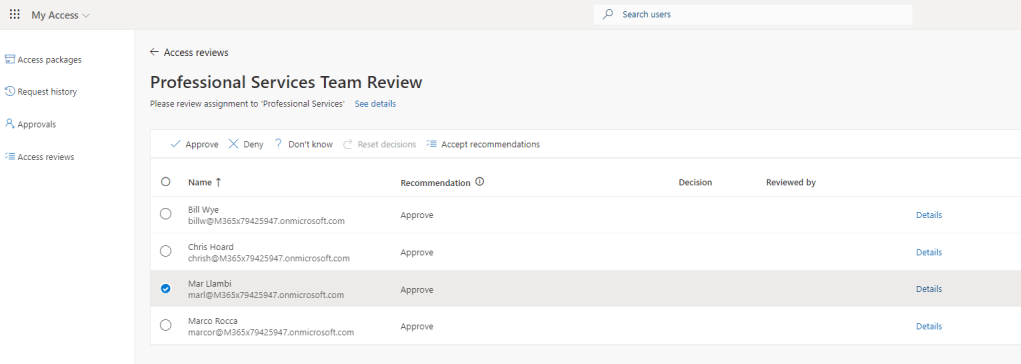
2.) The reviewer is taken to the My Access Portal to perform the review where, for each member of the Team (M365 Group) the reviewer select Details which shows the User-to-Group Affiliation and it’s place within the recommendation. In this case team member Mar Llambi was identified as having a High Affiliation with other users within the Group.
In this example, this was the same result for all 4 members of the group. Chris Hoard, Bill Wye, Mar Llambi and Marco Rocca were all recommended to keep access based on High Affiliation with the group.
3.) But was this correct? And can we take the recommendations lock-stock? Here is the critical part because these recommendations are based on machine learning and we cannot 100% guarantee they are right, especially if the organisation has only started to use Access Reviews.
In just this small test, let’s break it down:
- The recommendation for Chris, Mar and Marco is correct. Mar and Marco directly report to Chris, and are only one step away in the direct reporting line and so there is high affiliation. These should be approved.
- The recommendation for Bill is incorrect. Bill does not report to Chris anywhere in the reporting line and is in a completely seperate reporting chain to everyone else. He is also quite a few levels below Chris in the chain (3-4) so it could be expected he has a low affiliation with the group. He may, for example, have been added there accidently or it could have been a mistake. This one should be denied.
A few other bloggers have mentioned that wrong recommendations may be because User-to-group Affiliation is not enabled due to not being licenced and a warning that states it is not enabled within the Access Review itself in Microsoft Entra ID. I can confirm that triggering an access review right after adding a licence and creating the review does indeed show the warning. But having waited it out I can also confirm from testing that once licenced, this warning in the Access Review disapears after about 24 hours and is not shown in Access reviews which are conduted after that time. So, at face value there is no reason to think that the recommendation above is due to some fault if the Access Review is run 24 hours after the reviewer is licenced with the Step up or the Entra ID Governance SKU. It would appear that the service takes some time to enable, which makes sense.
So what does this ultimately mean? One – from the marketing and documentation – we need to complete access reviews and see the impact of machine learning and if there is more accuracy in the future based on approvals or denials. Two, we cannot blindly accept recomendations and it should be used as a helper and guide not as an authority on whether users should be in Teams. Three, those looking for absolutely certainty will not find it in this because whilst it should become more accurate over time based on usage, it will always need human judgement to assess recomendations. Finally, customers may just might prefer another methodology to assess who should and shouldn’t be in the Team.
Whether this functionality will sell the governance or Step up SKU is going to be a question that is going to get banded about. But we have to remember, this is only one feature which is included in the step up, and there could be many more helpers in the future. Two, if you have a large team and it can save even 30 minutes of time, or draw attention to someone who shouldn’t be there, that could be worth it. Finally, assuming that it’s not users that are self-attesting this doesn’t have to break the bank. In my experience, it’s all about how the reviews are set-up.
FAQ
Is there any limitations, and what setting has to be populated in Entra ID properties of a user?
A. At the time of writing Microsoft documentation states that it is only available to users within the directory, and all users who are part of this solution should have a manager attribute. As illustrated in this example I went beyond this an also covered Company, Department and Job Title – if only because these may be used in the future for more decision helpers, or more complex algorithms.
Q. How easy is it to setup?
A. On the face of it, it is not difficult to setup. The challenge will be like previous Dataverse for Teams apps which were based on the Entra ID org structure and it being clean and well managed. This isn’t something which is one and done, there is an ongoing overhead. There is also the challenge of the recommendations of the access review being more/less accurate in relation to licencing, the Entra ID information being correct and the history of access reviews upon which machine learning is predicated. For example, imagine AM on Day X doing changes to the properties of users and PM on Day X the access review triggers. The Entra ID properties may not have propagated by this time to give the right recommendation. And if the helpers are lit up in the same scenario then the helpers may not be enabled within the first 24 hours.
 @Microsoft365Pro