

This blog is part of a series on Teams. For more articles, check back often
Written: 31/07/2023 | Updated: N/A
I was doing a blog yesterday on system-preferred MFA. And during the writing of this blog I needed to clear the cache since the new Teams 2.1 desktop client wouldn’t allow me to completely sign out. It was still trying to sign in to an old tenant which was previously linked and which I had removed after it had entered a grace period prior to it’s expiry. At this point signing in wasn’t possible. It wasn’t possible to get the desktop client back to the sign in page either. So this is the kind of issue which – historically, clearing the cache is ideally suited. But what was weird about this scernaio was that when I cleared it from the usual location, closed down explorer and restarting the client clearing it didn’t seem to resolve it. So I am now trying to a few different things, clock-watching and running out of time to do this blog. And what suddenly clicked in my head was to check the cache again. So I went back in explorer and the cache didn’t re-populate when the Teams 2.1 client was reopened. Therefore, the cache for Teams 2.1 desktop client is actually in a different location than the classic desktop client. So I rooted around a bit. I found it. I actually found a way to it through the client itself, but I am sure it’s going to be easier to simply use Run as most do today. Now, clearing the cache is part of the repotoire of pretty much anyone who supports Teams. Better we all know where it is. But will it go back to the usual place when we transition over fully? Who knows!
Let’s go.
This blog with cover:
- Accessing the cache of the classic Teams client
- Accessing the cache through the new Teams 2.1 client
- Using Run to access the cache of the new Teams 2.1 client
This will apply to Windows Desktop Client. I am using a Surface Laptop 4 and a Ring 4 Test tenant.
Prerequisites
- Microsoft Teams for setup and testing
ACCESSING THE CACHE OF THE CLASSIC TEAMS CLIENT
Ok so it is pretty well known how to acess the cache in the classic Teams client, but let’s review. After you have closed and quit Teams.
1.) On the Desktop select Start, then search for and find Run
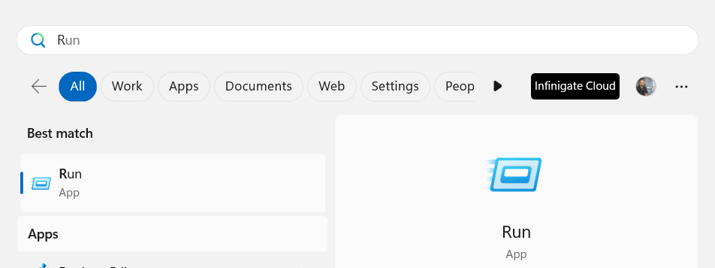
2.) Type %appdata%\Microsoft\Teams and select Ok

3.) This will take you to the cache where you delete everything in the directoty per this article.
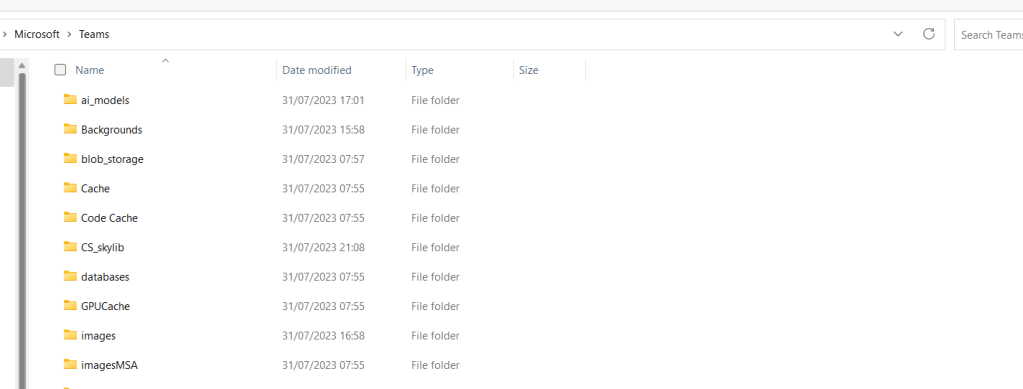
You then restart Teams.
ACCESSING THE CACHE THROUGH THE NEW TEAMS 2.1 CLIENT
All good so far? Excellent. Now let’s get to the new cache through the Teams 2.1 desktop client itself.
1.) Here you are in the new Teams 2.1 client

2.) Select More Options (…) in the top right of the client next to the avatar, then Settings
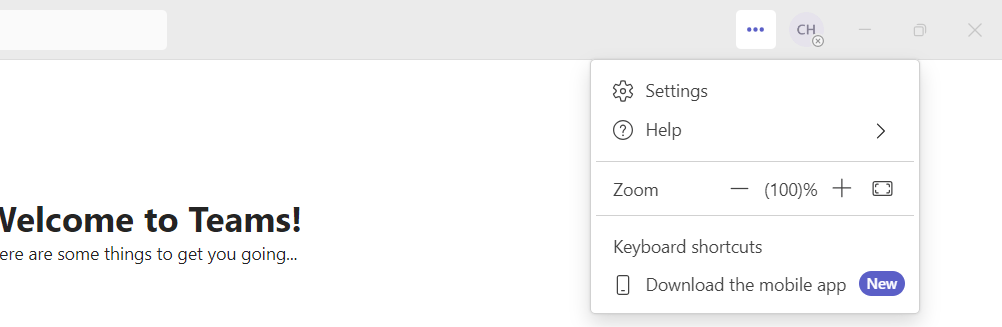
3.) At the bottom of General select About Teams


4.) Under Third Party Notice select Desktop

5.) This takes you to the New Cache
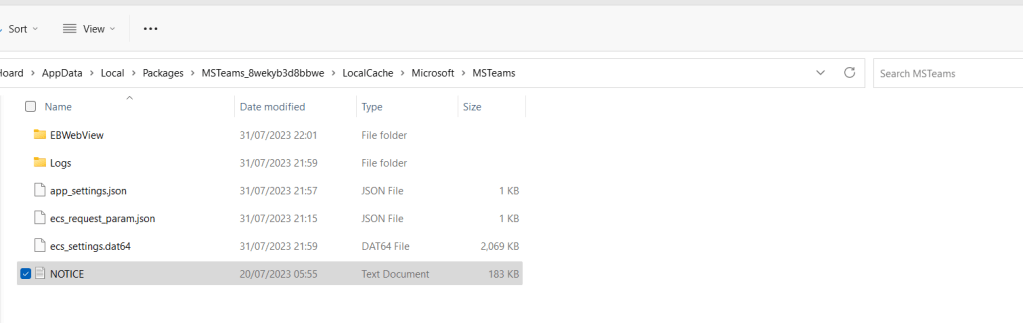
Copy the URL, this would be
C:\Users\Chris.Hoard\AppData\Local\Packages\MSTeams_8wekyb3d8bbwe\LocalCache\Microsoft\MSTeamsOr more succinctly, convert it to:
%localappdata%\packages\MSTeams_8wekyb3d8bbwe\Localcache\Microsoft\MSTeamsUSING RUN TO ACCESS THE CACHE OF THE NEW TEAMS 2.1 CLIENT
So now we have the URL to the cache we would quit Teams as per the classic client, then
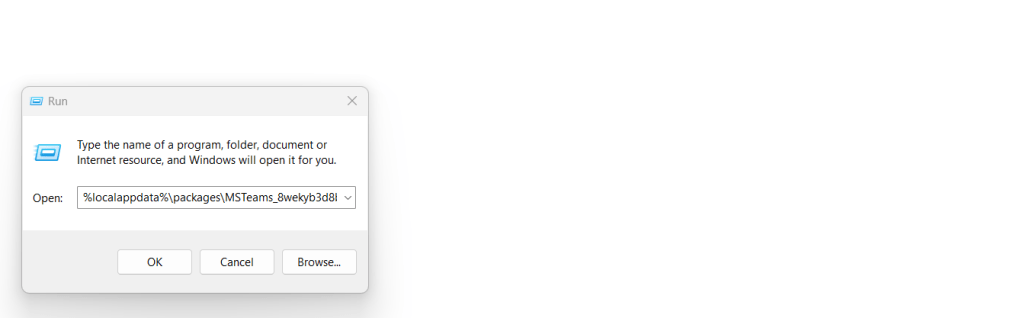
1.) Use the URL in Run and select Ok
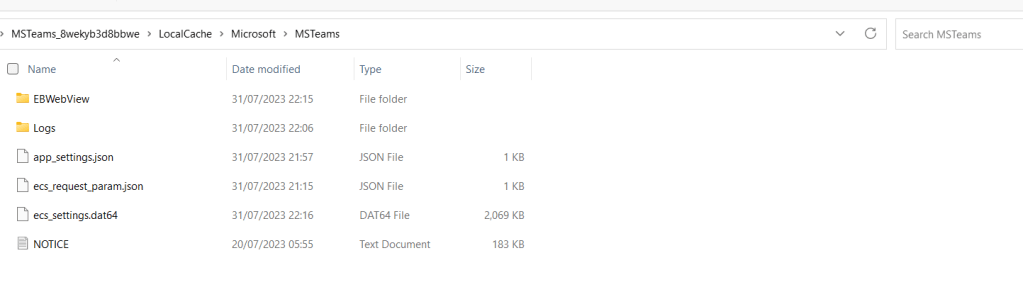
2.) Delete everything in the directory
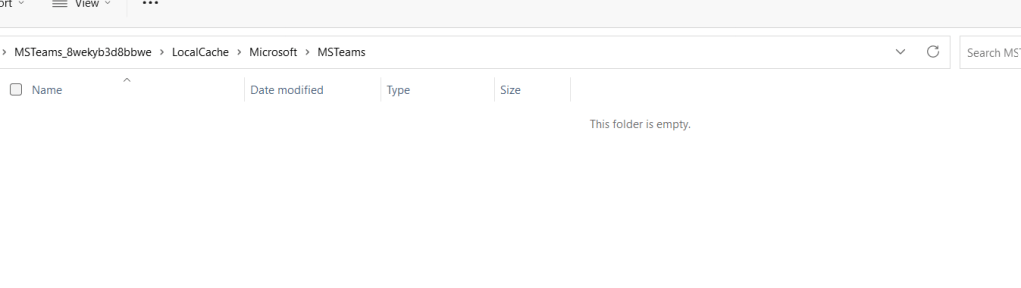
3.) And restart Teams 2.1. Client. Like the classic client, you’ll need to readjust some settings like Zoom which is lost when clearing cache, and like the classic client the cache will be repopulated.


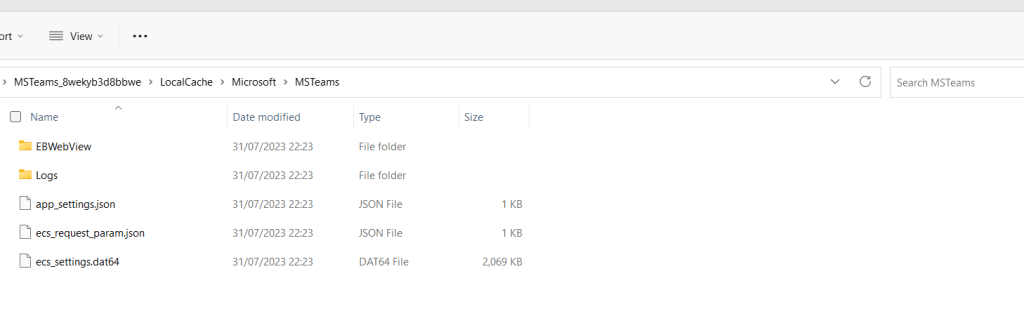
Job done. After I cleared the cache the desktop client wasn’t trying to auto-sign in to the old tenant which I had previously removed and went to the expected sign-in page so I could log into the new tenant and finish the blog!
FAQ
Q.) Will the location be changed to the %appdata% location the classic client uses when 2.1 enters GA?
A.) There isn’t any documentation on this subject that I am personally aware of at the time of writing. The official documentation refers to clearing cache in the classic client, not the 2.1 client. It may well do, since the 2.1 client is currently in preview. However if you have issues today the 2.1 cache is in a different location and using %appdata% will not resolve the issue
Q.) Will the URL be consistent if I use it?
A.) In terms of %localappdata%\packages\MSTeams_8wekyb3d8bbwe\Localcache\Microsoft\MSTeams then this works on my machine, and it goes straight to the folder the Teams 2.1 cache is in. The issue is, I haven’t tested it on any other machines than my own. In particular I don’t know if the folder \MSTeams_8wekyb3d8bbwe\ will be consistent on every machine, or whether this will change on a machine by machine basis. So you’ll need to test and see. Of course, being able to get to it through the client helps, but if you can’t get into the client for whatever reason than at least you can use %localappdata%\packages\ and look for a folder called MSTeams
 @Microsoft365Pro