

Note: This blog is now archived, and has been kept purely for historical and reference purposes. Updated blogs on this subject may appear on site in the future.
This blog is part of a series on Teams. For more articles, check back often
Written: 03/09/2023 | Updated: N/A
Ok – 17 days to the holiday and counting! But before I get to a beach on the Atlantic one of the things I really wanted to do is ensure I get the opportunity to get a blog down on Microsoft Entra Internet Access. I think it’s going to be an important solution moving forward. So this begs the question – what exactly is it? And why do I think it’s important? Microsoft Entra Internet Access (MEIA) is part of Microsoft Entra Global Secure Access service defined as ‘securing access to Microsoft 365, SaaS, and public internet apps while protecting users, devices, and data against internet threats…”. Announced alongside Private Access at the Microsoft Entra moment prior to Inspire back in July, it’s an ‘..identity-centric, device-aware, cloud-delivered Secure Web Gateway (SWG)’ which is part of Microsoft’s SASE/SSE strategy alongside Defender for Cloud Apps. Chances are you’ve already seen something like this from the likes of Z-Scaler and Palo Alto. But this is Microsoft’s proprietary gateway built right into Microsoft Entra. That’s awesome. But aside from being a net new proprietary feature what’s its value? The importance of the SWG is, amongst other things, its ability to prevent attacks such as token replay attacks and attacker in the middle (AITM) attacks by ensuring conditional access to Microsoft 365 services through compliant networks and endpoints. Therefore, as attacks are becoming more sophisticated and we are seeing things such as token theft to breach tenants, or bypassing MFA, new defences such as a SWG are as timely as they are necessary. For me? This could become as fundamental as MFA and Conditional Access. Now at the time of writing this solution is actively being developed and Teams itself isn’t supported. But we know it will be. And it will be soon. The point is this shouldn’t be a blocker to implementation – it’ll still cover Exchange, SharePoint, OneDrive and other things such as the Graph so let’s not wait – let’s get it in for Teams. So this blog is an exploratory one. It’s the tip of the iceberg and you’ll want to investigate your own scenarios, read others blogs and bear in mind that whilst for Windows only, it’ll cover more in the future. I know this is something that we’ll be collectively working on and writing more about in the future.
Let’s go.
This blog will cover
- Configuring Microsoft Entra Internet Access
Note this blog will have abridged steps which will assume some experience with Microsoft Entra, as well as general endpoint administration. All blogs will use the new Teams Desktop Client 2.1+ where possible. This will be installed on Windows 11 Enterprise 22H2 and the functionality is currently in Preview. Microsoft may in the future release it’s own SKU and could be a paid functionality.
Prerequisites
- Microsoft Entra ID Plan 1 for Microsoft Entra Internet Access in Preview
- Microsoft 365 traffic forwarding profile, a Microsoft 365 E3 license is recommended
- A Global Secure Access Administrator, Security Administrator, or Global Administrator must be assigned to activate and manage Global Secure Access features. Subsequent role for Conditional Access
- Device must be Entra ID joined or Hybrid Joined (not registered)
- 64 bit version of Windows 10/11
- Local admin credentials for Global Access Client installation
CONFIGURING MICROSOFT ENTRA INTERNET ACCESS
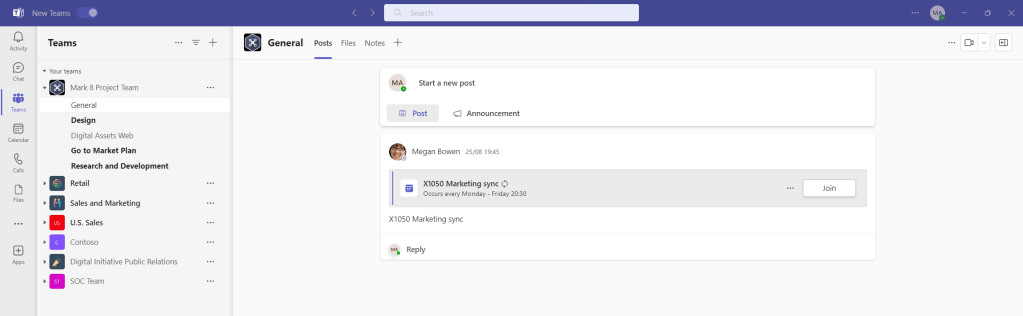
Let’s begin, this is my user MOD Admin who is using the new Teams 2.1 client. We are going to set up Microsoft Entra Internet Access for them.
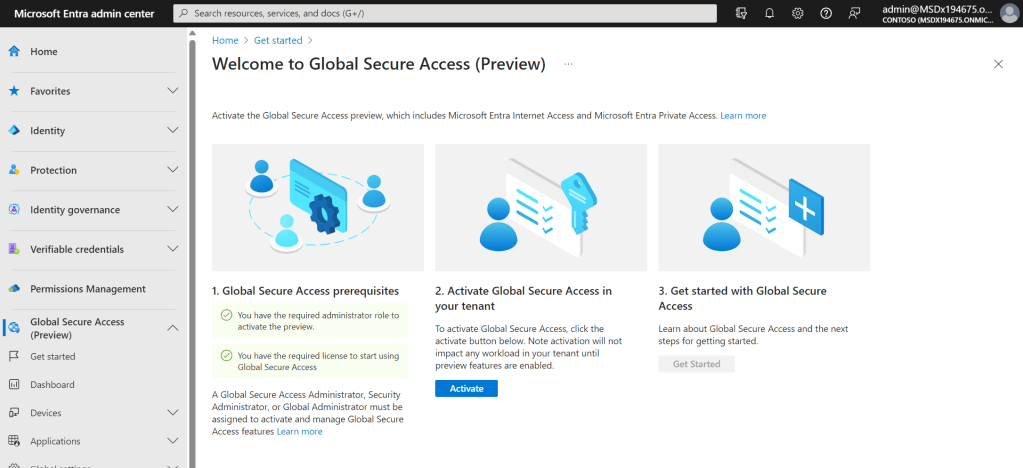
1.) Log into the Microsoft Entra Admin Portal directly through https://entra.microsoft.com or via the Microsoft 365 Admin Centre. Select Global Secure Access (Preview) and then Get Started from the left navigation.

2.) If you have the right administrator role assigned (whether standing access or via PIM) select Activate. If not, you will need to assign the correct administrator role and return to this page.
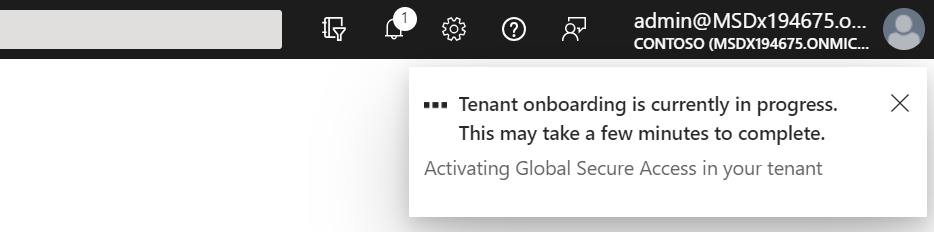
3.) The tenant will be onboarded and then it will be activated.
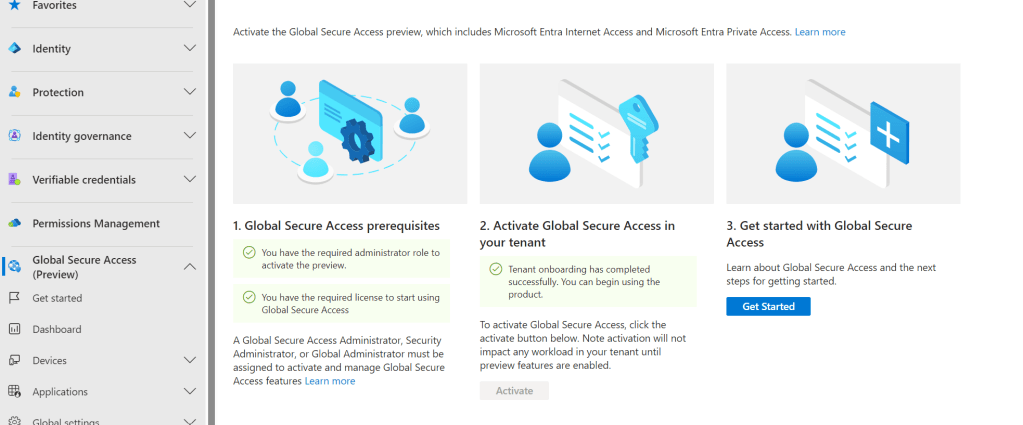
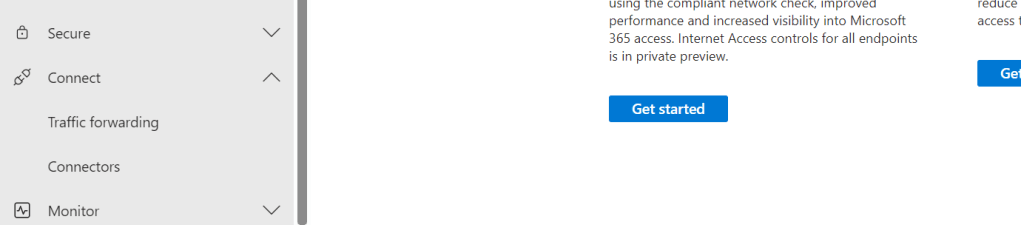
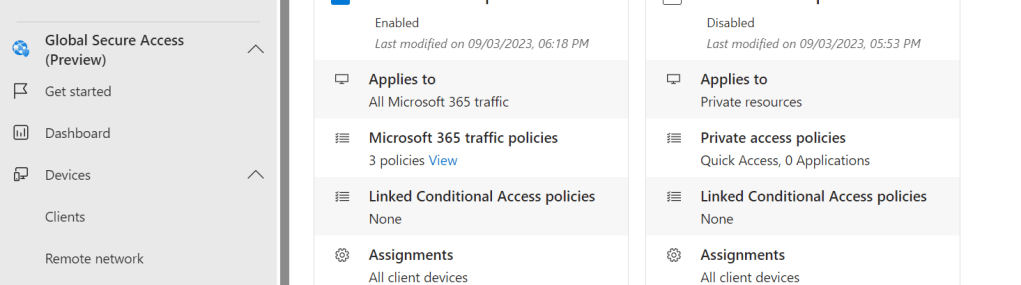
4.) Now that we have enabled the service, we have to then set the traffic forwarding to the Secure Gateway for Microsoft 365. Select Connect and then Traffic Forwarding
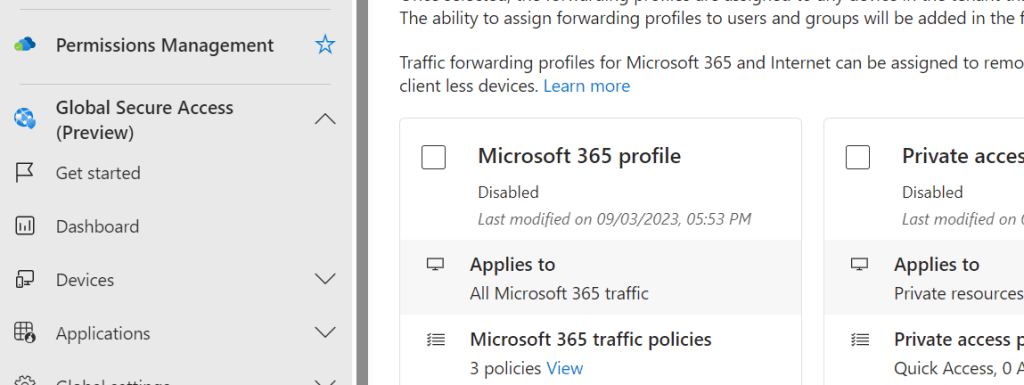
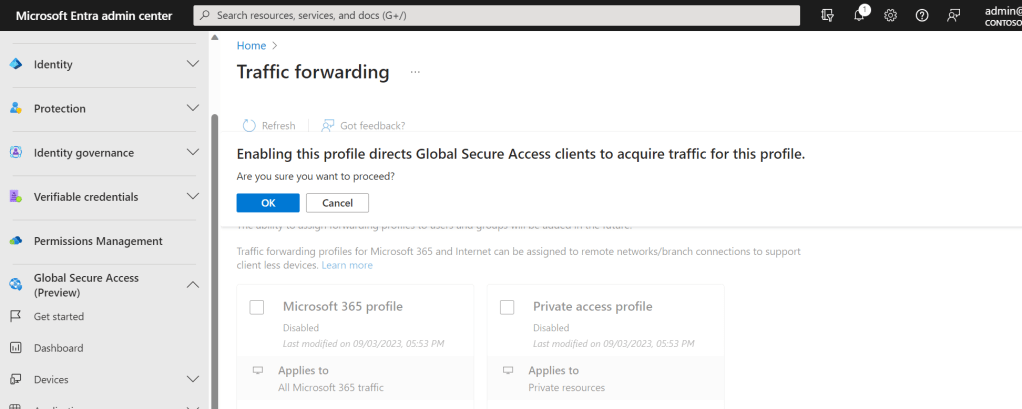
5.) Tick Microsoft 365 Profile and select Ok
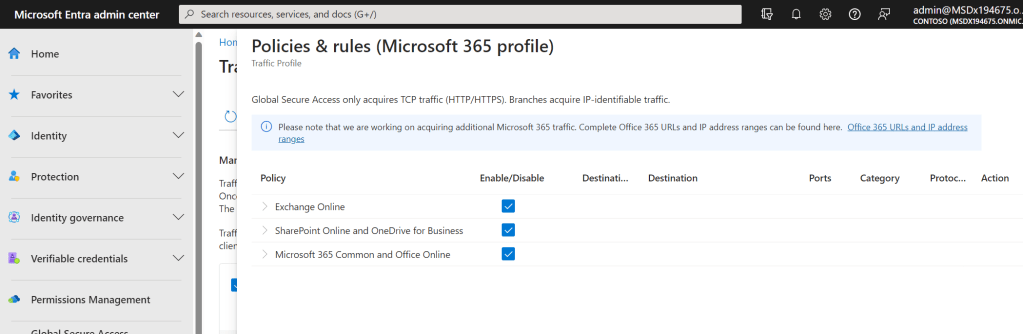
6.) You can see what is covered under Traffic Policies by selecting View

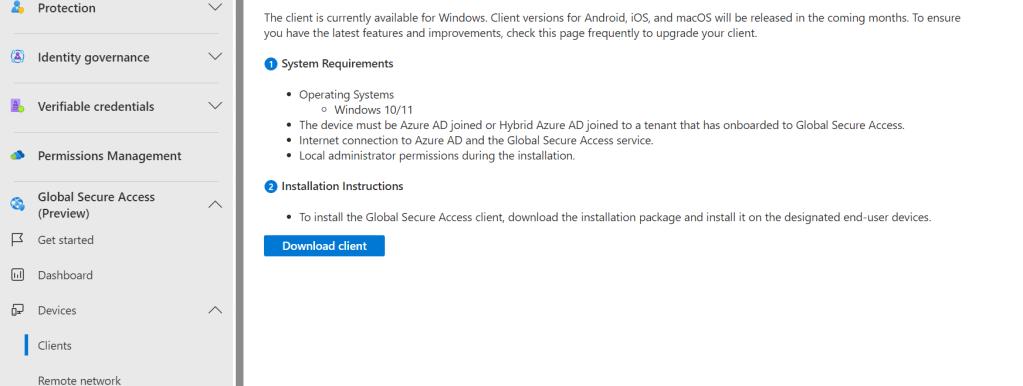
7.) Having now enabled Microsoft Entra Internet Access and configured the Microsoft 365 Traffic Profile we need to configure the Global Secure Access Client (GSAC) on the endpoint. Under Global Secure Access (Preview) select Devices and then Clients
8.) Select Download Client. The GSAC will download.
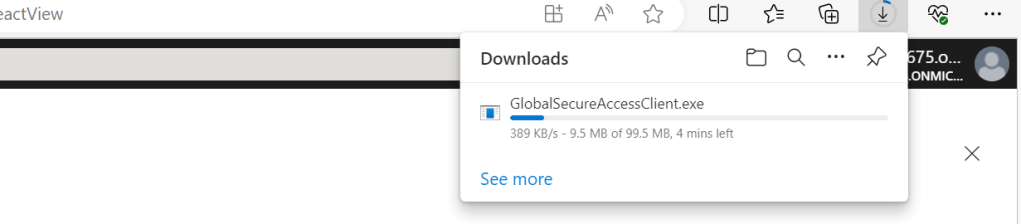
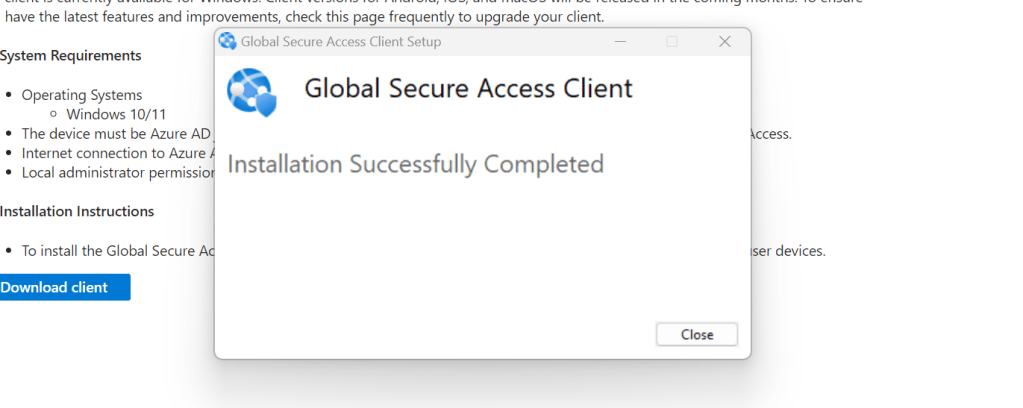
9.) At this point, you would choose to install GSAC directly on the endpoint or package via Intune. This example will go through the process manually giving it’s only for 1 endpoint. Once the download has completed, open the download, tick the Terms and select Install
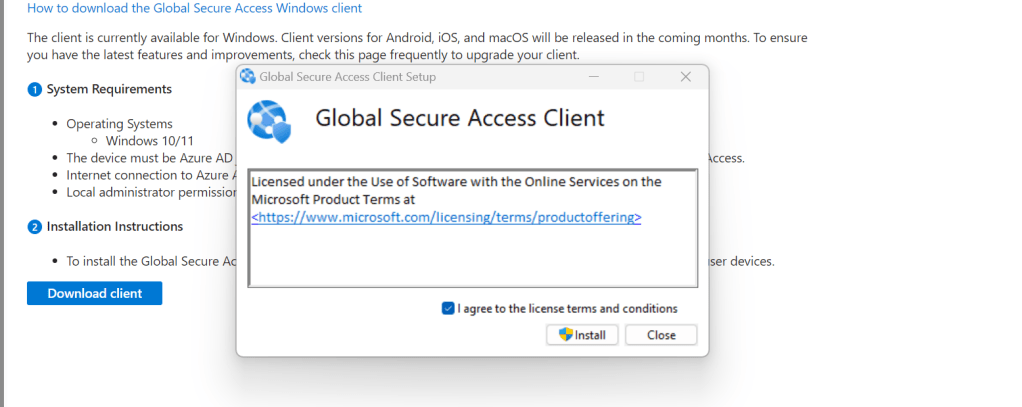
10.) Close when complete
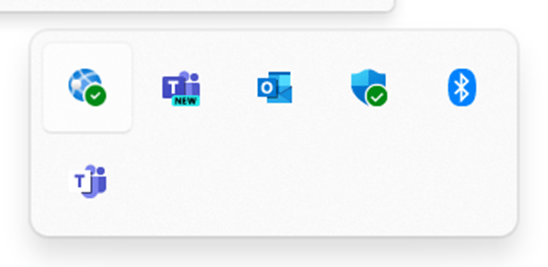
11.) Once installed, GSAC will trigger the authentication process, which when authenticated should connect it and the endpoint to the service successfully. This should show on the tray icon as a globe with a green tick on it.


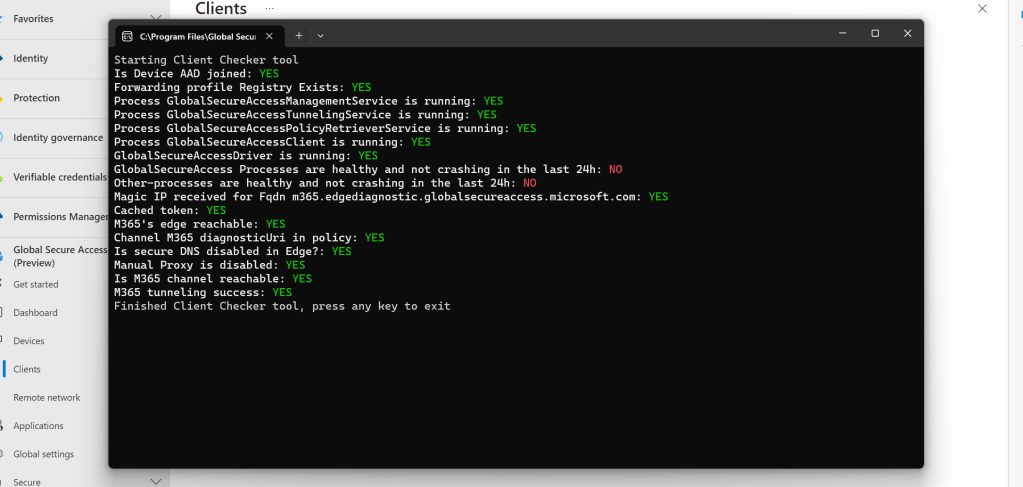
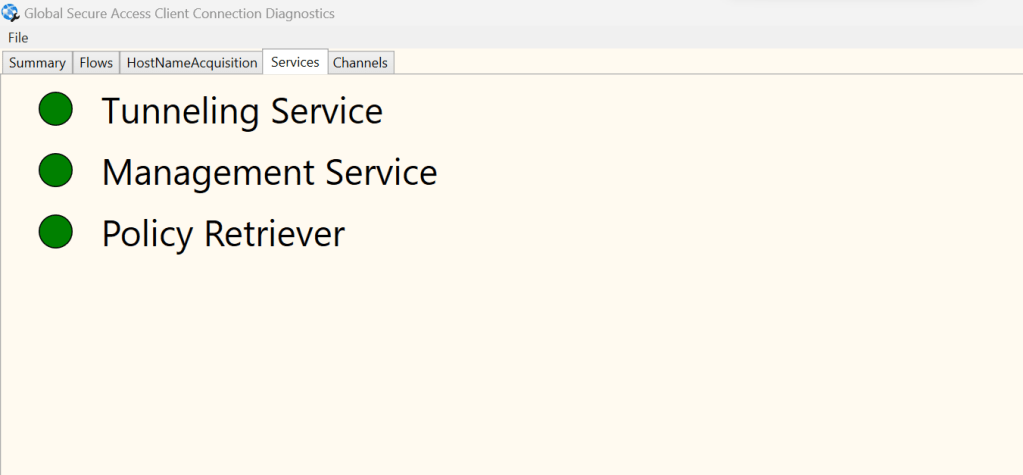
12.) By right clicking on the GSAC tray icon and selecting Client Checker should also be able to confirm that the service is setup correctly. This gives important information such as the Microsoft 365 edge is reachable and that Microsoft 365 tunnelling is working. Connection Diagnostics are good for this too.
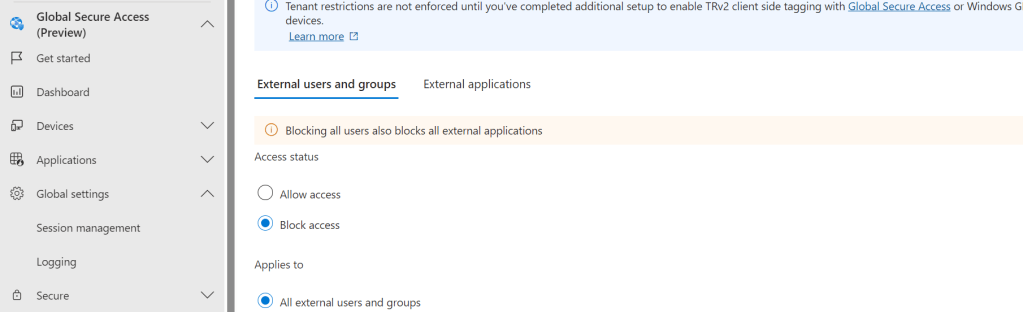
13.) Now that the organisation is enabled for Microsoft Entra Internet Access, Microsoft 365 traffic forwarding and Global Secure Access Client (GSAC) is enabled, the next step is to configure universal tenant restrictions. This is a deep subject, and you will want to follow the guidance here: but it is done in order to prevent unauthorised identities being able to access services on machines with the GSAC deployed. In this example tenant restrictions have been completed within Cross Tenant Access Settings and the Policy ID created.


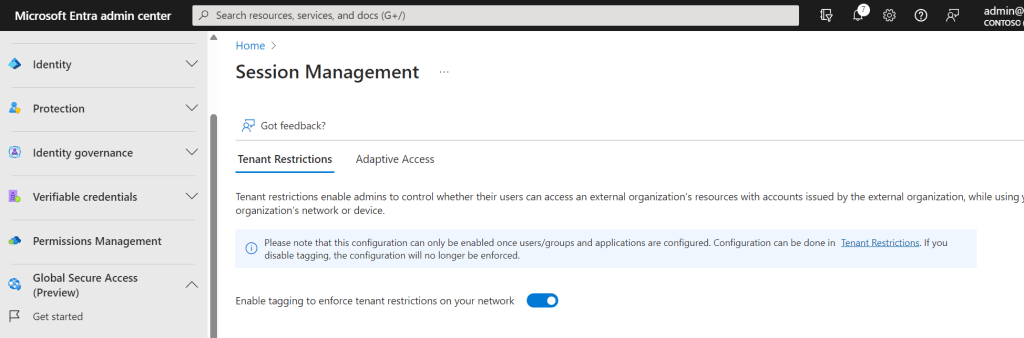
14.) Next, navigate back to Global Secure Access (Preview) then Global Settings then Session Management
15.) Turn on Enable Tagging to Enforce Tenant Restrictions on your Network then Save
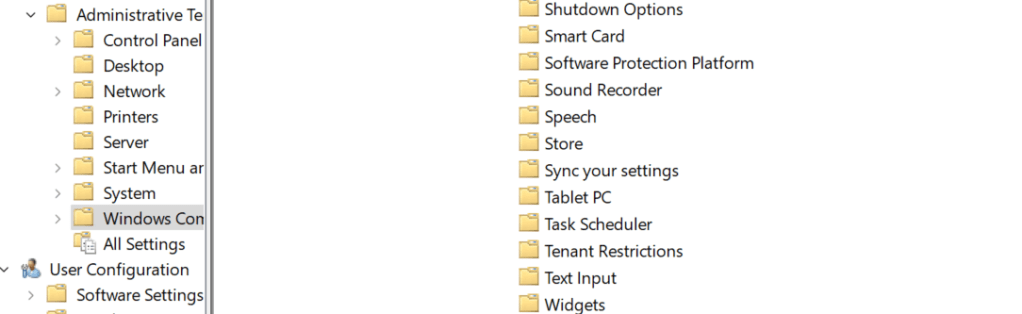
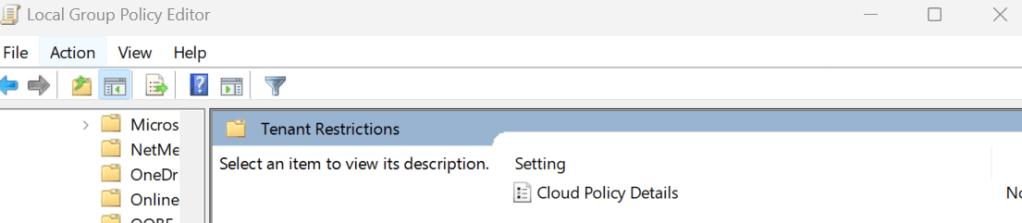
16.) Finally, Tenant Restrictions on the Windows Device need to be configured. To do this, search for and select Group Policy Editor (gpedit) and go to Administrative Templates then Windows Components and then Tenant Restrictions. Select this and edit the Cloud Policy Details. Here put in the Entra ID Tenant ID and Policy ID that were configured under the Cross Tenant Access Settings in Microsoft Entra. Once done select Ok.

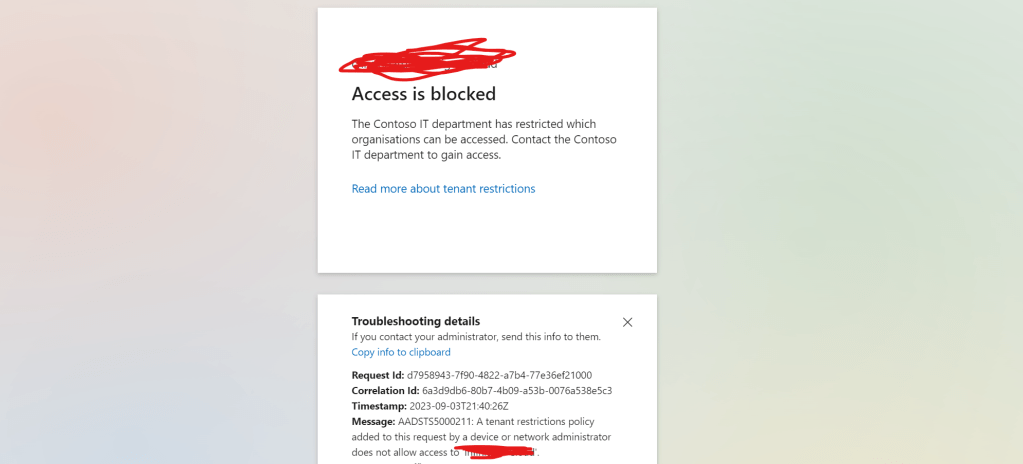
17.) This can be ratified quickly by trying to access a Microsoft 365 site such as https://login.microsoftonline.com using a different identity (username and password) to which is states access is blocked.
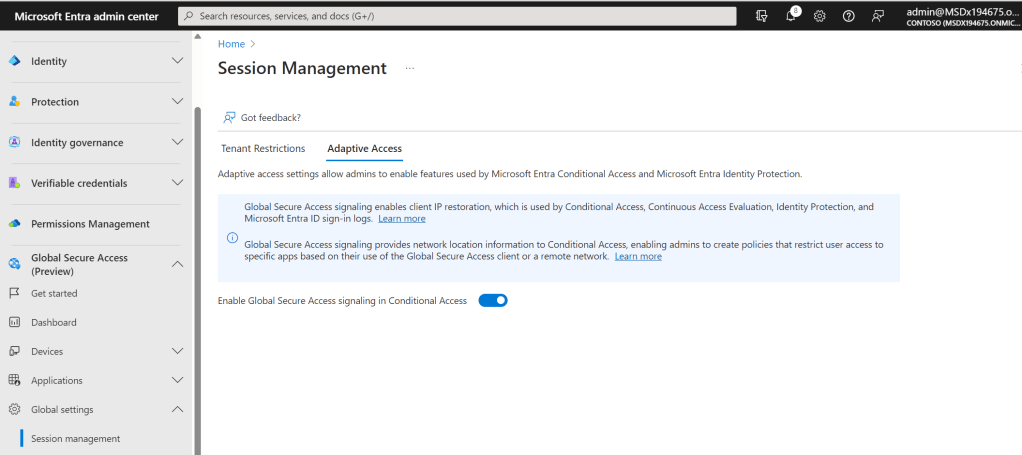
18.) With the tenant enabled, Microsoft 365 Traffic forwarding, GSAC installed and universal tenant restrictions configured it’s time for the final task which is conditional access. Navigate back to Global Secure Access (Preview) then Global Settings then Session Management

19.) Select Adaptive Access and then swipe Signalling on and select Save
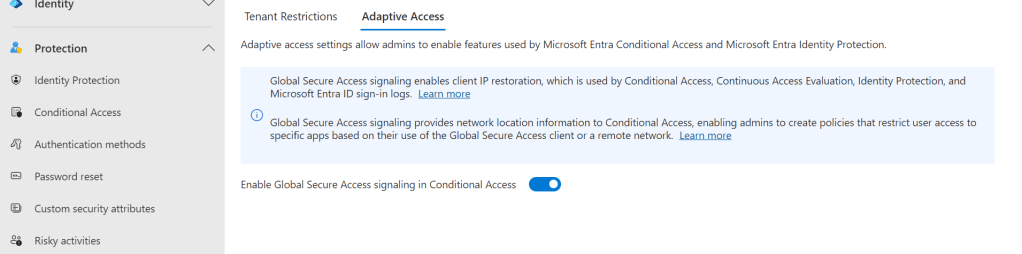
20.) From the left navigation select Protection then Conditional Access
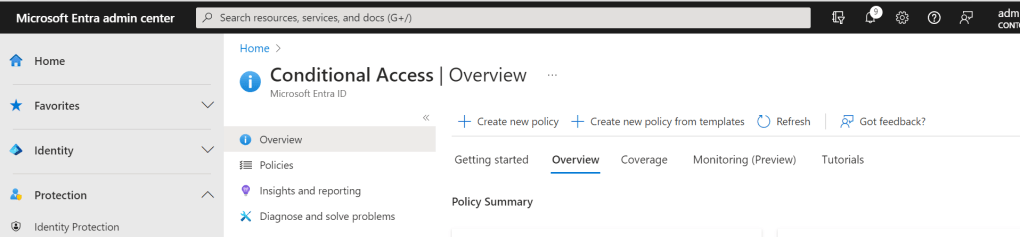
21.) Select Create New Policy
22.) Give the policy a Name (here defined as MEIACA Policy). It is applied to All users with the exclusion of a breakglass account (optional, but recommended to avoid lockout).
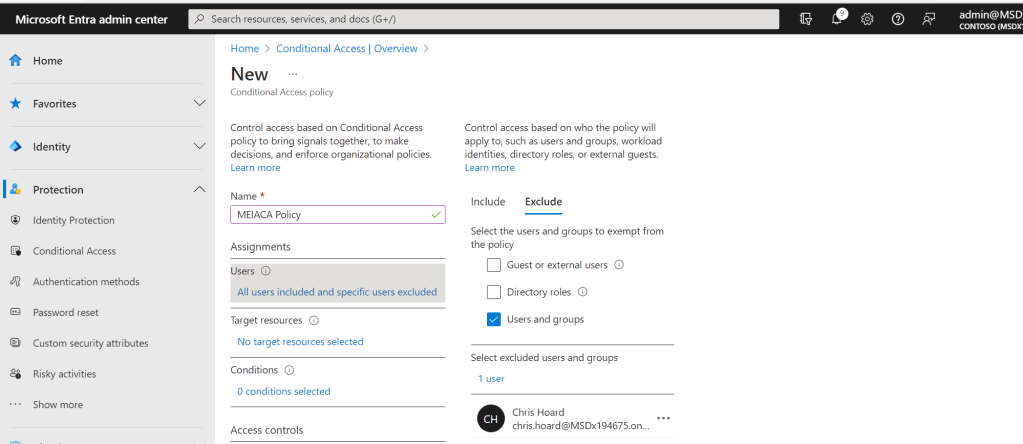
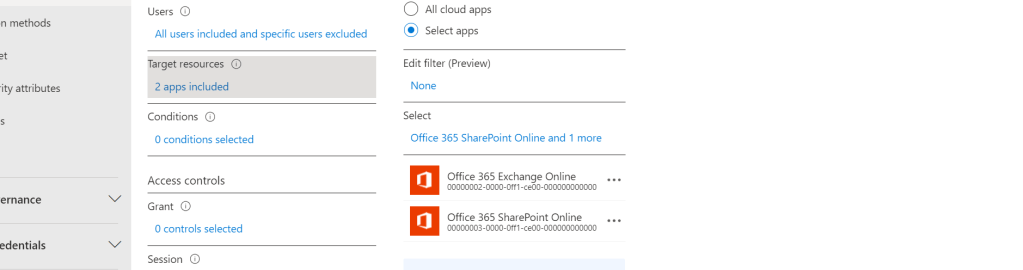
23.) Set the target resource. This example will use both Exchange and SharePoint Online as both are currently supported. Important Note: you cannot use the Office 365 App in CA as this isn’t currently supported.
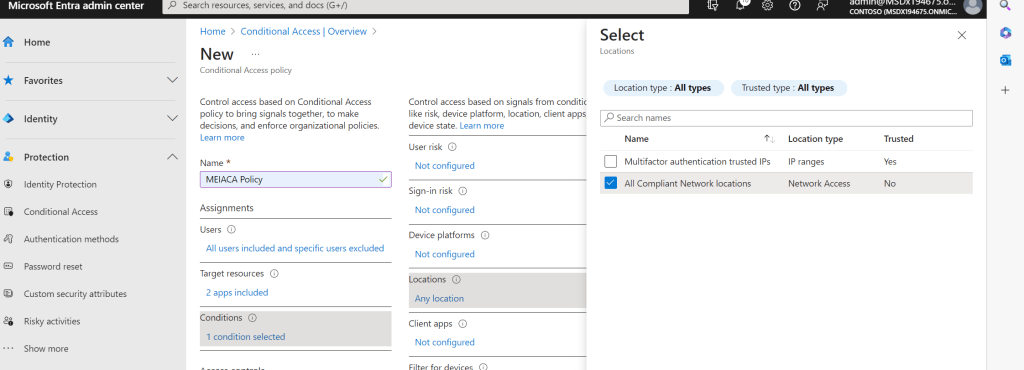
24.) In the Conditions select Location and then include Any location and exclude All Compliant Network Locations
25.) Finally, under Grant, select Block Access and the Create the policy. You may want to run this for a period in report only before moving to on.
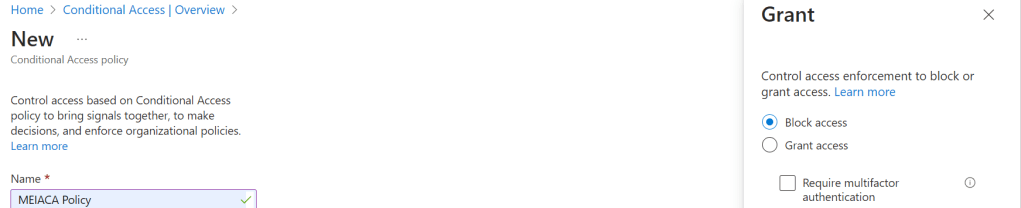
26.) The policy is created.
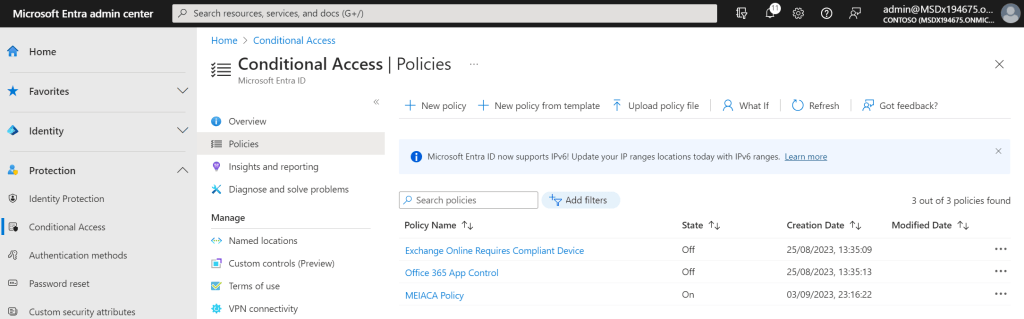
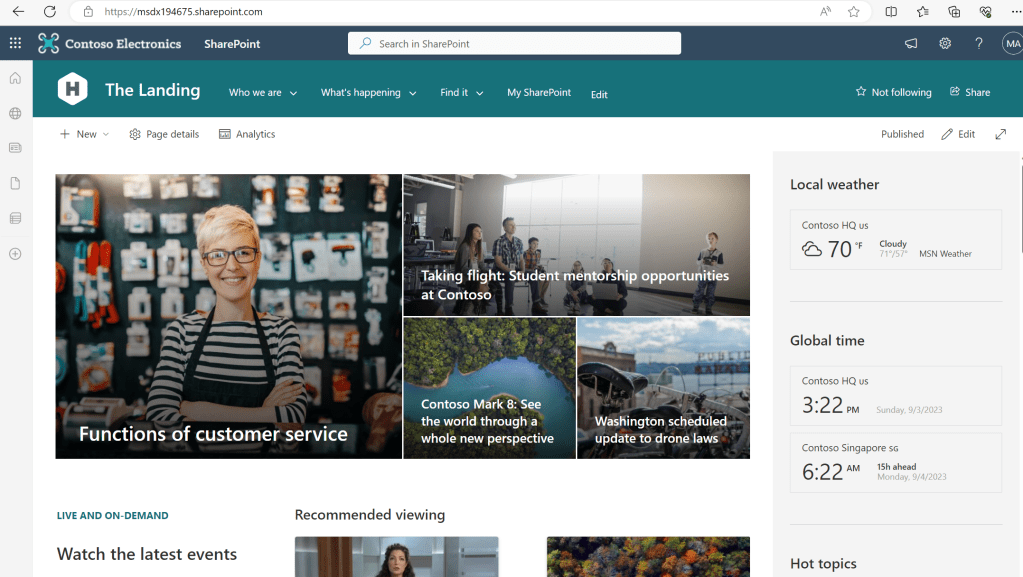
27.) This can be ratified quickly as follows. when logging into a machine which has the GSAC client on and meeting the compliant network policy the user can access it no problem.
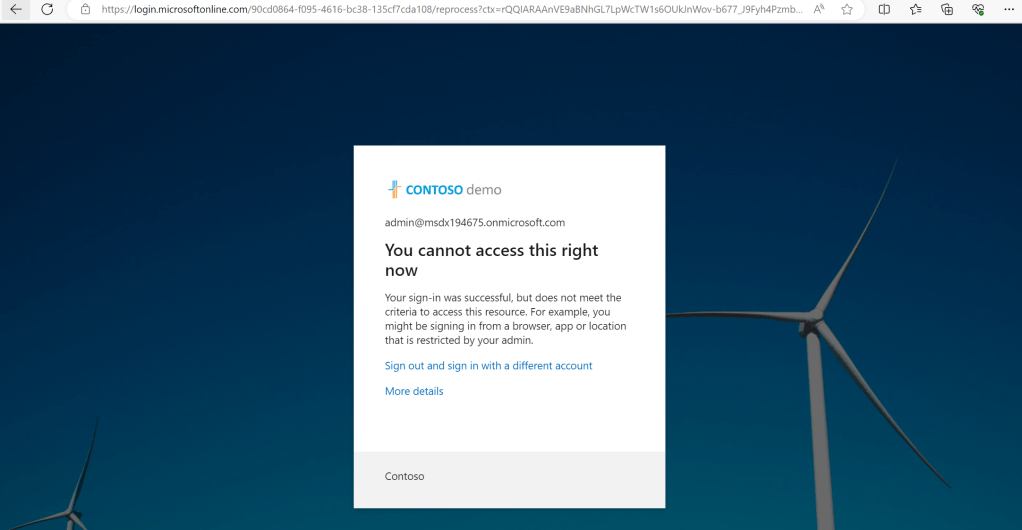
28.) However, when GSAC is paused it’s not allowed. The same outcome would apply to any other device trying to access Exchange or SharePoint. In other words it can only be accessed at the Secure Edge using this device and these credentials, where the Global Secure Access Client is active.
Conclusion
This blog has walked through end-to-end deployment of Microsoft Entra Internet Access (MEIA) on an endpoint and at the end of it, it has been shown that MEIA raises the security level considerably. Not only are other identities blocked from accessing the Microsoft 365 services (Exchange and SharePoint) on the endpoint, but that the Microsoft 365 services cannot be accessed on any endpoint, or any location other than, the location of the endpoint where the Global Secure Access Client is installed. Whilst Exchange and SharePoint (and hence OneDrive) are supported today, Teams will follow soon – and I am sure the rest of the Microsoft 365 Stack will also follow Teams as Microsoft Entra Internet Access develops further. Given the exposure of an app such as Teams I wouldn’t be surprised whether it ships this year, and with the recent release of XDR for Teams the addition of Microsoft Entra Internet Access will be one I am very much looking forward to. And since we know it is coming, we can get it set up now ahead of time so that when Teams is supported, it should be simple to add to the existing configuration. Sure, support for other operating systems and devices like mobiles, or virtual desktops may hold some organisations back initially, but I am sure there is a roadmap for all of these too.
There is loads to read on this subject: so would recommend heading over to Microsoft Learn, keeping an eye out for more community articles, or registering for Merill Fernando’s newsletter at https://entra.news/
 @Microsoft365Pro