
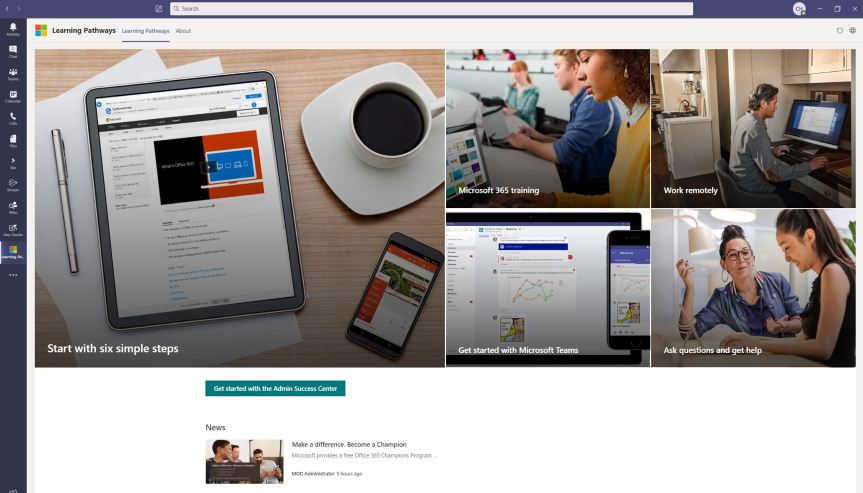
Learning pathways is a customizable, on-demand learning solution designed to increase usage and adoption of Microsoft 365 services in your organization. It's one of those things which has been on my radar to write about for some time. Having your learning site in easy reach of your Team - within Teams itself - and bringing your learning content where your Team is working on a day to day basis saves time and makes it easier for them to access without needing to navigate to another application. Add in the fact that you can customise content and you have a really powerful application that is great for increasing the teams' knowledge and adoption of Microsoft 365 services, provides a greater return on Teams, SharePoint and other 365 applications as well as provide a platform for the organisation to deploy it's own content. No need to necessarily splash out on that LMS
Author: microsoft365pro
TeamsFest is back – and better than ever!

So it begins! The registration for TeamsFest is open and we are now on the countdown to the event on Wednesday October 7th. All speakers have confirmed. We have our moderators. We have our schedule.
Microsoft Lists Fundamentals Part 2
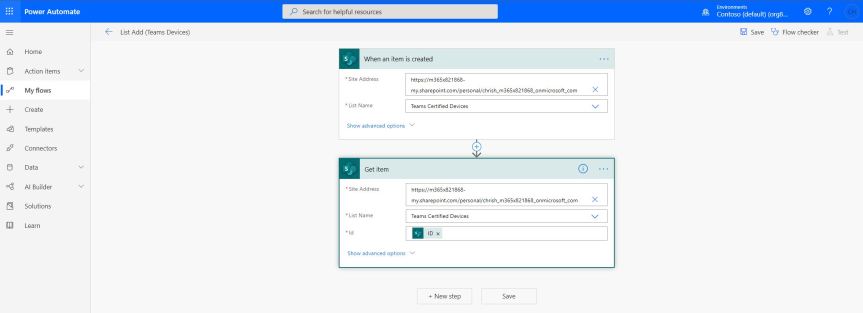
In Part 1 of this fundamentals blog series, we looked at the very basics of Microsoft Lists: how to access lists, how to create a list from a blank list and populate it with new items and columns, how to switch between recent lists and my lists. In addition to looking at how to create lists from existing SharePoint Lists and templates, we looked at how to favourite a list, how to customise list, how to share a list inside and outside the organisation and how to delete a list. We are now going to advance into some more ways we can work and manage Lists, including beginning to surface them into Teams with Flows
Microsoft Lists Fundamentals Part 1
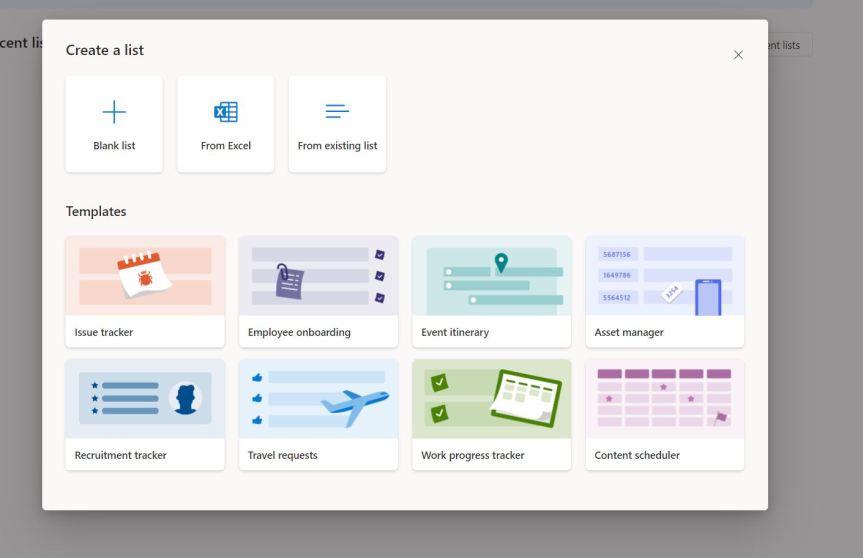
I have a little detour from Teams this week. Of course, Microsoft Lists will come into Teams in the next month or so - this has already been confirmed. Yet I like many others have been caught up in the hype and wanted to get hands on with the web app experience as a primer for that. So it's a good thing that even though it's not officially in my Ring 4 test tenant - as in no icon on login - there's still a way to access it - many thanks to Matt Wade and Michael Pisarek for bringing it to my attention on social. So, Lists. Lists are effective for many things - Itineraries, Assets, Expenses, Project Steps, Go to Market actions. And there is many reasons as to why you would make a list. You would make it to record track and organise. You would make it in order to collaborate with others. You would make it to share with others. Yet lists in Microsoft 365 are not new. As announced at Build, Lists are an evolution of SharePoint Lists and encompasses SharePoint Lists and which is now a cross app all of it's own. Let's have a look
Announcing the first Community speakers for TeamsFest!

The Call for Speakers for our third TeamsFest event closes at midday on Friday 31st July. Under 5 days away. I can't quite believe we are here!
 @Microsoft365Pro