

On many occasions in my day-to-day role, I am asked how to do specific things within Microsoft 365. And like call outs over social or threads raised up on the Microsoft Tech Community, I always look at these as great opportunities and a rich source of inspiration for the blog. So, this week a good colleague of mine who works at a Microsoft Partner got in touch - and they had a customer who asked them how they could block a specific number which was making nuisance calls to a few of their team. Now, as opposed to implementing user level blocks by the impacted individuals, they wanted to block this number for all users. This meant they wanted to block the number tenant wide. Yet they couldn't see anything in the Teams Admin Centre how to do it. Solution? Tenant blocking of PSTN numbers can only be done via PowerShell. But thinking on this further, this could really benefit from being an internally managed service in the same way as applying for a blocked app. So, let's have a looking at blocking which is not just utilized for nuisance calls, but also robocalls, competitor calls and a number of other org specific reasons. It's good to come around again to a bit of Teams Calling. I always like to keep my hand in.
Category: Microsoft Teams
Teams Real Simple with Pictures: Always on Live Captions in Meetings
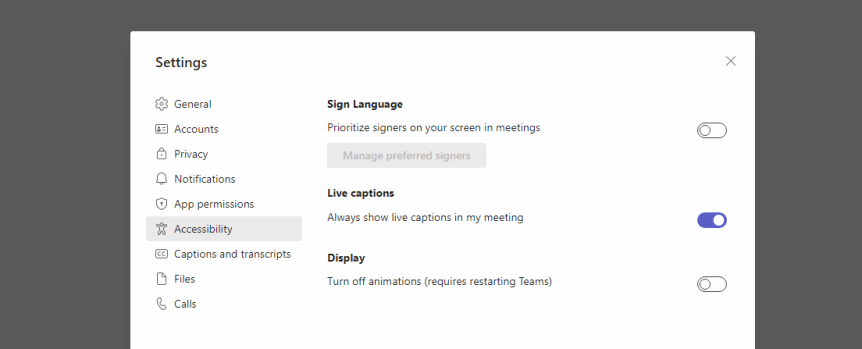
So recently I had the opportunity to meet up at South Coast Summit with Dona Sarkar. Dona is the Director of Tech at Microsoft Accessibility - but I have known her since back in the day when she headed up the Windows Insiders program. Now, it is true to say that me and Dona have a fair-few-things in common. Travel. Geography. Africa. Keeping things interesting. Side Hustle. Avoiding Jail. Good Food and going all in on whatever it is we are doing at the time. So, it was a real privilege that she came to our session on Metaverse for Business. And in true Dona style I ended up dropping in a load of ad-hoc accessibility scenarios into the content on the fly about two minutes prior to speaking. But that's the point right. We must, as Nietzsche once said, live dangerously! And whilst we never got the opportunity to have a real catch up - given she's always in such demand at these events I know we'll do loads more together in the future. And so, as a thank you for coming to our session I wanted to make everyone aware of the new ability in Teams for users to turn live captions on for every one of their meetings. Why? Because it's easy and it's important given that Live Captions can help significantly with users hard of hearing, where the primary language of the meeting isn't the users first language and where meetings are conducted in noisy environments, but from asking around my own organisation many people don't use them because they have to turn them on every meeting. They forget. Or they can't be bothered. It's one more action. Remove these barriers and -- whilst it's a personal view - I think that it will be used by most people in an organisation to the point that captions will be normalized and the standard for Teams Meetings. And do you know what? My wife has actually gotten me in the habit over the last few years of watching TV at home with the captions on by default. Given my age, and the number of alt-rock concerts I used to attend when I was young in the 90's, captions have really helped me too
The Microsoft Viva Admin Experience is here
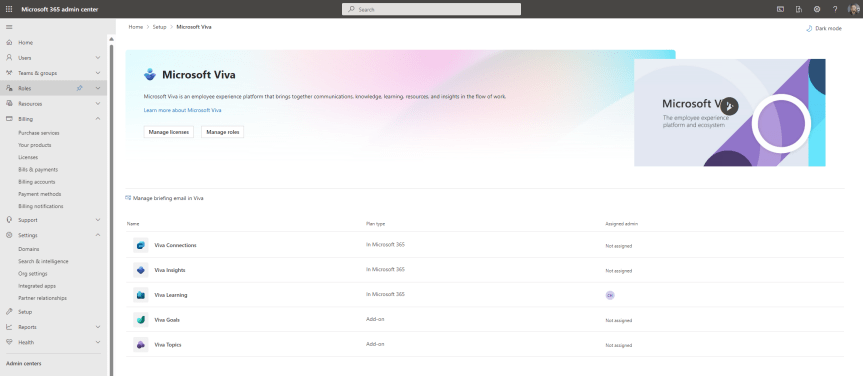
So, Viva? I haven't written a lot about it on this blog, have I? And when it's comes down to it that's probably because I spend a lot of my blogging time keeping up to date with Teams. But since Teams has been a bit quieter lately - at least in terms of the features I use or want to know more about I thought this would be an opportunity for something that caught my eye and something which is currently rolling out. This is the new Viva Admin Experience. Now, I am pretty much what you would call a second wave Viva advocate. I wasn't in with the first lot because I was just so focused on everything else Microsoft 365. And to be honest, the Viva apps which have been my ingress into both the Viva stack and the Viva community have been Goals and Sales, ones which I now use every day. Of course, prior to this I've deployed Connections many times - even when you had to create the Connections app via PowerShell, and setup and configured both Insights and Topics. I've even got a Viva course in the portfolio which has now been taught for over a year. But Goals and Sales gave me the bug, and now I do a ton of community work on Viva (albeit almost all directly with Microsoft). Needless to say, I'm very excited about all of the apps announced back in September - Amplify, Pulse, Answers and Storylines. It's a bright future. And with the rapid expansion it seems prudent to create an admin experience, where we'll likely see a set of granular role-based admin roles for the stack. This is because governance is important - and what we can refer to as horizontal experiences - functionality across the stack - will be important too.
Teams Real Simple with Pictures: Bulk unassign policies in the TAC

Over the years, I have spoken about and covered several blogs on Microsoft Teams policies. As any good Teams administrator will know, policies play a big part in terms of managing users and defining the experience of the front end. Whether it is configuring messaging policies, or app setup policies, or the gamut of calling policies - you won't get very far into the administration without coming up against them and having to understanding and define them. And once we understand them, we begin to understand such things as the difference between org-wide and custom policies, and about policy precedence and the several ways policies can be applied such as direct, batch, package and group. And once we learn all the ways that we can apply them, we then understand that some policies are not even the TAC at all, that we have to use the shell to create new policies and grant those policies to users. So now having returned from annual leave, and Ignite, and South Coast Summit, and plowing through the backlog of all of those things, there is an extremely rich vein of material and functionality to be explored over the coming months. However, I wanted to start with something easy, short, and which I was waiting for before I flew out to Florida. This is bulk unassignment of policies which was announced back in July but didn't surface in the TAC until late September. Now bulk unassignment of policies actually means bulk unassignment of directly assigned custom policies (not org wide) - and what we must remember here is that directly assigned policies take precedence over group policies, which in turn take precedence over org-wide policies. In other words, the ability to bulk unassign custom policies is a utility to clean up and standardize Teams environments, as well as transition out of overly complex configurations with high numbers of bespoke assignments. How can we do achieve this? Does it work with Policy Packages which are also directly assigned and take precedence over group?
Microsoft Ignite 2022: My Schedule, 10 for Teams and Everything Else I’d Recommend

Ignite is here! And hands up I only got back from a two-week vacation in the US yesterday, and it was one where I finally managed to disconnect, get off grid and focus on family, health and pretty much everything but IT - including going through a Cat 4 Hurricane Ian. It was wild. However, the flip side of all this is that I am very much coming into this one hot with a ton of backlog, so this preview will probably be a bit shorter than usual, and it'll all be on the fly
 @Microsoft365Pro