
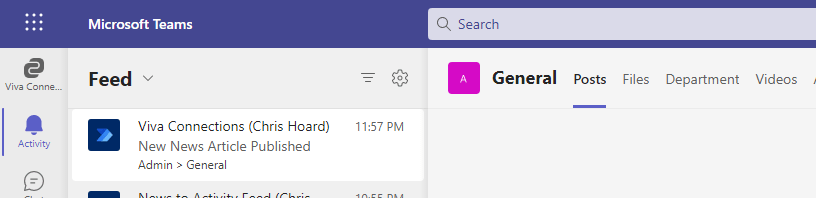
This one is for my good friend Amanda Sterner. I have known Amanda since I started out in the tech community. Like Vesku, and others such as Chirag Patel, Laurent Carlier, Rick Van Rousselt and Karoliina Kettukari she was there at the very beginning and always right behind what Adam and I were doing regarding Oktoberfest (what would become TeamsFest, then Teams Nation). I don't think we ever talked about it - but she was the very first speaker to sign up for that first conference. And when we all went to Ignite later that year at the OCCC I remember Amanda, Vesku, Michael Plettner and I all went out for dinner in a time before the word covid had entered our language. She is part of the team which runs Dagen - Teams Dagen - and what a success that conference is! But when I saw today that Amanda called out on Twitter how could we get a news post into the feed in Teams I couldn't resist.
Category: Microsoft Teams
Teams Real Simple with Pictures: Applying to access a Blocked App. Built in and Custom.
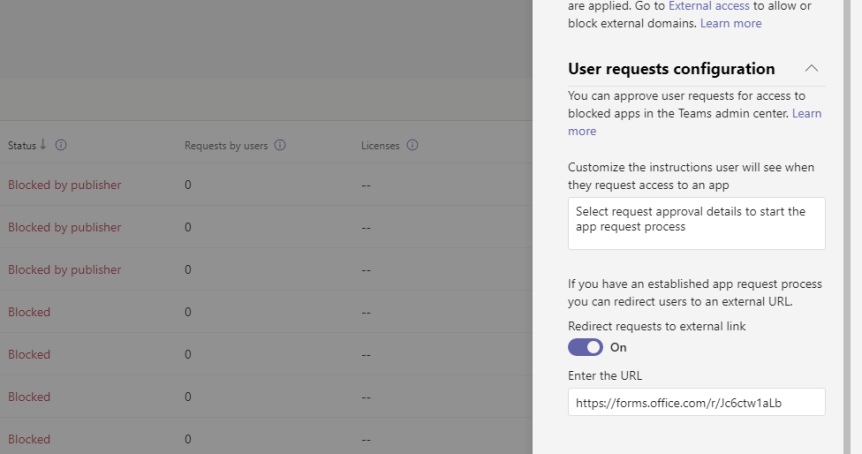
Teams now has over 1,700 apps which are integrated and available to manage via the Teams Admin Centre. This is scary because - to me at least, I can measure the passing of time based upon that number. I can remember saying in one conference that Teams has over 300 apps. In another, Teams has over 500 apps. 700. 1000. You get the picture. And in that time, we've seen functionality introduced such as permissions and app setup policies, the ability to block apps, the ability to control custom apps. We've seen attestation, app settings, the ability to buy subscriptions for apps via the TAC and a complete facelifting of the store to which you can now customize. This week I am going to look at a new functionality for users needing to request use of a blocked app. Back in the day - when an admin blocked an app - that app would simply disappear from the app store altogether. Microsoft changed this experience because if the apps disappear completely, they posit it actually encourages Shadow IT and self-sign up outside of the ecosystem leading to sprawl, data leakage and issues with data sovereignty. So, the current experience as it stands is that users can now see the blocked app; but request it from the admin. The admin then has to permit it use. Now, the new functionality we are concerned with allows the admin to set a workflow to direct the user to an external system to perform the request as opposed to it running through Teams. With such a detailed explanation you may think this sounds like niche functionality, but actually this is quite an important part of governance. We are fixing one problem with visibility, but we also need to make it easy for admins and organisations to make a judgement call on the use of that app
[Archived] Teams Real Simple with Pictures: Removing and Modifying users appearing in the Org Chart
![[Archived] Teams Real Simple with Pictures: Removing and Modifying users appearing in the Org Chart](https://microsoft365pro.co.uk/wp-content/uploads/2022/09/image-21.png?w=863&h=0&crop=1)
This week I am off to Ireland in person for the first time since the pandemic. Exciting. But I have a ton to get through. My own conference Metaverse One is on Wednesday (please feel free to register it's 100% free to attend), speaking at Microsoft Ireland is on Wednesday, and to top things off I have Bizz Summit on Saturday. So yeah. Full on. This week is going to be something short and it's another enquiry I got from the Microsoft Tech Community a few weeks back. It was as follows: I can't remove a person I want to from the org chart in Microsoft Teams. So how do we do it? Seemed a pretty fair question: people move in organisations all the time, and it's unlikely Microsoft would set a functionality which couldn't be modified. Not of this nature. But the thing was I knew how to do it and was pretty familiar having deployed Azure AD hundreds of times in the past in addition to reviewing Profile+ some time back which is also dependent on this functionality. So how do we do it?
Teams Real Simple with Pictures: Lookup Columns in Lists. Surfacing in Power BI.

I had an enquiry from a co-worker this week. It was as follows: they had access to two lists that they used daily. These lists were in two different teams' channels. However, they wanted to bring some of the data from one list into another to 'make their life easier'. On top of this they wanted - as a bonus - to display the data visually. However, they were not permitted to amalgamate the lists due to others using them and the business wanted them separate. So how could we solve this to make things easier? This is almost a textbook case for using lookup columns. What we need is a list relationship, where information from one list (the source list) can be used in another list (the target list). List relationships let you join information from two lists and keep it consistent while people edit and delete list items. Sound good? It is. However, there is four really important things to know with lookup columns before we get going. First, they don't currently support all column types. Whilst Single Line of Text, Date and Numbers are supported, other types such as Choice and Currency are not. Secondly, they are only supported in the same SharePoint site. In Teams land that means only if the lists are in public channels in the same team or if both lists are in the same private channel. No cross team. No cross public and private channels. Third, if you are using large lists then lookup columns may not be a solution. At that point we may be looking at something like SQL and Power Apps. But the biggest one - number four - is this. A lookup column does not automatically add values from a source list. A lookup column allows you to add values held in a source list. In other word the source list seeds values for the target - but they have to be added manually. This is an important distinction. Here is how to create a list with lookup columns to another list. And as a bonus, connect that List to Power BI to report on it
Teams Real Simple with Pictures: Setting your Download Location in the Teams Desktop Client
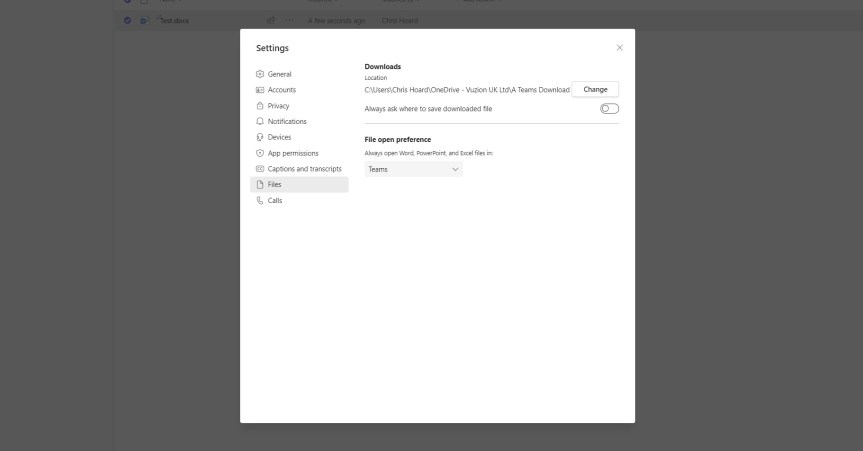
A few years ago, I used to attend lot of sessions called Ask Me Anything's (AMA) on the Microsoft Tech Community. These were great because if you weren't an MVP or part of a big partner organization it gave you access to the product team to ask about upcoming functionality and roadmap items. I remember asking about Teams' default download location in a few of these sessions and if this could be modified. The answer was always 'no' or 'this is something on our backlog'. But the reason I went on about it was because downloads in the desktop client were going local - not to the cloud and that was something which couldn't be modified. Downloads weren't picked up on OneDrive Known Folder Move (KFM) and the inflexibility of a fixed location was always a negative. You had to resort to manually moves. Your desktop and web client were always out of kilter. Nowadays? You probably could have done it with RPA but that isn't really an answer for why functionality wasn't already built into the desktop. It's here now - at least on the desktop client for Windows in public preview.
 @Microsoft365Pro