
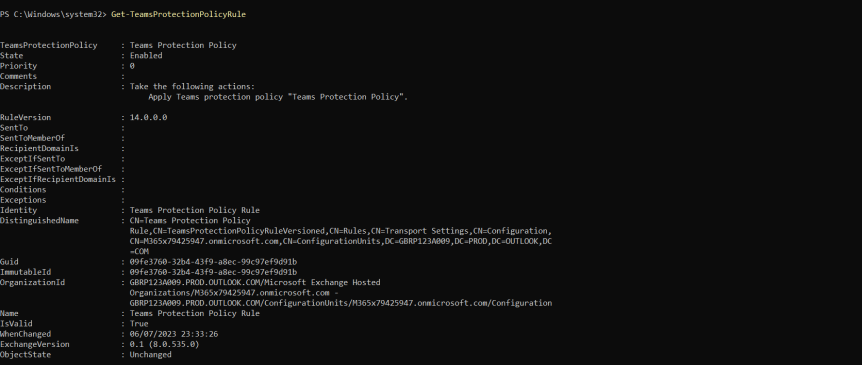
Ok, first things first - congratulations to all the Microsoft MVP's who were renewed this week! It was awesome to see so many friends, and so many passionate community members earn the award after their incredible efforts last year. Blogging. Speaking. Feeding back to product teams. Sharing code. Running events. Staffing events. Writing books. Even social media. You name it. Jeff Teper - CVP of Microsoft SharePoint and Microsoft Teams often refers to them at events and on social as being part of 'The Best Community in Tech'. It's something I would have to agree upon having known many of them now for some time. So congrats again MVP's! And with that out the way for another year let's move onto the blog which is a shorter one this week, and a direct follow up from a recent blog on ZAP within the new Collaborative Security for Microsoft Teams. Now only last month I recommended sticking with the security presets given that since it came out in March there didn't appear to be a seperate ZAP policy for Teams and that the settings for Exchange Online and Teams appeared to be bound together. But in a recent message issued through the Message Centre this week, it was announced that Microsoft is 'adding new Teams Protection cmdlets to control ZAP for Teams'. Moreso, 'Going forward, please utilise the new cmdlets to control ZAP and quarantine policies for Microsoft Teams'. So the good news all up is that management starts becoming more granular, and you can have different ZAP policies for Exchange Online and Teams if and should you need them. On the other hand it's likely going to raise a few questions such as - if the policies are set in PowerShell moving forward will they then surface in the Microsoft 365 Defender Portal and the security presets? And if they are set in PowerShell, will changes in the Microsoft 365 Defender Portal overwrite? Whilst this blog is an awareness piece regarding the cmdlets and serves as an addendum to the previous blog given personal testing, I would actively encourage admins to go on and test further. Being in preview and with so much evolving so quickly it's fair to state that we don't ultimately know the destination or the final intended behaviours and user experience as it isn't confirmed beyond these cmdlets. Whilst I would wager that there will be a change in the GUI so that ZAP policies for Exchange Online and Teams are distinct and explicit, and that you will see the specific Teams Protection policies on quarantined items, and everything will fit flush within the presets, well you just never know, or when that's going to land. So let's look at something that has a load of caveats on, but at the same time will be central to how ZAP for Teams is managed moving forward.
Category: Microsoft Teams
Teams Real Simple with Pictures: Blocking Anonymous Users Read Access in a Meeting Chat
2023 has been one wild year. The divestiture and merger of the business I work for. It's subsequent rebrand. The last few weeks its been all about expansion and the rollout into Switzerland. I've been over in Ireland. I've been doing things out in the UAE. Now all of these things - all up - have gone well. Despite many long days and a few pressure cooker situations it's been generally excellent and a very exciting experience; one of those intense and fascinating periods where you need to bring your A game and step up to the challange of it. But for the first time since I have been in the Microsoft Tech Community - since around the start of 2018, the sheer load and the scale of realignment has meant I have struggled to get to the community. The blogs. The events. All the rest of it. I completely missed Build. I completely missed Commsverse. I simply couldn't get to them. And whilst I managed to squeeze out a bit on Collaborative Security in May; the new functionalities such as Attack Simulation, End User Reporting and ZAP, I've had people ask - where have you been? Are you ok? The answer is yes! I am happy that corp work is almost to a sustainable level, and that I can start to engage with the community again. And so I am going to pick up with a small, security related functionality in Teams meetings which I noticed has now appeared in the Teams Admin Centre (TAC) which is to block anonymous users read access in a Meeting Chat. More succinctly 'Microsoft Teams IT Admins will be able to block anonymous users from accessing the chat in internally hosted meetings by disabling their read access on top of the existing disabled write access'. In other words, anonymous users will have neither read or write meeting chat access meaning they won't see the chat. Why is this important? An anonymous user is a user who joins a meeting via a link. The user isn't logged in with their Microsoft account or their organization’s account. This could, literally be anyone who has received, or managed to get their hands on the link to the meeting who isn't strictly authorised to be there. And if we permit anonymous users - which some orgs need to do, then it is good that the chat can be controlled in such a manner that these users can't scrape/exfiltrate information - particularly sensitive information out the chat. All set?
Teams Real Simple with Pictures: Collaboration Security for Microsoft Teams – Zero-Hour Auto Purge (ZAP)
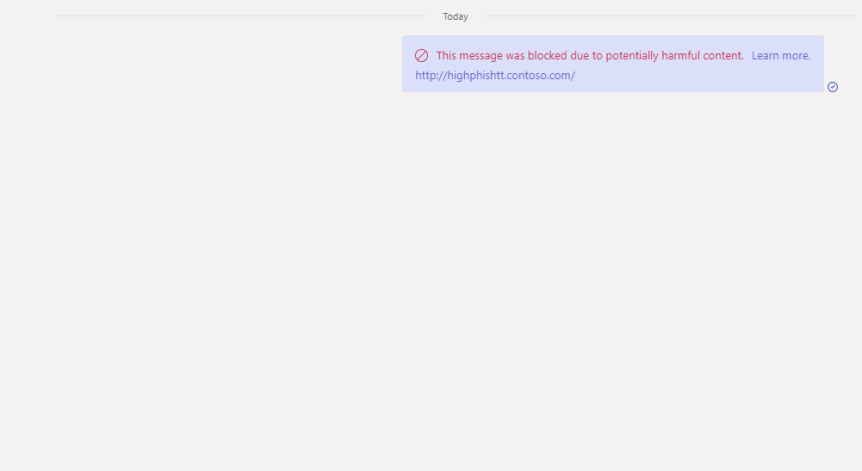
Over the last month we've gotten into it on two of the four components of Collaboration Security for Microsoft Teams which were announced back at Secure in March - Attack Simulation and End User Reporting. Both seem really solid adds. I personally think that both are worth the price of the P2 in order to bring this XDR functionality into Teams. So let's push on and investigate the third component - one which has been part of Exchange Online for some time which is Zero-Hour Auto Purge. Typically known by its acronym ZAP, in the context of Teams it 'protects end-users by analyzing messages post-delivery and automatically quarantines messages that contain malicious content to stop the actor from compromising the account'. So it is a retroactive automated protection feature which goes after malware, spam and phishing messages. Furthermore 'once a malicious message is identified, the entire Teams environment will be scanned for that same indicator of compromise and quarantine relevant messages at scale for more effective protection'. Sounds good. Sounds like it's going to be a real big help to admins who cannot be on hand - or are expected to be on hand - to continuouly monitor their users chats in Teams 24/7. So let's see ZAP in action. It is currently in preview like the other components and on by default if a P2 licence is assigned and CSTM is lit up via the shell. Of all the components within CSMT this is the one I see changing the least by the time GA comes around since it just works. But having tested the past few days there appears to be some hefty limitations at the time of writing - and ones that as Microsoft 365 admins we need to know upfront even though we know it's only at the preview stage. One. ZAP only works on private chat and private group chat currently. Channel conversations aren't supported today. Given that channel messages are housed in shared mailboxes within the Microsoft 365 group construct that's surprising. But hey, that exactly what happened with loop components so I am pretty sure that will arrive at some point. Two. On the testing I did this weekend it only seems to work for messages within the organisation currently. In other words, no federated chat support for messages sent and received to/from others outside the organisation. That's probably the biggest limitation here in terms of day to day use or the likelihood of something malicious getting in. Three. During testing I noticed it doesn't seem to cover meeting chat which is also important, especially if the org allows anonymous users to join meetings. Now, these could be blockers for many organisations. Or they may not be given these orgs could be adding CSMT in preview primarily for the other components. It'll be important to support all three moving forward, but looking past this the preview does a good job showing you how ZAP works if you have something to test it with.
Teams Real Simple with Pictures: Collaboration Security for Microsoft Teams – End User Reporting

My memory is a little hazy as I approach my 40th year on this earth next week, but it doesn't seem too long ago that Teams was added into Defender for Office 365. And when I think of the two together, I typically think about Safe Attachments and Safe Links, and their application via built-in security policies, or through custom policies within the Microsoft 365 Defender Portal. But now - after Microsoft Secure a few months back - we have seen the introduction of 'Collaboration Security for Microsoft Teams'. Sounds awesome. And I almost had to crack a smile whilst I was sitting there in that hotel room in Paris doing Secure since I actually worked on parts of it over recent months through inner ring testing without ever knowing what it was meant to be, or what the totality of it was. By definition CSMT is 'the full feature set that customers use to protect their email environments across prevention, detection, and response to Microsoft Teams'. In other words its bringing Teams fully into it's Extended Detection and Response (EDR) solution which is Microsoft 365 Defender, which correlates signals and alerts across others domains such as identities and endpoints. Why is this important? In the words of Microsoft 'Attacks like phishing and ransomware that for decades have primarily used email as an entry point, are now also targeting users on collaboration tools with growing frequency' which makes sense given that Teams is now used by over 300 million users worldwide - many of whom it is fair to say are not protected to the extent they could be. So who can use CSMT?, 'If you are a customer of Microsoft E5, Microsoft E5 Security, or Microsoft Defender for Office 365 (Here meaning Plan 2, not Plan 1) you can take advantage of [this set of new capabilities] immediately and improve the security of your Microsoft Teams'. Very exciting then. Now this blog post was in fact meant to come out a month ago and was meant to be the lead off to a whole CSMT series: but a bug in my Ring 4 test environment meant I had to do attack simulation first. C'est la vie. We are going to enable CSMT and report a suspicious message for our security admins.
Teams Real Simple with Pictures: Building an Adaptive Communication Compliance Policy
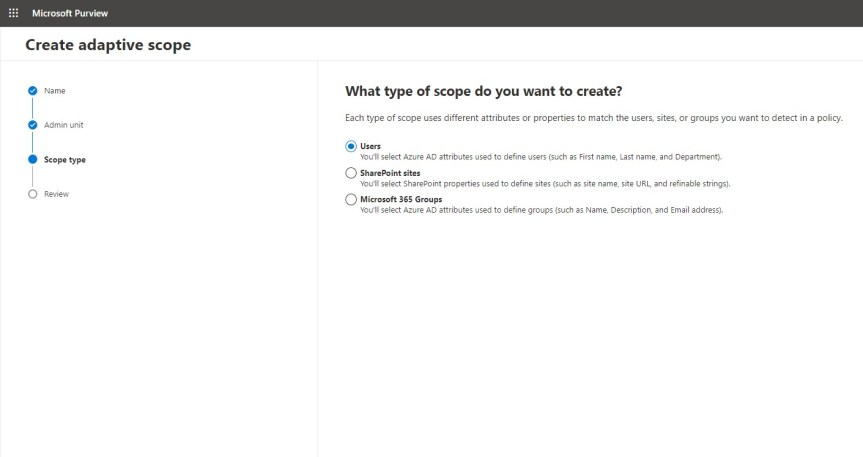
Last weeks vacation on the Isle of Wight was good. If fact, some time away was sorely needed. And whilst I was slightly bummed that I had to turn down speaking at Microsoft's seminal developer event Build this year, the consolation is that I had already spoken at Build twice previously. As the song goes, two out of three ain't bad. But in all honesty I really did need a breather given recent transition work in my org - and besides, it's right that someone else should have an opportunity to experience Build as a speaker. So from looking at Attack Simulation in Teams and Defender last week, I am going to pivot back to Purview and Compliance where I'll look at adaptive scopes in the context of Communication Compliance. Now in the past I have written about and done talks on the circuit about both, but I haven't written or talked about them together. When I first wrote about adapative scopes they were in preview, and at the time they only supported retention policies. Now they can be implemented differently and they support Communication Compliance - what used to be called Supervision back in the day when we had the combined Security and Compliance portal. Now, why would we use them together and what would be the benefit? Let's take a scanario: let's imagine that I am moving from an internal ops role into a senior leadership role where I will be privy to sensitive information which I should not share over my orgs communication apps - here meaning Exchange, Teams and Yammer. If I have Communication Compliance policy set up with an adaptive scope, it can be automatically applied when I transition to that role and apply for the liftime to which I hold that role. This saves IT time and administrative overhead. This means that it can be applied to all people within that senior leadership role as opposed to several roles being created on a user by user basis. As discussed in the last article, Adaptive Scopes are based upon Azure AD properties, but in the world of Teams and Communication Compliance it's important to distinguish between the user scope type which applies to messages in private 1:1 and group chat, and Microsoft 365 Group scope type which applies to messages in channels. This will walk through the user scope but will also show how to set the group scope
 @Microsoft365Pro