

Microsoft Teams was recently named a leader in the Gartner Magic Quadrant for Unified Communications for 2022 - and with good reason. Let's take a look at the stats: 80 million users of Teams Phone. 12 million users of PSTN. Calling Plans expanding from 28 to 34 countries, and a voice SLA now standing at 99.99%. Over the last year or two Microsoft has continued to introduce many new innovations to the calling service such as Operator Connect, Operator Connect Mobile, SIP Gateway, Survivable Branch Appliance, a new PSTN desk with integration into the Teams Admin Centre, as well as several useful features ranging from the customization of call parking, to surfacing end-user call routing in the TAC. Having recently attended Airlift, I can confirm there is so much cool stuff still to come. The journey is far from over. But being under NDA I have to suppress my excitement for a while longer. But in the meantime, I was interested to see that user controlled busy on busy has shipped into preview the past few days. But what is Busy on Busy? By definition Busy on Busy lets you configure how incoming calls are handled when a user is already in a call or meeting or has a call placed on hold. New or incoming calls - for VOIP or PSTN - can be rejected with a busy signal or can be routed accordingly to the user's unanswered settings. Up until now - since Busy on Busy was introduced, this functionality has been set by the administrator, but the user can now decide for themselves how the incoming call is handled - or periodically change that on the fly.
Teams Real Simple with Pictures: Surfacing Stories within Viva Engage
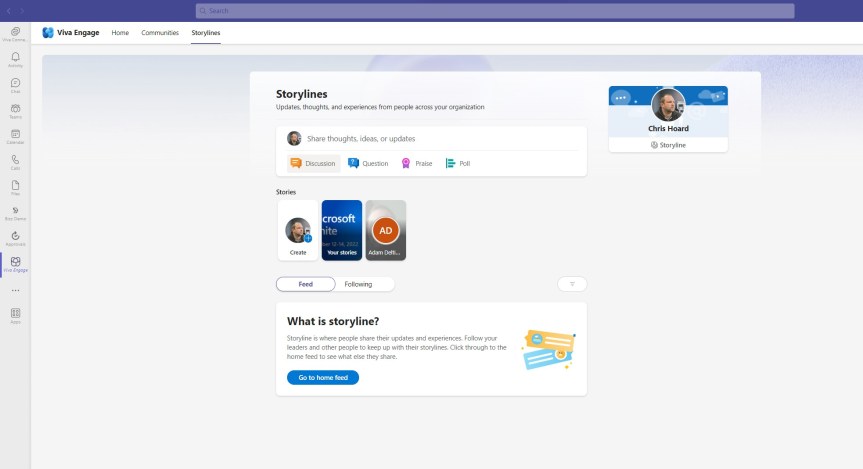
After a few weeks of focussing on the transition to Infinigate and inner ring preview testing for various product teams at Microsoft, I don't mind telling you that it's mighty fine to be back with some bandwidth for doing the blog. I wish I could tell you that I have had some iota's worth of break during that time, but that would be a barefaced lie. My world has been consumed by DevOps, and Sprints, and scrutinizing UX, and the H1 schedule and programmatic changes such as Solution Partner Designations. But if you have followed this blog for any length of time, then you know that I think having a few weeks away every so often is typically a good thing. Absence makes the heart grow fonder and all. But in the world of cloud the bucket of content fills back up. So, this week I am going to talk about something which I don't often cover - and that is Viva Engage. Viva Engage, by definition, is a new employee experience that connects people across the company. It is driven by Yammer services to which Yammer is a part. It is also in the second wave of Viva apps of which we would also bucket Pulse, Amplify, Goals, Sales and all the others announced this year. Now, the functionality we will be specifically looking at today is called Stories. Stories - again, by the only definition I could find, is a 'modern, engaging way to capture the moment, with short videos or photos that are showcased in a stories carousel'. Think of content similar to Tik Tok and Insta ((videos and pictures) that followers of your own Storyline can view and engage with, and which your provide them as a richer experience. So, basically, something way out of my comfort zone but something I am looking to use in my own organisation
Teams Real Simple with Pictures: RTMP Streaming into YouTube
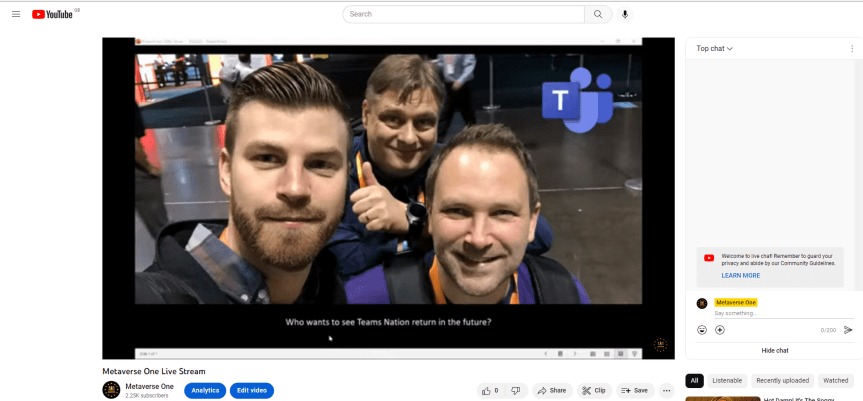
Another crazy week for what has turned out to be another crazy year. But last Friday I officially started what I am calling a 'sabbatical' and taking some time out from frontline teaching and speaking until at least the end of January. On the one hand, there is a ton of work to be done regarding a recent merger. I have a list of DevOps tasks literally as long as my arm which includes loading out for H2. On the other hand - and after several months of big deliveries - I wanted some time away from the coalface and to have a breather. Anyone who does teaching or speaking regularly knows there is a lot associated with that. So, a break is needed. And by break, that means pivoting to things which are more transactional such as my DevOps tasks, preview testing for Microsoft and this blog. So, this week I am going to discuss how to stream a Teams Meeting to YouTube. It's something I really should have done months ago, but somehow, I always never got around to it. But it feels the right time, and there are a ton of reasons to use custom streaming. Breath of audience, different audience, different surface. If you think about it, something like 2 billion use YouTube so that goes well beyond the limits of a live event. And to be honest, it's not a difficult setup - and neither is it an on or off switch so you can easily configure it for those who need it. What's not to like? Let's talk about Real Time Messaging Protocol (RTMP)
Teams Real Simple with Pictures: Safeguarding users with Tenant Level Blocking of Inbound PSTN Calls and building a blocking service

On many occasions in my day-to-day role, I am asked how to do specific things within Microsoft 365. And like call outs over social or threads raised up on the Microsoft Tech Community, I always look at these as great opportunities and a rich source of inspiration for the blog. So, this week a good colleague of mine who works at a Microsoft Partner got in touch - and they had a customer who asked them how they could block a specific number which was making nuisance calls to a few of their team. Now, as opposed to implementing user level blocks by the impacted individuals, they wanted to block this number for all users. This meant they wanted to block the number tenant wide. Yet they couldn't see anything in the Teams Admin Centre how to do it. Solution? Tenant blocking of PSTN numbers can only be done via PowerShell. But thinking on this further, this could really benefit from being an internally managed service in the same way as applying for a blocked app. So, let's have a looking at blocking which is not just utilized for nuisance calls, but also robocalls, competitor calls and a number of other org specific reasons. It's good to come around again to a bit of Teams Calling. I always like to keep my hand in.
Teams Real Simple with Pictures: Always on Live Captions in Meetings
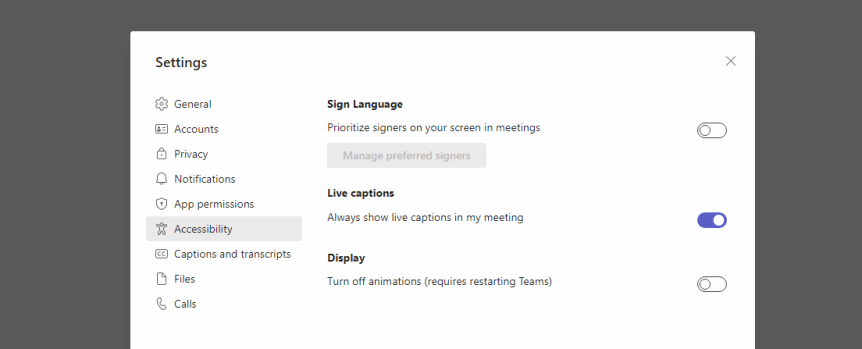
So recently I had the opportunity to meet up at South Coast Summit with Dona Sarkar. Dona is the Director of Tech at Microsoft Accessibility - but I have known her since back in the day when she headed up the Windows Insiders program. Now, it is true to say that me and Dona have a fair-few-things in common. Travel. Geography. Africa. Keeping things interesting. Side Hustle. Avoiding Jail. Good Food and going all in on whatever it is we are doing at the time. So, it was a real privilege that she came to our session on Metaverse for Business. And in true Dona style I ended up dropping in a load of ad-hoc accessibility scenarios into the content on the fly about two minutes prior to speaking. But that's the point right. We must, as Nietzsche once said, live dangerously! And whilst we never got the opportunity to have a real catch up - given she's always in such demand at these events I know we'll do loads more together in the future. And so, as a thank you for coming to our session I wanted to make everyone aware of the new ability in Teams for users to turn live captions on for every one of their meetings. Why? Because it's easy and it's important given that Live Captions can help significantly with users hard of hearing, where the primary language of the meeting isn't the users first language and where meetings are conducted in noisy environments, but from asking around my own organisation many people don't use them because they have to turn them on every meeting. They forget. Or they can't be bothered. It's one more action. Remove these barriers and -- whilst it's a personal view - I think that it will be used by most people in an organisation to the point that captions will be normalized and the standard for Teams Meetings. And do you know what? My wife has actually gotten me in the habit over the last few years of watching TV at home with the captions on by default. Given my age, and the number of alt-rock concerts I used to attend when I was young in the 90's, captions have really helped me too
 @Microsoft365Pro