
![[Archived] Teams Real Simple with Pictures: Removing and Modifying users appearing in the Org Chart](https://microsoft365pro.co.uk/wp-content/uploads/2022/09/image-21.png?w=863&h=0&crop=1)
This week I am off to Ireland in person for the first time since the pandemic. Exciting. But I have a ton to get through. My own conference Metaverse One is on Wednesday (please feel free to register it's 100% free to attend), speaking at Microsoft Ireland is on Wednesday, and to top things off I have Bizz Summit on Saturday. So yeah. Full on. This week is going to be something short and it's another enquiry I got from the Microsoft Tech Community a few weeks back. It was as follows: I can't remove a person I want to from the org chart in Microsoft Teams. So how do we do it? Seemed a pretty fair question: people move in organisations all the time, and it's unlikely Microsoft would set a functionality which couldn't be modified. Not of this nature. But the thing was I knew how to do it and was pretty familiar having deployed Azure AD hundreds of times in the past in addition to reviewing Profile+ some time back which is also dependent on this functionality. So how do we do it?
Let’s Record in Stream on SharePoint
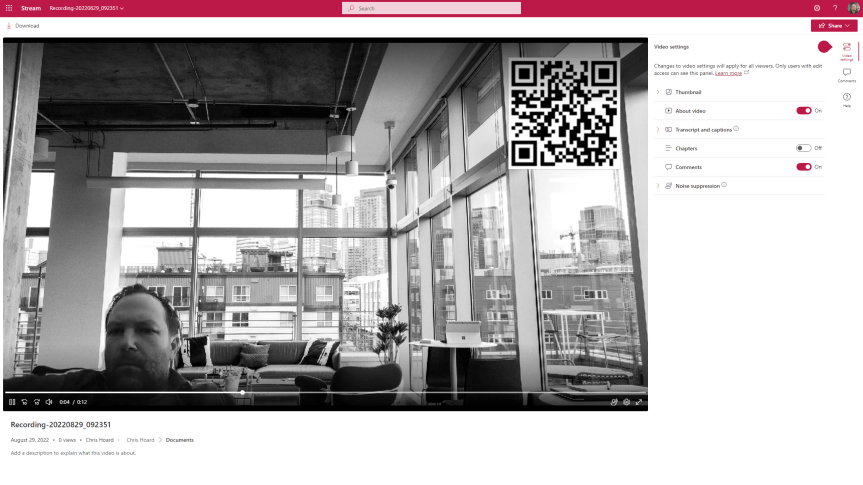
I had a big problem this weekend. After a few weeks of grinding, I was pretty much there or there abouts. Then on Friday I went to review the MS-900 Microsoft 365 Fundamentals course which I am going to teach again next Tuesday only to discover the whole thing had changed. So, let's just say the bank holiday went right out of the window. Bygones. But in doing the consolidation and rewrite of MS-900 I see that the ability to record video in Stream on SharePoint has now arrived in what I assume is targeted. There is always some sort of upside to any given situation, and this is a pretty big deal. Stream on SharePoint is getting to the business end of the transition. I see that message centre says that in October classic Stream will start to be phased out, such as no longer appearing in tenants which have never used it. The player is here. Lots of cool features we never had before like chapters are here. But recording is a big gap and a filling in of functionality we had in classic. It's one of those fundamentals like trim, or transcripts or the Stream app in Teams. So, 2022 continues to be a wild year for Stream. This is a brief look at some of the functionality which is available - but I am sure we will see much more development on this front.
Teams Real Simple with Pictures: Lookup Columns in Lists. Surfacing in Power BI.

I had an enquiry from a co-worker this week. It was as follows: they had access to two lists that they used daily. These lists were in two different teams' channels. However, they wanted to bring some of the data from one list into another to 'make their life easier'. On top of this they wanted - as a bonus - to display the data visually. However, they were not permitted to amalgamate the lists due to others using them and the business wanted them separate. So how could we solve this to make things easier? This is almost a textbook case for using lookup columns. What we need is a list relationship, where information from one list (the source list) can be used in another list (the target list). List relationships let you join information from two lists and keep it consistent while people edit and delete list items. Sound good? It is. However, there is four really important things to know with lookup columns before we get going. First, they don't currently support all column types. Whilst Single Line of Text, Date and Numbers are supported, other types such as Choice and Currency are not. Secondly, they are only supported in the same SharePoint site. In Teams land that means only if the lists are in public channels in the same team or if both lists are in the same private channel. No cross team. No cross public and private channels. Third, if you are using large lists then lookup columns may not be a solution. At that point we may be looking at something like SQL and Power Apps. But the biggest one - number four - is this. A lookup column does not automatically add values from a source list. A lookup column allows you to add values held in a source list. In other word the source list seeds values for the target - but they have to be added manually. This is an important distinction. Here is how to create a list with lookup columns to another list. And as a bonus, connect that List to Power BI to report on it
Teams Real Simple with Pictures: Setting your Download Location in the Teams Desktop Client
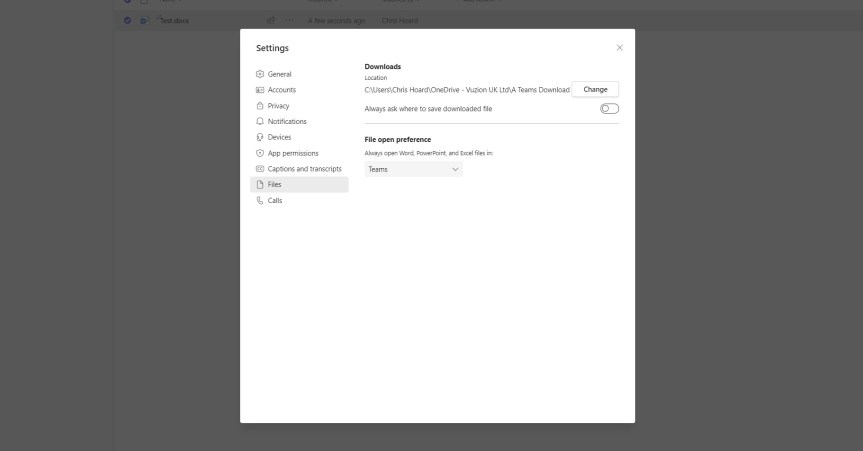
A few years ago, I used to attend lot of sessions called Ask Me Anything's (AMA) on the Microsoft Tech Community. These were great because if you weren't an MVP or part of a big partner organization it gave you access to the product team to ask about upcoming functionality and roadmap items. I remember asking about Teams' default download location in a few of these sessions and if this could be modified. The answer was always 'no' or 'this is something on our backlog'. But the reason I went on about it was because downloads in the desktop client were going local - not to the cloud and that was something which couldn't be modified. Downloads weren't picked up on OneDrive Known Folder Move (KFM) and the inflexibility of a fixed location was always a negative. You had to resort to manually moves. Your desktop and web client were always out of kilter. Nowadays? You probably could have done it with RPA but that isn't really an answer for why functionality wasn't already built into the desktop. It's here now - at least on the desktop client for Windows in public preview.
Teams Real Simple with Pictures: Raise Support tickets to Microsoft via a dedicated Teams App

Earlier this year we saw the Microsoft 365 Admin App introduced into Microsoft Teams. Now, we have the Support App. The app is designed to 'Troubleshoot problems they [as in any user] encounter while using or managing Teams, such as failed login or trouble with changing Teams backgrounds, escalate a problem to Microsoft support [admin] and track the status of service requests [also admin]'. In other words, it is bringing the support bot, ticket escalation and monitoring into what Microsoft market as its front end. In terms of time saving - considering that many admins work daily within Microsoft Teams it may shave minutes off from having to login and navigate to raise a ticket when in the flow of the work. Exposing troubleshooting to users may also work in terms of self-service. Additionally, if Power Apps have been built for Internal support, then these may also sit nicely alongside the Support App in regards of having things to hand. But it's a lot of 'may' as opposed to will. Naturally, some admins will wonder - why another app? Why split the ticket function further between the Microsoft 365 admin centre, the Teams app, the Mobile Admin App, and now the Support app. It's bringing apps to hand but there's also a conversation to be had about duping functionalities, increasing unnecessary complexity and surfacing everything everywhere. Why wasn't this surfaced in the help section of the client? Is Support too broad and vague a name and actually cause confusion? These sort of conversations I think we'll see more of in the not-too-distant future
 @Microsoft365Pro