

My memory is a little hazy as I approach my 40th year on this earth next week, but it doesn't seem too long ago that Teams was added into Defender for Office 365. And when I think of the two together, I typically think about Safe Attachments and Safe Links, and their application via built-in security policies, or through custom policies within the Microsoft 365 Defender Portal. But now - after Microsoft Secure a few months back - we have seen the introduction of 'Collaboration Security for Microsoft Teams'. Sounds awesome. And I almost had to crack a smile whilst I was sitting there in that hotel room in Paris doing Secure since I actually worked on parts of it over recent months through inner ring testing without ever knowing what it was meant to be, or what the totality of it was. By definition CSMT is 'the full feature set that customers use to protect their email environments across prevention, detection, and response to Microsoft Teams'. In other words its bringing Teams fully into it's Extended Detection and Response (EDR) solution which is Microsoft 365 Defender, which correlates signals and alerts across others domains such as identities and endpoints. Why is this important? In the words of Microsoft 'Attacks like phishing and ransomware that for decades have primarily used email as an entry point, are now also targeting users on collaboration tools with growing frequency' which makes sense given that Teams is now used by over 300 million users worldwide - many of whom it is fair to say are not protected to the extent they could be. So who can use CSMT?, 'If you are a customer of Microsoft E5, Microsoft E5 Security, or Microsoft Defender for Office 365 (Here meaning Plan 2, not Plan 1) you can take advantage of [this set of new capabilities] immediately and improve the security of your Microsoft Teams'. Very exciting then. Now this blog post was in fact meant to come out a month ago and was meant to be the lead off to a whole CSMT series: but a bug in my Ring 4 test environment meant I had to do attack simulation first. C'est la vie. We are going to enable CSMT and report a suspicious message for our security admins.
Teams Real Simple with Pictures: Building an Adaptive Communication Compliance Policy
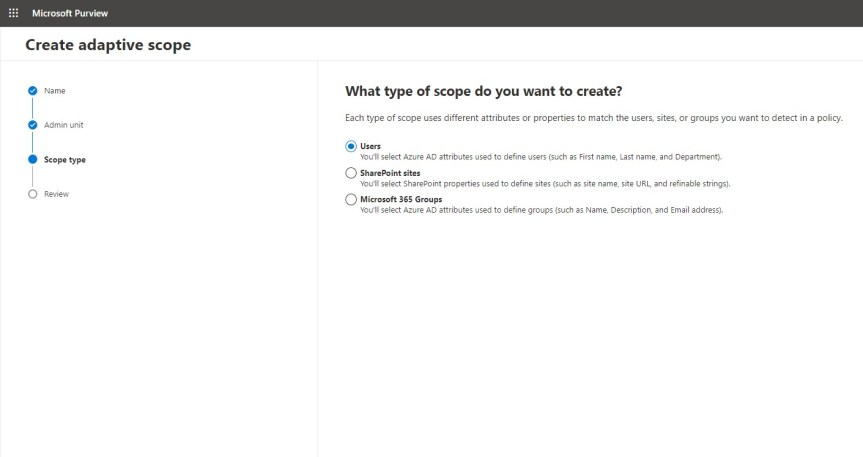
Last weeks vacation on the Isle of Wight was good. If fact, some time away was sorely needed. And whilst I was slightly bummed that I had to turn down speaking at Microsoft's seminal developer event Build this year, the consolation is that I had already spoken at Build twice previously. As the song goes, two out of three ain't bad. But in all honesty I really did need a breather given recent transition work in my org - and besides, it's right that someone else should have an opportunity to experience Build as a speaker. So from looking at Attack Simulation in Teams and Defender last week, I am going to pivot back to Purview and Compliance where I'll look at adaptive scopes in the context of Communication Compliance. Now in the past I have written about and done talks on the circuit about both, but I haven't written or talked about them together. When I first wrote about adapative scopes they were in preview, and at the time they only supported retention policies. Now they can be implemented differently and they support Communication Compliance - what used to be called Supervision back in the day when we had the combined Security and Compliance portal. Now, why would we use them together and what would be the benefit? Let's take a scanario: let's imagine that I am moving from an internal ops role into a senior leadership role where I will be privy to sensitive information which I should not share over my orgs communication apps - here meaning Exchange, Teams and Yammer. If I have Communication Compliance policy set up with an adaptive scope, it can be automatically applied when I transition to that role and apply for the liftime to which I hold that role. This saves IT time and administrative overhead. This means that it can be applied to all people within that senior leadership role as opposed to several roles being created on a user by user basis. As discussed in the last article, Adaptive Scopes are based upon Azure AD properties, but in the world of Teams and Communication Compliance it's important to distinguish between the user scope type which applies to messages in private 1:1 and group chat, and Microsoft 365 Group scope type which applies to messages in channels. This will walk through the user scope but will also show how to set the group scope
[Archived] Teams Real Simple with Pictures: Launching an Attack Simulation in Teams with Collaborative Security
![[Archived] Teams Real Simple with Pictures: Launching an Attack Simulation in Teams with Collaborative Security](https://microsoft365pro.co.uk/wp-content/uploads/2023/05/image-71.png?w=863&h=0&crop=1)
It's done. Vuzion is now Infinigate Cloud. And from my own practice perspective the Teams, and the SharePoint Sites have been rebuilt. The lists, and the flows, and the loops, and the Power BI reports. And all has been migrated. There has been legal to do. There has been some architectural to do. There has - truly - been an obscene amount of DevOps tasks. And there has been burndowns the like of which could very much be considered ones for the ages. But it's done. And I never intended to go six weeks off of the blog, but neither did I anticipate having to practically suspend my community and MVP inputs whilst I had to focus and hone in on what needed to be done on the business end. Now, I am very much looking forward to the next few years at Infinigate Cloud. In the immediate future whilst I am holidaying out on the Isle of Wight with the family, I am looking forward to simply writing this blog. It's going to be about launching attack simulations within Microsoft Teams which is part of the new Collaborative Security functionalities announced at Secure and which is currently in preview. This'll need Microsoft Defender for Office 365 Plan 2, of which Attack Simulation Training (AST) is a part, and whilst I'll only run through a straightforward credential harvest, I hope that it will whet the appetite enough for you to go on and test it and explore more. One note right off the bat - in the context of Teams messages are defined strictly as private 1:1 chat messages. No group chat. No channels. No guests. For now.
Teams Real Simple with Pictures: Forcing Public Preview, and transitioning to the New Teams Client

So it's finally here. The new Teams client. Teams Modern. Or what we've referred to here in MVP world as Teams 2.1 over the past several months. On the day it dropped I was over in Paris speaking at MWCP23. No time for blogs. No time to even post one up on social. Of course I saw a few of my friends who did. Good old Vesku. Sara. But between us whilst I kind of expected to see and hear a lot more about it I am also unsurprised given that maybe it's been a little diluted by the waterboarding we've received from Microsoft over the course of the past few weeks. The cacophony of Copilot. The real strong but still SKU based XDR integration via Microsoft Defender for Office 365 as announced at Secure. For me it is 2.1. which tops them all, and which is the most exciting of all and one which I would suggest will trigger a renaissance of sorts. Yes, l look forward to covering and deconstructing all of these things in the months ahead. But today is all about getting to the new Teams Client, and in the process forcing public preview to users from the admin end. Now being in public preview - and being only for the Windows desktop client currently 2.1 will still be more for the few as opposed to the many. And having tested it thoroughly there is still gaps between it and what we now refer to as Teams classic where we may need to move back and forth between the two from time to time, or have the classic version open in a browser. Those gaps will close in time as we head towards GA when the new experience is rolled out further and backed by an SLA. So what are we waiting for?
Teams Real Simple with Pictures: Exporting a List to the Power BI Service as a dataset – and building reports for Power BI in Teams

Back in 2021 I wrote a blog on Lists and Power BI. Microsoft had just released the ability to visualise a list through the integrate tab. And at that time everything was pretty much good, except it had a fundamental issue where whilst it generated the report on top of List, that report didn't appear in the Power BI service itself. I know, I know. It kind of sounds like one of those first world problems right - and I guess to some extents it is given that the report could be created after all. But for me, who uses Lists as data sources, and wanted them in the service, in a workspace alongside other reports and then to pull then back through into the Power BI App in Teams, it was kind of a frustrating situation being that close. Today, I am probably a bigger user of the Desktop App than the service, connecting to Lists and then publishing them to the service. And this scenario probably pushed me to being more of a Desktop user than a Service user all up. But now we have the ability to export the list directly into Power BI as a dataset. This is massive. So let's go building.
 @Microsoft365Pro