

This blog is part of a series on Teams. For more articles, check back often.
Written: 13/10/2019 | Updated: N/A
Many years ago – when I was a secondary school teacher, I always used to see great stuff on websites or articles in books which I thought could benefit other members of the team. With websites it was always slow and cumbersome having to copy and paste the URL of the site, stick that in an email then add the other members of the team one by one from the address book. With articles in books it was even more hassle and usually involved a photocopier or a scanner – often to much expense. Ultimately, I wanted something quick, cheap and easy to get that information to them that took zero time without having to think about it too much. This is what I love about Microsoft apps – how they work together to make things easy to do. I like advanced – I do – but I will be honest with you, I love real simple stuff which is intuitive and saves time and money. On IoS, between the EDGE app, the OneDrive App and Teams we can get websites and articles from books or slide decks to the Team in seconds and minutes. So the next time you are reading something interesting – a Tech Community article or a Blog – or at a conference and see that killer slide, or reading a book and want to share it with the team, remember it doesn’t take a lot to get that into a channel where the whole Team can benefit from it
WHY WOULD WE DO IT?
- To share websites and articles of interest with the Team
- Easy one to many knowledge sharing
PREREQUISITES
This article is based on IoS and tested on IoS 13.1.2
Users need to be licenced for Teams and OneDrive (usually via Office/Microsoft 365) and allowed to post to the channel. The EDGE, OneDrive and Teams app should be installed but Safari will work just as well for the browser.
HOW
WEBSITES
1. When browsing, in the Edge app, select ellipsis (…)

2. Select Share (Square box with up arrow)

3. Select Teams
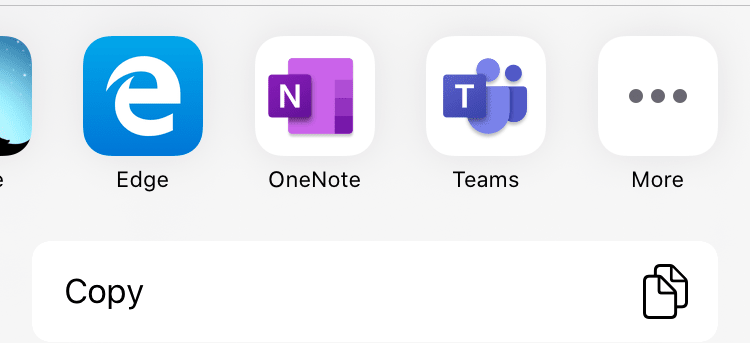
4.) Select Select in order to choose a channel to post into
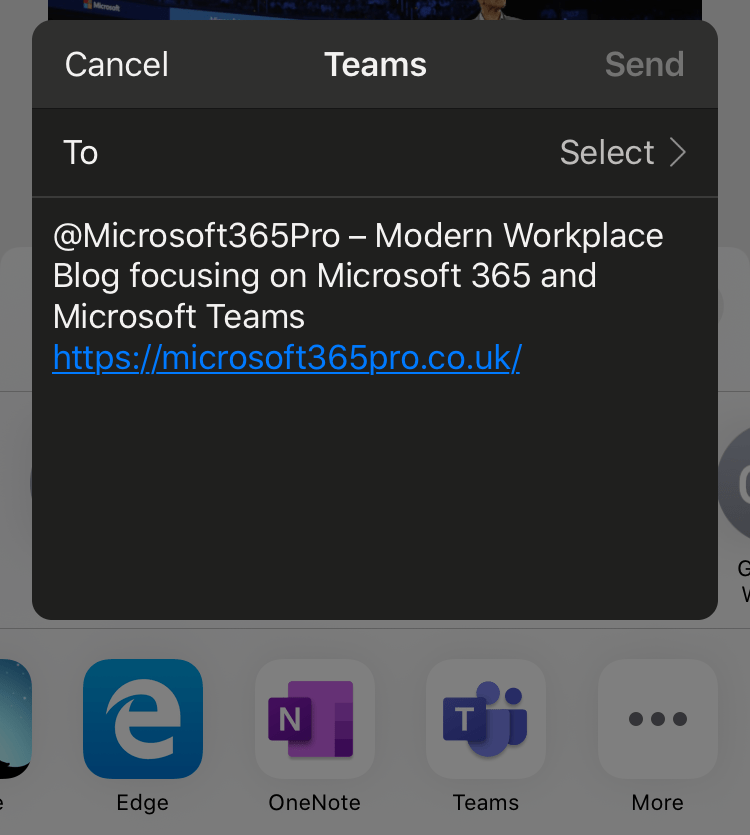
5.) Having chosen a channel, Select Send (here selected as the general channel in the required Team)

6.) The post is now in the required channel of the required Team


SCANS
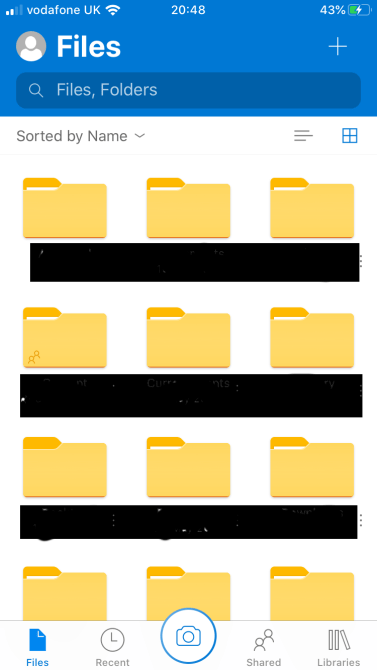
1. Open the OneDrive App and select Camera
2. Scan the Document/Whiteboard/Business Card/Photo with the White Button
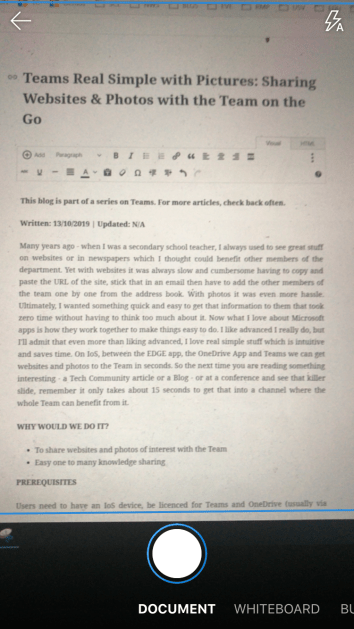
3. Select Done. If there are multiple pages of a document or slide deck keep on adding with + (Plus) until all scans are taken then select Done
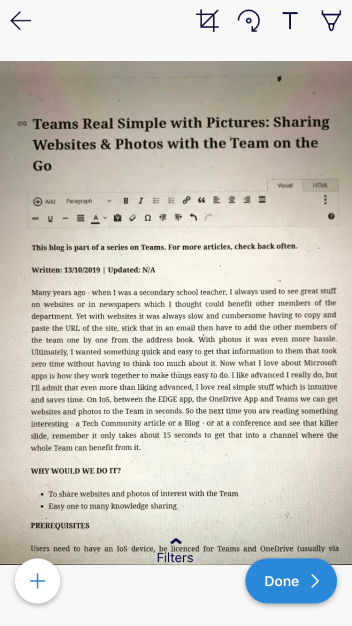
4. To save to a Team instead of OneDrive, go to Other Locations. If the Team is not displayed automatically select See More (which this example will follow)
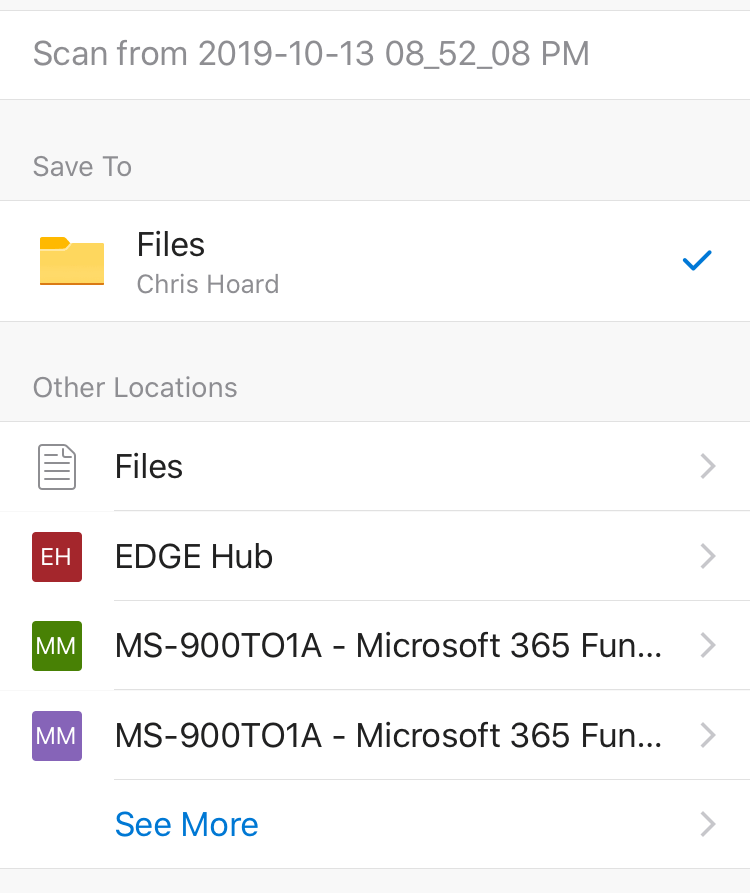
5. Select the Team (in this example Modern Workplace)

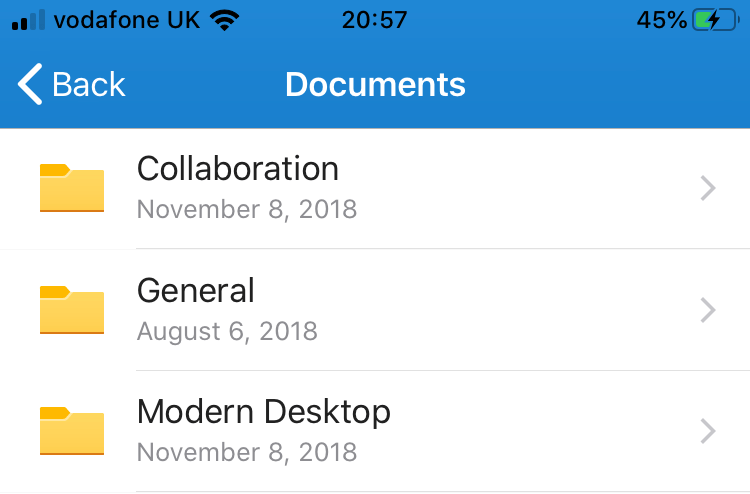
6. Select Documents

7. Select the Team Channel (here selected as the general channel in the required Team)
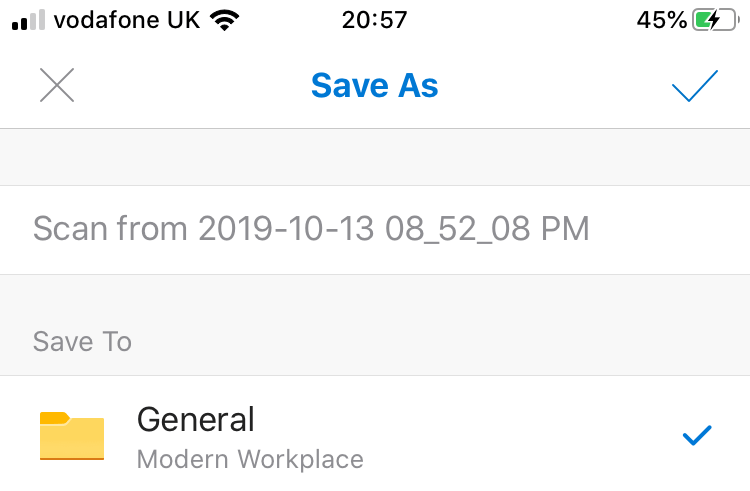
8. Select Save Here

9. Select the Check/Tick at the top of the screen on the right hand side to complete
10. The Scan is now in the Teams’ Files in the general channel
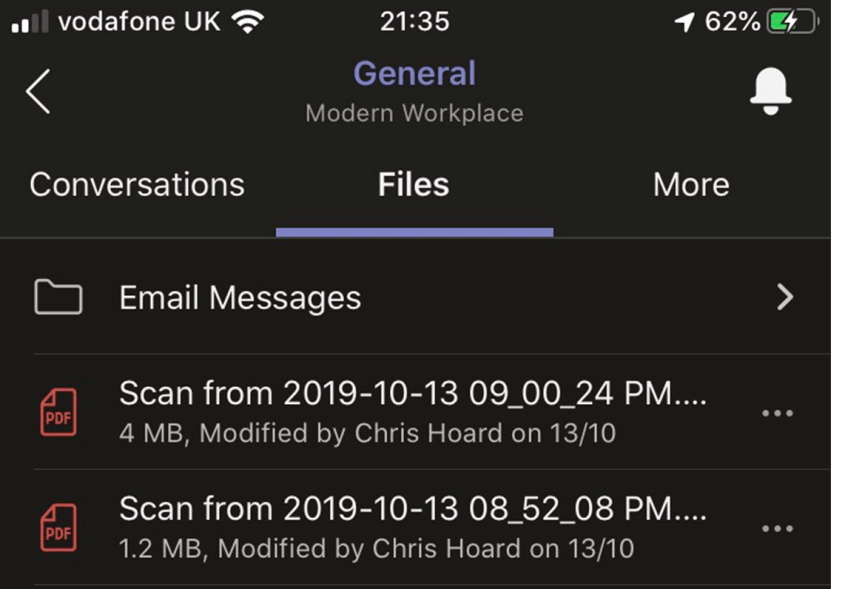


Our work here is done
Powerful functionality between these three apps – really fast and most of all, getting quality content and knowledge to share with the team. With the scans – these can also be added to the channel conversation simply with an extra step of copying the link of the file and posting it into the conversation
 @Microsoft365Pro
One thought on “Teams Real Simple with Pictures: Sharing Websites/Scans with the Team on the Go with the Edge, OneDrive and Teams apps”
Comments are closed.