

This blog is part of a series on Teams. For more articles, check back often
Written: 07/08/2022 | Updated: N/A
Earlier this year we saw the Microsoft 365 Admin App introduced into Microsoft Teams. Now, we have the Support App. The app is designed to ‘Troubleshoot problems they [as in any user] encounter while using or managing Teams, such as failed login or trouble with changing Teams backgrounds, escalate a problem to Microsoft support [admin] and track the status of service requests [also admin]’. In other words, it is bringing the support bot, ticket escalation and monitoring into what Microsoft market as its front end. In terms of time saving – considering that many admins work daily within Microsoft Teams it may shave minutes off from having to login and navigate to raise a ticket when in the flow of the work. Exposing troubleshooting to users may also work in terms of self-service. Additionally, if Power Apps have been built for Internal support, then these may also sit nicely alongside the Support App in regards of having things to hand. But it’s a lot of ‘may’ as opposed to will. Naturally, some admins will wonder – why another app? Why split the ticket function further between the Microsoft 365 admin centre, the Teams app, the Mobile Admin App, and now the Support app. It’s bringing apps to hand but there’s also a conversation to be had about duping functionalities, increasing unnecessary complexity and surfacing everything everywhere. Why wasn’t this surfaced in the help section of the client? Is Support too broad and vague a name and actually cause confusion? These sort of conversations I think we’ll see more of in the not-too-distant future
Let’s go
This blog will cover
- Finding/Enabling/Disabling the Support App in Teams Admin Centre
- Setting an App Permission Policy
- Finding and Adding the Support App in Teams
- Using Support and Raising a ticket
- FAQ
Note this blog may have some abridged steps which will assume some experience with a Microsoft 365 environment and Teams
Prerequisites
- Microsoft 365 Licence which includes Teams
- Global Administrator/User Administrator role – or any role that permits raising support tickets if raising tickets via the app
- Global Administrator/Teams Administrator if configuring an App Permission Policy permitting the app or App Setup Policy to pin it to the app rail
FINDING/ENABLING/DISABLING THE SUPPORT APP IN TEAMS ADMIN CENTRE
1.) Login to https://login.microsoftonline.com

2.) From the waffle, or from the left app rail, select Admin

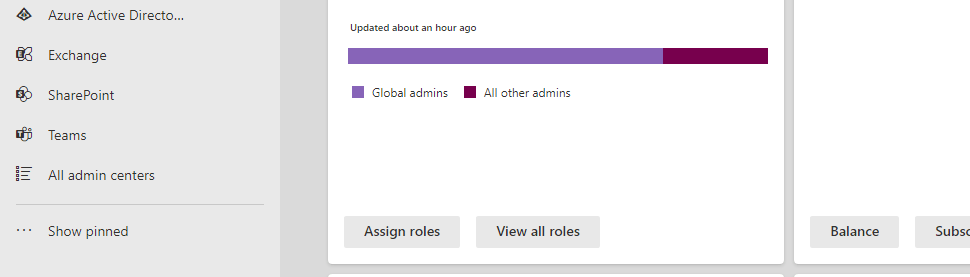
3.) In the Microsoft 365 admin centre, from the left navigation, select Show All and then Teams
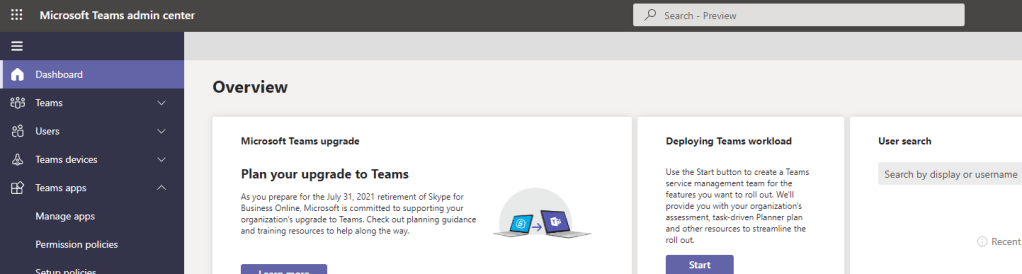
4.) In the Teams Admin Centre select Teams Apps then Manage Apps
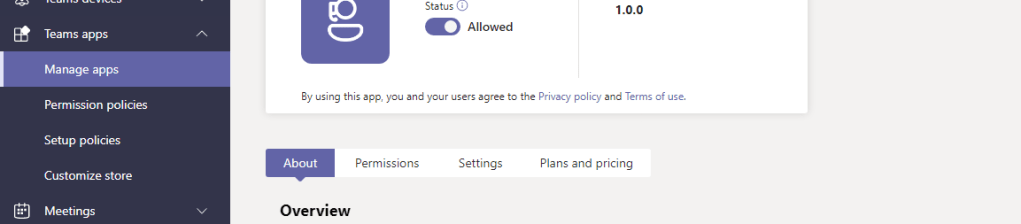
5.) Search for Support and the Support App Appears. It is on by default. Select it should you want to enable or disable it

6.) Should you want to disable it you can slide off. Should you want to enable slide on

SETTING AN APP PERMISSIONS POLICY
Setting up an app permission policy is optional. As defined in the description of the app users can only see the help articles provided, whilst admins have the additional ability to raise tickets. In other words, the app – or part of its functionality is for users unlike the Admin App released earlier this year. However, at this point the admin has to make the decision whether the app would be too confusing (considering it is called support which may be confused with internal support), do users already use help (via help topics in the Teams app, support.microsoft.com, forums or elsewhere) and whether the admins themselves use the Microsoft 365 portal, or the Teams Admin App to raise tickets. If the admins did not want to expose the Support App, and since the global org wide policy is generally used for most users, this would involve creating a custom policy for admins and changing the global org wide default policy to ensure the Support app isn’t available for most. This scenario as outlined will be covered. Most will likely leave the app in the global org wide policy for users to utilise
1.) Under Teams Apps select Permission Policies
2.) Select Add

3.) Set a name for the custom permissions policy for administrators. Set the permissions for Microsoft Apps, Third Party Apps and Custom Apps. This example shows all are permitted for administrators. Once done select Save
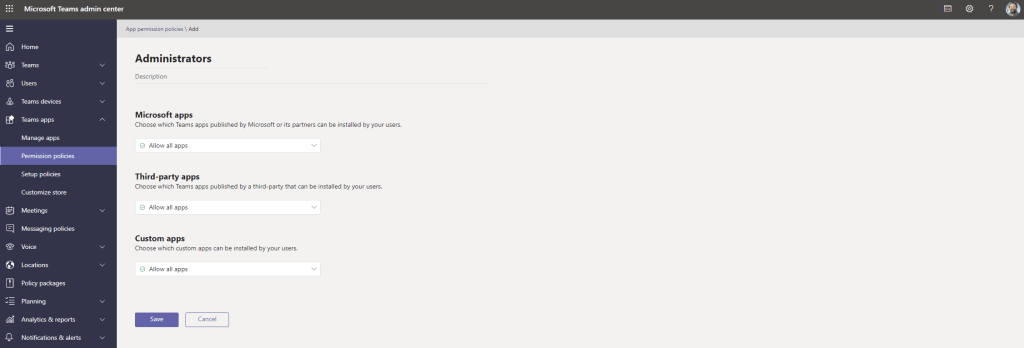
4.) The policy has been created. Assign the new custom policy to your administrators via any one of a number of methods including direct assign or bulk via Users, or via PowerShell. Once done, return to permission policies and select Global Org Wide Default
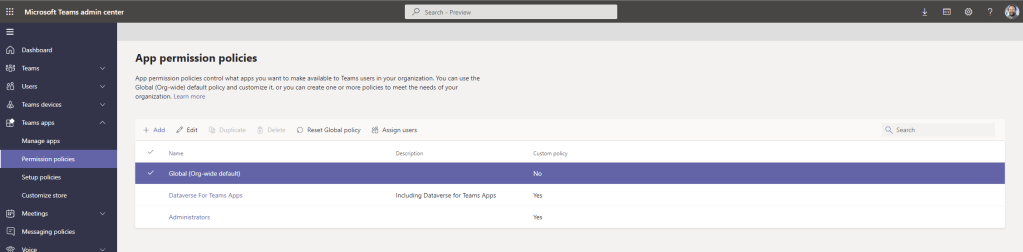
5.) Under Third Party Apps change to Block Specific Apps and Allow All Others and then search, add and Block the Support. Once done, select Save.


6.) The app policy may take up to 24 hours to apply. Strange it is under Third Party Apps as the publisher is Microsoft

FINDING AND ADDING THE SUPPORT APP IN TEAMS
1.) Login to the Teams Desktop App or the Web App at https://teams.microsoft.com

2.) Select Apps on the left app rail

3.) In the Teams App Store search for Support and select Support
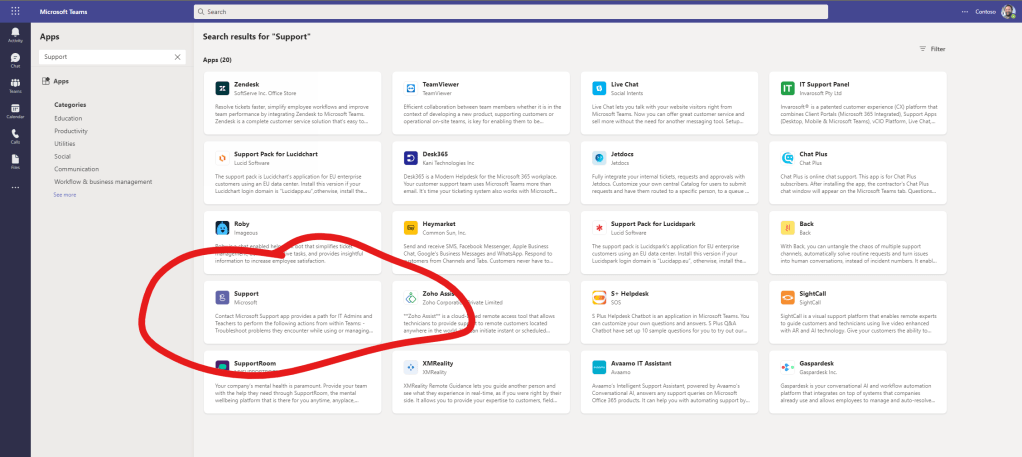
4.) Select Add

5.) App now opens on the App Rail

6.) Right click on the Icon and select Pin to pin it
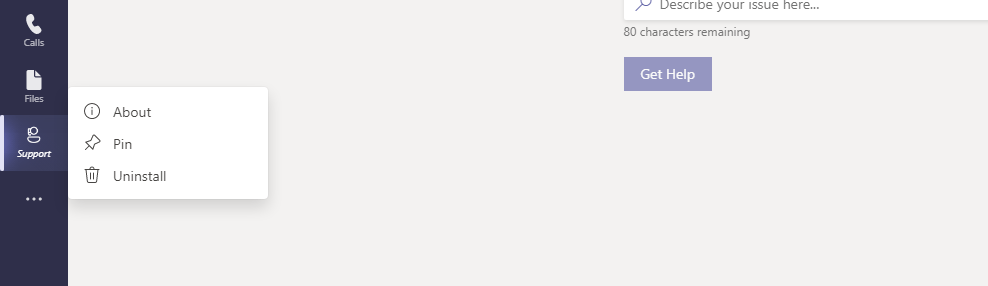
7.) Alternatively, you could set this up from the Teams Admin Centre using an App Setup Policy

USING SUPPORT AND RAISING A TICKET
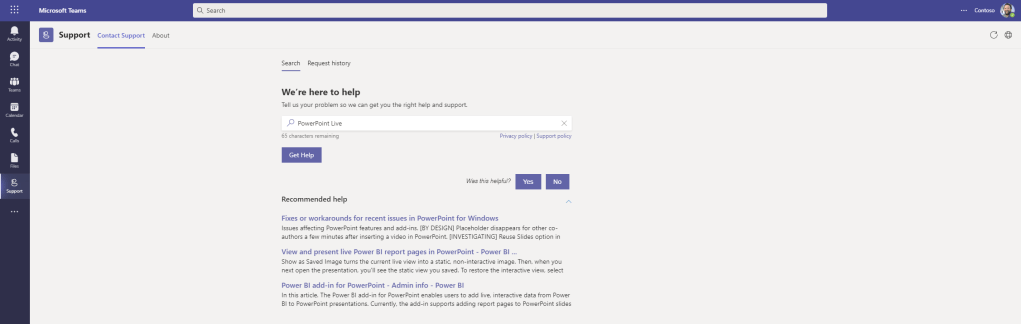
1.) Using the app is simple. Type in an issue you are experiencing, such as ‘PowerPoint Live’ and select Get Help. The query has a limit of 80 characters
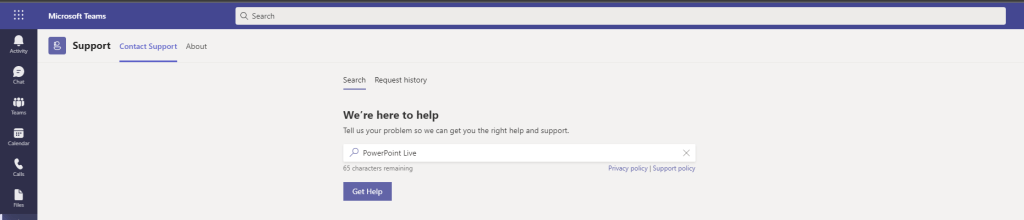
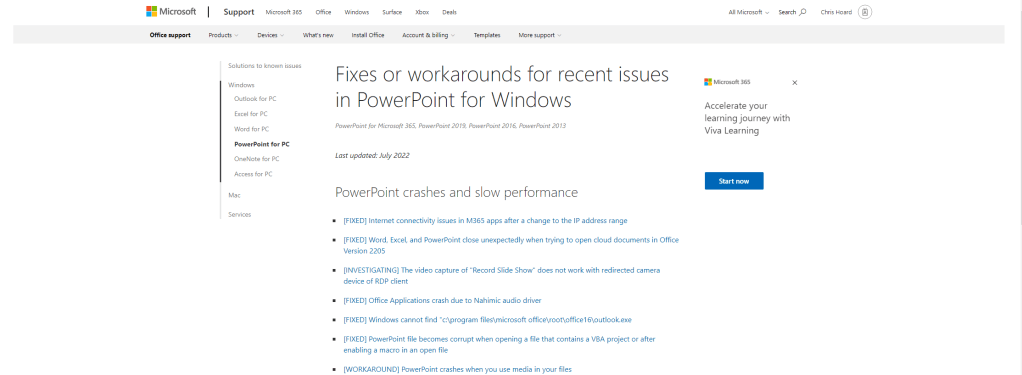
2.) Support articles are suggested. This is what all users will see should they use the Support app. The support articles will go out to either support.microsoft.com or docs.com. Selecting Yes or No for was this helpful is optional, and whether yes or no is selected will return the message Thank You for your Feedback

3.) If you are an administrator and the self-serve articles are not helpful, and the issue needs to be raised to support, then select Sign in to Contact Support at the bottom of the page

4.) Select Provide your email address and a support agent will contact you

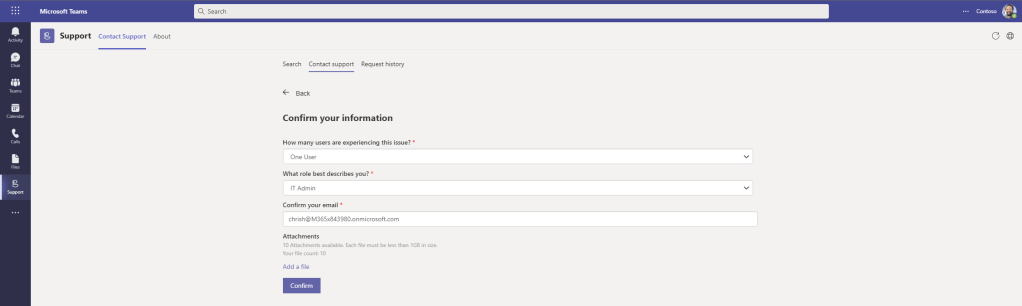
5.) Confirm your information, attach up to 10 screenshots/files and select Confirm
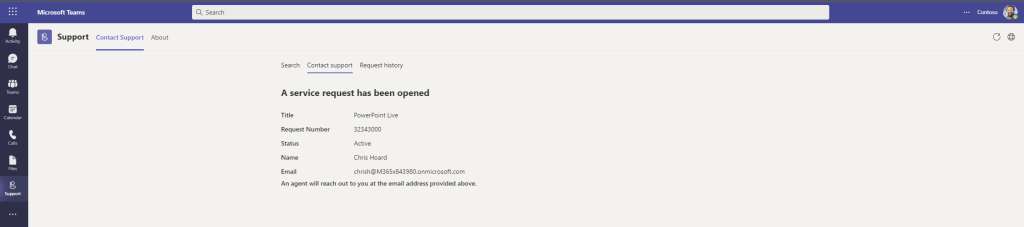
6.) The service request has been opened providing a ticket number. Email confirmation will also be sent via Outlook

7.) Within the Support App, tickets can be reviewed under Request History. Select the ticket to review it’s progress


8.) Note, you cannot close the ticket from the app and will need to liaise with Microsoft in terms of the case and the case closure over Outlook. The support app does not support liaising with Microsoft at the time of writing. It does not show the correspondance. It only provides the details of the ticket, it’s status and progression


FAQ
Q.) In what case is this app useful?
A.) This app may be useful in terms of providing admins with a lightweight no frills way to raise support tickets to Microsoft, review and have users self-serve in order to guide them to some documentation which may help what it is they need
Q.) In what ways is this different from other methods of raising tickets?
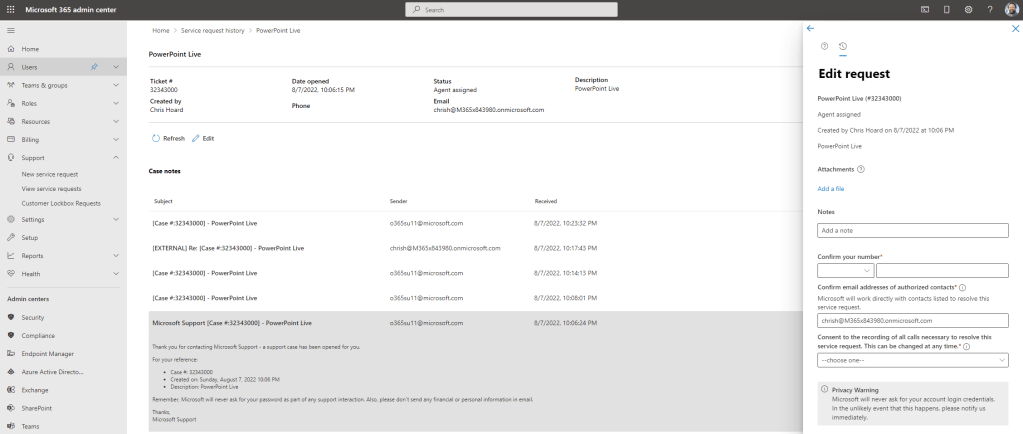
A.) In terms of raising tickets the Support App and the Admin App within Teams are like for like. Support is only adding a section for the users to self-serve on support issues whereas the admin app contains other Microsoft 365 management functionality similar to the admin portal with no user access. The Support App is lightweight compared to the Microsoft 365 admin portal where you can see the full correspondence and set admin details. Due to features and depth the Microsoft 365 admin portal should still be considered authoritative
Q. Can any correspondence with Microsoft be done via the Support App?
A. All correspondence with Microsoft is done via Outlook regardless of where you raise a ticket
Q. Is the Support App just for Support of Teams?
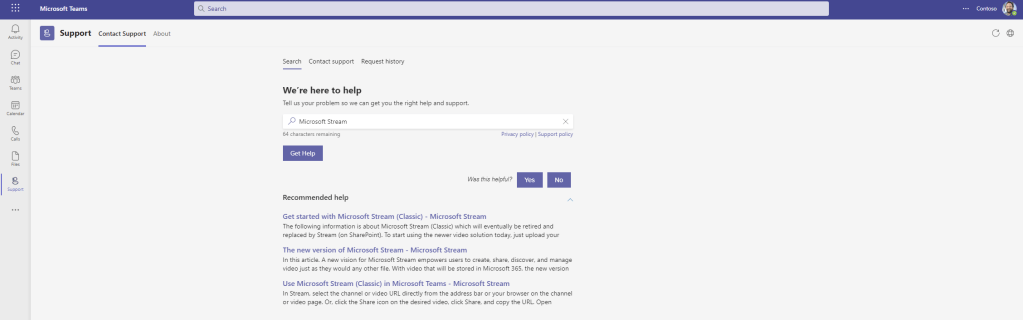
A. No, on testing it looks to a similar, if not the same support bot that is found in the Microsoft 365 Admin Portal – so it looks to support more than just Teams and can work with the rest of the Microsoft 365 stack. As the screenshots show there are queries on Microsoft Stream and Microsoft Loop, and they are unrelated to Teams which brings up both articles of themselves as applications and ones related to Teams. However, if I query about a functionality in Azure such as ‘Sentinel Workspace’ which is unrelated to Teams or Microsoft 365 then it doesn’t return anything.


Q. Do the search results have accuracy and fidelity?
A. That’s the big question: have a look at the term I put in – PowerPoint Live, and it spat out three results which bore little relation to what I wanted to know about. However, that’s not really fair on the app or the fact that I could search for 10 other things – and I may find them. These things will require use and more detailed searches. However, for this app to be useful it will need to have accuracy and fidelity. In addition, I would question whether redirecting to docs.com will be useful for the average user given it’s designed for a technical audience. This in itself may make the admin decide to withhold the app from their users since they may use vague searches and yield either no results or results inappropriate for them. This could cause support issues in itself
 @Microsoft365Pro
One thought on “Teams Real Simple with Pictures: Raise Support tickets to Microsoft via a dedicated Teams App”
Comments are closed.