
This blog is part of a series on Teams. For more articles, check back often
Written: 04/01/2022 | Updated: N/A
So the previous blogs were on Watermarking and End to End Encryption in Teams Premium: and these explored how we configure them and use them in meetings. Now we move on to another feature of Teams Premium to which they both feature which is Custom Meeting Templates. Meeting Templates are groups of preconfigured meeting settings which are templated and named for meeting organizers to use. For example: a ‘Confidential Meeting’ template could consist of Watermarking being on, End to End Encryption being on, Meeting Chat being off and so on and so forth. In the Teams Admin Centre, there are Default Meeting Templates such as Webinars or Virtual Appointments that any organisation can use – you don’t need Teams Premium for these and more will turn up later such as Town Hall and Protected Meeting. However, a Teams Premium Licence gives us the ability to create our own, and set them in a policy for your users to use. Why would we want to create our own meeting templates rather than them being out the box? There could be several reasons – it could be for compliance, or if a part of the business wants a broader set of meeting types. Templates in themselves have the benefit of not having to create meetings, and then immediately follow up with having to amend the meeting options. I can speak of this from personal experience. So let’s go build a Custom Meeting Template and publish it out to our users. But before we do, we must know that there can be a max of 50 custom templates, which I imagine is more down to custom templates for specific business units as opposed to combinations of settings, and that for the custom template may be visible in the calendar app it could be a 24 hour wait.
Let’s go!
This blog will cover
- Getting Teams Premium Trial
- Configuring the Custom Meeting Template
- Checking the Template is added to existing Policies/Hiding
- Using the Custom Template
- FAQ
Note: this blog may have some abridged steps which will assume some experience with Teams. This blog is using a Ring 4 tenant with GA functionality. Teams Premium will be a trial sign up, but will soon be orderable via Microsoft 365 Portal or your CSP Partner
Prerequisites
- Global Admin for trial sign up. Global Admin or Teams Admin for TAC configuration
- Microsoft 365 Licence for Teams for testing
- Teams Premium Trial Licence for users
- Ensure Teams Client is up to date on the latest version (1.5.00.34874 (64-bit))
GETTING TEAMS PREMIUM TRIAL
Ok, so the tenant I am using is not using Teams Premium so I will need a Teams Premium trial.
1.) Go to https://aka.ms/tpdlnk and login with the global admin credentials

2.) Select Start Free Trial. Currently in this trial only 1 licence is permitted

3.) Select Try Now

4.) Select Continue

5.) Wait a few minutes and the licence will be provisioned to the tenant. In the Microsoft 365 Admin Centre select Users then Active Users

6.) Select the User to assign the Teams Premium Licence to, then Manage Product Licences. Tick Microsoft Teams Premium and then Save Changes. All set up and ready to go.

CONFIGURING THE CUSTOM MEETING TEMPLATE
Ok. Now the licence is assigned to the user this should enable the configuration in the Teams Admin Centre to configuring the custom meeting template
1.) In the Microsoft 365 Admin Centre, select Show All then Teams from the left navigation

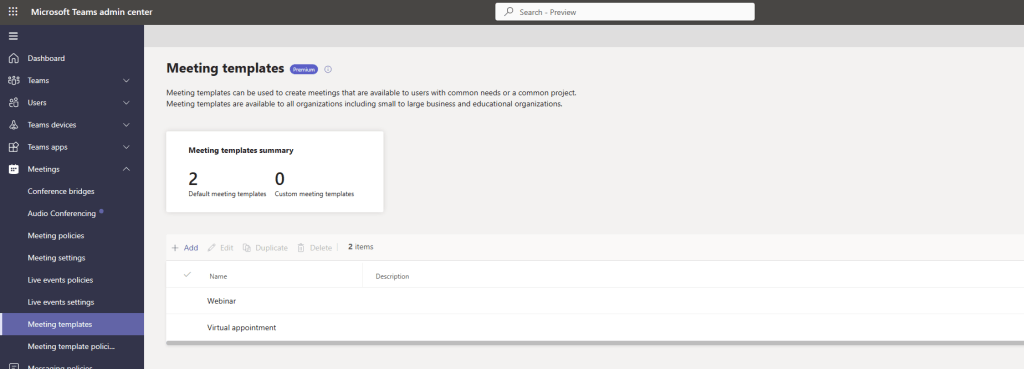
2.) In the Teams Admin Centre, from the left navigation, select Meetings, then Meeting Templates and then Add. As you will see here the default, read-only templates of Webinar and Virtual Appointment already show
3.) Firstly, provide a Name and Description for the Custom Meeting Template. This example will use Sensitive Meeting

4.) Now configure the meeting options. You will be able to do a few things with each Meeting Option. First, you can specify what you want the default to be. This example shows I want the lobby to be only bypassed by Meeting Organisers and Co-Organisers.

5.) Second, you can specify if you want to lock the meeting option, which means if the meeting organiser will be able to change that option in the meeting options. In this example, I have select Lock above the meeting options and then select OK because I don’t want meeting organisers in my org to change this if they have a sensitive meeting.

6.) Third, you can choose to hide the meeting option which determines if the meeting organiser can see that meeting option. In this example I will allow them to see this option, but because I have locked it previously it should look greyed out if they look at this meeting option within the sensitive meeting.

7.) Choosing the Default for each meeting option, whether we Lock it and whether we Hide it from view is the basis to creating our template. In this example, I have added Watermarking and End to End Encryption and gone through and configured each meeting option available. Note: you will notice not all of the meeting options (such as CART) are visible here yet. In addition, some grey out if others are enabled: recording, for example, is completely greyed out because both Watermarking and End to End Encryption are turned on. And we know from previous blogs that certain meeting options grey out anyway like CART or Sign Language Interpretation grey out if Watermarking or EE2E is used. Once done, select Save.


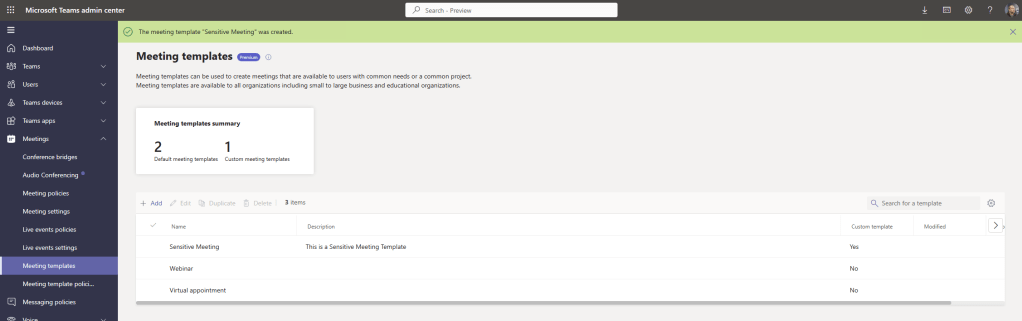
8.) Our Custom Meeting Template is now created
CHECKING THE TEMPLATE IS ADDED TO THE GLOBAL POLICY/HIDING/REMOVING
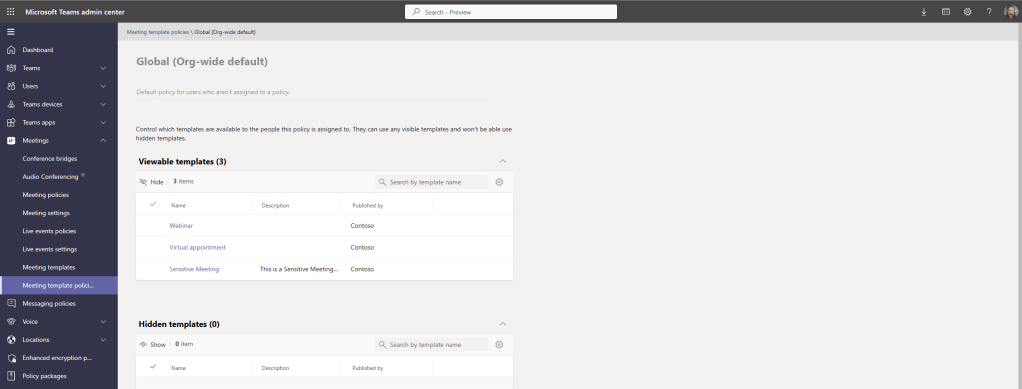
At the time of writing and testing, the custom meeting template is automatically added as visible to the existing meeting template policies – both global and custom. This is by design, but this could be changed in the future so that by default they are hidden and you have to make them visible. But regardless, we always want to ensure that the template is in the right policy.
1.) From the left navigation select Teams Template Policies

2.) Select the Global (Org Wide) policy which covers all users. By auto adding the custom meeting template to the global org wide template policy, that custom template will be available to everyone who has a Teams Premium Licence assigned. To be as clear as possible only default templates are available and visible to everyone within the global policy.

3.) Should you want to hide the template in that policy simply select it, select Hide and then Save

We are all done. We have created our meeting template. It is in the policy, and after propagation, our users with Teams Premium licences should be able to use it!
USING THE CUSTOM TEMPLATE
Everything is set up and ready to go, but we still want to setup a meeting, make sure that the sensitive meeting type is visible, and test to make sure the meeting options are as we set them in the template. As said in the intro, it can take up to 24 hours for the custom template to be visible.
1.) In the Teams client select the Calendar App from the left App Rail

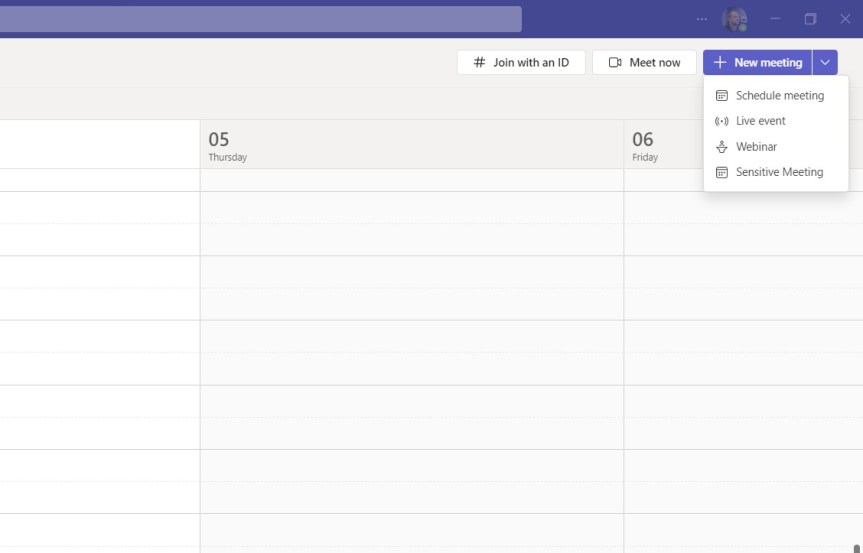
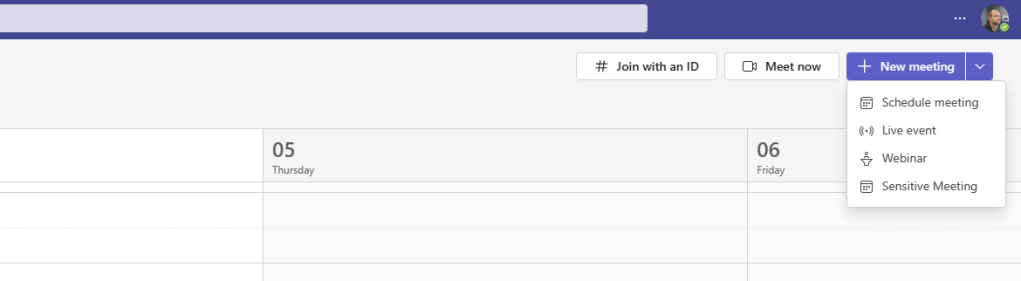
2.) Select the Dropdown next to New Meeting at the top right. It’s there – our Sensitive Meeting Template. Select it.
3.) And there we have it, whilst scheduling the meeting all the meeting options (now surfaced on the right hand side) are greyed out and locked and there is a notification that the options are locked

4.) After the meeting is scheduled and going to the Meeting Options which is the authoritative place for Meeting Options this is what they look like. Only Co-organisers, Who Can Present, Meeting Theme and Allow Attendance Report are modifiable. This will be the same in meeting.


Our work here is done 😀 Custom Meeting Templates give organisations the flexibility to make their own meeting types up. For many organisations, default meeting templates may suffice, but I have already raised to my own org for a custom meeting template because I want the meetings I run to have specific settings. I like that we can customise and standardise at the same time.
FAQ
Q.) What is the maximum custom templates?
A.) At the time of writing, 50
Q.) Is there PowerShell support?
A) Doesn’t look like it Trawling through all the reference lists, can’t see anything like New-CsTeamsMeetingTemplatePolicy or New-CsMeetingTemplate. Looks like it’s TAC based for now with PowerShell support coming later
Q.) Sensitivity Labels weren’t shown in this.
A.) Correct, that’s the next blog. Sensitivity Labels do show in Meeting Templates as Meeting Options once they have been created
 @Microsoft365Pro