

This blog is part of a series on Teams. For more articles, check back often
Written: 22/01/2023 | Updated: N/A
Custom Filters. Defined by Microsoft as follows: ‘a new feature in Microsoft Teams Meetings that will allow participants to augment their video streams with visual effects such as frames and styles. [They are] built on the Teams Platform infrastructure and provided by Microsoft first and third-party partners as apps and displayed as a collection of filters’. Sound good? Well they have now surfaced into preview, expected GA in February. But if we look back into the history of Teams then filters themselves aren’t strictly a new functionality. They have been around for at least three years (half of Teams life): and were certainly being used by IT Pros when custom backgrounds were introduced back in 2020 through third party apps such as Snapchat and OBS which leveraged virtual cam. Microsoft then introduced Soft Focus and Adjust Brightness – which are also Filters – later in 2022. So at this point, we have backgrounds, Avatars on the way, and we now have Filters, too. All native, all options for the meeting. But like backgrounds, and like Avatars, Filters are going to provoke the same questions and spark the same discussions. Can we control them? Do we allow our users to use them? The old famous just because we can doesn’t mean we should. Will they be a fad? Will they add richness to the meeting? We come face to face once again with those hard subjects of culture and identity and expression and bias. Luckily, I will leave that to you to decide. Here’s how to configure them, with a few pertinent questions for the administrator such as – do they work with Teams Meeting Recordings, and are they compliant to meeting policies?
Let’s go.
This blog will cover
- Configuring Preview
- Configuring Custom Filters for use in Teams Meetings
- Can we control Filters?
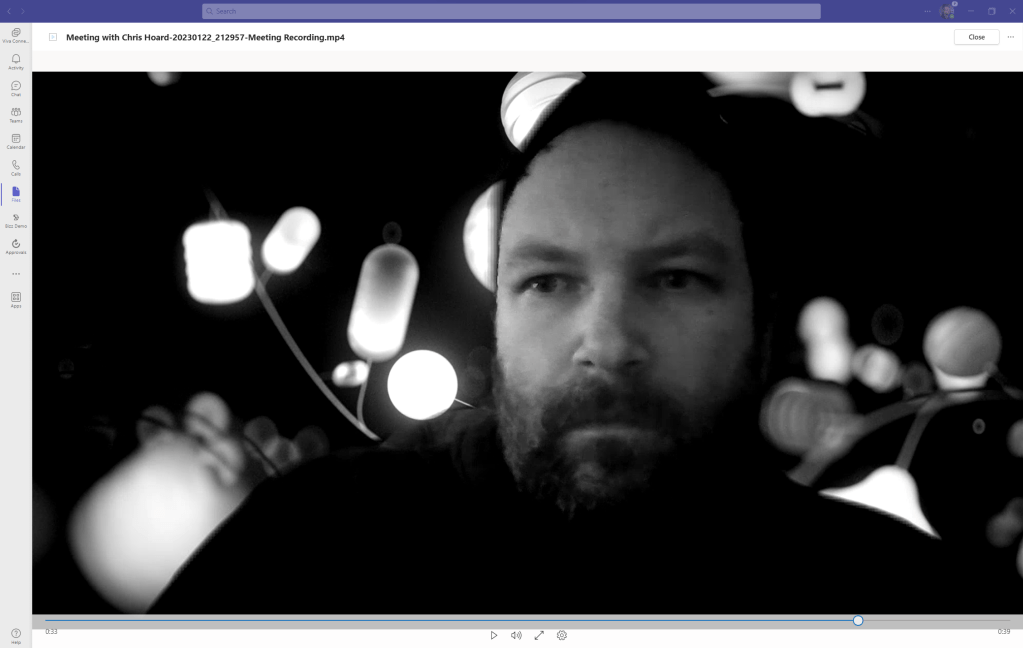
- Do filters apply to Teams Meeting Recordings?
- FAQ
Note: this blog may have some abridged steps which will assume some experience with Teams and the Teams Admin Centre. This blog is using a Ring 4 tenant with GA functionality. At the time of writing Custom Filters are in Public Preview, so Preview will need to be configured in the Teams Admin Centre and in the clients of those who want to use the functionality
Prerequisites
- Teams Administrator or Global Administrator for Policies
- Microsoft 365 Licence for Teams for testing
CONFIGURING PREVIEW
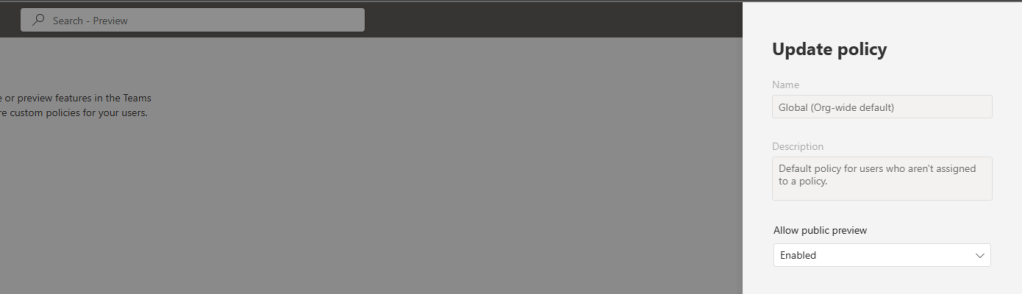
Custom Filters are in Public Preview at the time of writing, which means that users who would like to use this feature need to be configured for Public Preview via the Teams Update Policy, and have Public Preview enabled in the Teams Client. A blog how to do this can be found here (please note screenshots may have changed since it was written)

CONFIGURING CUSTOM FILTERS FOR USE IN TEAMS MEETINGS
Now that preview has been configured, we can go ahead and use Custom Filters
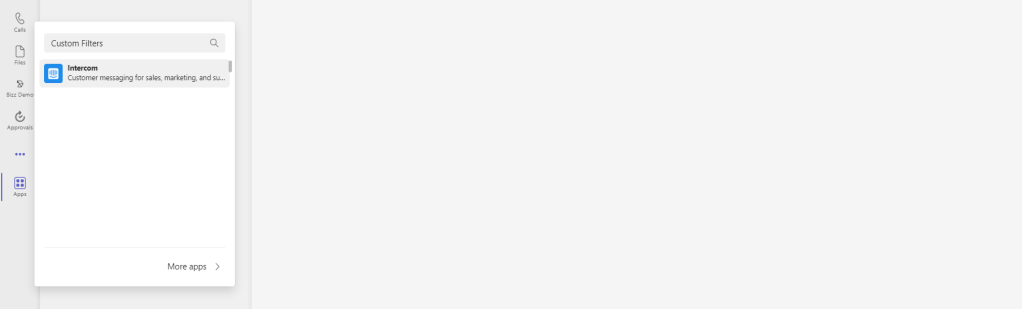
1.) In the Teams Client, select Apps from the left App Rail, search for and select Custom Filters. Note that the app cannot be found through More Options (…) at the time of writing

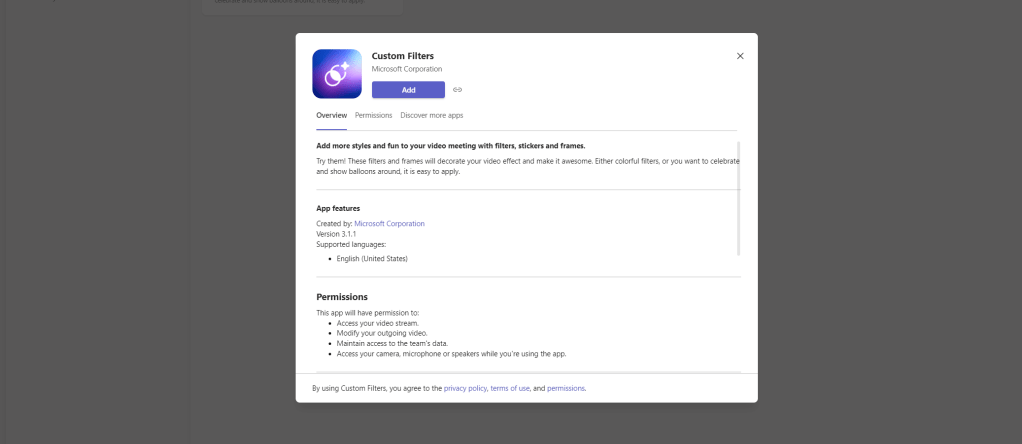
2.) Select Add
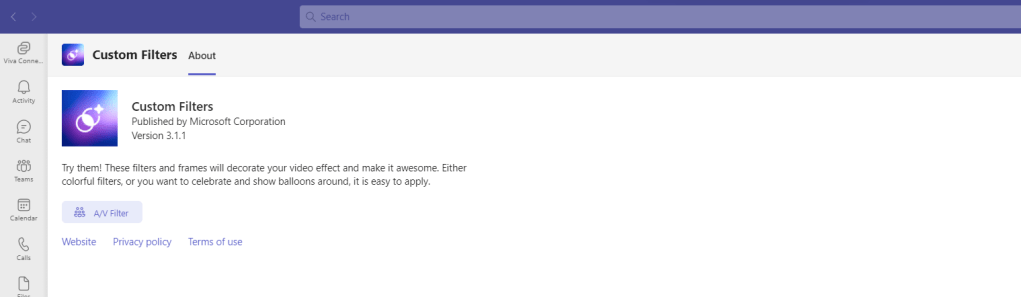
3.) The app will then be installed
4.) Start a meeting. This could be a private, channel or ad hoc meeting (meet now). This example will use a meet now via the Teams Calendar App

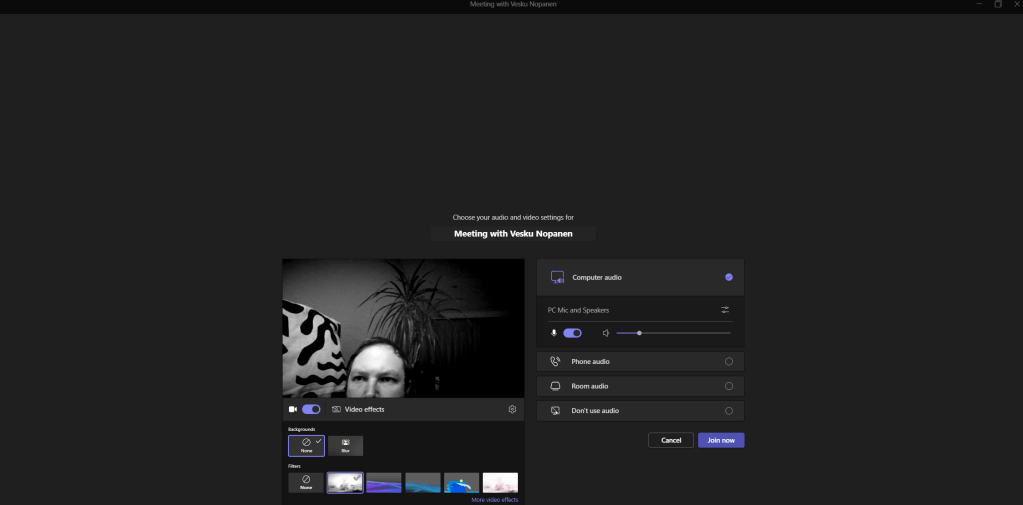
5.) On the pre-join screen turn the Camera on and select Video Effects. Both Frames and Styles are the Custom Filter Types. Select one to add the Filter. To define the differences between them.
- Frames: images or animations which overlay the video
- Styles: colours/tones which overlay the video
Note that at the time of writing a frame and a style cannot be chosen at the same time. The example below is a black and white style.

6.) These can be used in combination with the filters Soft Focus and Brightness
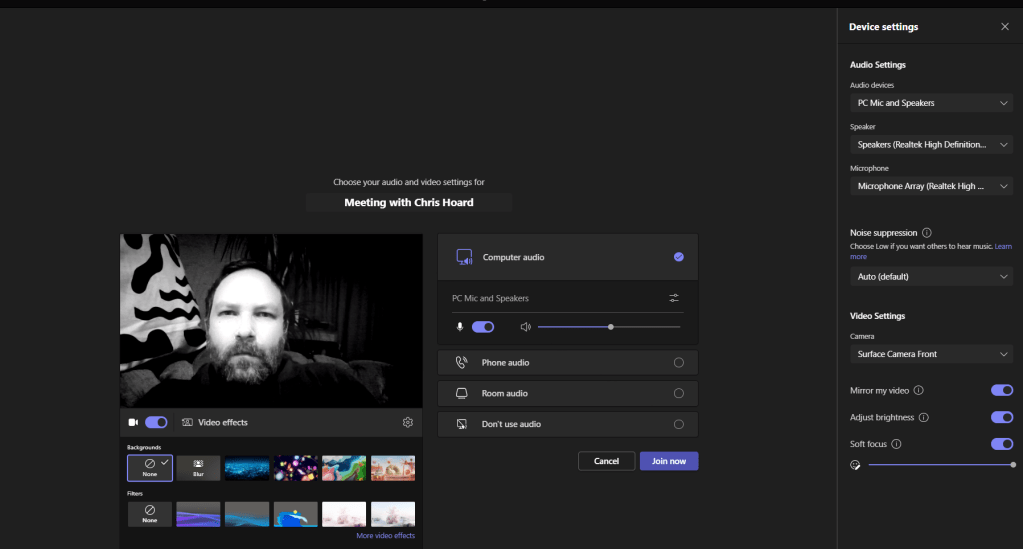
7.) All of these – filters including Soft Focus and Brightness can be used in combination with Backgrounds
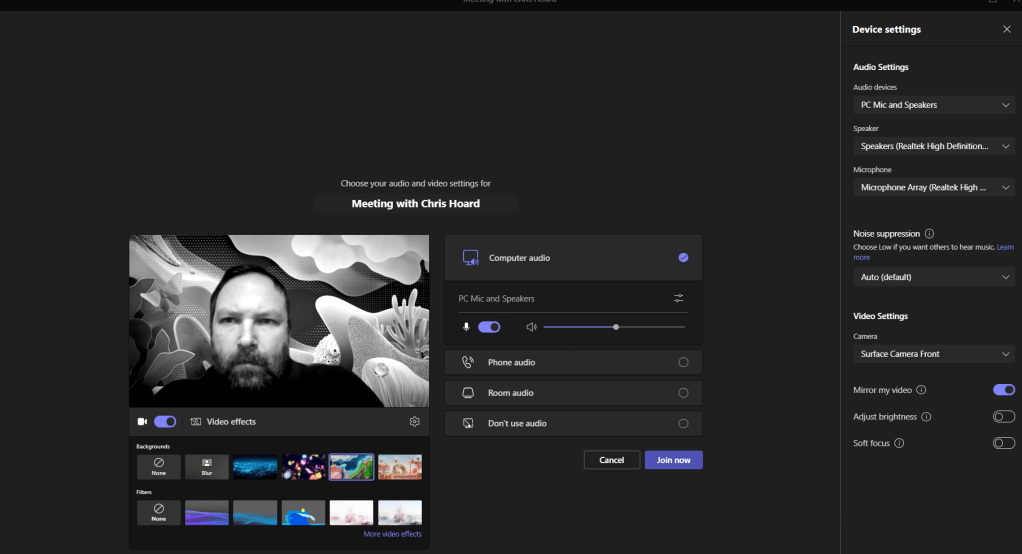
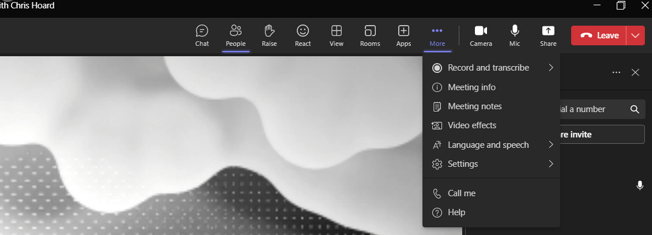
8.) Within the meeting, frame and style filters are controlled by selecting More Options (…) and then Video Effects
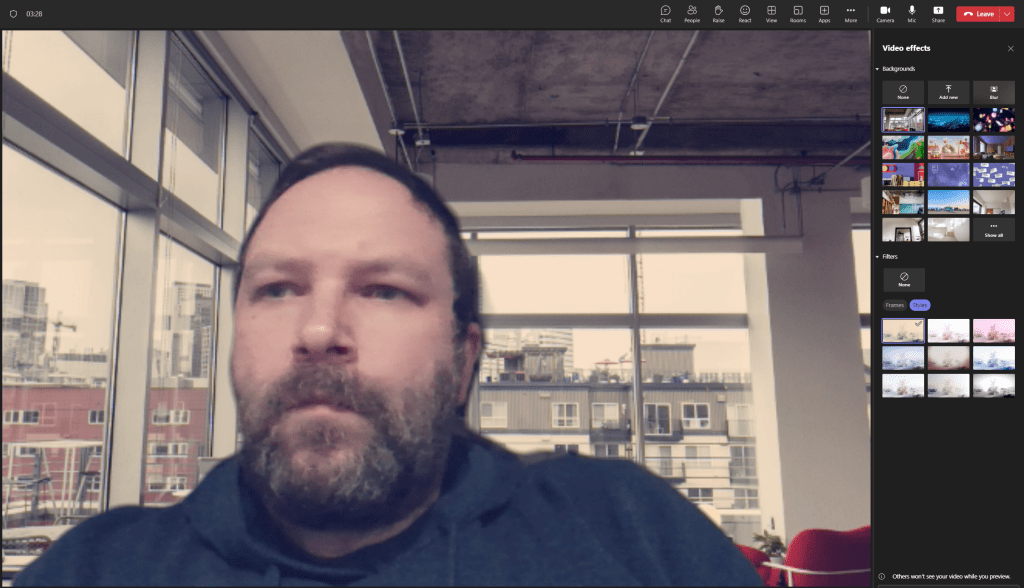
9.) Here, you can change the background and the filters. You can Preview and Apply per the standard background experience. Below is an example of a Sepia Style and a Wave Frame used in combination with different backgrounds

10.) Filters will work with PowerPoint Live
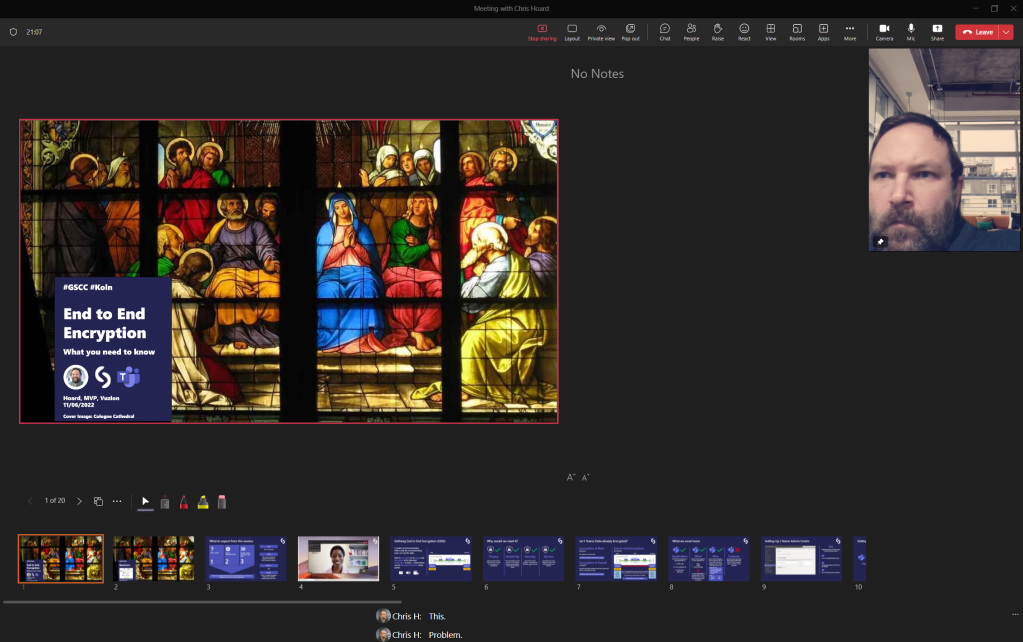
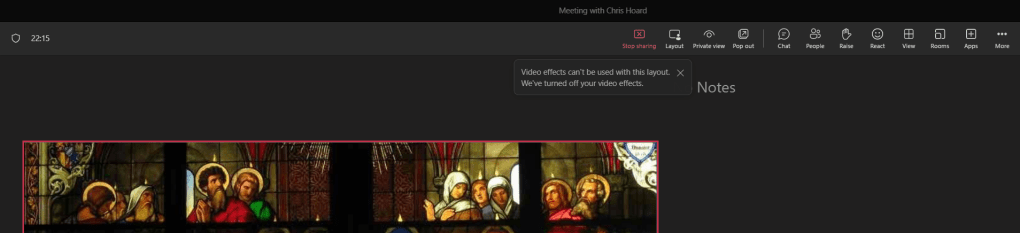
11.) However they do not work for Presenter Modes as noted by the bubble and are turned off.
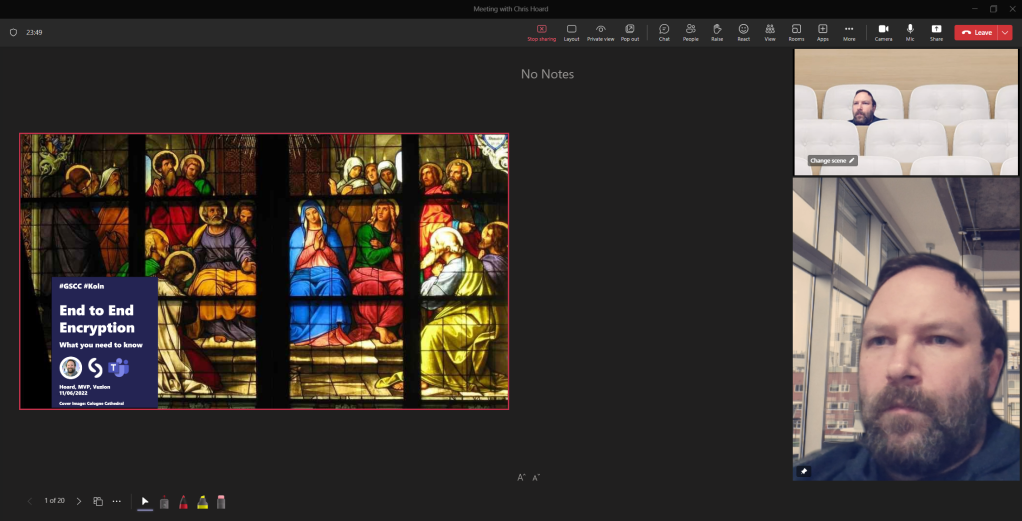
12.) They do apply to Together Mode as well as Collaborative App experiences like YouTube
CAN WE CONTROL CUSTOM FILTERS
Now we have seen that filters can be configured on the pre-meeting join page, as well as during the meeting, the next question we need to ask is: can they be controlled and administered? Considering that Custom Filters is an app, the first place to look is the Teams Admin Centre.
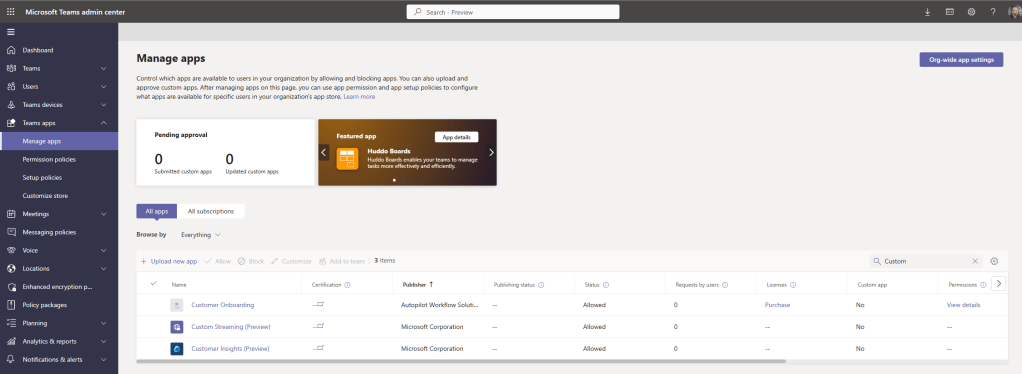
1.) Within the Teams Admin Centre select Teams Apps then Manage Apps

2.) What is interesting is that Custom Filters – at the time of writing – doesn’t appear under apps at all. It is not in defined searches for either “Filters” or “Custom Filters”. Even scrolling through the list to look at all the apps added by Microsoft or Microsoft Corporation it doesn’t appear anywhere
3.) Custom Filters and the above searches don’t appear in App Permission Policies either. Not under Microsoft Apps, or Third Party, or Custom
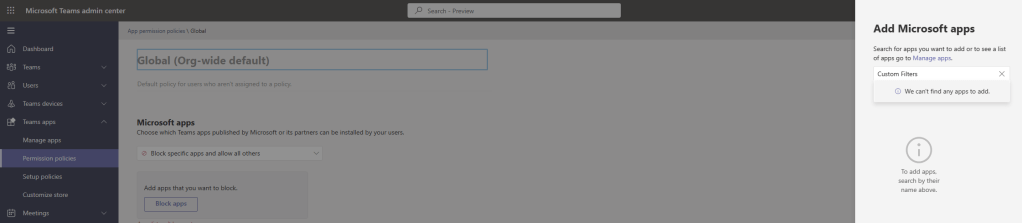
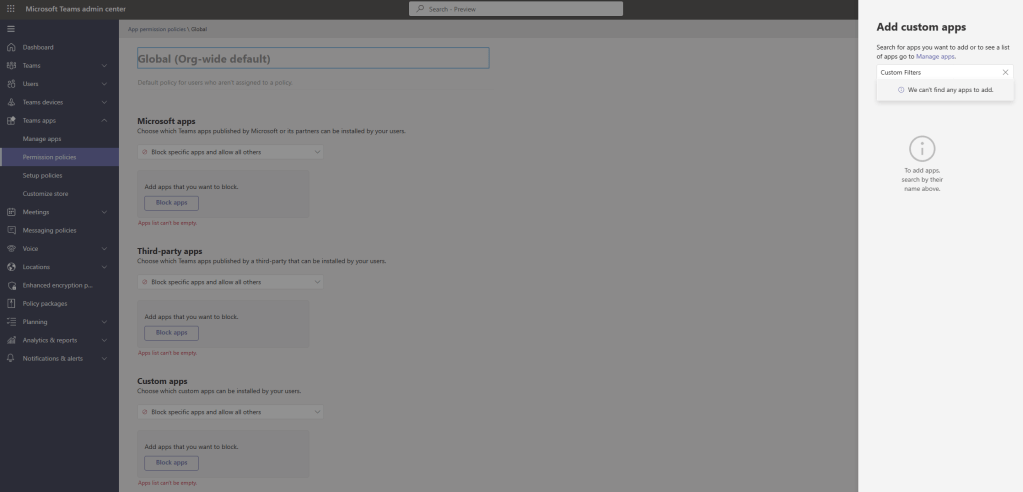
4.) Trying to find alternatives, I thought it may be controlled by Video Filters within the meeting policy – the same as backgrounds. Creating a Custom Meeting Policy called No Filters where Video Filters is set to Background Blur Only. I applied that policy directly to a user

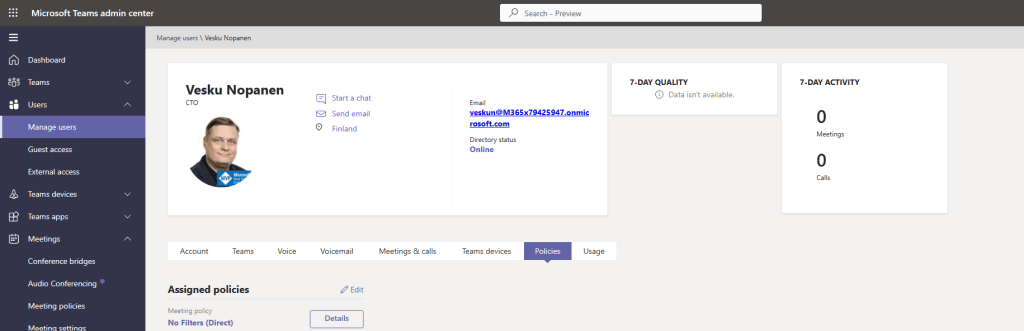
5.) Installing the app for the user
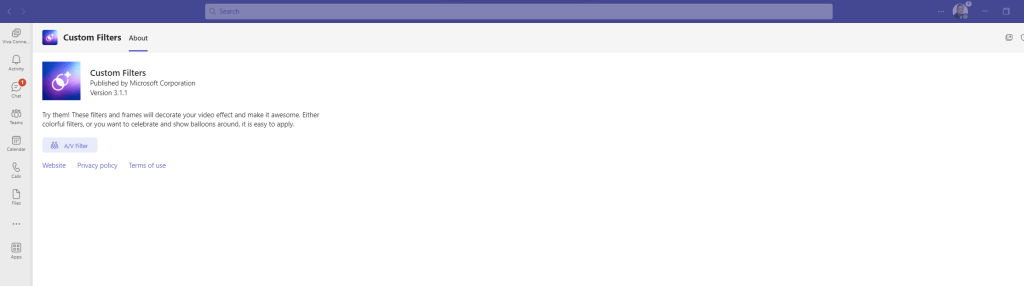
6.) They are still available in the preview: even with the no filter policy applied. So this setting in the meeting policy has no impact on the availability of custom filters
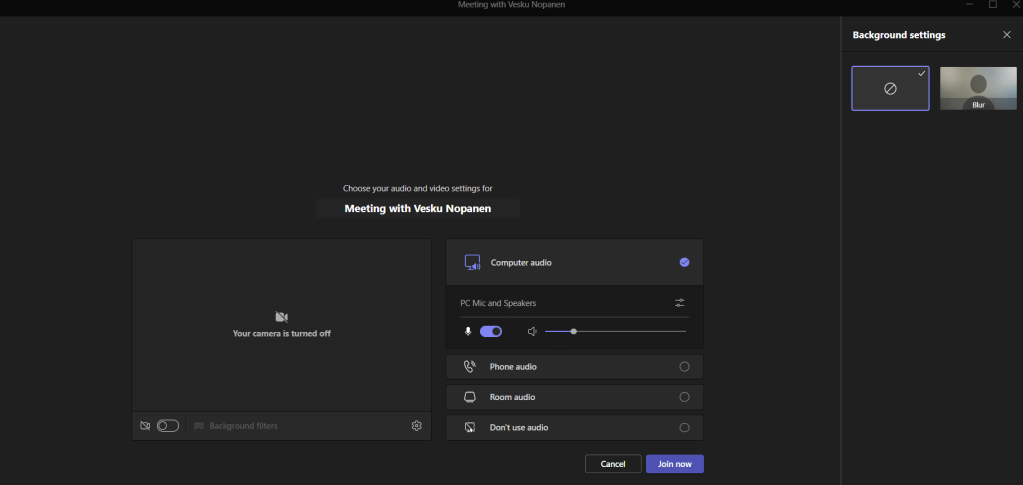
7.) Going to more extreme lengths, I decided to implement a Block All policy. This did have an impact and the app suddenly needs approval
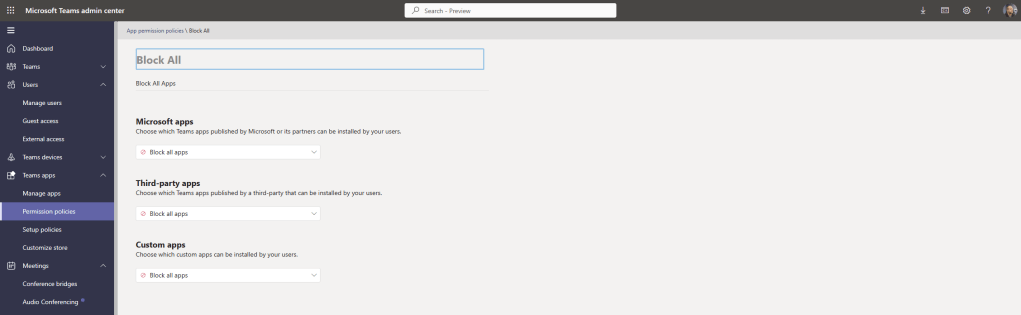
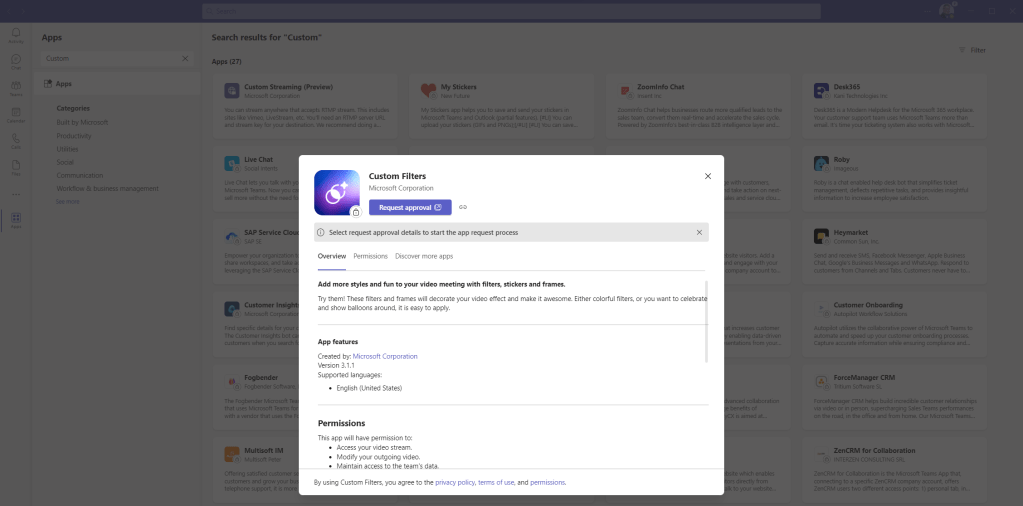
8.) Meetings now organised for the user with the Block All App Permissions Policy now cannot use Filters, so logically, an Allow Specific Apps and Block All others will work

9.) For curiosity, I tired requesting approval in the traditional method (not redirecting to a URL)
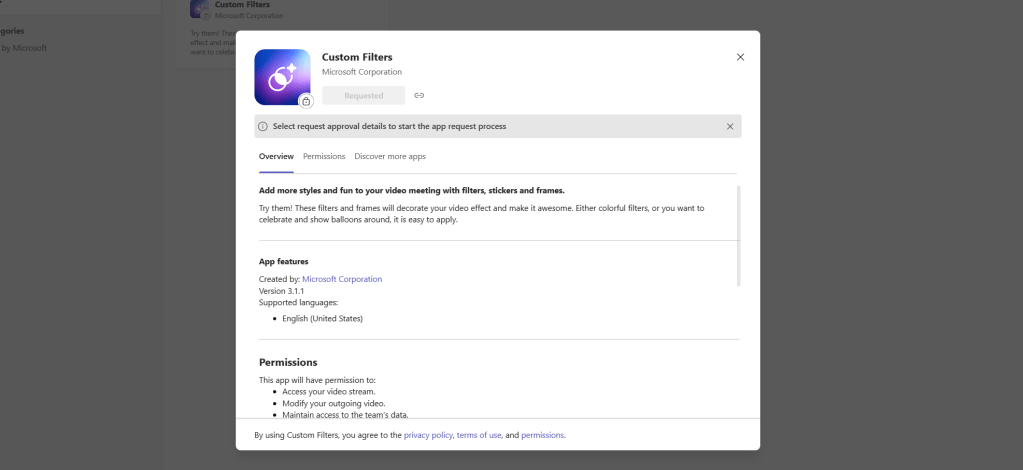
10.) Nothing appears in the TAC under requests
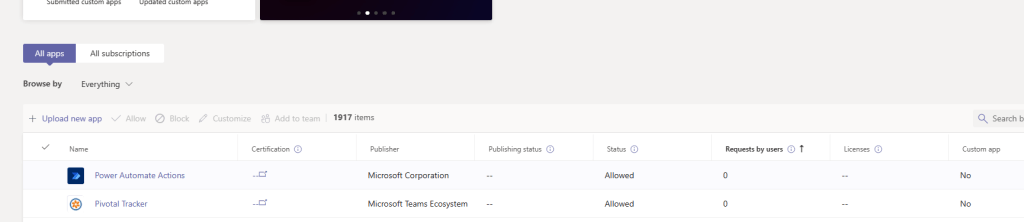
11.) You can’t get information on the app back through the Shell using Get-TeamsApp. No ID’s are returned

Hopefully, control of the app in line with the modern experience will arrive before the public preview has ended. It would then be a case of either disabling the app, or blocking the app in the Teams Admin Centre, which ought to control the functionalities. Maybe it’s not fully onboarded. Or maybe it’s hidden until the preview has ended.
We can, if we must, Allow Specific Apps and Block all others if we must. Of course, there is also even more extreme measures which can be employed such as blocking IP video which stops usage of video in the actual meeting, or if the organiser is compliant and simply wants to block attendees using it they can hard mute video.
But from a Security and Compliance perspective, there will be eyebrows raised, and for some it will be a concern. It will be a concern a.) There is a native app within their environment which they cannot control and administer in line with other policies and b.) They ultimately can’t stop users using it unless they apply some pretty stringent app permissions policies or take out video. For certain organisations, they may have compliance regulations that insist that Microsoft Teams meetings are conducted in a specific manner, and amending the stream with something that could be associated as unprofessional is risky.
DO FILTERS APPLY TO TEAMS MEETING RECORDINGS?
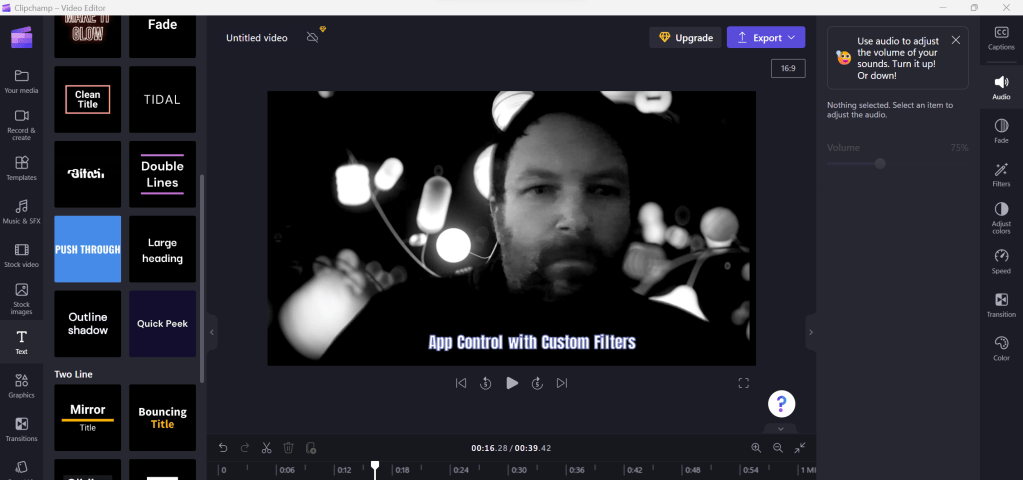
Given that many conversations this past year have surrounded the fidelity of Teams Meeting Recordings (TMR’s) especially things like together mode, presenter views, cameo, I am pleased that video filters do work. Here is an example of a Teams Meeting Recording saved to OneDrive and then played back through the file tab.
I can then go modify it in Stream
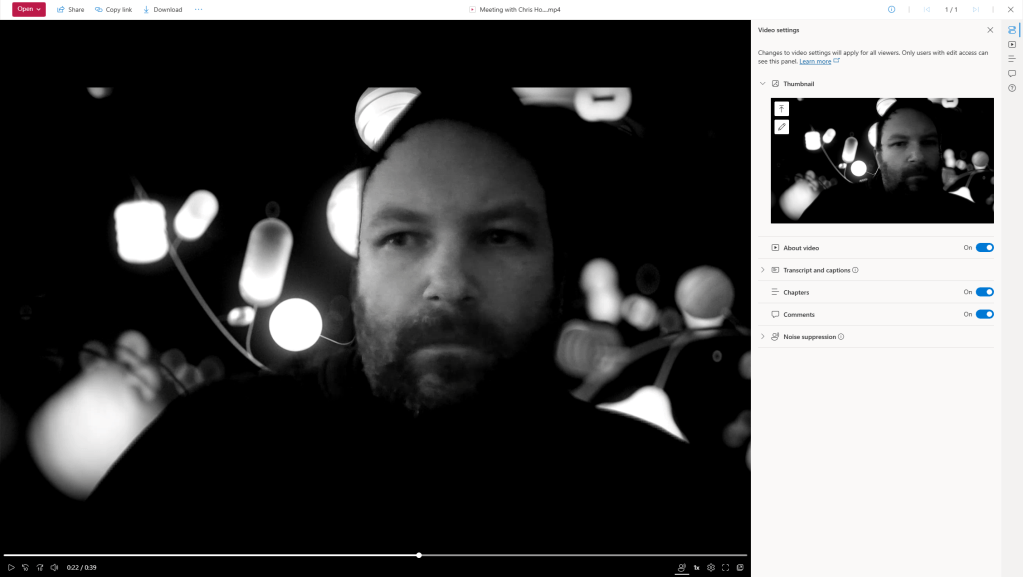
Or Clipchamp
FAQ
Q. Does Custom Filters work in the web client?
A. No. It works in the desktop client – on Windows, but haven’t tested Mac at the time of writing. Unknown on Mobile, Linux and VDI
Q. Does the settings persist between meetings?
A. Yes, like other options on the pre-join, when you set the settings including filters on the pre-join screen they carry over and persist to the next meeting.
Q. Would there still be a case to use third party?
A. Well, the custom filters – both the frames and the styles are pretty basic, and they are not as developed as apps such as Snap Chat which use the virtual cam, and with OBS you have complete control of the stream. Custom filters is unlikely to change peoples minds who use those apps, however they could add something to those who don’t use filters
Q. Will Microsoft fix the app control?
A. I imagine they will, but of course with SaaS this is down to their timeline and desire to bring it in line with the app governance already in place
Q. What are your thoughts on Custom Filters
A. They are a nice to have, but like backgrounds, and avatars, it’ll be a case of using them in the right context and the right audience.
 @Microsoft365Pro