
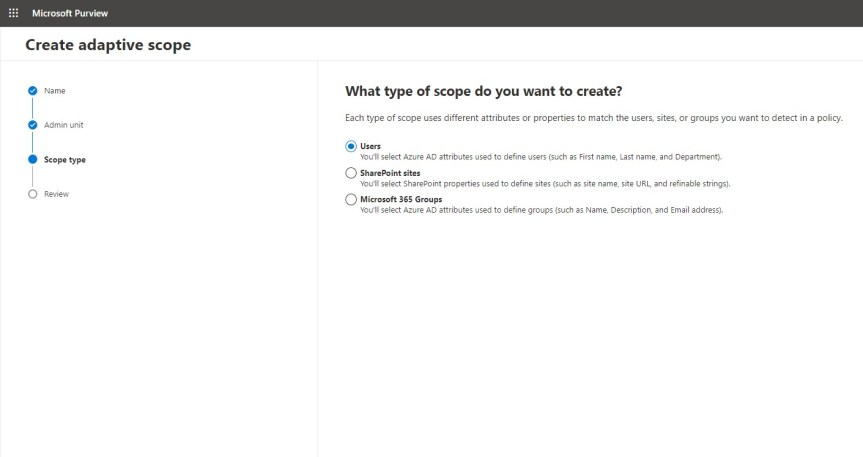
Last weeks vacation on the Isle of Wight was good. If fact, some time away was sorely needed. And whilst I was slightly bummed that I had to turn down speaking at Microsoft's seminal developer event Build this year, the consolation is that I had already spoken at Build twice previously. As the song goes, two out of three ain't bad. But in all honesty I really did need a breather given recent transition work in my org - and besides, it's right that someone else should have an opportunity to experience Build as a speaker. So from looking at Attack Simulation in Teams and Defender last week, I am going to pivot back to Purview and Compliance where I'll look at adaptive scopes in the context of Communication Compliance. Now in the past I have written about and done talks on the circuit about both, but I haven't written or talked about them together. When I first wrote about adapative scopes they were in preview, and at the time they only supported retention policies. Now they can be implemented differently and they support Communication Compliance - what used to be called Supervision back in the day when we had the combined Security and Compliance portal. Now, why would we use them together and what would be the benefit? Let's take a scanario: let's imagine that I am moving from an internal ops role into a senior leadership role where I will be privy to sensitive information which I should not share over my orgs communication apps - here meaning Exchange, Teams and Yammer. If I have Communication Compliance policy set up with an adaptive scope, it can be automatically applied when I transition to that role and apply for the liftime to which I hold that role. This saves IT time and administrative overhead. This means that it can be applied to all people within that senior leadership role as opposed to several roles being created on a user by user basis. As discussed in the last article, Adaptive Scopes are based upon Azure AD properties, but in the world of Teams and Communication Compliance it's important to distinguish between the user scope type which applies to messages in private 1:1 and group chat, and Microsoft 365 Group scope type which applies to messages in channels. This will walk through the user scope but will also show how to set the group scope
Category: Microsoft Security and Compliance
Teams Real Simple with Pictures: The New Webinar Experience with Teams Premium, Custom Event Policies, Privacy Statement and using Advanced Security in Webinars
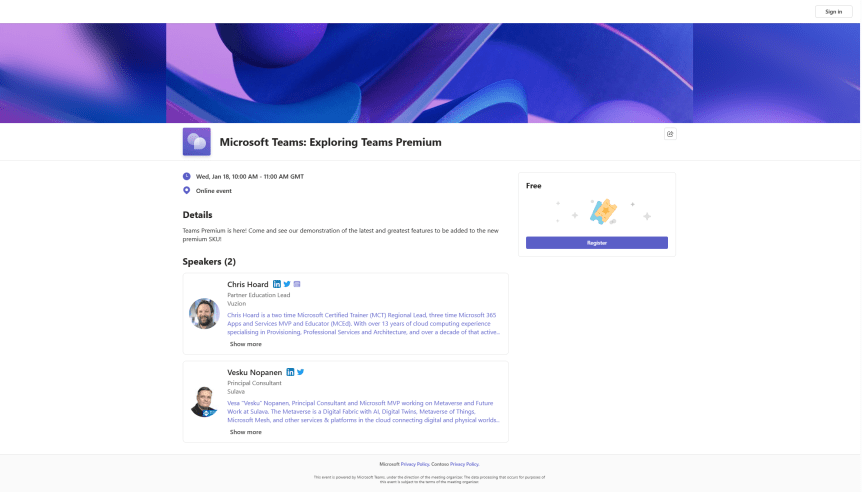
Last week, we managed to do a lot on the new security features included within Teams Premium - Watermarking, End to End Encryption, Custom Meeting Templates and then onto the culmination which was Sensitivity Labels. This week, we are going to change tack and discuss the new Webinar functionalities within the new Webinar setup experience. There is a lot. This includes creating a Webinar waiting list, manually approving registrants, presenter bios and limiting the time and day people can register. Most of these functionalities are within the flow of the new setup experience, however, there are some other things which may not be top of mind - at least from an administrative perspective. So let's spin through a setup end to end to look at the new functionalities, and this will also tack on implementing a custom event policy in PowerShell (optional) as well as adding the privacy statement in Azure AD (also optional). Of course, I would love at this point to be able to tell you that we can go ahead and simply apply all the nice security features we covered last week to webinars created via the new experience. Unfortunately, this isn't the case. At least not at the time of writing. No watermarking, no E2EE, no Sensitivity Labels, not even custom meeting templates. But, on the positive side we can see where the direction is going - all of these new security features will hopefully come into the new webinar experience at a later date, and in the meantime, as I will explain later in the blog, we can still leverage the functionalities via classic webinars which is how most will create webinars when they don't have Teams Premium, and which is still available to Teams Premium users.
Teams Real Simple with Pictures: Adding Sensitivity Labels to Meetings with Teams Premium
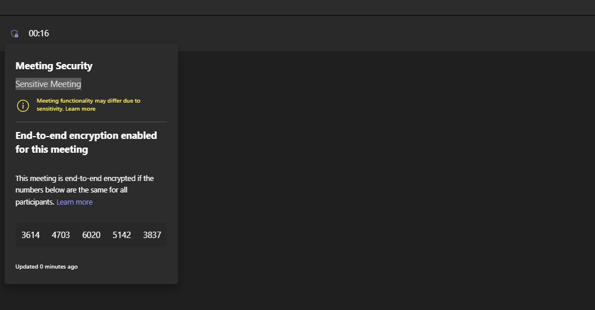
It's been a fun week to get back after Christmas and the New Year. We've explored a bit about the meeting protection features in the new Teams Premium licence. We've looked at Watermarking. We've looked at End to End Encryption. We've looked at how these can be set with Custom Meeting Templates. Now, let's take a look at Sensitivity Labels. Sensitivity Labels are designed to 'Protect your organization's data in a Teams meeting'. If you have ever administered Microsoft 365 then may be familiar with them in the context of Purview, and applying them to files, as well as to SharePoint Sites and Teams. I did a blog some time ago when they first came into Teams. In the context of a meeting, Sensitivity Labels really do two principle things. The first is that they classify the meeting. This is the of the label itself and the name, much like a label on a piece of clothing. This would be, for example, creating a label called 'Internal' or 'Confidential' and this would display in the meeting, or on the associated calendar item in Teams and Outlook. The second is that it protects the meeting in terms of rights - what can and cannot be done - as in it defines the meeting options such as recording, and watermarking and end-to-end encryption - much like a meeting template, and it in fact takes precedence over the meeting template. But there are some other things too. Sensitivity Labels contains copy protection, which prevent the copying out of data from the meeting chat. It can also encrypt meeting items, responses and also attachments contained in the calendar items. So, all in all, this is super powerful and useful functionality. But there are a lot of caveats at the time of writing because it is so new: and whilst this subject is really too complex to drill into and analyse in massive depth in a single blog - nuances will certainly come out in the wash as we begin to use them, I'll outline how to setup, and outline the major caveats in the FAQ. I'll also explicitly call out the difference in configuring labels for Private Meetings and Channel Meetings.
Teams Real Simple with Pictures: Teams Custom Meeting Templates with Teams Premium
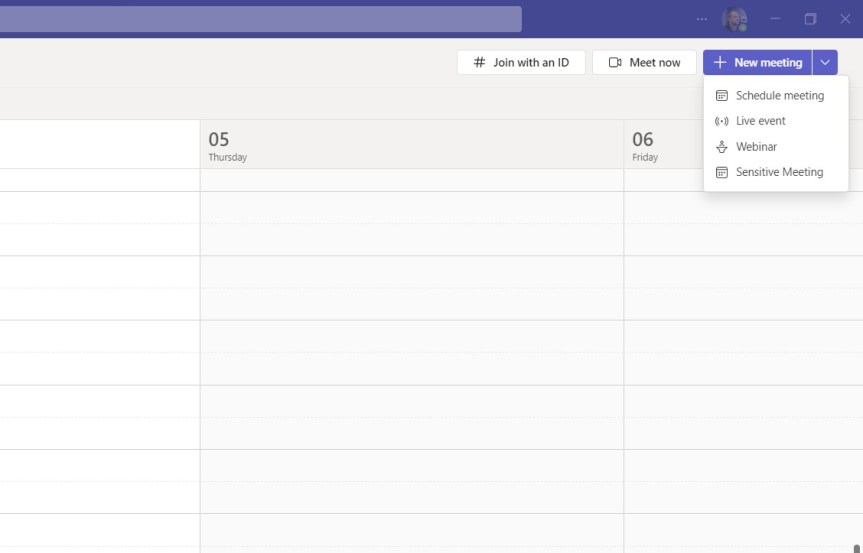
So the previous blogs were on Watermarking and End to End Encryption in Teams Premium: and these explored how we configure them and use them in meetings. Now we move on to another feature of Teams Premium to which they both feature which is Custom Meeting Templates. Meeting Templates are groups of preconfigured meeting settings which are templated and named for meeting organizers to use. For example: a 'Confidential Meeting' template could consist of Watermarking being on, End to End Encryption being on, Meeting Chat being off and so on and so forth. In the Teams Admin Centre, there are Default Meeting Templates such as Webinars or Virtual Appointments that any organisation can use - you don't need Teams Premium for these and more will turn up later such as Town Hall and Protected Meeting. However, a Teams Premium Licence gives us the ability to create our own, and set them in a policy for your users to use. Why would we want to create our own meeting templates rather than them being out the box? There could be several reasons - it could be for compliance, or if a part of the business wants a broader set of meeting types. Templates in themselves have the benefit of not having to create meetings, and then immediately follow up with having to amend the meeting options. I can speak of this from personal experience. So let's go build a Custom Meeting Template and publish it out to our users. But before we do, we must know that there can be a max of 50 custom templates, which I imagine is more down to custom templates for specific business units as opposed to combinations of settings, and that for the custom template may be visible in the calendar app it could be a 24 hour wait.
Teams Real Simple with Pictures: End to End Encryption in Meetings with Teams Premium
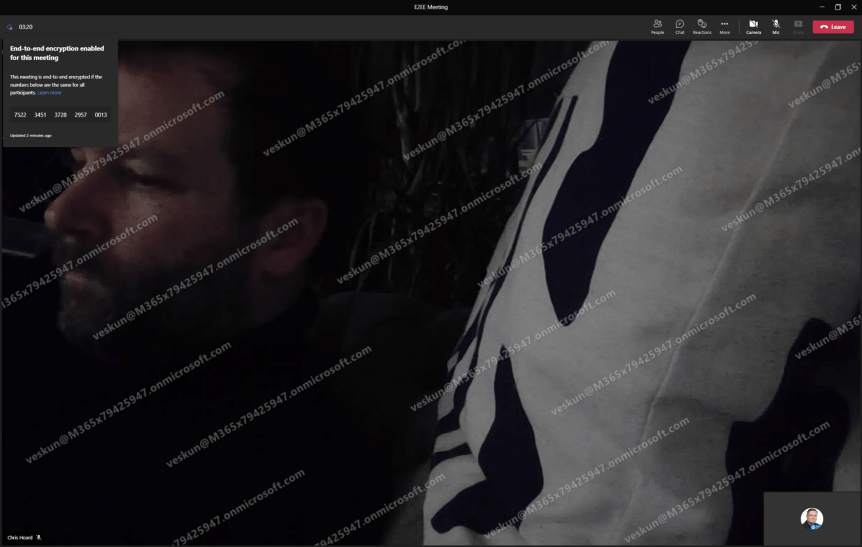
Following yesterdays blog on Watermarking let's turn to another premium feature. End to End Encryption (E2EE) has been around for 1:1 VOIP calls for a while. I once did a blog on it. I even spoke about it a few times including at aMS Lausanne where I covered how to implement it, the caveats, and how DTLS over SRTP worked. So, with the coming of Teams Premium, we now have E2EE for Meetings. Excellent. And like VOIP calls caveats do apply. Let's run through them. Number 1:Like VOIP calls, E2EE for Meetings only covers real time media. In other words, only audio and video and screen sharing are encrypted at the source and decrypted at the destination without any nodes or parties decrypting/re-encrypting in between. Everything else – chat, files, avatars, reactions, Q&A presence, are not end to end encrypted. - however importantly these other things are still TLS encrypted as part of the standard service encryption. This is a question you may be commonly asked, and it confuses people because what is EE2E and what is not E2EE is on the same screen, in the same app. Number 2: Like VOIP calls, in an E2EE meeting many familiar features will be unavailable to you - no together mode, or live captions, or recording or breakout rooms, or CART options, or language interpretation. This is minimalist meeting designed for private communications which, like VOIP calls it also nixes compliant call recording and all orgs/users who use CCR because the compliant call recording can't access what it needs and EE2E will not override this compliance requirement. Number 3: Unlike when VOIP calls were first introduced, this can be managed in the TAC. Number 4: Like VOIP calls, E2EE isn’t enabled even after enabling it in the TAC - it requires enabling in the meeting options but good news is that unlike VOIP calls you don't have to enable it in the client settings, and you can auto-enable it via Teams Meeting Templates and Sensitivity Labels. Number 5: Its available between two parties when the parties are using the latest version of the Teams desktop client for Windows or Mac, they are on a mobile device with the latest update for iOS and Android, or they are on a Teams Rooms on Windows device using the latest update and the mobile app. It’s not currently supported in web, nor VDI. So this is a continued phasing out and pretty consistent with the VOIP experience. One final thing - the meeting organiser, the one who schedules the E2EE meeting needs Teams Premium: not everyone needs a Teams Premium licence
 @Microsoft365Pro