

It's been a while since I wrote anything about video. I did quite a few blogs on Teams and Stream last year and even did a few sessions on how they worked together on the circuit - but with the transition to modern Stream I'm very much waiting for the new experience; when we start seeing features like the web experience, when podcasts and portals emerge. All in good time - even though in moving the TMR's over I badly need the use of trim, and I still want to talk about video. You see, I watch a lot of it. I love the medium, and so doing a few blogs on power automate and approval scenarios with Lists and Teams, I also had an idea for a new blog involving video. The idea is that I constantly struggle with time. With responsibilities for work, family and community I often miss quality content that goes by on great channels like Microsoft Mechanics. So I thought what if I could put this into a List which updates and I can work through that. Surfacing it in the Team could be quite valuable
Category: Microsoft SharePoint
[Archived] Teams Real Simple with Pictures: Forms to the Flow, to the List, to the Team and Yammer using conditions and approvals
![[Archived] Teams Real Simple with Pictures: Forms to the Flow, to the List, to the Team and Yammer using conditions and approvals](https://microsoft365pro.co.uk/wp-content/uploads/2021/01/image-86.png?w=863&h=0&crop=1)
I had a lot of fun writing the last blog on approvals. So I'd thought I would double down and use the Forms app with Flow and Lists which we can surface into Teams and then push out to Yammer by the way of conditions and approvals. I thought it would just be cool to cover a real world scenario which you could apply, customise to your needs to take parts and use them in your own flow. Rather unusually given the length and amount of apps involved I haven't got much to say - I really hope you really enjoy this one
Teams Real Simple with Pictures: Opting into SharePoint/OneDrive for Business as the location for Teams Meeting Recordings

Stream is changing. If you kept up to date with Ignite then you will know that it's being re-imagined and rebuilt to integrate seamlessly with applications across the stack. One of the consequences of this change is that Teams Meeting Recordings (TMR) will - like all video - be stored within SharePoint (in the case of channel meetings) and OneDrive (in the case of non-channel or what we call private meetings). There is a lot of sense and upside to this. For example, video will now be able to be shared externally which was the Achilles heel with classic stream and which many users ended up doing anyway albeit moving the video manually. Secondly, we can now leverage Microsoft 365's security and compliance functionality such as retention
Microsoft Lists: Reporting on shared Lists and List Items created through Teams and the Lists Web App
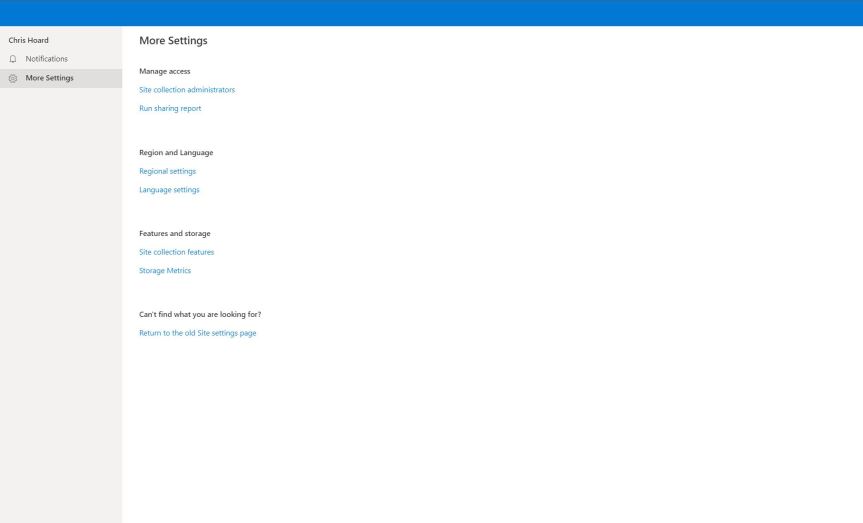
TeamsFest is only a few weeks away. It's coming around so fast and one of the jobs I did during the week was spin up a list in the Team so that speakers could easily access their session. It had their track, it had their time and their moderator. It felt nice putting it in as a tab. It looked good and felt good. But one of the things I was thinking about now I have started to use Lists in anger is how can get I a report on who I have shared a list with. I wrote about how to share Lists and List Items in both the web experience and Teams but now imagine the scenario that I have a few dozen lists and that I collaborate on these inside and outside the organisation. How could I tell who I shared those with? Especially after a month or two where albeit best intentions, I doubt I am keeping track. It's really important to review this from time to time both in terms of administration and security. Yet one of the things we must understand is this difference between personal lists and teams lists because lists are stored in different places - and yes, yes I know its ultimately all SharePoint, but this determines how we find our sharing reports
Teams Real Simple with Pictures: Using a Lists Extension to share Lists and List Items in Teams
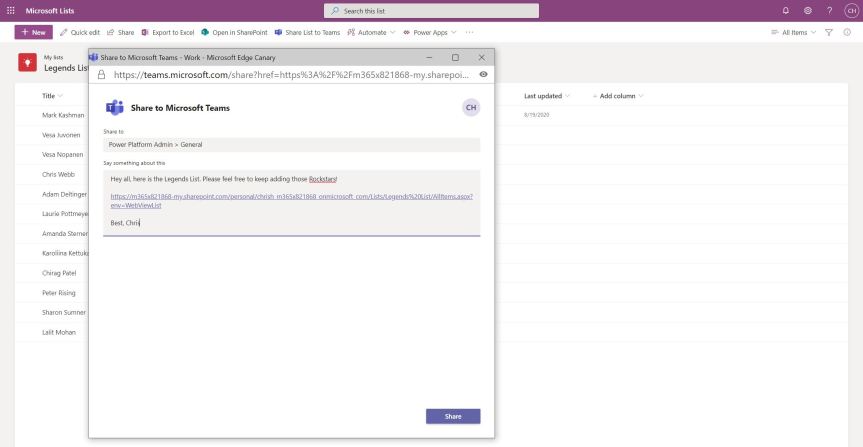
By definition, extensions are small software modules for customizing and personalising applications. They are typically used with browsers, such as this office browser extension for Edge which gives the user direct access to Office files right out of the browser. A good extension can improve functionality, fill functionality gaps or even create greater synergy between applications. Having already reviewed the Share To Teams extension in EDGE back in December when Joao Ferreira created it, I was very much intrigued last week when Joao released another extension for Microsoft Lists in order to share both Lists and List Items into Teams. As I had recently written on Microsoft Lists in a two part Fundamentals series, I thought this would be a nice extension of that series. I can't begin to convey how much I respect guys like Joao who push the envelope of apps we work with on a day to day basis in order to make them better, and our lives a little bit easier
 @Microsoft365Pro