
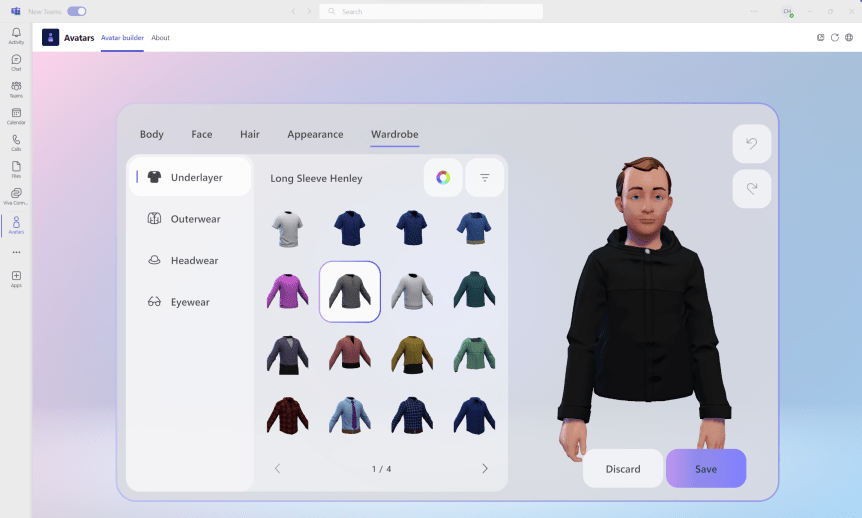
One of the things I find about blogs - at least when you write regularly over a long period of time is that there are subjects which just seem to fall off the radar. For all of the best intentions. For however cool those subjects are it just doesn't happen one way or another. They go MIA awhile, only to re-surface again when prompted. In my case this is typically in a conversation I have regarding a business need. Now, as I have explained previously, I don't take blogging seriously to the point that I have some kind of system for it. I don't write ideas down. I dont plan them out during the week. I'll just rock up and write it ad-hoc because that's what I enjoy. And over the past 4 years or so it's generally worked out well. So one such subject this week was the use of Avatars, with a customer of a business partner who was absolutely adament that they wanted to prevent a proportion, if not all of their users using avatars in Teams Meetings. It was an idiosyncratic, as opposed to a technical need. And that's ok. You don't have to justify it to me. It's valid. Many of us in the field who have used Avatars in Teams for some time know right out the gate that opinions and biases will vary, and whilst one person will see them as inclusive, allowing freedom from being anchored to the camera or having to dress up for groupthink, another will see them as inauthentic, breaking decorum and trivialising the serious matter of business. What do I believe? That isn't my place to say within this article. However, I did talk about Avatars a few times over the past year including at Microsoft Ignite. I should have done a blog sooner. But it went MIA. This is for a partner of that customer: how to setup - and block - the use of Avatars in Microsoft Teams. Your choice.
Category: Microsoft Teams
Teams Real Simple with Pictures: Clear Cache in Teams 2.1 client

I was doing a blog yesterday on system-preferred MFA. And during the writing of this blog I needed to clear the cache since the new Teams 2.1 desktop client wouldn't allow me to completely sign out. It was still trying to sign in to an old tenant which was previously linked and which I had removed after it had entered a grace period prior to it's expiry. At this point signing in wasn't possible. It wasn't possible to get the desktop client back to the sign in page either. So this is the kind of issue which - historically, clearing the cache is ideally suited. But what was weird about this scernaio was that when I cleared it from the usual location, closed down explorer and restarting the client clearing it didn't seem to resolve it. So I am now trying to a few different things, clock-watching and running out of time to do this blog. And what suddenly clicked in my head was to check the cache again. So I went back in explorer and the cache didn't re-populate when the Teams 2.1 client was reopened. Therefore, the cache for Teams 2.1 desktop client is actually in a different location than the classic desktop client. So I rooted around a bit. I found it. I actually found a way to it through the client itself, but I am sure it's going to be easier to simply use Run as most do today. Now, clearing the cache is part of the repotoire of pretty much anyone who supports Teams. Better we all know where it is. But will it go back to the usual place when we transition over fully? Who knows!
[Archived] Teams Real Simple with Pictures: Implementing System Preferred MFA
![[Archived] Teams Real Simple with Pictures: Implementing System Preferred MFA](https://microsoft365pro.co.uk/wp-content/uploads/2023/07/image-122.png?w=863&h=0&crop=1)
Ok time is of essence! There is a ton on. Corp wise. Community wise. You may have seen it on social this week that Teams Nation is coming back. Yes, Vesku and I were asked many many times. And yes, we decided to get onboard that crazy train again. But whilst it may seem like an eon away given it's February 2024 and a million things will happen between now and then; you'll have to believe me when I say that I'll soon be sitting here the weekend prior doing last minute speaker checks. So this week is a real quick one. And it's really following on from the blogs on Entra that I have covered the past few weeks. This is looking at System Preferred MFA in the context of Teams. So what is it? By definition, 'System-preferred multifactor authentication (SPMFA) prompts users to sign in using the most secure method they registered'. In other words, if you have registered Authenticator and SMS as two methods to sign-in using MFA then SPMFA is going to prioritise the more secure method which is Authenticator over SMS. It doesn't stop the choice of the other, but it does set precedence when signing into an app such as Teams or into the Microsoft 365 portal. Why is this important? Two reasons. The first is as described - it sets the most secure sign in method and that's ultimately what we as admins want to see for our users in Teams. The second is that by setting precedence, this could facilitate user behavioural change over time, with a view to removing less secure registered methods in the future. Now this feature should be set to enabled by default in time, but today in my Ring 4 test tenant it's set to Microsoft Managed. Could be lit up. May not. But it's not enabled. So here's a twist. Lets enable the methods for Authenticator and SMS, then enrol to MFA, then enable System-preferred MFA by default. Just for laughs, but also because I have a nice fresh tenant after my old one went into grace 😀
Teams Real Simple with Pictures: User-to Group Affiliation, or Using Machine Learning to provide Access Review recommendations of Team Members
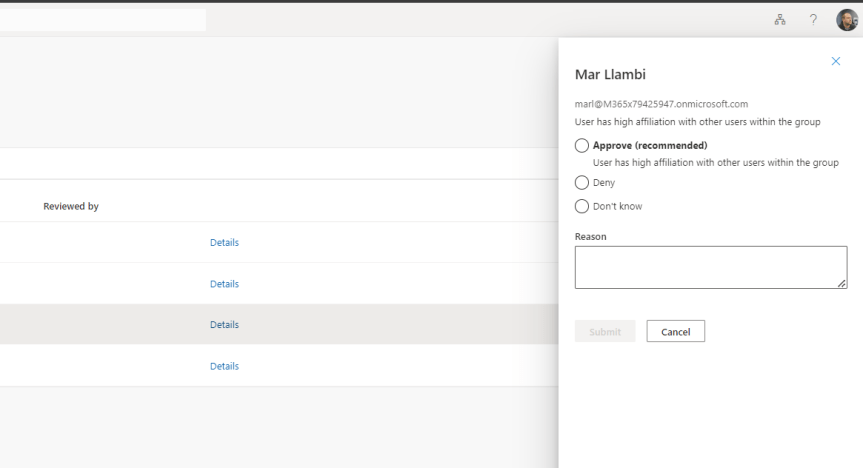
Some of the things I've been doing this past week: wrapping up the roll out to Switzerland. Prepping from a backend perspective for Germany. Completing a migration from Arvato to Pearson VUE. Scrubbing out anything I can find in reference to Azure AD with extreme prejudice. Progressing multiple DevOps items for net adds to portal UI's for better UX. Then there was Inspire (I managed to get to about 30 sessions all in all). Oh, and testing out the new Secure Service Edge functionality in Entra. These are just some of the high level items from my current corp portfolio. And that doesn't take into account MCT. Nor MVP and community activities. So to use analogies it's like an all you can eat buffet out there right now. And pretty much every day feels like this great game of whack-a-mole. But, then again, I admittedly enjoy it - and besides I'm accustomed to the old perpetual firehose. But one increasing challenge - and one which sits sqaurely within this growing dialogue of needing Copilot and AI for specific roles - is staying current. A legit use case is awareness and knowing when all of these diamonds of useful functionality ship across the stack which could make a real difference to ones role. One such functionality is the new User-to-Group Affiliation for Microsoft Entra Access Reviews which I only saw referenced on a social thread this week where a.) I could have easily missed it and b.) could directly help me with my role since I myself am an access reviewer in my own organisation. So what exactly is it? As written 'This Machine Learning based recommendation...' '...detects user affiliation with other users within the group, based on organization's reporting-structure similarity. [It] relies on a scoring mechanism, which is calculated by computing the user’s average distance with the remaining users in the group. Users who are distant from all the other group members based on their organization's chart, are considered to have "low affiliation" within the group' (Microsoft, 2023). In laymans, it's a functionality within the Microsoft Entra ID Governance SKU which helps you reach a decision on whether users should be in that group (hence Team) or have access to an App based on Entra ID properties. Is this important? Well, yes in theory. We ought to operate on Zero trust and principle of least priviledge, and as an access reviewer it could draw attention to those who may not need access, or if we look at it in another sense it could prompt us as admins to action in regards sanitising Entra ID and our org structure. But therein lies the catch. Sidestepping the inevitable conversation of added cost requiring reviewers hold a SKU over and above P2 - for it to work best requires a clean directory. In my experience, this is typically more an exception or luxury as opposed to the rule, and since the solution is based on machine-learning you can't make the assumption it's guaranteed to be right - so there may be some investment in training it in order to sharpen it up.
Teams Real Simple with Pictures: Using Restricted Management Administrative Units in Microsoft Entra ID

This week I've been asked what I think about the rebranding of Azure AD to Microsoft Entra ID. Is it something which I would consider significant? Is it something I think occurred because, for example, some marketers in Redmond have nothing better to do? Let's consider that a moment. In recent years, Microsoft has executed multiple large-scale rebrands. Office 365 to Microsoft 365. Azure to Microsoft Azure. The Security stack aligned under Defender, whilst Compliance is amalgamated under Purview. So my thinking goes that the rebranding of Azure AD was only ever a matter of time; that it was only ever going to go one way given how Microsoft Entra became the brand for Microsoft's Identity services. If one thing, all these cases illustrate that Microsoft is not beholden to names or brands whether these are historical or popular, or where they've become embedded in the day-to-day language of the very organisations and communities that use them. And this was demonstrated again last week - with not so much fanfare - when they also announced that it was ditching it's default Calibri font in favour of the newly developed Aptos. But then Microsoft is a technology business after all. It's mantra is that change and innovation is constant. This leads onto point two. There are things that drive change and innovations other than technology. We as technologists can lose sight that Microsoft is first and foremost - when everything is stripped away - a sales-led techonology business. Sometimes we don't perceive or appreciate the value of changing it up, because it's not our role to give these products fresh impetus, or drive astronomical numbers in a given area, or reduce a products value and everything it does to a singlular name. I think the rebrand makes absolute sense given Microsoft's plans are for Security, Compliance and Identity. Consistency across the range. An easier conversation for commercial. A broader and more robust terminology which allows the addition of more products such as what we saw given the Security Service Edge (SSE). It may just be me but it feels more unified yet clear cut and distinct from other parts. I also think it's a savvy move to take Azure - the platform - out the name. But don't get me wrong here. Many of us are going to have to swallow pain, especially we who create or maintain content or teach. And yes - it's sad too in that it feels like an instituion is ending. But let's look forward with gusto. It's not the last one of these we'll be doing. Change is constant. This blog is on the new Restricted Management Administrative Units capability now in preview in Microsoft Entra ID. You can now designate specific users, security groups, or devices in your Microsoft Entra ID tenant that you want to protect from modification by tenant-level administrators. Obviously this has benefits in certain scenarios - typically larger orgs, where administration is based on geos. And we need to understand that at this preview stage this is based on Microsoft Entra ID actions such as modifying users and licences, not management of the services themselves. In Teams world, I am going to apply a use case of managing users with Teams Premium Licencing
 @Microsoft365Pro