
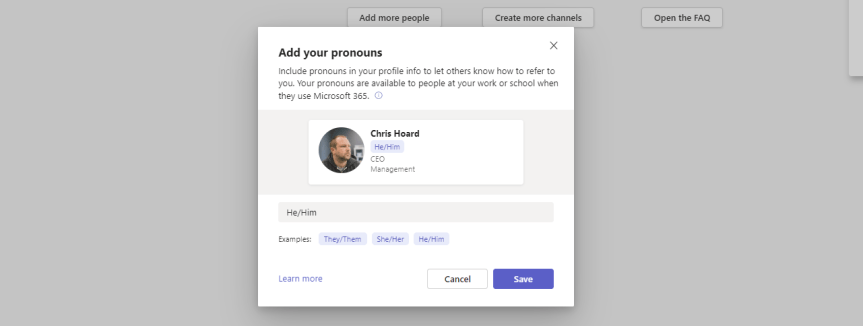
From the definition by Stonewall: "Pronouns are words we use in everyday language to refer to ourselves or others. They can be an important way to express gender identity. For example, ‘I’, ‘me’, ‘she/her’, ‘he/him’ and ‘they/them’ are just some examples of pronouns". In today's modern workplace some may use multiple pronouns. Others may use neopronouns such as xe/xir and ze/zir. Others may avoid the use of pronouns at all. In the context of Microsoft Teams pronouns have been a feature requested for some time. On the feedback portal there are several feedback items; the largest being over 5,000 votes and rising. There is also a petition up on change.org which has nearly reached it's target of 2,500 votes. It has also regularly been mentioned on MVP calls for as long as I can remember. So Microsoft has now added the pronouns feature to Microsoft 365 and it's now come into preview; surfaceable on the contact card used by both Teams and Outlook on the Web. I am sure it will be a priority for many organisations in the near future as it transitions from preview into GA and am sure it will later surface into other surfaces. Why? Because correct use of pronouns is important in terms of helping all staff feel included at work. It can reassure trans and gender non-conforming colleagues that they are welcome and included. And whilst this action, in itself, will only be a small part of building allyship, visibility on the contact card will be a step forward.
Mentions: microsoft365pro
Teams Real Simple with Pictures: User Controlled Busy on Busy

Microsoft Teams was recently named a leader in the Gartner Magic Quadrant for Unified Communications for 2022 - and with good reason. Let's take a look at the stats: 80 million users of Teams Phone. 12 million users of PSTN. Calling Plans expanding from 28 to 34 countries, and a voice SLA now standing at 99.99%. Over the last year or two Microsoft has continued to introduce many new innovations to the calling service such as Operator Connect, Operator Connect Mobile, SIP Gateway, Survivable Branch Appliance, a new PSTN desk with integration into the Teams Admin Centre, as well as several useful features ranging from the customization of call parking, to surfacing end-user call routing in the TAC. Having recently attended Airlift, I can confirm there is so much cool stuff still to come. The journey is far from over. But being under NDA I have to suppress my excitement for a while longer. But in the meantime, I was interested to see that user controlled busy on busy has shipped into preview the past few days. But what is Busy on Busy? By definition Busy on Busy lets you configure how incoming calls are handled when a user is already in a call or meeting or has a call placed on hold. New or incoming calls - for VOIP or PSTN - can be rejected with a busy signal or can be routed accordingly to the user's unanswered settings. Up until now - since Busy on Busy was introduced, this functionality has been set by the administrator, but the user can now decide for themselves how the incoming call is handled - or periodically change that on the fly.
Teams Real Simple with Pictures: Surfacing Stories within Viva Engage
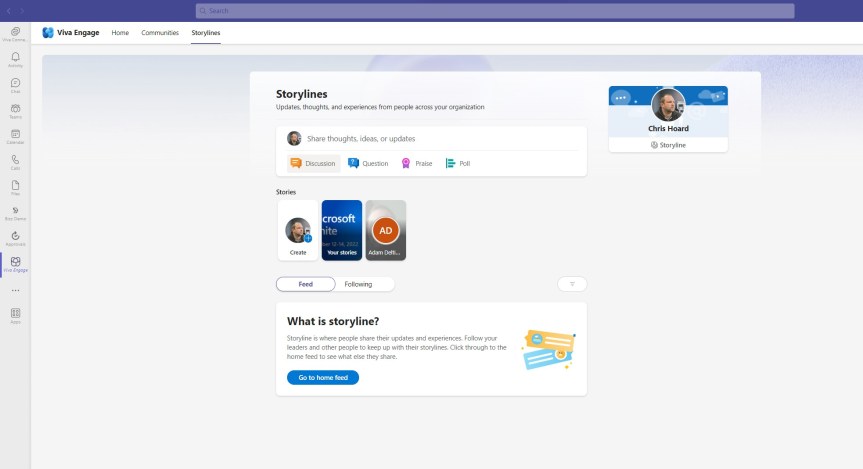
After a few weeks of focussing on the transition to Infinigate and inner ring preview testing for various product teams at Microsoft, I don't mind telling you that it's mighty fine to be back with some bandwidth for doing the blog. I wish I could tell you that I have had some iota's worth of break during that time, but that would be a barefaced lie. My world has been consumed by DevOps, and Sprints, and scrutinizing UX, and the H1 schedule and programmatic changes such as Solution Partner Designations. But if you have followed this blog for any length of time, then you know that I think having a few weeks away every so often is typically a good thing. Absence makes the heart grow fonder and all. But in the world of cloud the bucket of content fills back up. So, this week I am going to talk about something which I don't often cover - and that is Viva Engage. Viva Engage, by definition, is a new employee experience that connects people across the company. It is driven by Yammer services to which Yammer is a part. It is also in the second wave of Viva apps of which we would also bucket Pulse, Amplify, Goals, Sales and all the others announced this year. Now, the functionality we will be specifically looking at today is called Stories. Stories - again, by the only definition I could find, is a 'modern, engaging way to capture the moment, with short videos or photos that are showcased in a stories carousel'. Think of content similar to Tik Tok and Insta ((videos and pictures) that followers of your own Storyline can view and engage with, and which your provide them as a richer experience. So, basically, something way out of my comfort zone but something I am looking to use in my own organisation
The Microsoft Viva Admin Experience is here
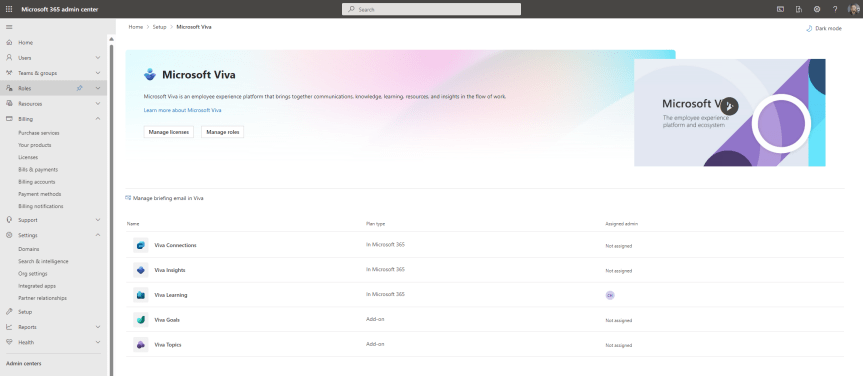
So, Viva? I haven't written a lot about it on this blog, have I? And when it's comes down to it that's probably because I spend a lot of my blogging time keeping up to date with Teams. But since Teams has been a bit quieter lately - at least in terms of the features I use or want to know more about I thought this would be an opportunity for something that caught my eye and something which is currently rolling out. This is the new Viva Admin Experience. Now, I am pretty much what you would call a second wave Viva advocate. I wasn't in with the first lot because I was just so focused on everything else Microsoft 365. And to be honest, the Viva apps which have been my ingress into both the Viva stack and the Viva community have been Goals and Sales, ones which I now use every day. Of course, prior to this I've deployed Connections many times - even when you had to create the Connections app via PowerShell, and setup and configured both Insights and Topics. I've even got a Viva course in the portfolio which has now been taught for over a year. But Goals and Sales gave me the bug, and now I do a ton of community work on Viva (albeit almost all directly with Microsoft). Needless to say, I'm very excited about all of the apps announced back in September - Amplify, Pulse, Answers and Storylines. It's a bright future. And with the rapid expansion it seems prudent to create an admin experience, where we'll likely see a set of granular role-based admin roles for the stack. This is because governance is important - and what we can refer to as horizontal experiences - functionality across the stack - will be important too.
Teams Real Simple with Pictures: Enabling Media Logging with PowerShell
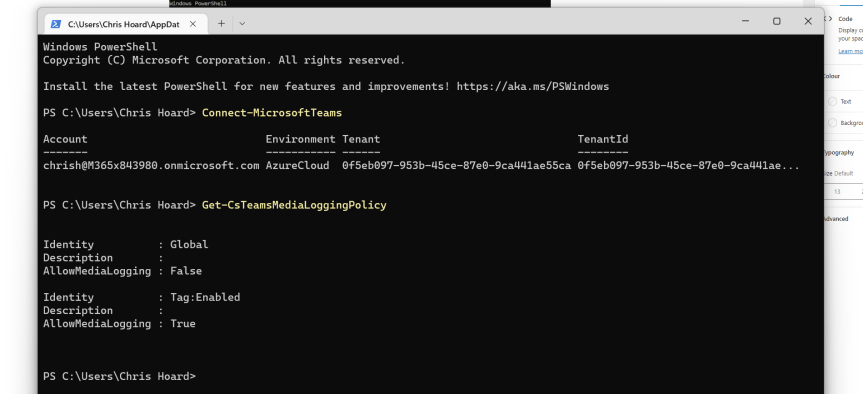
If we have an issue with Teams and we raise a ticket to Microsoft, then occasionally we will be asked to provide logs for engineers to analyse. With Teams, there are several different ones. These include Debug logs, Media logs and Desktop Logs. This week, I noticed that it is now possible to enable Media Logging with PowerShell. Up until this point the user would have to enable it within the Teams client, and this would be problematic for IT in terms of being dependent on users and if it would be enabled at the required time. The Media Logs, by definition, contain diagnostic data about audio, video, and screen sharing. They are linked to call-related issues. Having a problem with resolution? Or an encoder? Or rendering? Or a situation where share control is given in a meeting but cannot be taken back? The Media logs may provide insights to fix the issue. Yet Media Logging is only enabled by default on machines using the Teams client with specific CPU's: any Apple M1, any Intel Xeon, any Intel i9, except for the U, G7, M, and MQ series and any 6th generation and later Intel i7, except for the U, G7, M, and MQ series. So, in many cases it has to be enabled. Being able to do it with PowerShell saves time - for both the user and the admin
 @Microsoft365Pro