
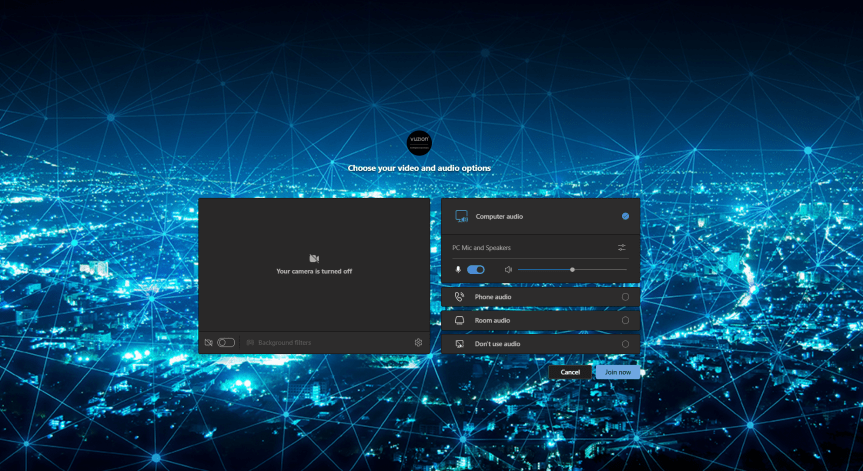
I have worked in Cloud for almost 15 years now. During that time, the subject of branding has periodically appeared as a requirement from customers or partners looking to use cloud services, or wanting to sell them. Examples that I can think of include using custom domains on OWA for Hosted Exchange, custom domains for SharePoint, Control Panels, Apps, and the login page for Office 365 via Azure AD. It's something that's always been topical; and there are a number of reasons as to why organisations want to use their own. Some have told me that it's easier for users to remember and to use. Others have required it for White Labelling. One said it is a reminder of who is supplying the service or who owns the relationship. Another said it was for professionalism and to enhance selling. Of course, this list isn't meant to be exhaustive. And in my experience most - if not all - of the reasons for branding are rooted in the concept of identity. Take Microsoft. Over the last few years they have rebranded their logos, and many of their products. This includes adding Microsoft as a prefix in their product names. When you start up an office app? Up comes the logo and the name. When you start up Microsoft Teams? Up comes the logo and the name. Branding is so important because the identity of the organisation - and its use in it's product - influences the perception of those who use it. Now I am not a marketer. Nor am I a psychologist. But I don't mind admitting in all of my Microsoft bias that seeing a Microsoft Logo on the product, it gives me a sense of quality, of familiarity, and goodness. So following on from things such as the login page via Azure AD, Microsoft is introducing customization policies for Meetings in it's Premium SKU which allows you to brand them. But this one may just be better than the rest. Meetings are our forum to sell, to consult, to meet, or to learn. Branding them with our own identities transmits our values and our company culture. It helps us to grow our brand.
Teams Real Simple with Pictures: Custom Filters, and the strange case of App Governance

Custom Filters. Defined by Microsoft as follows: 'a new feature in Microsoft Teams Meetings that will allow participants to augment their video streams with visual effects such as frames and styles. [They are] built on the Teams Platform infrastructure and provided by Microsoft first and third-party partners as apps and displayed as a collection of filters'. Sound good? Well they have now surfaced into preview, expected GA in February. But if we look back into the history of Teams then filters themselves aren't strictly a new functionality. They have been around for at least three years (half of Teams life): and were certainly being used by IT Pros when custom backgrounds were introduced back in 2020 through third party apps such as Snapchat and OBS which leveraged virtual cam. Microsoft then introduced Soft Focus and Adjust Brightness - which are also Filters - later in 2022. So at this point, we have backgrounds, Avatars on the way, and we now have Filters, too. All native, all options for the meeting. But like backgrounds, and like Avatars, Filters are going to provoke the same questions and spark the same discussions. Can we control them? Do we allow our users to use them? The old famous just because we can doesn't mean we should. Will they be a fad? Will they add richness to the meeting? We come face to face once again with those hard subjects of culture and identity and expression and bias. Luckily, I will leave that to you to decide. Here's how to configure them, with a few pertinent questions for the administrator such as - do they work with Teams Meeting Recordings, and are they compliant to meeting policies?
Teams Real Simple with Pictures: It’s here – the new Viva Connections Home Experience and how to transition from your SPO Home Site with PowerShell
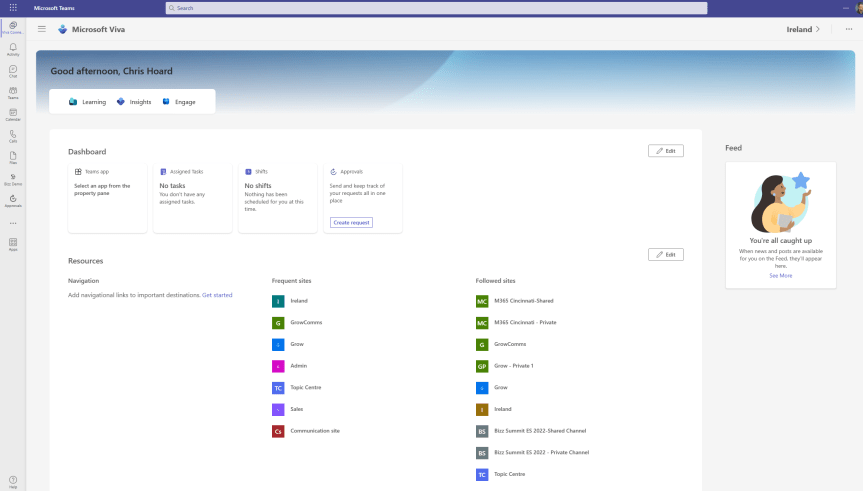
Today has been a good one. A lot of security - Defender for Cloud, Defender for Servers, a bit of Sentinel then a bit more Defender for Cloud. A tidy up of the old DevOps tasks for the UX. Nice. So I thought I would spend this evening chilling out and putting on those a few Jeff Beck classics like Wired and There and Back. Closing down my Ring 4 tenant I noticed that it was finally there: the new Viva Home experience has landed. Now I don't mind telling you that I have had the PowerShell in place for about two or three weeks, and I have been checking back every single day because I have been looking forward to this ever since it was announced at the launch event prior to Ignite back in 2022. Before I implemented the PowerShell, or should I say before I became aware that it was executed on the command line - should a home site already exist in Viva Connections I spent hours - and I mean hours on a wild goose chase to see what could change it. Site Settings. The Microsoft 365 Admin Portal. The new Viva Admin Portal. You name it. For all new implementations of Viva Connections - as in never used before - the Home Experience should be there by default. But if you already have a Home Site transition is possible using PowerShell. Now, before we get all gung-ho, we may not want, or need, or have any inclination to move to the new Home Experience. That's fine - because should you not like it you can always switch back to the Home Site using PowerShell too. We'll cover this. But just a disclaimer on this one. I imagine that some organizations' Home Sites used for Viva Connections could be quite rich given that SPO Home Site configuration has been around for a while now. I want to say eighteen months but maybe it's two years. There could very well be some reconfiguration to be done when the transition via the shell is complete. For me, that rebuild/redesign and the sprints that inevitably result is all interesting work for the latter half of the week. But just a heads up, you may want to test it all out in a dev environment first - but all the better knowing we can reverse course.
Teams Real Simple with Pictures: The New Webinar Experience with Teams Premium, Custom Event Policies, Privacy Statement and using Advanced Security in Webinars
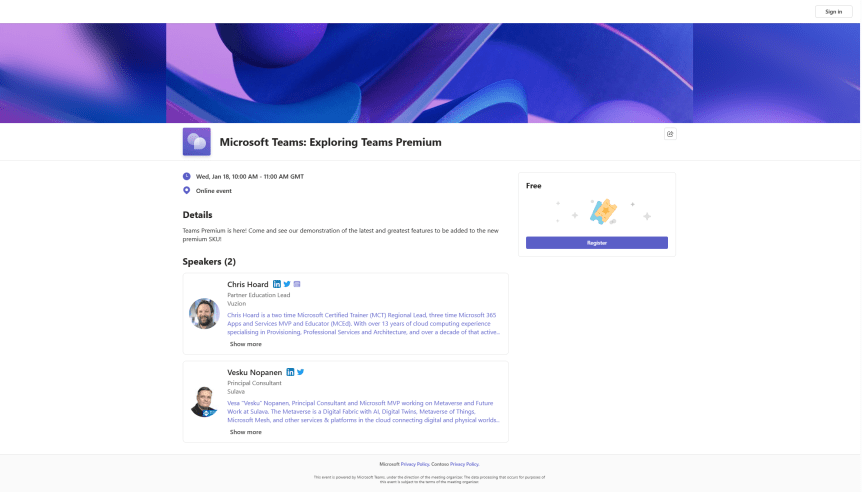
Last week, we managed to do a lot on the new security features included within Teams Premium - Watermarking, End to End Encryption, Custom Meeting Templates and then onto the culmination which was Sensitivity Labels. This week, we are going to change tack and discuss the new Webinar functionalities within the new Webinar setup experience. There is a lot. This includes creating a Webinar waiting list, manually approving registrants, presenter bios and limiting the time and day people can register. Most of these functionalities are within the flow of the new setup experience, however, there are some other things which may not be top of mind - at least from an administrative perspective. So let's spin through a setup end to end to look at the new functionalities, and this will also tack on implementing a custom event policy in PowerShell (optional) as well as adding the privacy statement in Azure AD (also optional). Of course, I would love at this point to be able to tell you that we can go ahead and simply apply all the nice security features we covered last week to webinars created via the new experience. Unfortunately, this isn't the case. At least not at the time of writing. No watermarking, no E2EE, no Sensitivity Labels, not even custom meeting templates. But, on the positive side we can see where the direction is going - all of these new security features will hopefully come into the new webinar experience at a later date, and in the meantime, as I will explain later in the blog, we can still leverage the functionalities via classic webinars which is how most will create webinars when they don't have Teams Premium, and which is still available to Teams Premium users.
Teams Real Simple with Pictures: Adding Sensitivity Labels to Meetings with Teams Premium
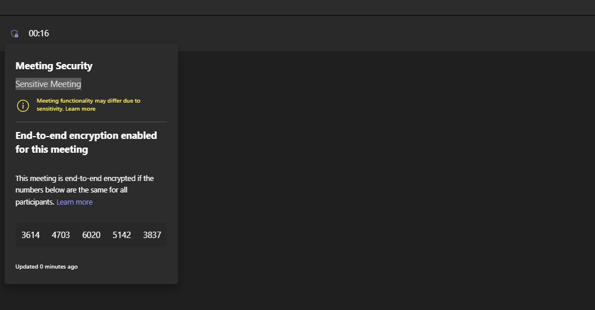
It's been a fun week to get back after Christmas and the New Year. We've explored a bit about the meeting protection features in the new Teams Premium licence. We've looked at Watermarking. We've looked at End to End Encryption. We've looked at how these can be set with Custom Meeting Templates. Now, let's take a look at Sensitivity Labels. Sensitivity Labels are designed to 'Protect your organization's data in a Teams meeting'. If you have ever administered Microsoft 365 then may be familiar with them in the context of Purview, and applying them to files, as well as to SharePoint Sites and Teams. I did a blog some time ago when they first came into Teams. In the context of a meeting, Sensitivity Labels really do two principle things. The first is that they classify the meeting. This is the of the label itself and the name, much like a label on a piece of clothing. This would be, for example, creating a label called 'Internal' or 'Confidential' and this would display in the meeting, or on the associated calendar item in Teams and Outlook. The second is that it protects the meeting in terms of rights - what can and cannot be done - as in it defines the meeting options such as recording, and watermarking and end-to-end encryption - much like a meeting template, and it in fact takes precedence over the meeting template. But there are some other things too. Sensitivity Labels contains copy protection, which prevent the copying out of data from the meeting chat. It can also encrypt meeting items, responses and also attachments contained in the calendar items. So, all in all, this is super powerful and useful functionality. But there are a lot of caveats at the time of writing because it is so new: and whilst this subject is really too complex to drill into and analyse in massive depth in a single blog - nuances will certainly come out in the wash as we begin to use them, I'll outline how to setup, and outline the major caveats in the FAQ. I'll also explicitly call out the difference in configuring labels for Private Meetings and Channel Meetings.
 @Microsoft365Pro