
This blog is part of a series on Teams. For more articles, check back often
Written: 06/08/2023 | Updated: N/A
One of the things I find about blogs – at least when you write regularly over a long period of time is that there are subjects which just seem to fall off the radar. For all of the best intentions. For however cool those subjects are it just doesn’t happen one way or another. They go MIA awhile, only to re-surface again when prompted. In my case this is typically in a conversation I have regarding a business need. Now, as I have explained previously, I don’t take blogging seriously to the point that I have some kind of system for it. I don’t write ideas down. I dont plan them out during the week. I’ll just rock up and write it ad-hoc because that’s what I enjoy. And over the past 4 years or so it’s generally worked out well. So one such subject this week was the use of Avatars, with a customer of a business partner who was absolutely adament that they wanted to prevent a proportion, if not all of their users using avatars in Teams Meetings. It was an idiosyncratic, as opposed to a technical need. And that’s ok. You don’t have to justify it to me. It’s valid. Many of us in the field who have used Avatars in Teams for some time know right out the gate that opinions and biases will vary, and whilst one person will see them as inclusive, allowing freedom from being anchored to the camera or having to dress up for groupthink, another will see them as inauthentic, breaking decorum and trivialising the serious matter of business. What do I believe? That isn’t my place to say within this article. However, I did talk about Avatars a few times over the past year including at Microsoft Ignite. I should have done a blog sooner. But it went MIA. This is for a partner of that customer: how to setup – and block – the use of Avatars in Microsoft Teams. Your choice.
Let’s go.
This blog with cover:
- Setting up Avatars
- Blocking via Disabling the Avatars App
- Blocking via App Permissions Policies
- Can Avatars be blocked within the meeting policy?
- Conculsion
Note this blog will have abridged steps which will assume some experience with Teams, the Teams Admin Centre and PowerShell. This will be used on Teams Desktop using a Ring 4 Test Tenant. All blogs will use the new Teams Desktop Client 2.1+ where possible. At the time of writing, Avatars are not supported in the web app, and view only in the mobile app.
Prerequisites
- Teams Administrator or Global Administrator permissions
- Microsoft 365 Licence with Teams for testing
SETTING UP AVATARS
So let’s start from the perspective of getting Teams Avatars set up. By default, the Avatars app is enabled within the Teams admin centre, so no action needs to be taken by the administrator unless the app is already disabled (see next section). The user needs to do as follows:
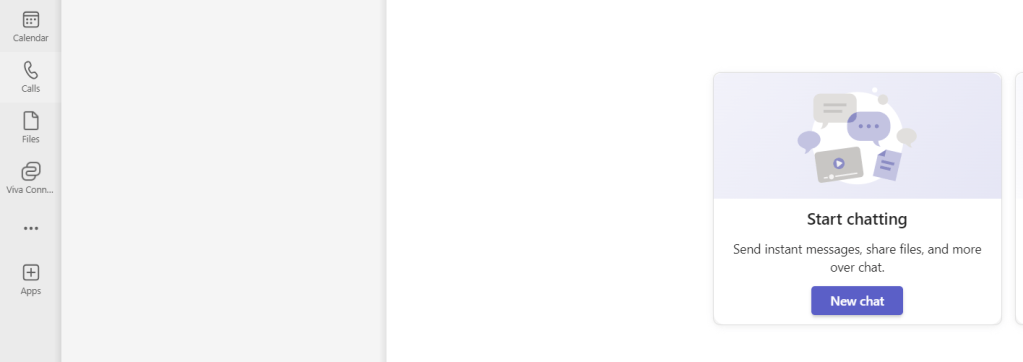
1.) Select Apps from the left app rail
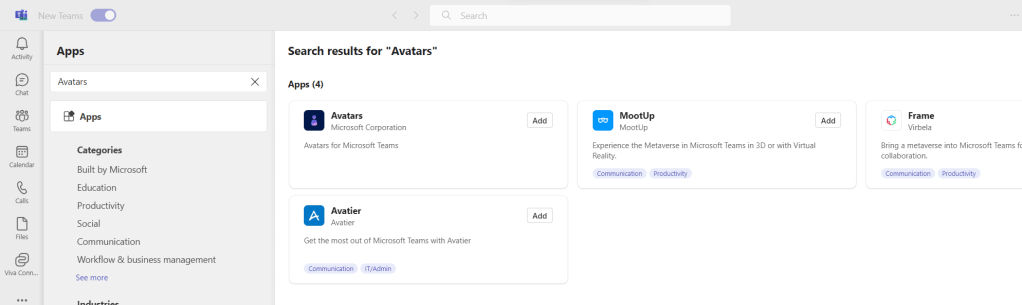
2.) Search for the app Avatars and on the app, select Add
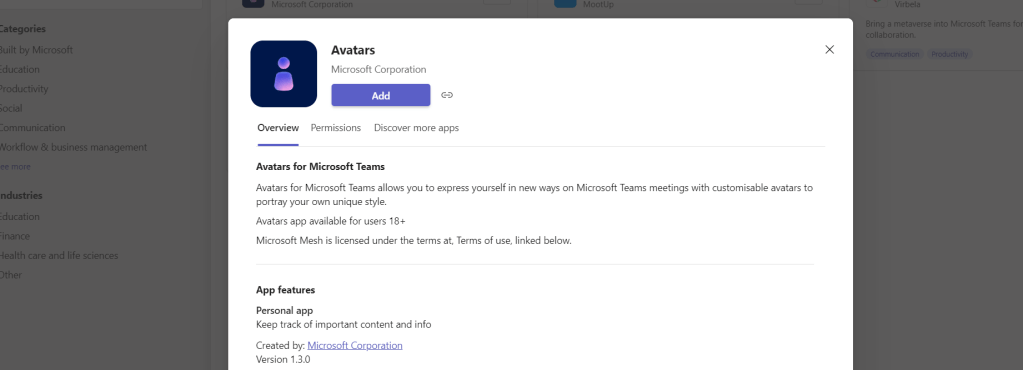
3.) Select Add
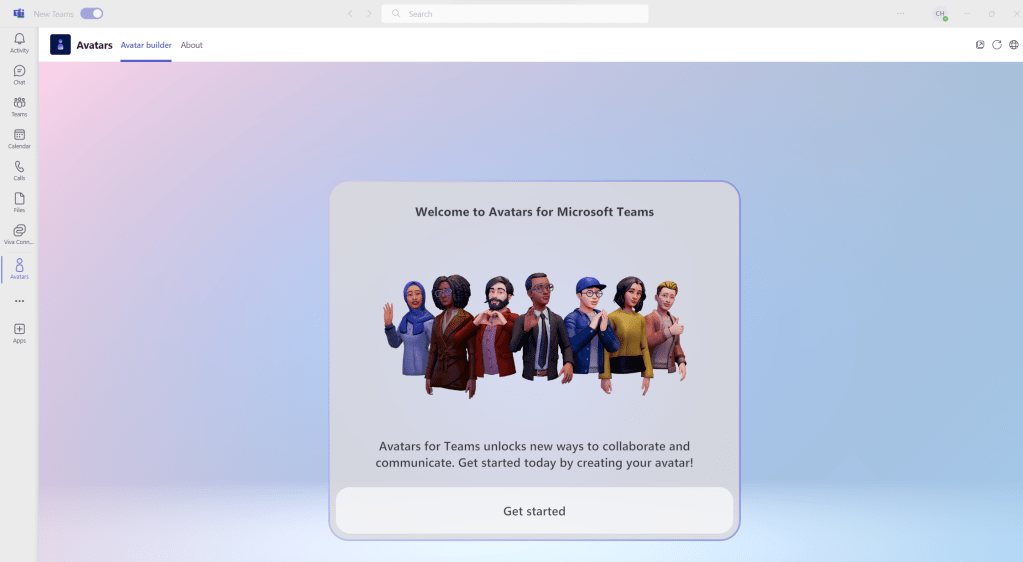
4.) The user will now open the Avatar Builder. Select Get Started
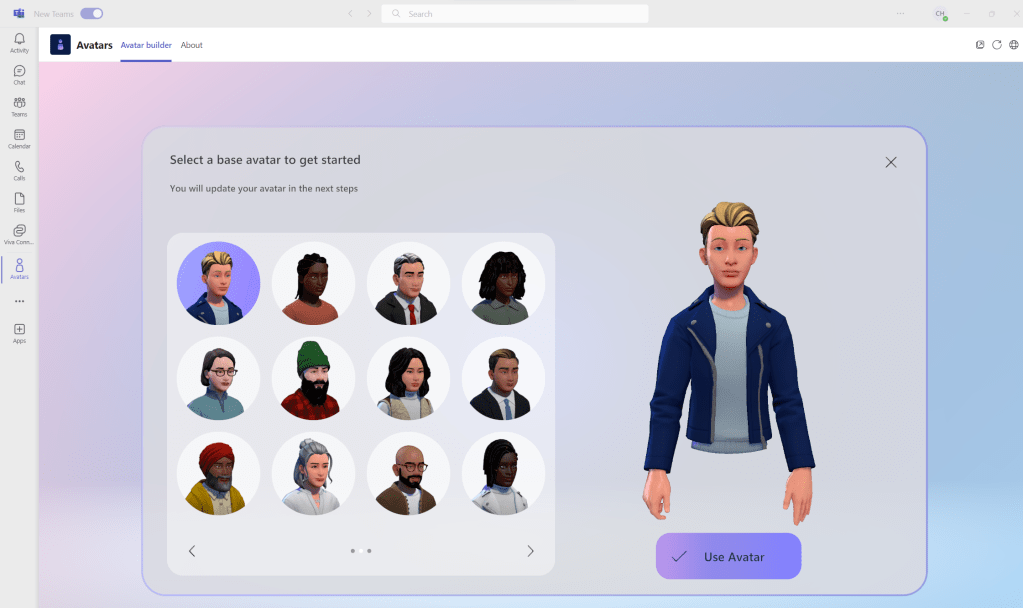
5.) Select the Avatar which is right for you, and then select Use Avatar
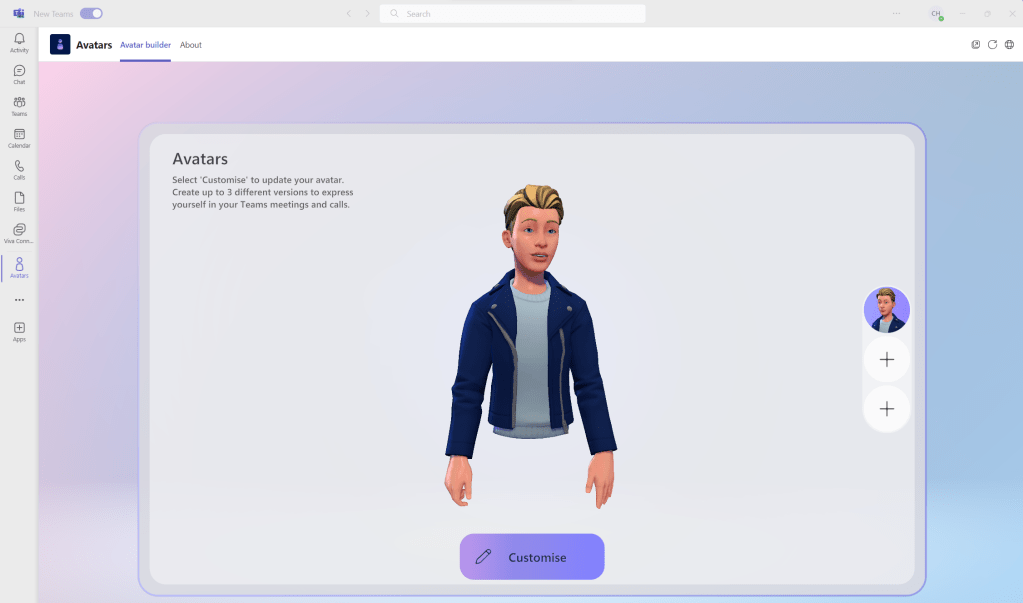
6.) Select Customise
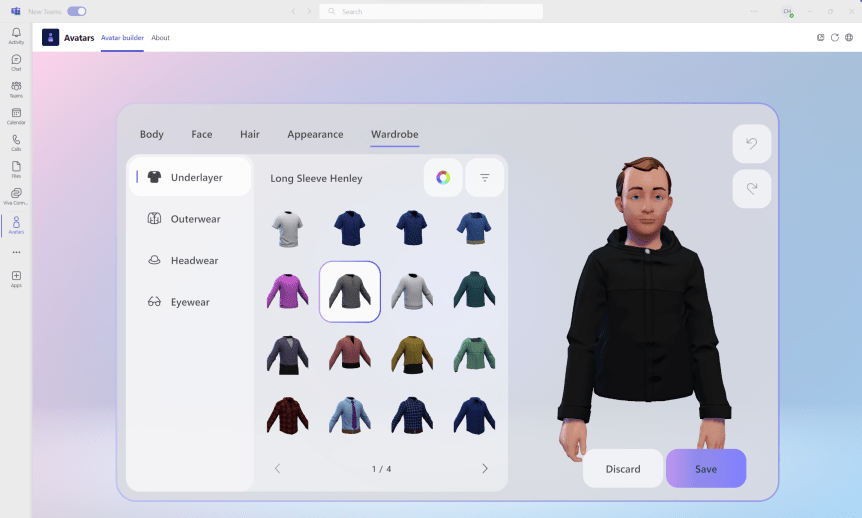
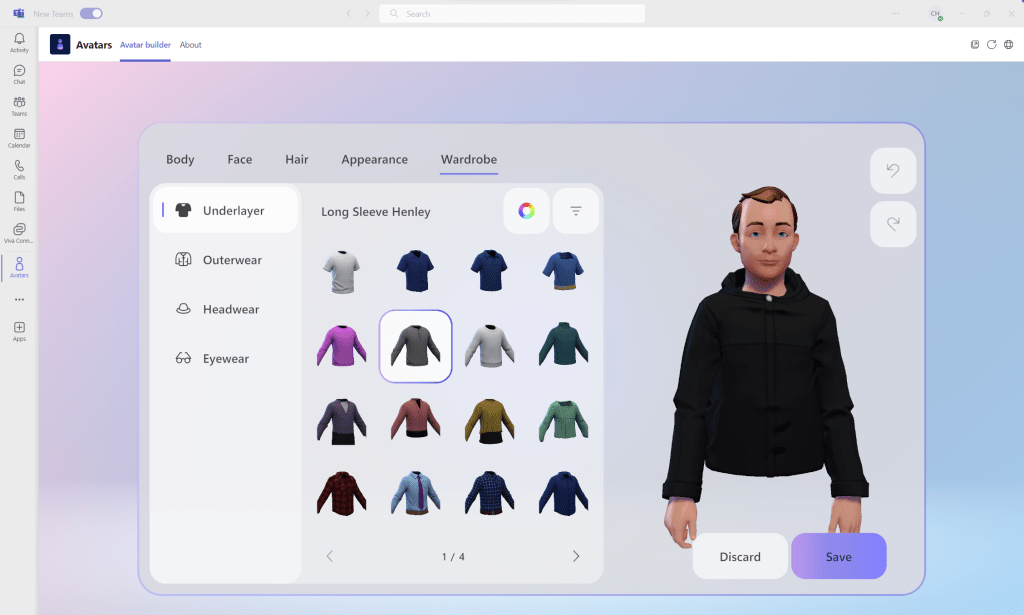
7.) Here, you can customise features of the Avatar including Body, Face and Wardrobe. Once done select Save.
8.) Now create up to 3 Avatars through the Add (+) Buttons. You can Duplicate and amend the wardrobe to keep a consistent feel.
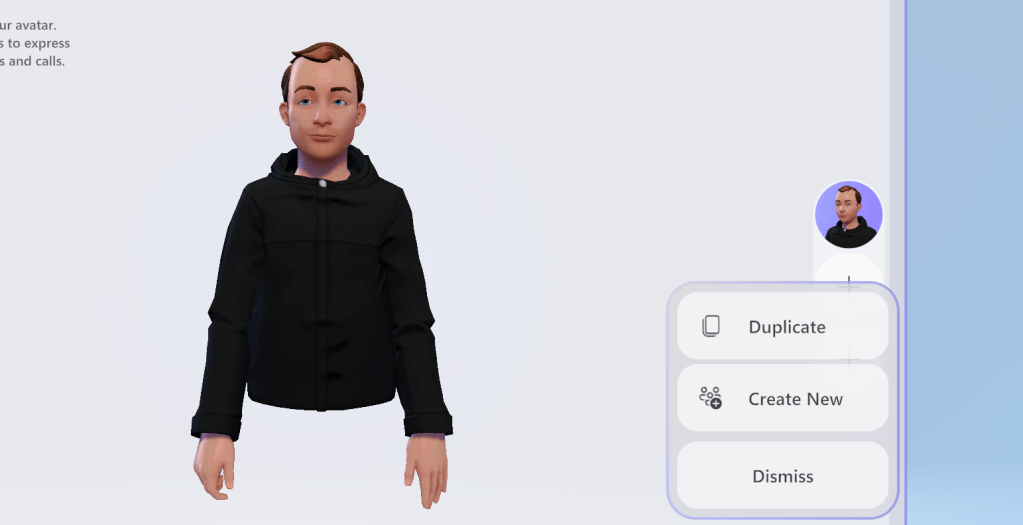

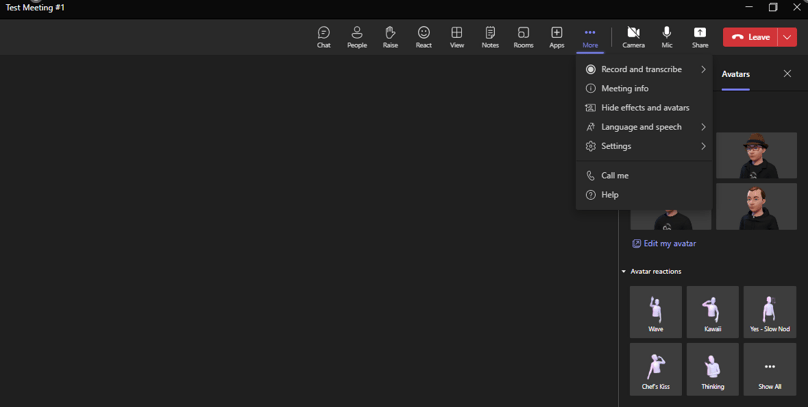
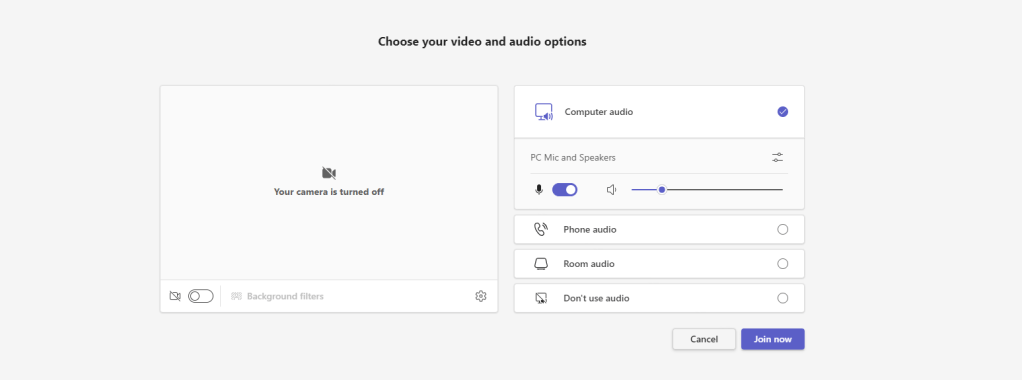
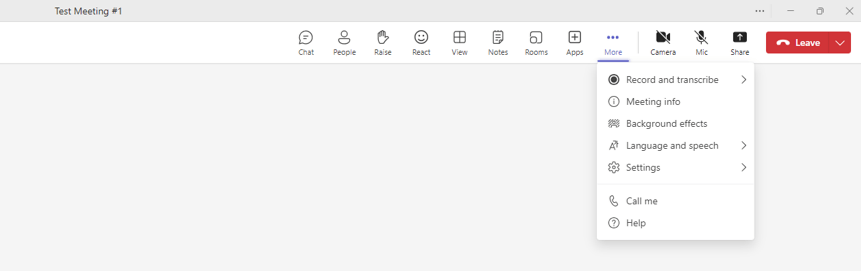
9.) Once done, Avatars can be used in Teams Meetings. Now, at the time of writing the 2.1 client does not currently support Avatars in Teams Meetings and only background effects are selectable, so the user will need to transition back to the classic experience in the Teams Client, and having created Avatars, can select them in either the pre-join or the meeting itself. I am sure Avatars will be in the 2.1 client soon, and the experience should parallel the classic experience.
Classic Experience

2.1 Experience
BLOCKING VIA DISABLING THE AVATARS APP
Ok, we have set Avatars up and can start using them within our Teams Meetings. However, how do we now follow up on the customers request and block Avatars for specific people in an organisation, or even all of them? Well, that can be done in a few ways dependent on the needs, and the first is the most measure and disabling the Avatar App which will make it unavailable for all users.
1.) As the Teams or Global Administrator log into https://login.microsoftonline.com and then select Admin

2.) In the Microsoft 35 admin centre, select Teams from the left hand rail
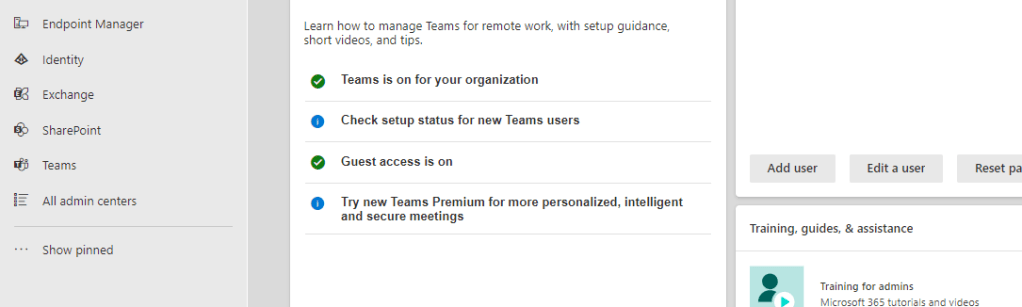
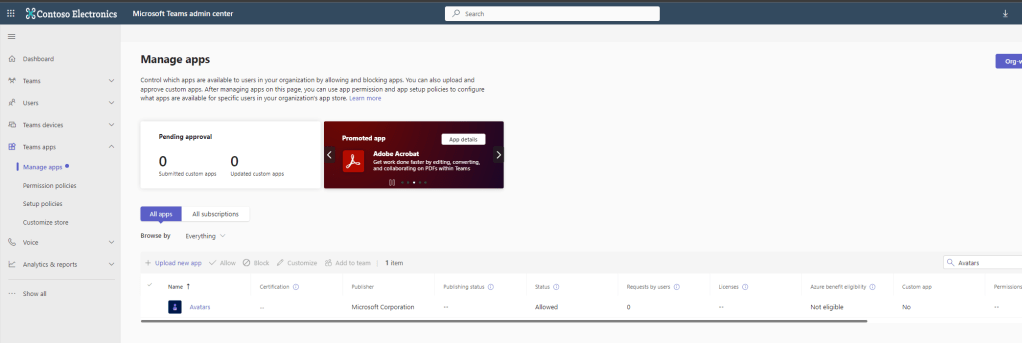
3.) In the Teams Admin Centre select Teams Apps then Manage Apps

4.) Search for and select Avatars
5.) Set the app to Disabled
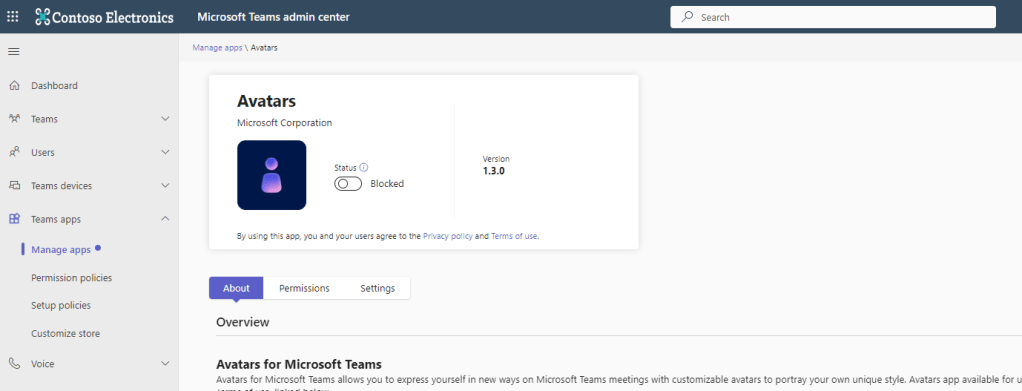
Disabling the Avatars App will block the use of the app for the whole organisation. This may apply to organisations who have compliance requirements, meeting regulations, or ideologically oppose the use of Avatars whether this may seem reasonable or not. This could be a good opportunity to education regarding their use and testing them in a sandbox environment for a period.
BLOCKING VIA APP PERMISSIONS POLICY
So we can block the app outright and no one can use it. However, the customer included the ask of the option to only block it for some. In that case blocking via Manage Apps would not suffice. In this case we would more likely use an App Permissions Policy. Let’s take a look.
1.) In the Teams Admin Centre select Teams Apps and then Permission Policies. Select Add
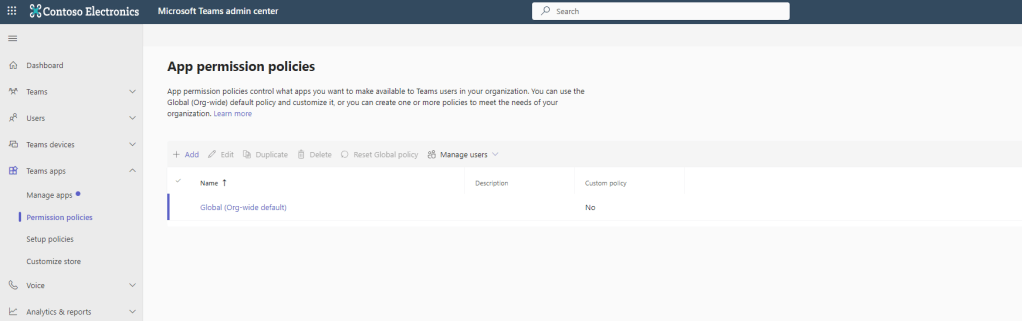
2.) Give the App Permission policy a name, here shown as Block Avatars. Change the Microsoft Apps setting to Block specific apps and allow all others and add the Avatars app to it. Once done select Save
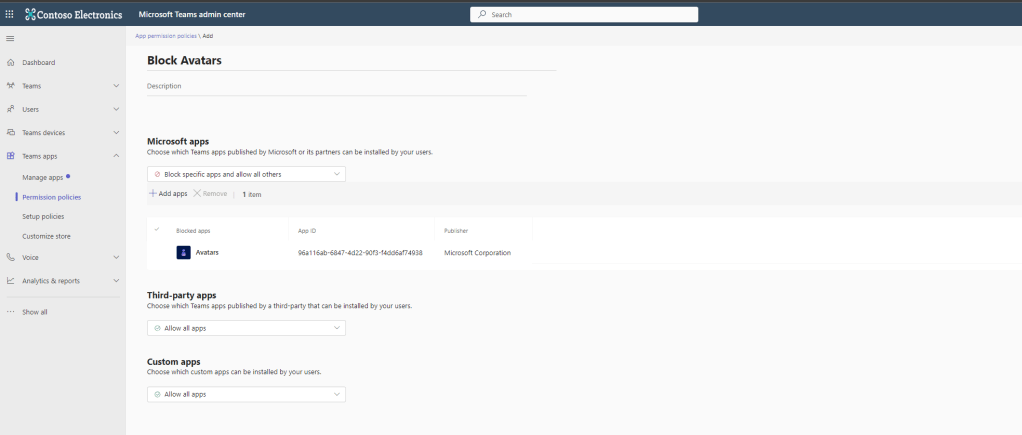
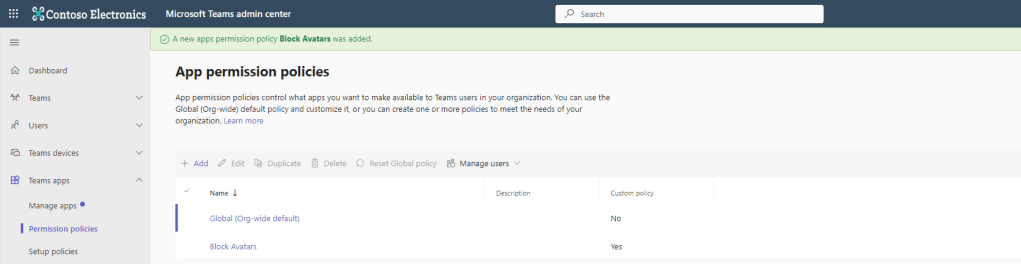
3.) The new App Permission Policy is created
4.) This policy can be assigned to users in a number of ways including directly or in bulk, via the Teams Admin Centre or via PowerShell
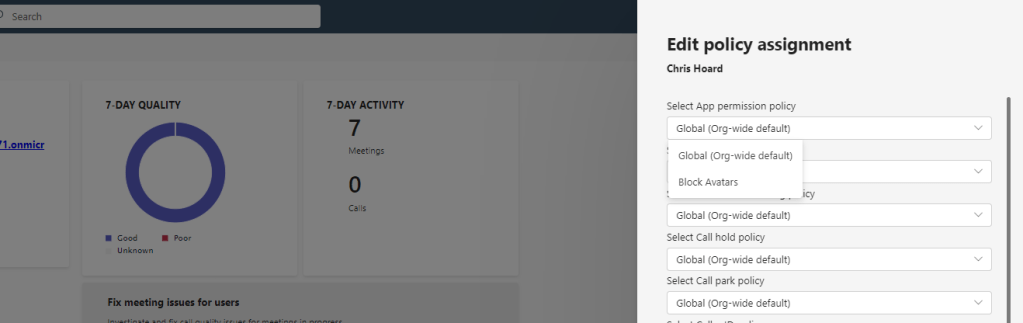
Applying the Avatars App into an App Permission Policy can block the use of the app for part of the organisation where that policy is specifically applied. This may apply to organisations where part of the organisation is heavily regulated, where they may want to test out in their production environment, or where senior leadership are more progressive (as opposed to conservative) with regards to the choreography and engagement of the meeting.
CAN AVATARS BE BLOCKED WITHIN THE MEETING POLICY?
There are a few people who have pointed out to me that there is an Avatar setting in the meeting policy itself. Can this be a way to block Avatar usage? Let’s find out.
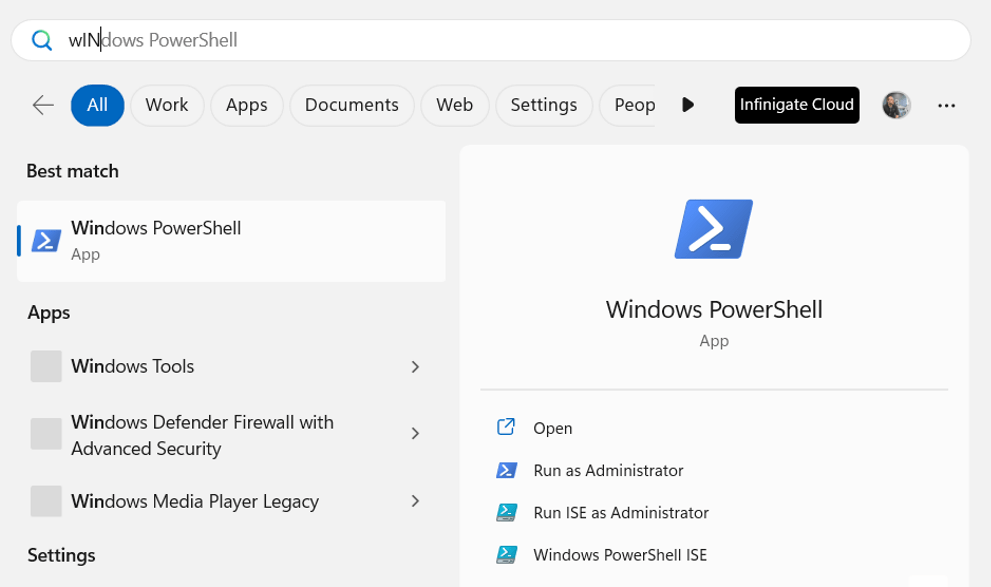
1.) Run Windows PowerShell as an administrator (With Teams or Global Admin)
2.) Run the following command and enter. You may need to authenticate as the admin during this process
Connect-MicrosoftTeams3.) Run the following command. A big list of meeting settings shows
Get-CsTeamsMeetingPolicy -Identity "Global"
4.) Locate the setting AllowAvatarsInGallery. It should be set to True

5.) Now run the command below. As you will see, even administrators are not authorised to change this setting. If we could change this to false would it mean then that Avatars would not show in the meeting, whereas effects would? Maybe this is something which is being planned, and it would make sense for use cases, or for phasing avatar use out across an organisation.
Set-CsTeamsMeetingPolicy -Identity "Global" -AllowAvatarsInGallery $False
CONCLUSION
Our job here is done. I have answered the questions. How to setup Avatars. How to block Avatars at both an org and user level. I have tried to do it via the meeting policy too: but we are not allowed to use that just yet. And I think this would be pretty cool – allowing users to create avatars in preparation for Meetings and Mesh, but not actually allows them to use them until the organisation or admin deems it neccessary for them to do so. That would be a good halfway house, and in a sense improve adoption inmore conservative environments. For nowunderstanding the very basics of the Avatars App within Teams – how to setup and how to get them into meetings, or have a basic level of control – all this is very straightforward to the day-to-day Teams administrator who works with Apps and Policies so they qill pick it up very quickly. And this bodes well for immersive rooms and worlds as announced moving down the line. So maybe I’ll do the next blog on Avatars a little sooner. But we all have to be ready to have a good conversation about them, see all sides, and with this functionality maybe it’s not going to be the tech that’s all that difficult, more peoples perceptions about Avatars, and how they should be used and needed in the context of business. I for one look forward to many more.
 @Microsoft365Pro