
I was over in the Republic of Ireland this week. And not only did I get to visit Microsoft. I also got to see a good part of the northern counties of Meath and Cavan on the way to visiting a client. It's an absolutely stunning part of the world. And that's my first takeaway this week - go visit there if you ever have the opportunity to do so. But also, in all the meetings I had whilst I was away Teams still featured prominently. Almost seven years in and we are still talking about at length what it can do. We are still talking about its rapid development with either more good stuff going in, or more good stuff being refined. Teams 2.1 features prominently at this point. So too does Teams Premium and Microsoft 365 Copilot. But there's still a lot to talk about when it comes to the fundamentals of voice, and meeting rooms, and apps, and files and optimising networking. And so - like last week - I am going to ad-hoc cover two features which I haven't looked into up until today. The first is the ability for the user to set themes in the Teams 2.1. client, such as light or dark, or better still classic. Yes, we can now go back to the classic purple should we choose - and yes, before you ask in my experience these things do matter to some users in terms of consistency and visuals. Secondly we'll look at enforcing explicit recording consent where users have to consent to themselves being recorded. This is defined by Microsoft as 'When the policy is applied, the Teams meeting window will request explicit consent of all participants to be recorded. Before a user gives consent, the user’s audio, video, and screenshare/consent-share won’t be captured in the meeting recording'. Now, why would we use that? Well, imagine my job meant that I had to provide meeting recordings to an undisclosed third party for review of sensitive feedback attendees gave in those meetings. I can't just record, that could be illegal or infringe upon some compliance policy. So I explicitly need your consent here. And in effect, until you give your consent you will be effectively hard muted and passive until you do so, or leave. Makes sense. But I would ask - is this right at whole-policy scope? As opposed to being a meeting option applied via a policy? Let's have a look and see.
Author: microsoft365pro
Teams Real Simple with Pictures: Admin-led review of Avatars, and disabling/hiding end-user product surveys in Teams 2.1
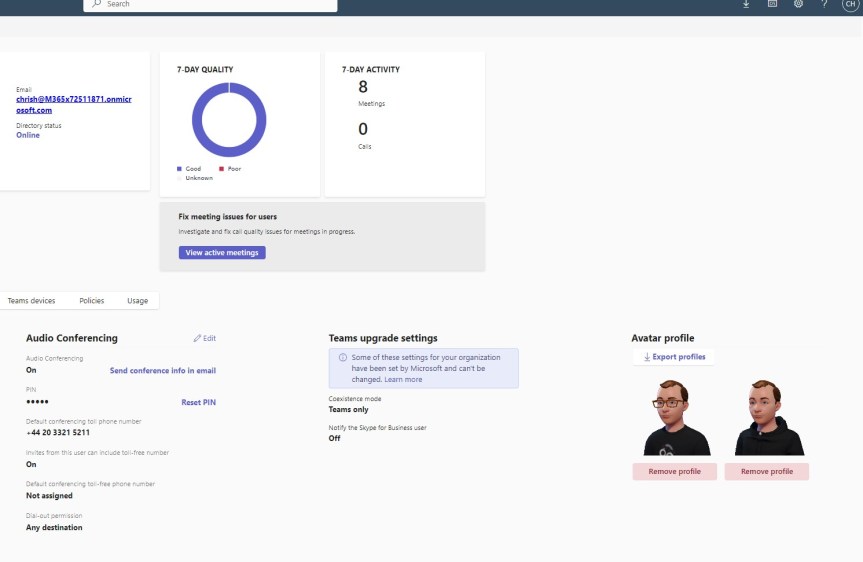
Following on from the blog last week covering the setup of Avatars, the next question naturally becomes - what ability does the org admin have, if any, to review those Avatars once they have been created? This may not seem like that big a deal at first. After all, you would think that people ought to choose something sensible and have the freedom to have a bit of fun right? Sounds good. At least on paper. But we've been here before. We've been here with the Snapchat add-in. And with the Teams custom backgrounds. And with OBS. And even to some extent with the use of emoji's. And when it comes down to it, it's not about personality or whether the admin is either a jolly old fellow or a killjoy. It's about protecting users and the organisation from content which could be perceived negatively by others, which damages or is noncompliant with the brand or puts the users in a sensitive situation. Sure, I may come across as overcautious, even hawkish and I get that. But during the pandemic I - for example, have personally seen someone outside my org use a background of an intensive care ward saying they felt like it was immersive. Moreso, I have also seen others in the wider community use backgrounds such as the Rhodesian flag, or - let's say - very questionable Manga content. So yeah, I think its important. Real important. So today we'll see how Avatars can at least be reviewed by the Teams administrator with a view to using those app permissions in future. And since this isn't a very long subject at present, we'll also throw in how to disable end-user product surveys in Teams 2.1. for good measure because, well, a partner asked me how to disable them this week. Again you would think that users would sensibly put in constructive feedback like you or I and give measured and fair feedback on the pros and cons of the product. Sounds good. At least on paper. When a user gives caps-lock, f-bomb laden monologues, or one liners loaded with sarcasm again this could be perceived negatively by others, which damages or is noncompliant with the brand or puts the users in a sensitive situation. So these are, in a sense, linked scenarios which we'll explore today
Teams Real Simple with Pictures: Setting up – and blocking – Avatars in Microsoft Teams
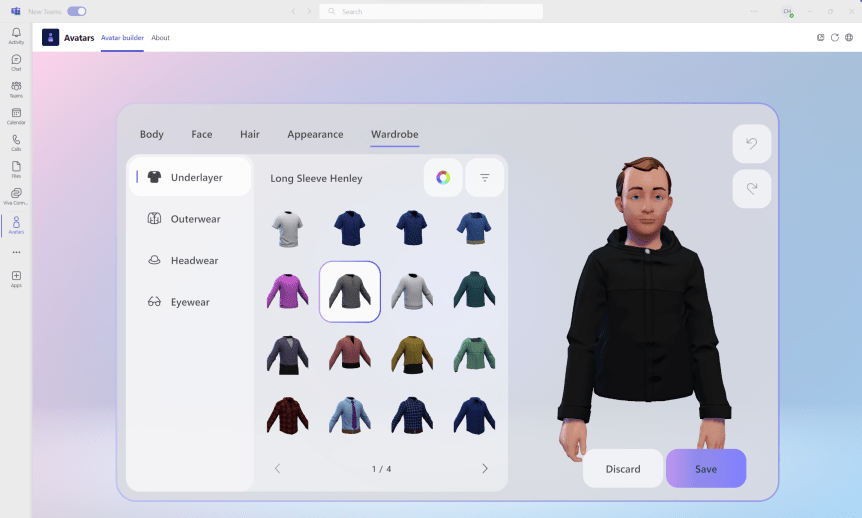
One of the things I find about blogs - at least when you write regularly over a long period of time is that there are subjects which just seem to fall off the radar. For all of the best intentions. For however cool those subjects are it just doesn't happen one way or another. They go MIA awhile, only to re-surface again when prompted. In my case this is typically in a conversation I have regarding a business need. Now, as I have explained previously, I don't take blogging seriously to the point that I have some kind of system for it. I don't write ideas down. I dont plan them out during the week. I'll just rock up and write it ad-hoc because that's what I enjoy. And over the past 4 years or so it's generally worked out well. So one such subject this week was the use of Avatars, with a customer of a business partner who was absolutely adament that they wanted to prevent a proportion, if not all of their users using avatars in Teams Meetings. It was an idiosyncratic, as opposed to a technical need. And that's ok. You don't have to justify it to me. It's valid. Many of us in the field who have used Avatars in Teams for some time know right out the gate that opinions and biases will vary, and whilst one person will see them as inclusive, allowing freedom from being anchored to the camera or having to dress up for groupthink, another will see them as inauthentic, breaking decorum and trivialising the serious matter of business. What do I believe? That isn't my place to say within this article. However, I did talk about Avatars a few times over the past year including at Microsoft Ignite. I should have done a blog sooner. But it went MIA. This is for a partner of that customer: how to setup - and block - the use of Avatars in Microsoft Teams. Your choice.
Teams Real Simple with Pictures: Clear Cache in Teams 2.1 client

I was doing a blog yesterday on system-preferred MFA. And during the writing of this blog I needed to clear the cache since the new Teams 2.1 desktop client wouldn't allow me to completely sign out. It was still trying to sign in to an old tenant which was previously linked and which I had removed after it had entered a grace period prior to it's expiry. At this point signing in wasn't possible. It wasn't possible to get the desktop client back to the sign in page either. So this is the kind of issue which - historically, clearing the cache is ideally suited. But what was weird about this scernaio was that when I cleared it from the usual location, closed down explorer and restarting the client clearing it didn't seem to resolve it. So I am now trying to a few different things, clock-watching and running out of time to do this blog. And what suddenly clicked in my head was to check the cache again. So I went back in explorer and the cache didn't re-populate when the Teams 2.1 client was reopened. Therefore, the cache for Teams 2.1 desktop client is actually in a different location than the classic desktop client. So I rooted around a bit. I found it. I actually found a way to it through the client itself, but I am sure it's going to be easier to simply use Run as most do today. Now, clearing the cache is part of the repotoire of pretty much anyone who supports Teams. Better we all know where it is. But will it go back to the usual place when we transition over fully? Who knows!
[Archived] Teams Real Simple with Pictures: Implementing System Preferred MFA
![[Archived] Teams Real Simple with Pictures: Implementing System Preferred MFA](https://microsoft365pro.co.uk/wp-content/uploads/2023/07/image-122.png?w=863&h=0&crop=1)
Ok time is of essence! There is a ton on. Corp wise. Community wise. You may have seen it on social this week that Teams Nation is coming back. Yes, Vesku and I were asked many many times. And yes, we decided to get onboard that crazy train again. But whilst it may seem like an eon away given it's February 2024 and a million things will happen between now and then; you'll have to believe me when I say that I'll soon be sitting here the weekend prior doing last minute speaker checks. So this week is a real quick one. And it's really following on from the blogs on Entra that I have covered the past few weeks. This is looking at System Preferred MFA in the context of Teams. So what is it? By definition, 'System-preferred multifactor authentication (SPMFA) prompts users to sign in using the most secure method they registered'. In other words, if you have registered Authenticator and SMS as two methods to sign-in using MFA then SPMFA is going to prioritise the more secure method which is Authenticator over SMS. It doesn't stop the choice of the other, but it does set precedence when signing into an app such as Teams or into the Microsoft 365 portal. Why is this important? Two reasons. The first is as described - it sets the most secure sign in method and that's ultimately what we as admins want to see for our users in Teams. The second is that by setting precedence, this could facilitate user behavioural change over time, with a view to removing less secure registered methods in the future. Now this feature should be set to enabled by default in time, but today in my Ring 4 test tenant it's set to Microsoft Managed. Could be lit up. May not. But it's not enabled. So here's a twist. Lets enable the methods for Authenticator and SMS, then enrol to MFA, then enable System-preferred MFA by default. Just for laughs, but also because I have a nice fresh tenant after my old one went into grace 😀
 @Microsoft365Pro