
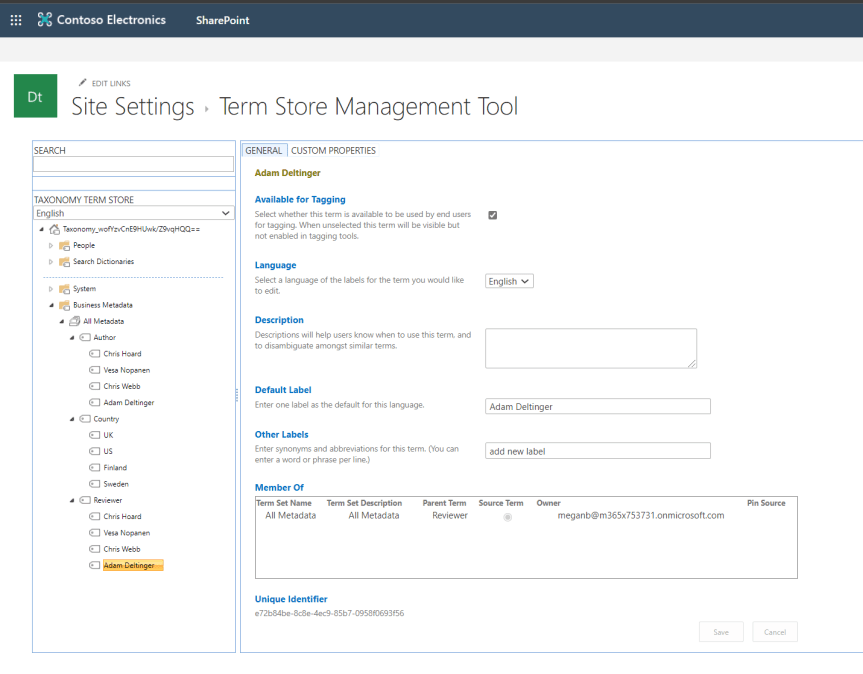
In part 1, we explored adding Metadata to files in Teams through choice columns. This time around, we'll look at adding what is called managed metadata via the Term Store. In SharePoint, the Term Store can be thought of as a collection of term sets, each set containing metadata labels that can be used and applied to files in any SharePoint Site or Site Collection, so any Team or Channel. Therefore, they can be thought of as being managed centrally or 'managed metadata' unlike choice columns which are created on a site by site basis by members of the Team. This saves significant time for Team Owners and members who want to use the same metadata labels across Teams. Like choice columns, Managed Metadata is configured within SharePoint as opposed to Teams itself
Tag: Microsoft Teams Metadata
Teams Real Simple with Pictures: Teams Files and adding Metadata Part 1: Choice Columns

Metadata is something that sounds more complex than it is. Put simply, it is data which provides information about other data. Imagine a standard Microsoft word document. Examples of metadata for that word document could include Author, Department, Date created, Hours to create, length, type, file size. It could be a document for a specific customer or vendor. The point of metadata is for structure, organisation and identification of files within the Team. It helps members of the team search for it and discover resources: particularly handy if the Team contains a lot of files. With the new file experience in Teams, metadata can now be surfaced and used within Teams, however it is important to note that it is still created within the document library in the underlying SharePoint site. It is created in two principle ways: through choice columns and through managed metadata. This article will look at adding metadata through choice columns
 @Microsoft365Pro