
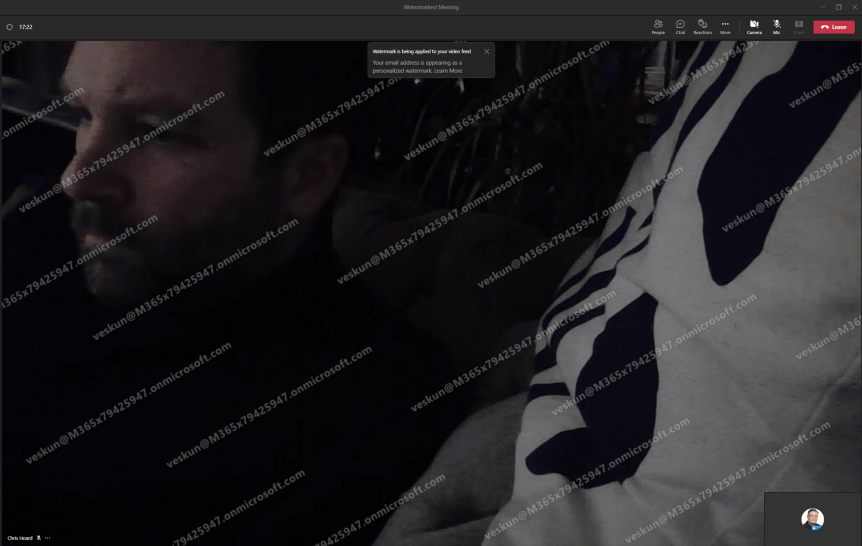
Meetings, like files, can contain sensitive information. Whether sharing video, or sharing screen content such as a PowerPoint presentation, the meeting organiser may wish to actively discourage data leakage, counterfeiting or plagiarism. Think of the following scenario: an attendee screenshots a PowerPoint slide whose intent is to leak that onto others even knowing that the content has been explicitly defined by the presenter as being under NDA. This is where watermarking fits in. A watermark, by definition, is an identifying image or pattern that appears as various shades of lightness/darkness when viewed by transmitted light. The process originated over 800 years ago and has been used for paper, stamps and currencies. In IT, it is defined as a piece of transparent text, image or logo, applied to an item, such as a file, an image, or a video. In Microsoft 365 watermarking can be used in Office apps, such as Word (via the Design Tab) or can be automatically applied to files via Sensitivity Labels. With the coming of Teams Premium, watermarking can now be used in Teams meetings for both video and shared content, and can be used in alignment with other Teams Premium functionalities such as Meeting Templates and Meeting Sensitivity Labels. This is awesome, and these functionalities will be explored in forthcoming blogs. But at the time of writing, there are some rules around watermarking which I would advise need to be known before going ahead and using it with confidence. This is a bit like when End to End Encryption (EE2E) was released. Firstly: if using watermarking, you cannot record. Not manually, not automatically whether that is sharing video or content. Secondly, it knocks out other meeting functionalities such as Together Mode, Large Gallery, PowerPoint Live and Content from Camera. This depends on what you watermark. Third, if watermarking is used, then it would be an audio experience only for web, VDI (so on AVD/Win 365) as well as anonymous and overflow participants and again this depends on the watermarking. Last - and the big one, the watermark itself displays the the email address of the meeting participant, not the presenter. I have already been asked why this is - and to be fair it makes a lot of sense. If somebody leaks your content, then it's not going to really identify who did that by having your details on it. If some screenshot gets out into the wild then it'll have their details stamped all over it, or it's going to cause them an incredible amount of difficulty to try and gloss over the watermarks. I am quite excited to try this out
Category: Microsoft Security and Compliance
Teams Real Simple with Pictures: Setting up Safe Links for Teams
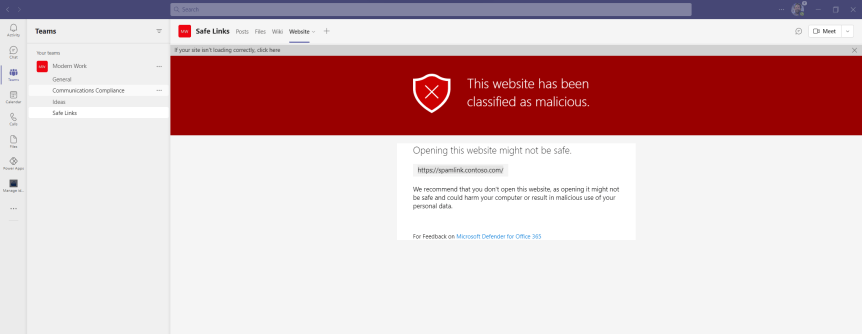
It's nearly here. The big day. My 5 year old is still building his Christmas list and wanting half of the things he sees on TV. It's fingers crossed that the turkey will still be there when we go to pick it up at Mark's and Spencer's on Thursday. And of course we all hope that we'll get to see our loved ones over the festive season given what's happening with Omicron here in the UK. But for now, let's put all the worries aside and focus on something we can control and do something about pretty quickly: which is implementing Safe Links for Microsoft Teams. It's something easy to do, and the security benefits are 101. It's all about protecting users from clicking on malicious URL's directing them to sites aiming to instigate a data breach, or triggering the download of a payload onto their device. Given that Teams has open federation by default its pretty much a no brainer. I tend to think of it this way: what if someone who you regularly chat with in private from another organisation sends a link which you don't recognise? How do you know that person hasn't been breached? So how do you respond to someone you don't know? What if someone who has been breached within your organisation sends you a document link within Teams with a malicious URL inside of it which to all extents looks like a legitimate business document? Now, I would love to say that everyone I know - myself included - exercises good judgement in these matters one hundred percent of the time. However, let's be honest this just isn't true. This is why zero trust is so important to everything we do moving forward. Chances are, someone will click the link. And it's not because they are stupid. It's often because they are busy, or under pressure, or the attackers are very good at making the URL look legit. How many of us ask somebody to ratify a URL before clicking on it? It could be a combination of those things and it could happen to any of us. Safe Links is included in Defender for Office 365 Plan 1. It's in E5 but also a standalone SKU which could be added, for example to Microsoft 365 Business Premium. It's important to note that everyone who you intend to protect with this needs to be licensed. If the licence isn't on, it won't work even if you add the user to the policy.
Teams Real Simple with Pictures: Let’s deploy End to End Encryption (E2EE) for 1 to 1 VOIP Calls
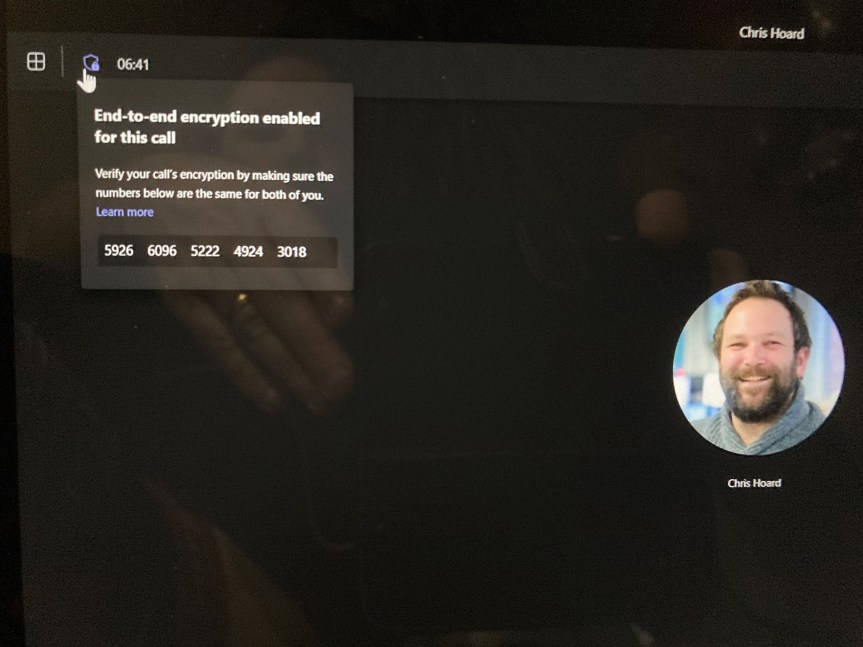
Christmas has seemed to come around mega fast this year. It's three weeks today. Hopefully, you've already done your shopping by now and have a week or two off to enjoy the festivities. I had some time today to sit down and watch Elf with my son. This'll begin a marathon of Christmas movies which will include The Santa Clause, Miracle on 34th Street, Home Alone and my personal favorite It's a Wonderful Life. I'm also pretty sure we'll all see the time honored question-slash-poll go up on social - 'Is Die Hard a Christmas movie?' or gif's of John McClane - 'yippe ki yay mother...'. Of course, I hope it all goes well for you this year. One present which has arrived early for all us Microsoft Teams fans is End to End Encryption (E2EE). Announced at Ignite back in the spring, the public preview is finally here. However, before we suddenly break out the eggnog and get a bit rowdy on those calls we have to understand a few things right off the bat.
Teams Real Simple with Pictures: Let’s get 100% on Teams Items in Microsoft 365 Secure Score

Last week I was in a bit of a funk. I just couldn't think of something to write about Teams. I mean, sure, at this point I've pretty much been writing about Teams weekly for over two years so it's probably not a surprise that the well runs dry occasionally. But there's also times where subject matter for blogs simply spring out of thin air. This was one. I was doing something like making my son's sandwich in the kitchen for lunch last Monday and there it was. You see the thing about me is I don't plan blogs. I don't have a list or an excel on my machine indexing what I am going to write about over the course of next few months. I'm much more clandestine and transactional. Basically I sit down and make something up on the spot, or if my memory is working as it should be take something I have thought about during the week and go with that. Sometimes it's easy. Sometimes I absolutely stitch myself up if the subject matter ends up being long. Overall? It kind of works out. So this week the thought was on Teams items in Secure Score. Secure Score is concerned with the measurement of an organization's security posture; a higher number indicating more improvement actions taken. In other words, the higher score you get, the more secure you should be through actions you have taken in your Microsoft 365 tenant such as enabling MFA or disabling legacy auth. Some people love it and see it as a great assessment tool which provides quantifiable measurements which can be used for continuous improvement and managed services. The more skeptical amongst us have viewed it as a way to work up the SKU's especially in the early days when you couldn't reach high scores without purchasing things like E5 or Azure AD P2 licences. Throughout 2021 (I had to look this up to confirm the dates), Teams was added as a new category in Secure Score and 6 items fell into this category. 1 in January, and 5 recently in July. All are to do with securing meetings. Let's go take a look at these six and how to implement each of them. Let's go get you 100% on Teams items in Secure Score. The completionist in me is looking forward to this one
Teams Real Simple with Pictures: Using Sensitivity Labels to regulate the privacy and guest access of a Team
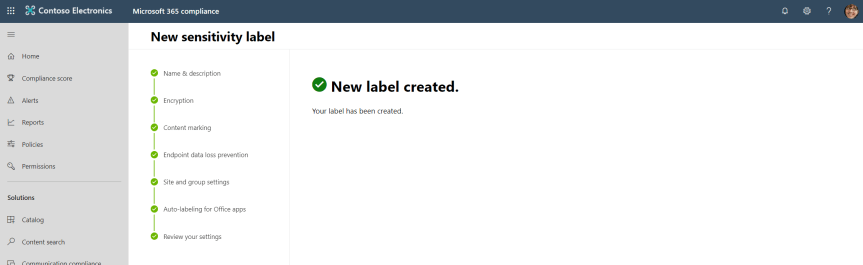
We have previously explored the implementation of DLP and Supervision policies to the Team. We will now look at applying Sensitivity Labels - currently in Public Preview. By definition, Sensitively Labels allow Teams admins to regulate access to sensitive organizational content created during collaboration within teams. In other words, it can keep Teams private (removing the ability to be set as public) and block Guests from being added. The best thing is that labels can be set at a tenant label and easily applied when creating the Team. It gives administrators so much more control over the Team in terms that users cannot simply join the Team and Owners cannot simply add guests which are not authorised to access it's content. It's another layer of protection which should be added in any Teams roll-out. It's also an answer for blocking guest access on a Team by Team basis: this works well if the creation of Teams are regulated.
 @Microsoft365Pro