
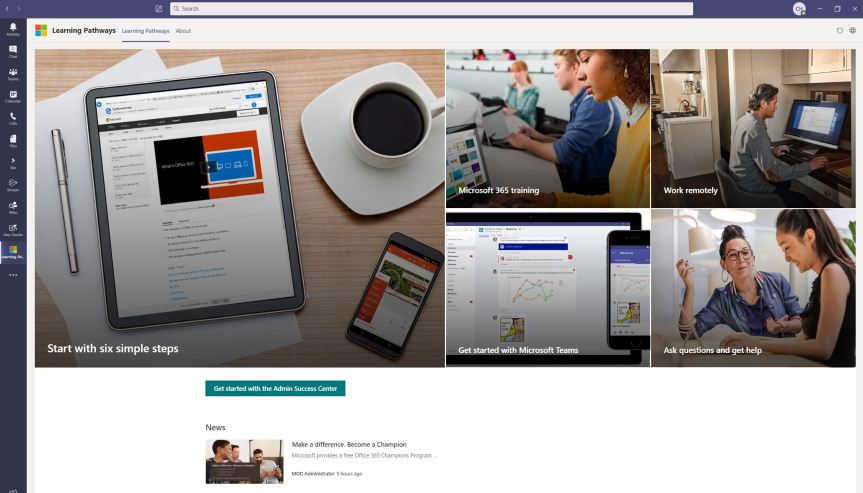
Learning pathways is a customizable, on-demand learning solution designed to increase usage and adoption of Microsoft 365 services in your organization. It's one of those things which has been on my radar to write about for some time. Having your learning site in easy reach of your Team - within Teams itself - and bringing your learning content where your Team is working on a day to day basis saves time and makes it easier for them to access without needing to navigate to another application. Add in the fact that you can customise content and you have a really powerful application that is great for increasing the teams' knowledge and adoption of Microsoft 365 services, provides a greater return on Teams, SharePoint and other 365 applications as well as provide a platform for the organisation to deploy it's own content. No need to necessarily splash out on that LMS
Category: Microsoft SharePoint
Microsoft Lists Fundamentals Part 1
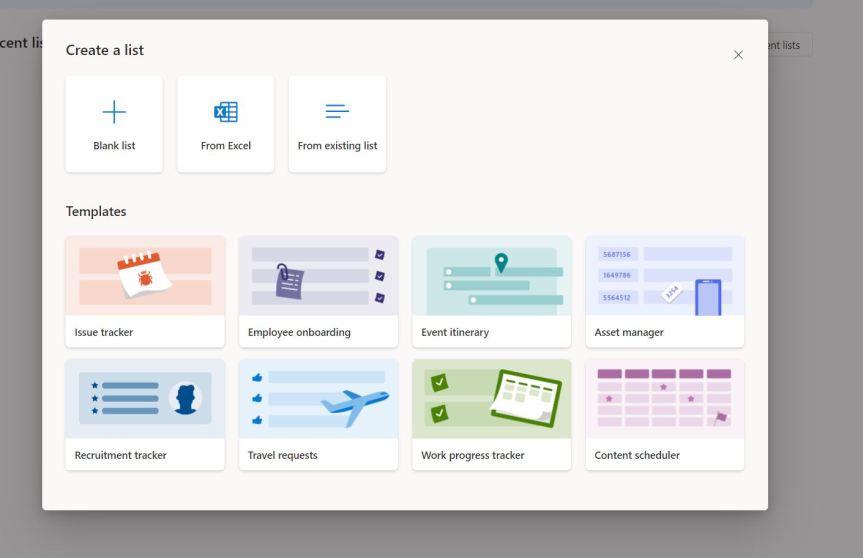
I have a little detour from Teams this week. Of course, Microsoft Lists will come into Teams in the next month or so - this has already been confirmed. Yet I like many others have been caught up in the hype and wanted to get hands on with the web app experience as a primer for that. So it's a good thing that even though it's not officially in my Ring 4 test tenant - as in no icon on login - there's still a way to access it - many thanks to Matt Wade and Michael Pisarek for bringing it to my attention on social. So, Lists. Lists are effective for many things - Itineraries, Assets, Expenses, Project Steps, Go to Market actions. And there is many reasons as to why you would make a list. You would make it to record track and organise. You would make it in order to collaborate with others. You would make it to share with others. Yet lists in Microsoft 365 are not new. As announced at Build, Lists are an evolution of SharePoint Lists and encompasses SharePoint Lists and which is now a cross app all of it's own. Let's have a look
Teams Real Simple with Pictures: Accessing all of your Teams files through a single channel
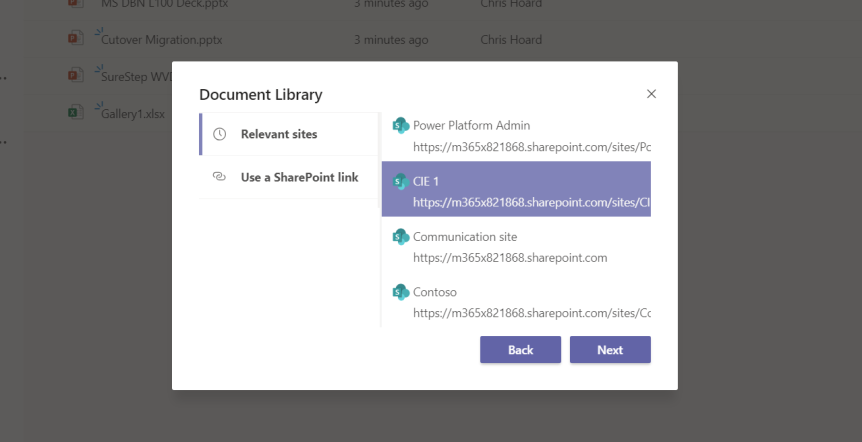
If you are like me, then you are always looking at ways to do things quicker or make things easier - and working with files in Teams is no exception. Now, as a rule of thumb and being a minimalist at heart I only ever keep a maximum of three Teams visible at any one time, but one of the drawbacks of this approach is that I often get asked to upload, amend or co-author content in Teams, or channels of Teams which I have hidden or rarely use, and since I am a member of over four dozen Teams it takes me an unnecessary amount time to locate it and do the upload or the amendment. Now, I don't know when exactly this functionality dropped into GA - I can't remember seeing it on the Microsoft 365 roadmap or the Message centre, but you can now attach cloud storage to channels. This means that you can add all of the SharePoint file structure of every Team you are a part of to a single channel which can short circuit much of the previous effort involved. This includes Private Channels
Teams: #FightCorona – Files: Tab, Pin, Search and Move
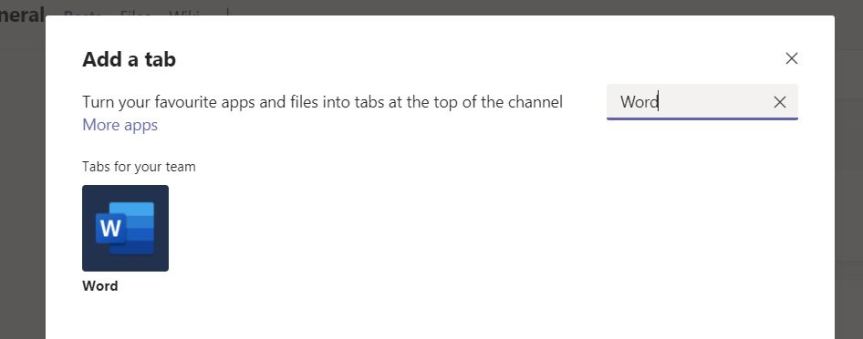
The last blog looked at what you needed to know about files if you were using Teams for the very first time. How to create them. How to upload your existing files from your local machine. How to sync Teams files and personal files to your desktop and how to share files with others outside of your Team and outside of your organisation. This one is all about accessing and finding files. Most people use certain files more than others. We don't want to have to trawl through all our files in order to be able to find specific ones every time. A good file experience allows us to find them quickly and have them to hand
Teams: #FightCorona – Files: Create, Upload, Sync, Share
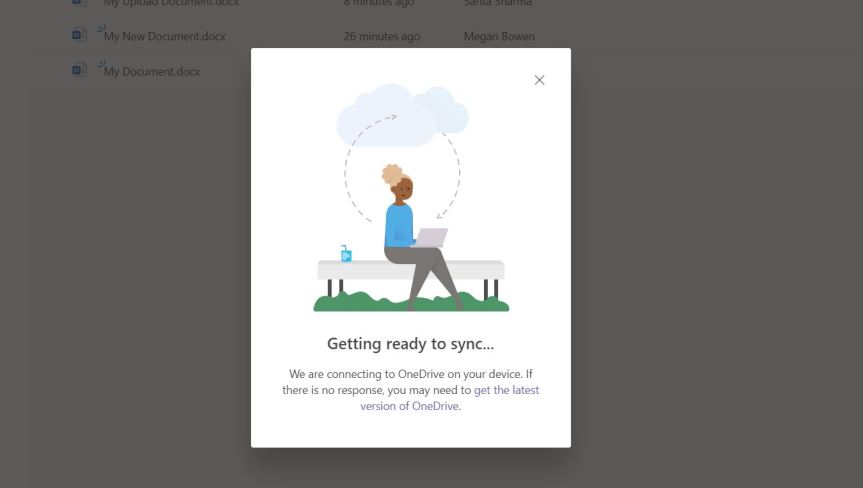
Files are at the centre of the collaborative experience. Whether it is a business report in word, an excel spreadsheet, or a PowerPoint presentation - we are increasingly working together to produce content. We can share with the team. We can share outside the team. We can work in real time from anywhere, on almost any device all in one space without having to spend time on emailing the file to each other with multiple copies laying around in your local documents folder. Teams brings it all together, and through Teams we leverage the power of SharePoint and OneDrive. In understanding how to use Files in Teams, I am absolutely certain you will never go back to a solution such as a File Server. Let's start with the basics - there is a lot of ground to cover
 @Microsoft365Pro