
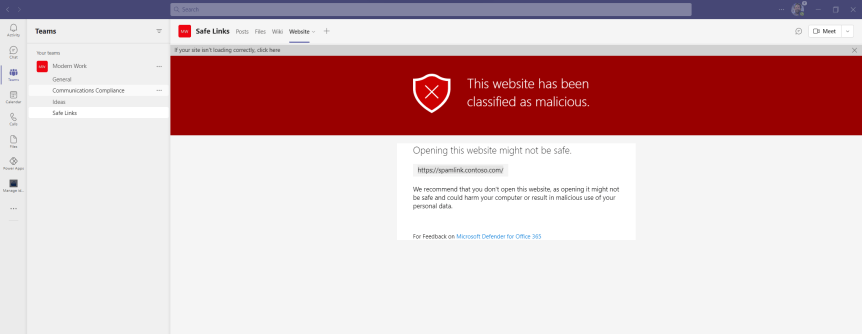
It's nearly here. The big day. My 5 year old is still building his Christmas list and wanting half of the things he sees on TV. It's fingers crossed that the turkey will still be there when we go to pick it up at Mark's and Spencer's on Thursday. And of course we all hope that we'll get to see our loved ones over the festive season given what's happening with Omicron here in the UK. But for now, let's put all the worries aside and focus on something we can control and do something about pretty quickly: which is implementing Safe Links for Microsoft Teams. It's something easy to do, and the security benefits are 101. It's all about protecting users from clicking on malicious URL's directing them to sites aiming to instigate a data breach, or triggering the download of a payload onto their device. Given that Teams has open federation by default its pretty much a no brainer. I tend to think of it this way: what if someone who you regularly chat with in private from another organisation sends a link which you don't recognise? How do you know that person hasn't been breached? So how do you respond to someone you don't know? What if someone who has been breached within your organisation sends you a document link within Teams with a malicious URL inside of it which to all extents looks like a legitimate business document? Now, I would love to say that everyone I know - myself included - exercises good judgement in these matters one hundred percent of the time. However, let's be honest this just isn't true. This is why zero trust is so important to everything we do moving forward. Chances are, someone will click the link. And it's not because they are stupid. It's often because they are busy, or under pressure, or the attackers are very good at making the URL look legit. How many of us ask somebody to ratify a URL before clicking on it? It could be a combination of those things and it could happen to any of us. Safe Links is included in Defender for Office 365 Plan 1. It's in E5 but also a standalone SKU which could be added, for example to Microsoft 365 Business Premium. It's important to note that everyone who you intend to protect with this needs to be licensed. If the licence isn't on, it won't work even if you add the user to the policy.
Mentions: microsoft365pro
[Archived] Teams Real Simple with Pictures: Granting Org Wide Admin Consent to an App
![[Archived] Teams Real Simple with Pictures: Granting Org Wide Admin Consent to an App](https://microsoft365pro.co.uk/wp-content/uploads/2021/07/image-25.png?w=863&h=0&crop=1)
To all my friends and readers from the US - happy independence day! And to everyone else I hope you are enjoying the summer. It's nearly time for a break. But unlike my Scandinavian friends Vesa Nopanen and Adam Deltinger who are taking a month off - a month! (they tell me it's cultural), I still have a few weeks of grafting. Well, not all graft since Microsoft Inspire is here on the 14th and since I am going as an attendee it'll be enjoyable to just kick back and watch some sessions; something I have rarely done the last few years as I have been doing lots of speaking and moderating. So after focusing on Stream and the new web experience last week I am going to jump back into Teams this week. I originally thought about writing on Teams Meeting Recordings since I have an upcoming talk at the end of the month on exactly this. Yet something caught my eye in the Teams Admin Centre (TAC) and you know me...I thought I just have to write it TMR's can wait. Now this functionality is called Org Wide Admin Consent to an App. Sounds abstract right? Yeah. In layman's it's all about allowing apps permission to do what they need to do in your environment on behalf of users. Examples would include the ability for an app to read information stored in a team, for an app to read a user's profile, for an app to send an email on behalf of users and so on. Typically, when a user adds an app from the Teams App Store or starts using a custom or third party app, they have to grant the app permission. So administrators doing it on their users behalf can be beneficial. Why? It saves time, potentially a lot of confusion and makes the process of adding an app much more user friendly. Secondly, for the admin it gives them more control of apps and another tool alongside blocking, app permissions and custom app configuration. Third, users may not even be allowed to give consent as the admin may have locked this down already in Azure AD as part of their enterprise app configuration. Now, some things to know right off the bat is that org wide admin consent to an app can only be done by a global admin - not even the Teams Service Admin can do it. Secondly, it applies only to custom and third party apps. Microsoft's are exempt. Finally, org wide admin consent to an app is a much broader brush than resource specific consent (RSC) which is granular and applies to specific teams, so careful review has to be given before applying it. Sound good? Let's get going
Teams Real Simple with Pictures: Setting up Supervised Chat in Microsoft Teams

Many years ago when I did my teacher training here in the UK one of the things I was taught is the concept of 'in loco parentis' - latin for 'in the place of the parent'. Legally, whilst not bound by parental responsibility, teachers are expected to behave as any reasonable parent would in promoting the welfare and safety of children in their care. The term dates back to the 19th century when courts were first identifying and constituting teachers' responsibilities. It was during this period where case law established that a teacher should act "as a prudent father" - language which may not be so fit today, yet the idea of safeguarding transcends this vernacular typical of it's time. Supervised chat - a feature I didn't know even existed in Teams until a few days ago, is predicated on this idea of safeguarding. As outlined in the notes 'Supervised chat allows designated educators to initiate chats with students and blocks students from starting new chats unless an appropriate educator is present. When chat supervision is enabled, supervisors aren't allowed to leave chats and other participants aren't allowed to remove them, ensuring that chats involving students are properly supervised'. In other words, it's removes the conundrum of having private chat on or off in an education environment. On? Many teachers, parents and stakeholders would consider it dangerous in that it opens up a number of risks including harassment, bullying and non-educational content. Off? This blocks teachers, or learning support from reaching out to students privately for personalized learning, or for pastoral matters. Now, whilst you may think this blog concerns a Teams for Education functionality, supervised chat is also in business tenants. That is where I found it. Whilst education is no doubt the de facto use case and probably was the reason why it was developed it may also be useful in business environments too to limit private chats being between specific individuals. It is a functionality which could be used very well alongside communications compliance and DLP. Let's go set it up
Teams Real Simple with Pictures: Let’s Do Collaborative Calling
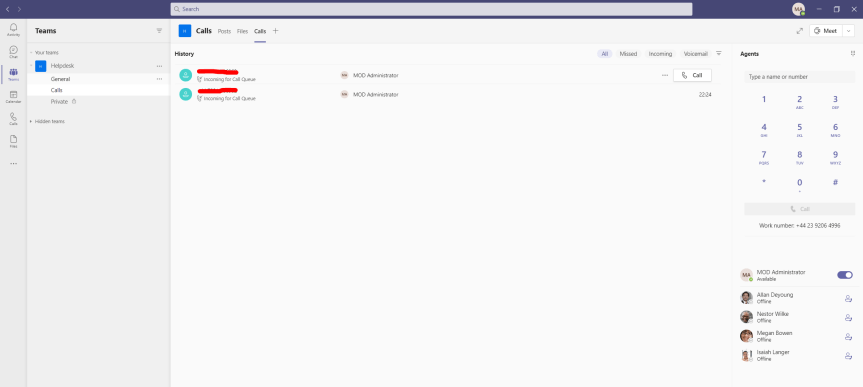
I remember Ignite 2020 well. Uber long days and an obscene amount of awesome content that between speaking and moderating it was an all-you-can-eat buffet both live and on demand. Day 1 was frontloaded with so many big sessions on Teams. After Nadella, it was Spataro. After Spataro, it was Teper. Then after Teper, Herskowitz. Then it was Torok and so on and so forth. After taking a 'break' moderating a 90 minute Learn session with worldwide learning on Teams which washed up about 10pm it was back into the fray. Sec. Power Platform. Yet the way my schedule had panned out I ended that first day watching a double header on Teams calling. The first was with Paul Cannon which was the live session and the second was the advanced calling session on demand. Whilst the second session was valuable simply for the announcement of dynamic CLID's which I'd been getting asked for a lot, it was the first - the one with Cannon which really had the goods. First, Collaborative Calling. Second, a refresh of the Calling UX. Now, the refresh was clever - shifting the dial pad and basing the app around call history because not only was it streamlining a number of unnecessary pages it was rooting calling in calls as opposed to people. But the real gold was collaborative calling. This is the ability to connect a call queue to a teams channel where users can collaborate and share information in the channel while taking calls in the queue. Many admins I knew had wanted it and wanted it bad. For a long long time. Yes, it wasn't comms credits in CSP, nor was it smaller domestic SKU's - I think there will be celebrations when these occur, but oversight of a call queue where every member assigned to that call queue can work together: this is a big gap that Microsoft committed to plugging. I thought personally it was one of the best announcements of Ignite 2020. It's a real quality add and it's awesome that it's finally here.
Teams Real Simple with Pictures: Hands on with Employee Ideas
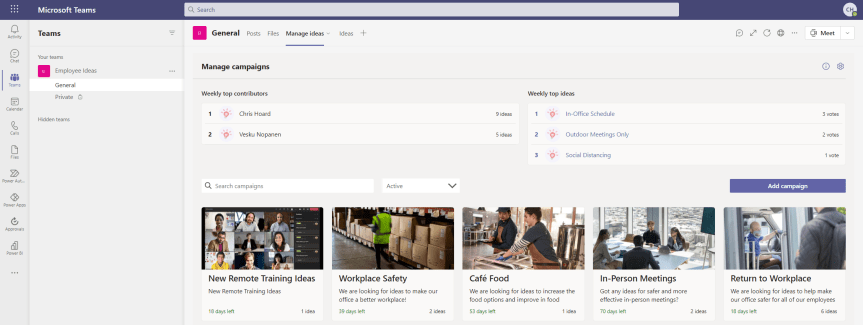
The last blog I did was on Bulletins. My good friend Vesku Nopanen responded in kind with Milestones. So I thought I would just go on to talk about Employee Ideas. Like Bulletins and Milestones, Employee Ideas is an app in the Teams Store which is built upon Dataverse for Teams. It's part of a new wave of Power Apps which can be deployed and then extended giving users a leg up as opposed to having to create something from scratch. So what's this one all about? Well, the description in the screenshot below outlines it pretty well: it's about creating and managing and voting up ideas in the team. Ideas for improvement. Ideas for change. Ideas for how to be more inclusive. For me this is a pretty cool for two reasons. The first is that I often have ideas but have nowhere to put them. Me being me I typically leave them in notepad or on an open excel, then I'd lose them or they would be buried in notes where I would never find them. I must get to a better place then ideas either being in OneDrive or in my head because if you are like me I am very forgetful. Maybe that's just my age. Secondly, I love the prospect that this could potentially be used similar to Uservoice, particularly when it comes to crowdsourcing innovations or improvement actions. Let's get great ideas teamwide, let's not have a monopoly or self identify as having the best. Now, as far as I know the Employee Ideas app came out sometime around November/December 2020 - but I could very well be wrong about this. Bulletins and Milestones are the newer apps, but these have all been close enough together they could be considered in the same wave. Most I talk to don't realise that they are even there, so are probably going to get discovered together. Let's get hands on with this one.
 @Microsoft365Pro