
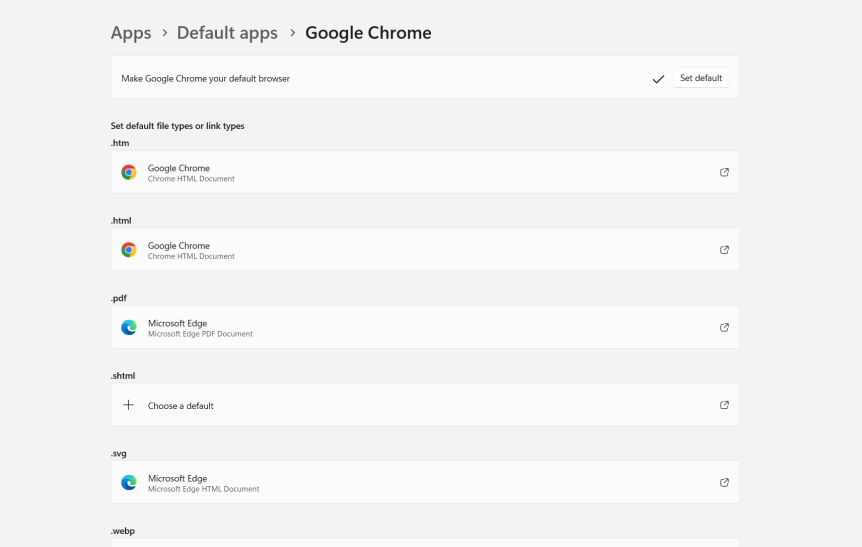
Back from an unexpected month off: so what happened? The double dip of Airlift and Ignite happened. Several big transitions at work happened. Several Microsoft CCP's running great guns. And a rebrand of Microsoft 365 Defender to Microsoft Defender XDR, in the middle of rebrand from Azure AD to Entra ID, and Copilot. More Copilot. And even more Copilot. 2023 has been a big year. A perfect storm of sorts. And I don't mind admitting I've needed every one of my fifteen years experience in the industry to surmount it. The velocity. The volume. Some things have just had to slide or take a back seat occassionally. Vesku? He got a bit worried at one point asked me if I was thinking about doing a Jukka. Now, it's hard to see one of the greats leave the MVP program. His article was thoughtful, honest, articulate and insightful. From personal experience, I respect and empathise with his position. But having been in many boiler room situations in the past, and having experienced that Milan Kunderaesque unbearable lightness of being, this last month has simply been a case of negotiating a tidal wave. It'll pass - and Christmas should be excellent. So as I get back into things as things settle on out I am going to keep it real simple and cover two elements which I came across in the last week. The first is Links open preference which allows you to determine which browser you want Teams links to open up a tab on if you click a link in the Teams 2.1 desktop client. This came about because a partner was wondering why links started opening in Microsoft Edge as opposed to their default browser which was Chrome. The second is the ability to hide chat message preview. This was to help a partner who had problems focussing on teams chats because message previews repeatedly peaked his interest. Now there are always much bigger things to talk about in Teams and the wider world of Microsoft 365. I have some good ones lined up - but you know how I am regarding the small pragmatic adds. I love them. And you may miss them if you are not rooting about in the client. They really could make your day.
Tag: Teams Links
Teams Real Simple with Pictures: Setting up Safe Links for Teams
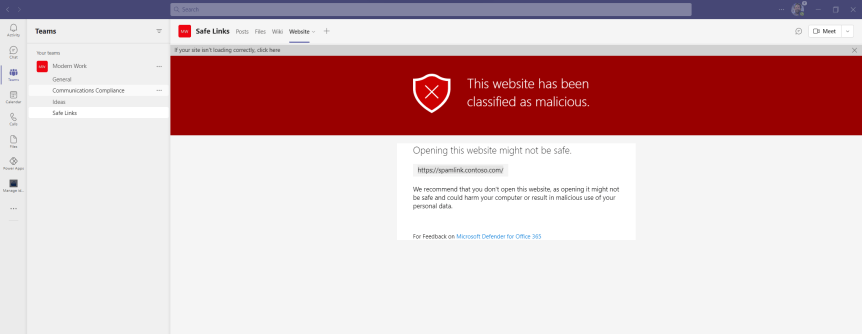
It's nearly here. The big day. My 5 year old is still building his Christmas list and wanting half of the things he sees on TV. It's fingers crossed that the turkey will still be there when we go to pick it up at Mark's and Spencer's on Thursday. And of course we all hope that we'll get to see our loved ones over the festive season given what's happening with Omicron here in the UK. But for now, let's put all the worries aside and focus on something we can control and do something about pretty quickly: which is implementing Safe Links for Microsoft Teams. It's something easy to do, and the security benefits are 101. It's all about protecting users from clicking on malicious URL's directing them to sites aiming to instigate a data breach, or triggering the download of a payload onto their device. Given that Teams has open federation by default its pretty much a no brainer. I tend to think of it this way: what if someone who you regularly chat with in private from another organisation sends a link which you don't recognise? How do you know that person hasn't been breached? So how do you respond to someone you don't know? What if someone who has been breached within your organisation sends you a document link within Teams with a malicious URL inside of it which to all extents looks like a legitimate business document? Now, I would love to say that everyone I know - myself included - exercises good judgement in these matters one hundred percent of the time. However, let's be honest this just isn't true. This is why zero trust is so important to everything we do moving forward. Chances are, someone will click the link. And it's not because they are stupid. It's often because they are busy, or under pressure, or the attackers are very good at making the URL look legit. How many of us ask somebody to ratify a URL before clicking on it? It could be a combination of those things and it could happen to any of us. Safe Links is included in Defender for Office 365 Plan 1. It's in E5 but also a standalone SKU which could be added, for example to Microsoft 365 Business Premium. It's important to note that everyone who you intend to protect with this needs to be licensed. If the licence isn't on, it won't work even if you add the user to the policy.
Teams Real Simple with Pictures – Four ways to create a set of links for the Team
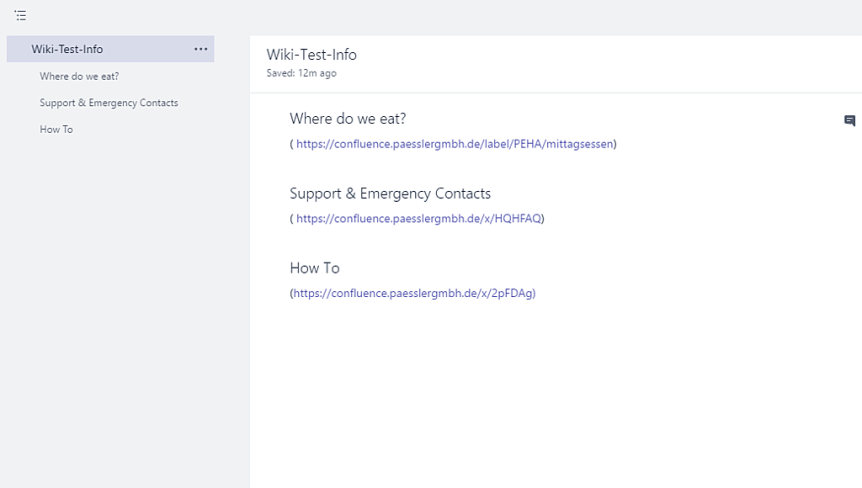
A set of common links (I.e. https://teams.microsoft.com/start) can be important for a team. Whether to access training, vendor sites, or even files within a channel it democratizes access to information, makes information more readily available and brings it to the users instead of them having to search for it. Yet with Teams there are different ways to create sets of links and each way has it's own pro's and con's. At the time of writing there is no single accepted way which has been recognized by the Tech Community as the best - so its a case of choosing which one is right for the Team. This will show you four potential methods to create a set of links.
 @Microsoft365Pro