
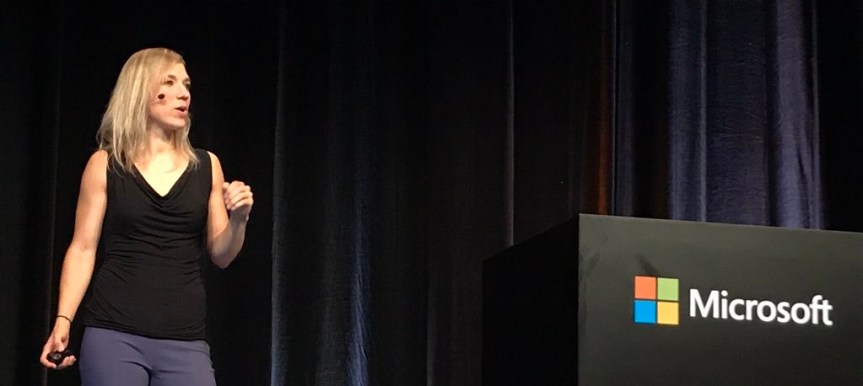
Managing Microsoft Teams Effectively is the fourth session in the Journey to Teams learning path. It was the one I’d wanted to blog about when MVP’s were presented with the opportunity to do so. Why? I strongly believe in the effective management of Microsoft Teams - but also because I knew Anne Michels was delivering the session. For anyone who has seen Anne live, they’ll know that she is one of the most passionate and engaging speakers in Microsoft - and I personally saw her knock it out the park in a Teams Architecture session back in Berlin last December during Microsoft Ignite the Tour.
Author: microsoft365pro
Microsoft 365: Managing Microsoft Teams (MS-700) Exam Prep Guide

Earlier this year I predicted that many IT pros would opt to do MS-300 purely because of Teams. I also predicted that Teams would eventually go on to have an exam all of its very own. And whilst, admittedly, it wasn't MS-400 we now have MS-700 - Managing Microsoft Teams as announced at Microsoft Ignite 2019. In passing MS-700, the delegate goes on to achieve the new role of Teams Administrator Associate.
Teams Real Simple with Pictures: New Files Experience – Adding a Custom View to the Team
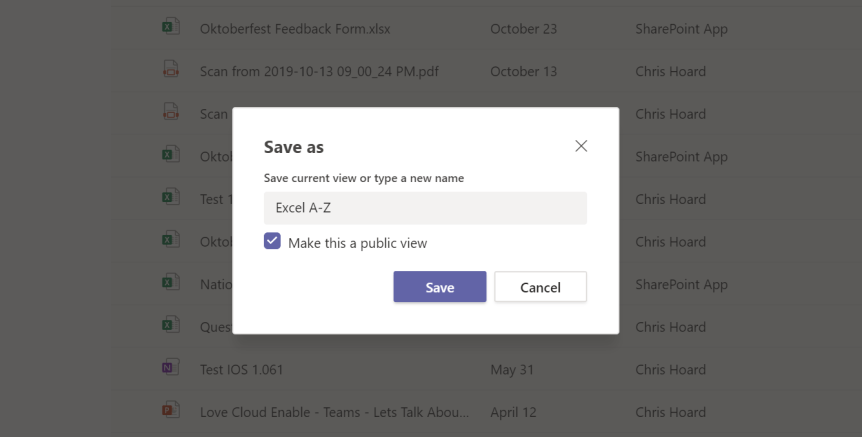
We started out examining the new rich file experience which has come to Teams (Full Blog here) by looking at pinning and unpinning files. Today, I am going to tackle adding a custom view to a Team. A custom view may be something the team, or a member of the team needs such as only seeing excels in an A-Z format. Custom views make it easier for users to arrange, search and use files in a way that makes sense to them. The new file experience gives us the option to create many custom views, and in the initial stage of the Teams lifecycle, it is a great to consider this with the wider Team. It is also great that they apply across all channels in a Team, so it's not making this task too granular or repetitive
Teams Real Simple with Pictures: New Files Experience – Pinning Team Files
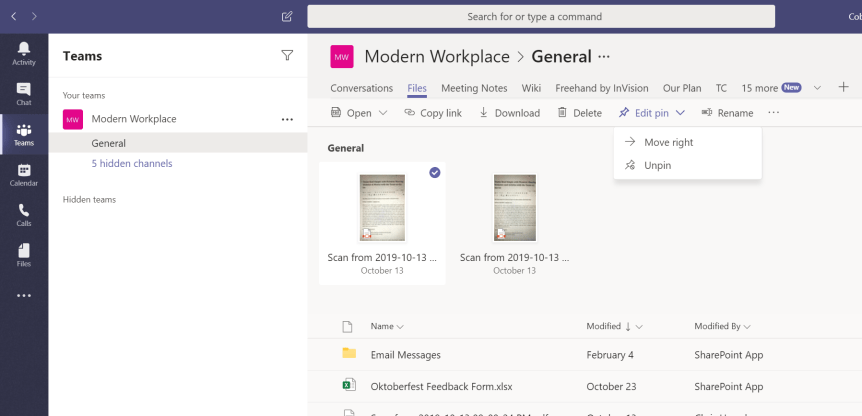
A very exciting day! If you have not yet heard the new rich file experience has come to Teams (Full Blog here). The Tech Community has been looking forward to this for some time and it was worth the wait. Congratulations to the Microsoft Team. I'll be looking at all the new features of this in the coming weeks in individual blogs interspersed with Ignite. The first of the new features I'll look at is the ability to pin Team documents. As you well know from reading my blogs, it's what I love - quick, easy, powerful and applicable to a ton of real world business cases. Whether to enable access to key documents in seconds, or if the Team is working on a specific set of documents over a period, it's a great way to separate hot files from cold files. It's great too if you need to keep a number of files to hand if you step away from the work for a period. Let's take a look.
Teams Real Simple with Pictures: Playing Video within Meetings
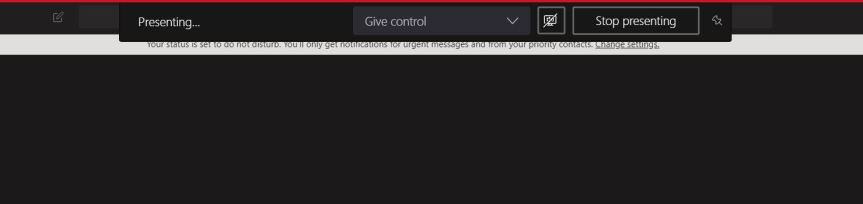
After blogs on setting up a video channel for the Team and using Teams and Stream for personalised video watchlists the natural conclusion is to now illustrate how to play video during a meeting. In July, Microsoft released share system audio (Featured ID: 50692 on the Microsoft 365 Roadmap) allowing members of the team to stream their computer audio to meeting participants through Teams. What is absolutely amazing is that there was no fanfare about this new functionality - it was simply added like any other feature and, from memory, didn't even make that great an impact on social. There are dozens of reasons why a member of the team would use video - instruction, demoing functionality, marketing, analysis, even playing back another meeting - and the organizer is no longer restricted by trying to run video with audio playing through the speakers. Whether the video is in YouTube, or in Stream, this can be done all within Teams to show the power of this application
 @Microsoft365Pro