
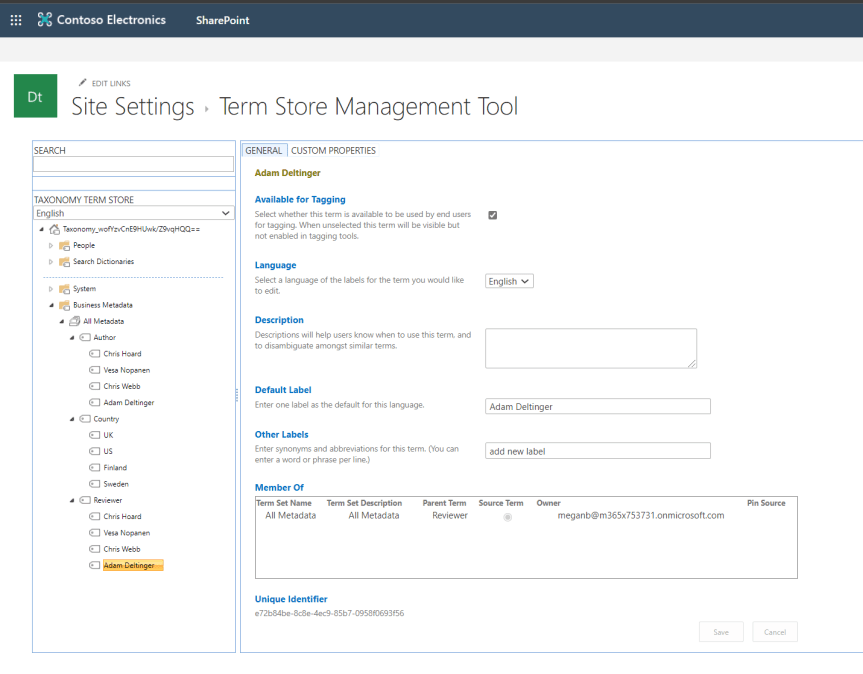
In part 1, we explored adding Metadata to files in Teams through choice columns. This time around, we'll look at adding what is called managed metadata via the Term Store. In SharePoint, the Term Store can be thought of as a collection of term sets, each set containing metadata labels that can be used and applied to files in any SharePoint Site or Site Collection, so any Team or Channel. Therefore, they can be thought of as being managed centrally or 'managed metadata' unlike choice columns which are created on a site by site basis by members of the Team. This saves significant time for Team Owners and members who want to use the same metadata labels across Teams. Like choice columns, Managed Metadata is configured within SharePoint as opposed to Teams itself
Category: Microsoft Teams
Teams Real Simple with Pictures: Leaving another organisation to reduce tenant sprawl

Guest access is an amazing feature of Teams. Why? Because it gives members of the Team access to other organisations Teams, resources and assets. It allows them to collaborate seamlessly with others outside of the organisation in real time. However, for many reasons, collaboration may come to an end. This may be because the project has ended and collaboration was only short term. This may because we now do things in a different way I.e. via private channels in our own tenant as opposed in collaborating in another. Whilst Azure AD access reviews and entitlement management can remove guests from Teams and from another organisations' tenant, it is often a case that the other organisation hasn't implemented these or doesn't have the licencing (Current Azure AD P2). Therefore, as guests, members of the team often have access to tenants they don't want, or - more the case - don't need. It creates complexity and clutter. In the same way we now recognise Teams sprawl, tenant sprawl can also an issue. We therefore need to know how we can request removal and how the other organisation can remove us
Teams Real Simple with Pictures: Pinning Apps to the App Bar
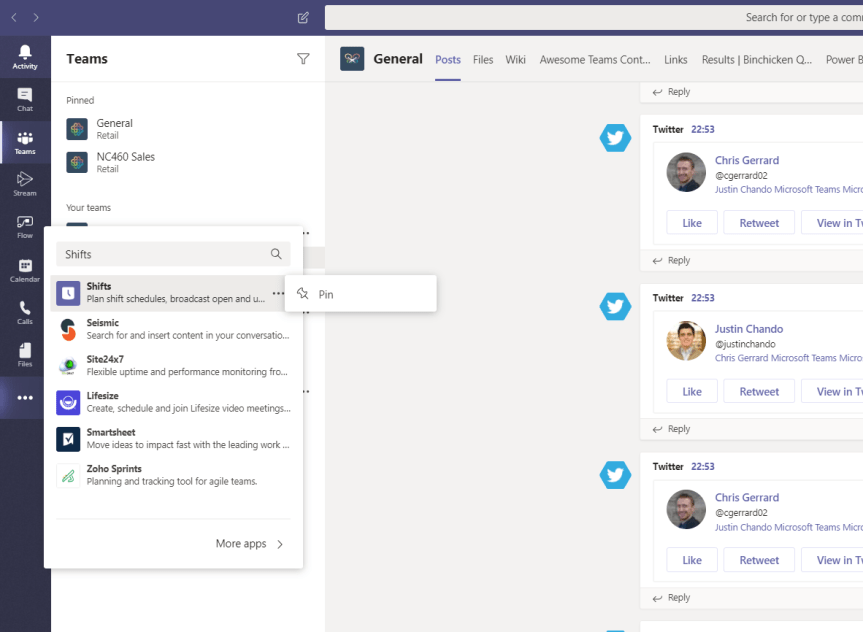
As a hub for Teamwork, Microsoft Teams brings together apps alongside chat, calling and meetings. These apps can be proprietary Microsoft apps, third party apps or custom apps which have been uploaded via the app store. In using such apps, members of the team may have specific apps which are their favourite; ones which they either want to access quickly, or ones that they may need to regularly access to several times a day. They may need to have it to hand in order to demo or to evaluate in front of peers. Following on from the recent blog which outlined channel pinning, the team can now also pin apps to the app bar. Channel pinning supplements app setup policies and make the whole app experience fit the user, saving time and increasing productivity
Teams Real Simple with Pictures: Enabling Developer Preview
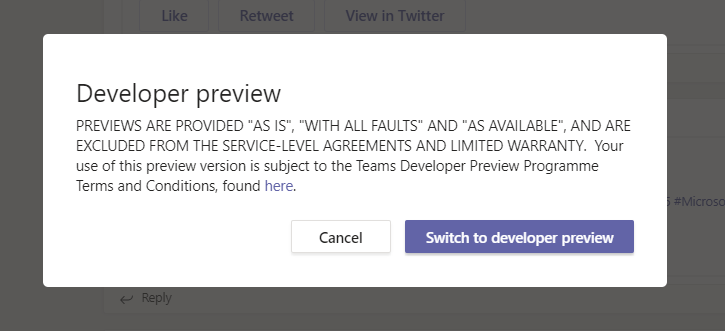
Developer Preview is a public program for developers which provides early access to unreleased features in Microsoft Teams, allowing the Team to explore and test upcoming features for inclusion in their Teams app. Being able to test their app well in advance of new features being released into general availability (GA) is essential - for the smooth continuous running of the app within the organisation, but also where the organisation is selling and supporting a custom app across multiple customer tenants. There are several benefits of the developer preview including being able to liaise directly with Microsoft Teams Developer Support and being able to escalate bugs to both Support and GitHub.
Teams Real Simple with Pictures: Channel Pinning
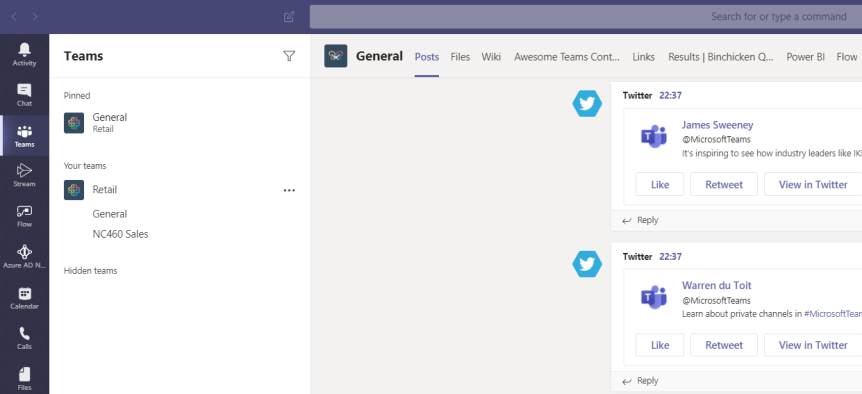
Members of the team will use particular channels more than others. Their activity and interests will likely focus upon a handful, and there are others that they will very seldom use or engage with. This is because, like Teams, users won't use channels equally. There can be many reasons for this - role, the channel subject, engagement in other channels and what the team member feels is splitting focus. With the growth of Teams and channels within organisations and the issue of sprawl, it is important for the member of the Team to be able to quickly and easily access the channels they need which are important to them. It may also be important in terms of visually seeing when a new post has hit that channel. A great way of accomplishing both these things is the ability to pin the needed channels as required

