

There are many ways that we can join meetings in Teams. We can join a scheduled Teams meeting straight out of the Calendar App. We can join it via the calendar booking in Outlook which many of us tend to do. We can join a channel meeting one-click in the channel itself or we can even generate a join link for an ad-hoc meeting or get the link right off of the meeting card again in the calendar app. The latest way? We can now join scheduled and channel meetings using a Meeting ID and passcode. Now, there isn't a great deal to go through here, and whilst ID and passcode sounds like it should be for security, it is only another alternative way to join a meeting. Meeting security is enforced by things like the lobby, and roles, and settings not this latest functionality, and there may be some which see it as a concern given it cannot - at the time of writing - be disabled. However, it may serve in situations such as providing 100 people with access to the meeting without adding 100 to the meeting invite, or spinning it up on SharePoint. Imagine having a kind of 'personal' meeting room for yourself with a defined meeting ID and Passcode.
Teams Real Simple with Pictures: Enabling Media Logging with PowerShell
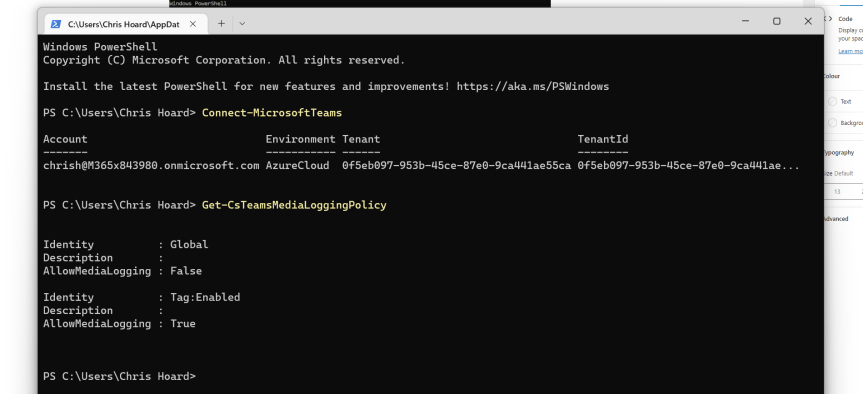
If we have an issue with Teams and we raise a ticket to Microsoft, then occasionally we will be asked to provide logs for engineers to analyse. With Teams, there are several different ones. These include Debug logs, Media logs and Desktop Logs. This week, I noticed that it is now possible to enable Media Logging with PowerShell. Up until this point the user would have to enable it within the Teams client, and this would be problematic for IT in terms of being dependent on users and if it would be enabled at the required time. The Media Logs, by definition, contain diagnostic data about audio, video, and screen sharing. They are linked to call-related issues. Having a problem with resolution? Or an encoder? Or rendering? Or a situation where share control is given in a meeting but cannot be taken back? The Media logs may provide insights to fix the issue. Yet Media Logging is only enabled by default on machines using the Teams client with specific CPU's: any Apple M1, any Intel Xeon, any Intel i9, except for the U, G7, M, and MQ series and any 6th generation and later Intel i7, except for the U, G7, M, and MQ series. So, in many cases it has to be enabled. Being able to do it with PowerShell saves time - for both the user and the admin
Teams Real Simple with Pictures: Videos on the Meeting Stage – Live Share with YouTube

This week, it is a new functionality called Live Share which we heard about at Microsoft Build back in May. It's being able to use collaborative apps on the Teams meeting stage powered by fluid. I haven't seen anything on a roadmap (granted I haven't been looking). I haven't been privy to it in some insider session. I stumbled across it yesterday after playing about with transcripts and discovered that you can now do this in preview with the YouTube App. So lets surface video right into the heart of the meeting. Great for lots of scenarios without having to share the whole screen, or - as our favourite expression goes - keeping in the flow of the work. So naturally once I've done this I'll be off to ask my friend Mark Mroz and the Stream Team all about the timeline...
[Archived] Teams Real Simple with Pictures: Nested Dynamic Groups via Azure AD in Entra
![[Archived] Teams Real Simple with Pictures: Nested Dynamic Groups via Azure AD in Entra](https://microsoft365pro.co.uk/wp-content/uploads/2022/07/image-17.png?w=863&h=0&crop=1)
So imagine this scenario. Say we have two teams in our organisation. One team is the Sales Team. The other is the Marketing Team. I need to ensure specific users are part of the Sales Team dependent upon their role. I need to then make sure that specific users are part of the Marketing Team dependent upon their role. For this? We can use Dynamic Groups. But now we need to ensure that everyone in the Sales and Marketing Team need to be in a third team - the Commercial Team, and this also needs to be done automatically without manual adds. For this we are going to use a new functionality called Nested Dynamic Groups. Users of Dynamic Group A comprise of Users dynamically added and removed within Dynamic Group B and Dynamic Group C. Sounds pretty nuts. But it's straightforward as I'll show you. Nested Dynamics Groups support Security Groups and Microsoft 365 groups - so we can use them for Teams. As a public preview feature there is some caveats such as they aren't supported in the rule builder. The full list is in the footnotes I'm sure they'll knock them out soon.
Teams Real Simple with Pictures: Multi Language Teams Meeting Invites
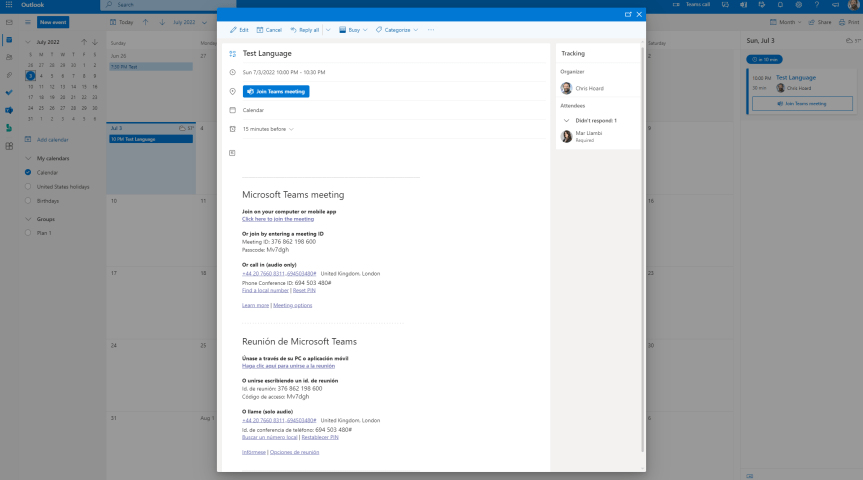
English. 'The English language is so elastic that you can find another word to say the same thing'. So said Mahatma Gandhi. Yet did you know that for almost 300 years in the early history of England the official language of England was actually French? Or that English is in fact a West Germanic language? Spoken today by almost 1 billion people it is the most widely understood language of the EU even though we are no longer a part of the union. Oh the irony. Nevertheless it is often said - typically by the British themselves that we are lazy when it comes to learning other languages. Whilst that may be true and whilst I am not a philologist what is a fact is that many organisations are multilingual, who have staff located all over the world. Many organisations also conduct business, communicate and collaborate with each other using Microsoft Teams all over the world. So in order to better facilitate the meeting join experience - as in not simply forcing everyone to use the default language of their tenant, Microsoft have introduced Multi-language Teams meeting invites. This allows administrators invite control to display the join information in meeting invitations in up to two languages across all email platforms. At the time of writing this hasn't surfaced in the TAC - so let's take a look with good old PowerShell in my Ring 4 tenant.
 @Microsoft365Pro