
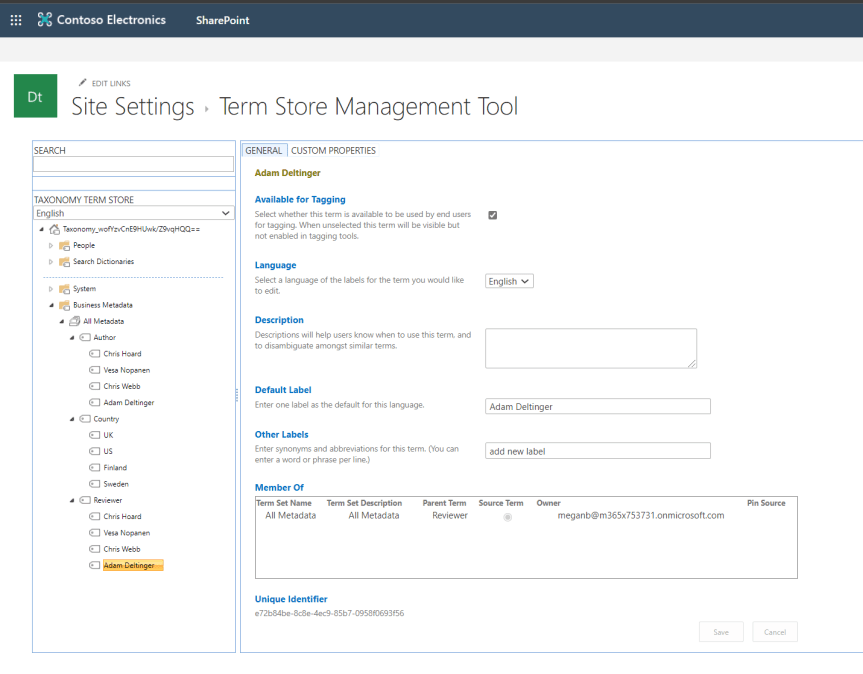
In part 1, we explored adding Metadata to files in Teams through choice columns. This time around, we'll look at adding what is called managed metadata via the Term Store. In SharePoint, the Term Store can be thought of as a collection of term sets, each set containing metadata labels that can be used and applied to files in any SharePoint Site or Site Collection, so any Team or Channel. Therefore, they can be thought of as being managed centrally or 'managed metadata' unlike choice columns which are created on a site by site basis by members of the Team. This saves significant time for Team Owners and members who want to use the same metadata labels across Teams. Like choice columns, Managed Metadata is configured within SharePoint as opposed to Teams itself
Category: Microsoft SharePoint
Teams Real Simple with Pictures: Teams Files and adding Metadata Part 1: Choice Columns

Metadata is something that sounds more complex than it is. Put simply, it is data which provides information about other data. Imagine a standard Microsoft word document. Examples of metadata for that word document could include Author, Department, Date created, Hours to create, length, type, file size. It could be a document for a specific customer or vendor. The point of metadata is for structure, organisation and identification of files within the Team. It helps members of the team search for it and discover resources: particularly handy if the Team contains a lot of files. With the new file experience in Teams, metadata can now be surfaced and used within Teams, however it is important to note that it is still created within the document library in the underlying SharePoint site. It is created in two principle ways: through choice columns and through managed metadata. This article will look at adding metadata through choice columns
Teams Real Simple with Pictures: Easily moving Team and Personal Files using Move

Over the last few months, I have had several asks regarding how to easily move files across Teams. I decided to write this particular blog because one admin asked me if moving them 'took a unnecessary amount of time by design'. Upon investigation I discovered that the poor admin was unfortunately downloading the files, syncing the underlying sharepoint document library of the new team to their local machine and then manually moving them from the downloads folder to the synced library. Of course, this works in principle - but it takes a ton of time and effort which in the busy world we occupy we want to ideally avoid. From being an Office 365 migration specialist earlier in my career, we also want to avoid moving anything manually at all costs. So the move function within Teams and Personal files is key to when we want to move files across Teams, or Personal Files in OneDrive to Teams, or Files in Teams to OneDrive. There are many business reasons to move files: reorganization, consolidation, new ownership and management. This is one of those small but useful and pragmatic functionalities and one of the many reasons I love Teams
Teams Real Simple with Pictures: New Files Experience – Adding a Custom View to the Team
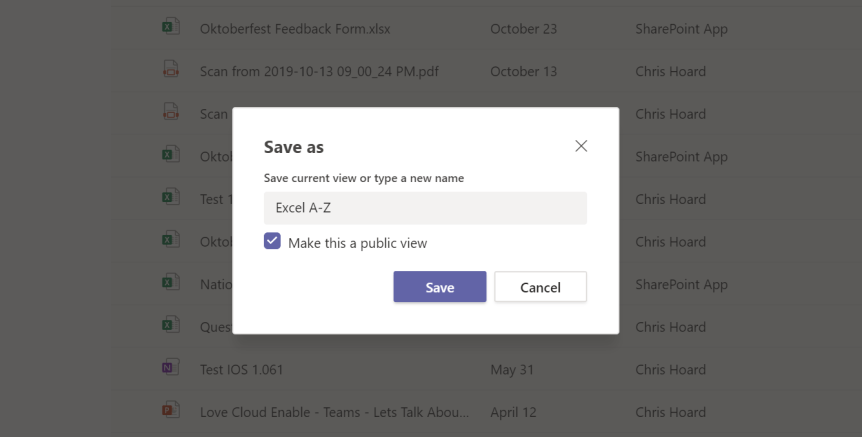
We started out examining the new rich file experience which has come to Teams (Full Blog here) by looking at pinning and unpinning files. Today, I am going to tackle adding a custom view to a Team. A custom view may be something the team, or a member of the team needs such as only seeing excels in an A-Z format. Custom views make it easier for users to arrange, search and use files in a way that makes sense to them. The new file experience gives us the option to create many custom views, and in the initial stage of the Teams lifecycle, it is a great to consider this with the wider Team. It is also great that they apply across all channels in a Team, so it's not making this task too granular or repetitive
Teams Real Simple with Pictures: New Files Experience – Pinning Team Files
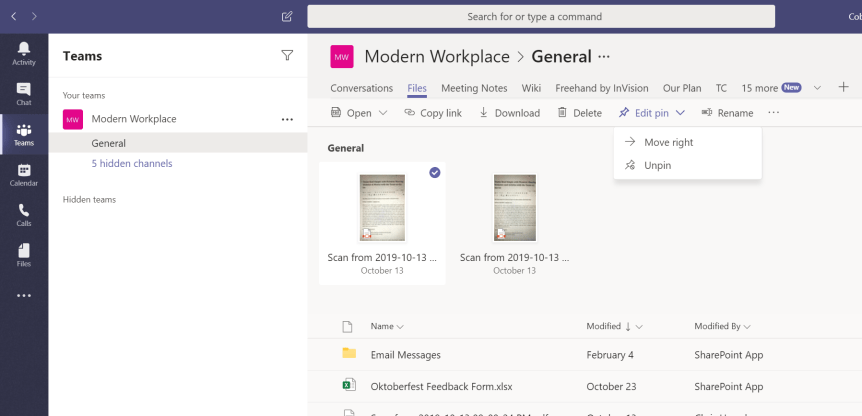
A very exciting day! If you have not yet heard the new rich file experience has come to Teams (Full Blog here). The Tech Community has been looking forward to this for some time and it was worth the wait. Congratulations to the Microsoft Team. I'll be looking at all the new features of this in the coming weeks in individual blogs interspersed with Ignite. The first of the new features I'll look at is the ability to pin Team documents. As you well know from reading my blogs, it's what I love - quick, easy, powerful and applicable to a ton of real world business cases. Whether to enable access to key documents in seconds, or if the Team is working on a specific set of documents over a period, it's a great way to separate hot files from cold files. It's great too if you need to keep a number of files to hand if you step away from the work for a period. Let's take a look.
 @Microsoft365Pro